LogoAi Picture Editor
  • AI Photo Editor
  • Image Generator
  • AI Agent
  • Pricing
  • Faq
LogoAi Picture Editor
Home/Tools

ChatGPT Image Editor Online with GPT Image 2

Create polished photo, product, poster, and portrait edits with GPT Image 2, multiple visual references, and flexible output sizes.

GPT Image 2: up to 16 image references1K, 2K, and 4K output controlsBackground, object, text, and style edits

Upload up to 16 images for image-to-image generation.

Name the target, its location, the requested replacement, and every element that should stay unchanged.

The selected resolution controls the configured credit cost.
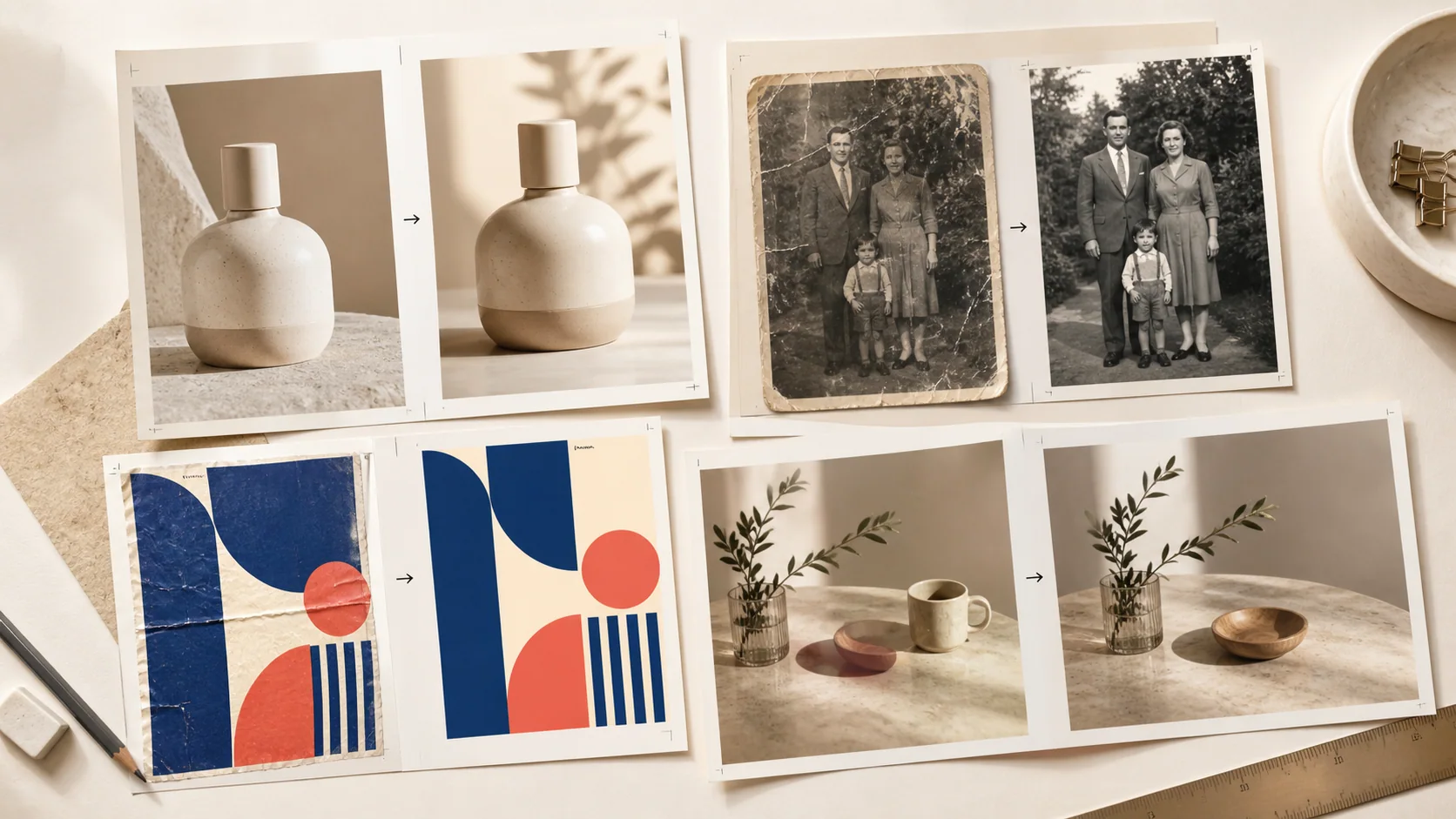
ChatGPT Image Editor visual with a product photo, restored family photo, geometric poster, and object removal example
Preparing generatorControls will be ready in a moment.

Edit Photos, Products, Text, and Designs with GPT Image 2

Explore practical edits for everyday photos, brand visuals, and creative projects.

Change a Background and Preserve the Subject

Place people or products in fresh studio, lifestyle, or seasonal scenes while keeping the original subject and composition visually consistent.
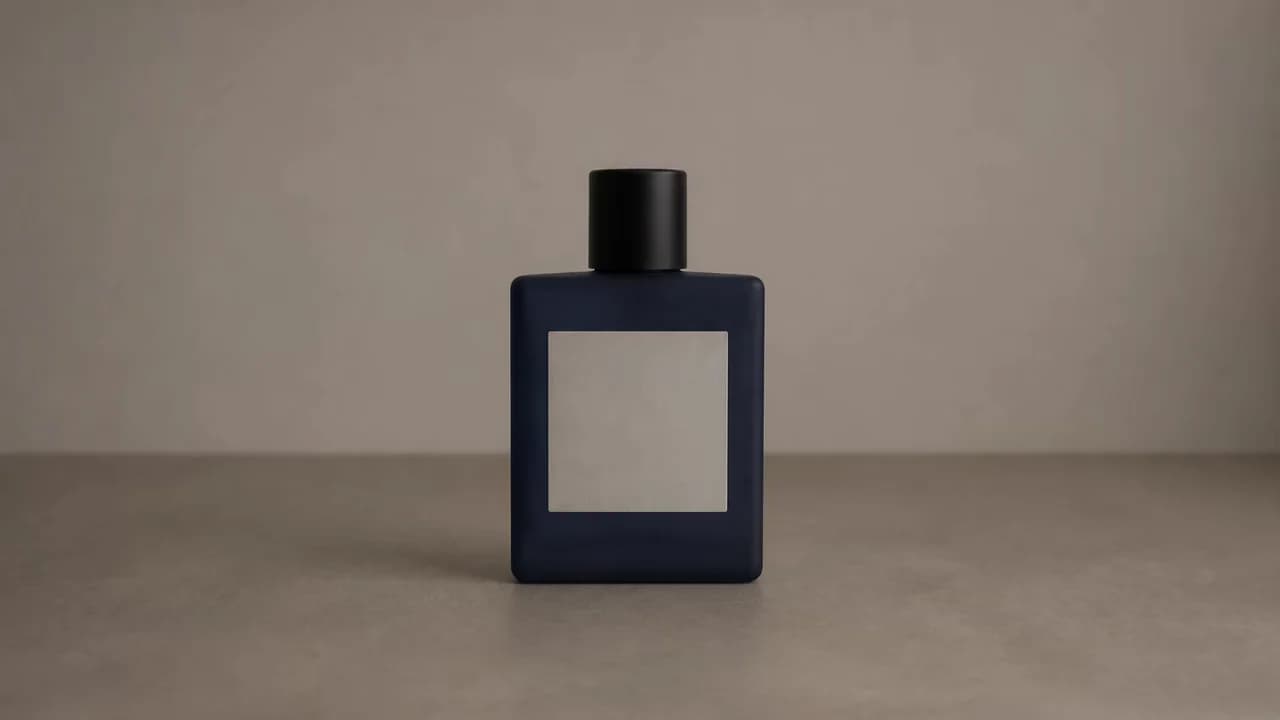
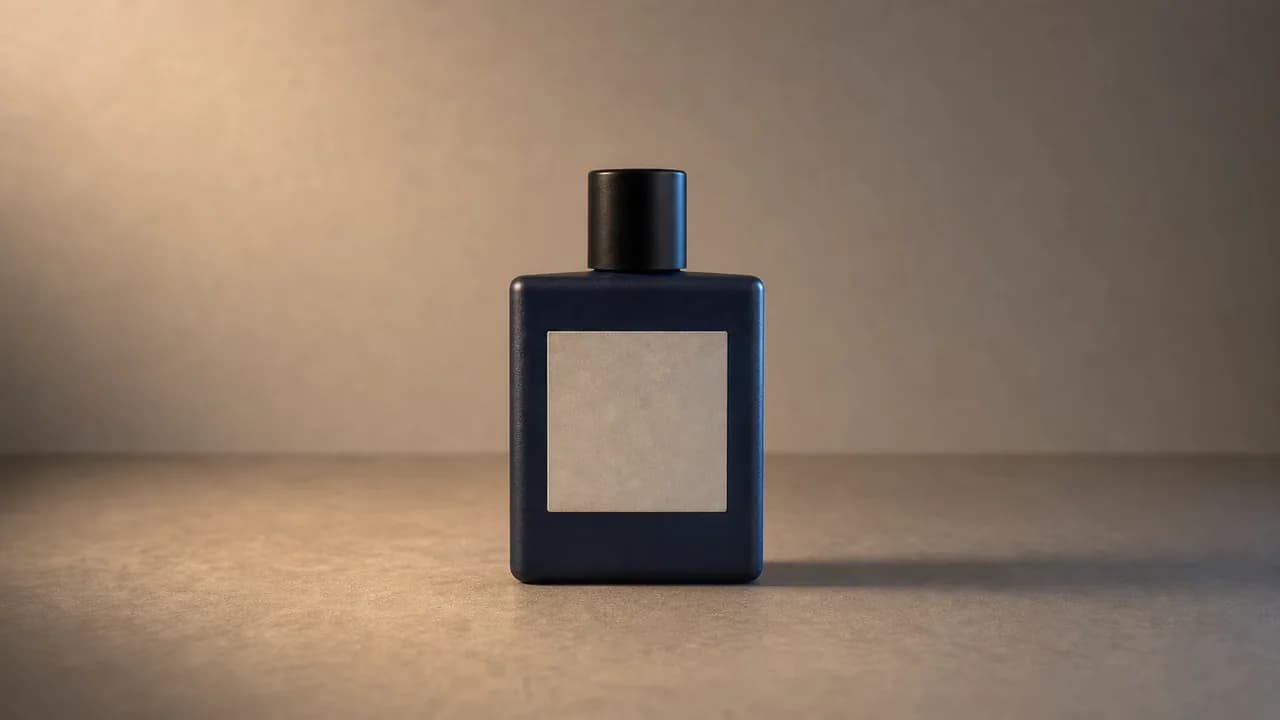
Change a Background and Preserve the Subject beforeChange a Background and Preserve the Subject after
‹›
AfterBefore

Remove or Replace One Clearly Located Object

Clean up distractions or swap a single prop while naturally rebuilding the surrounding surface, light, and shadows.
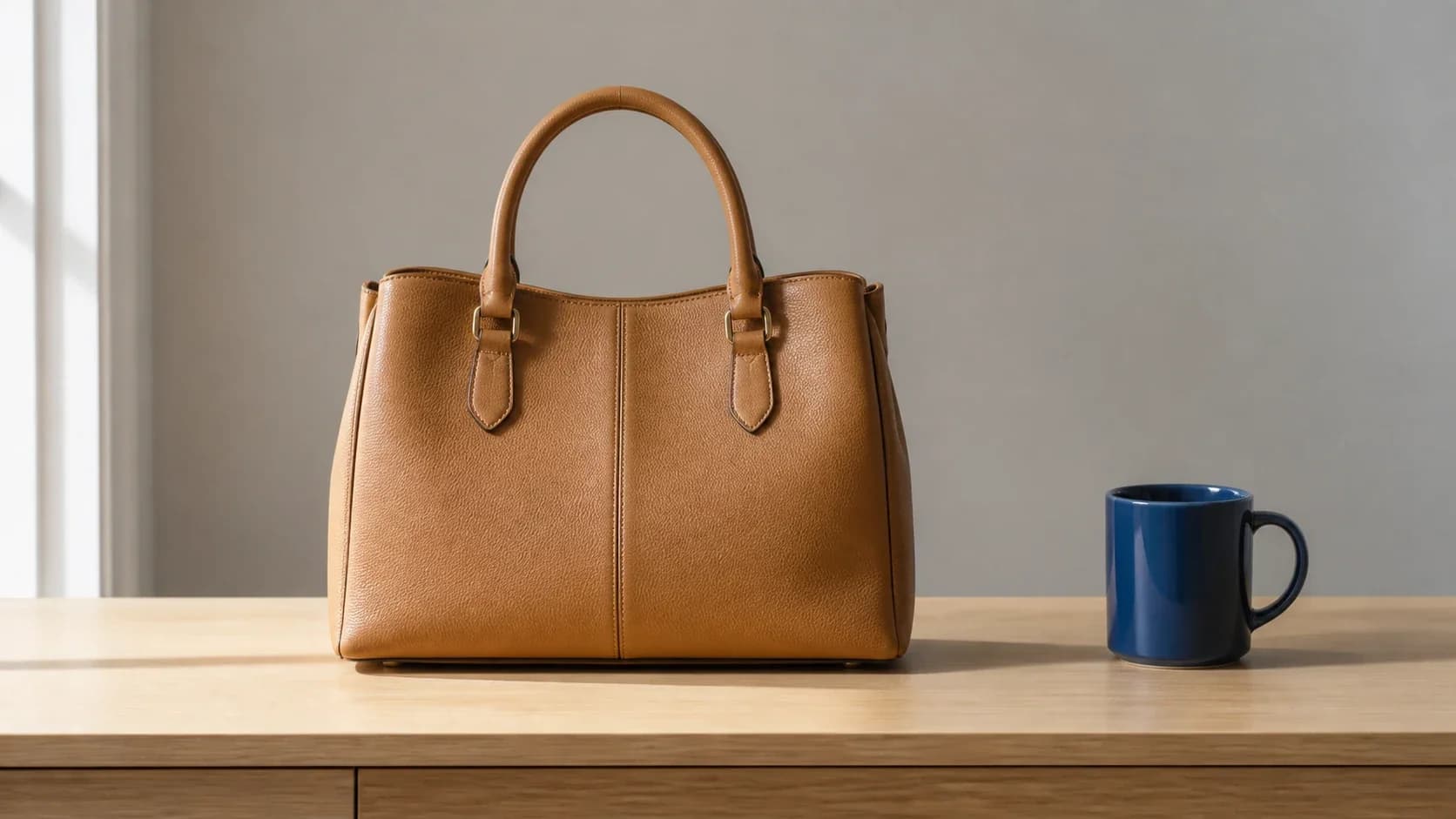
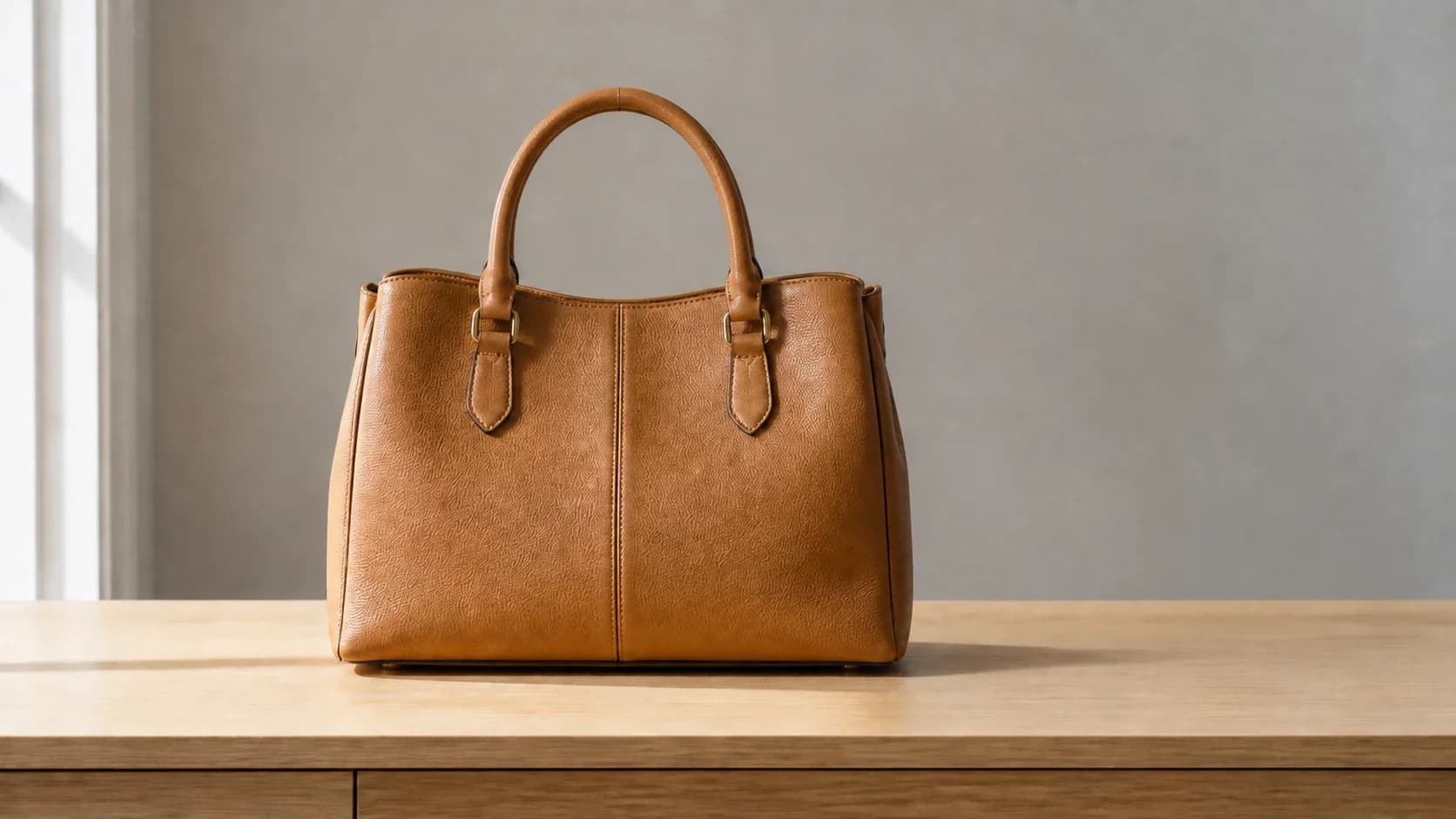
Remove or Replace One Clearly Located Object beforeRemove or Replace One Clearly Located Object after
‹›
AfterBefore

Preserve Products, Packaging, and Brand Details

Use product and scene references together to create clean packshots, lifestyle images, and campaign-ready variations with recognizable brand details.
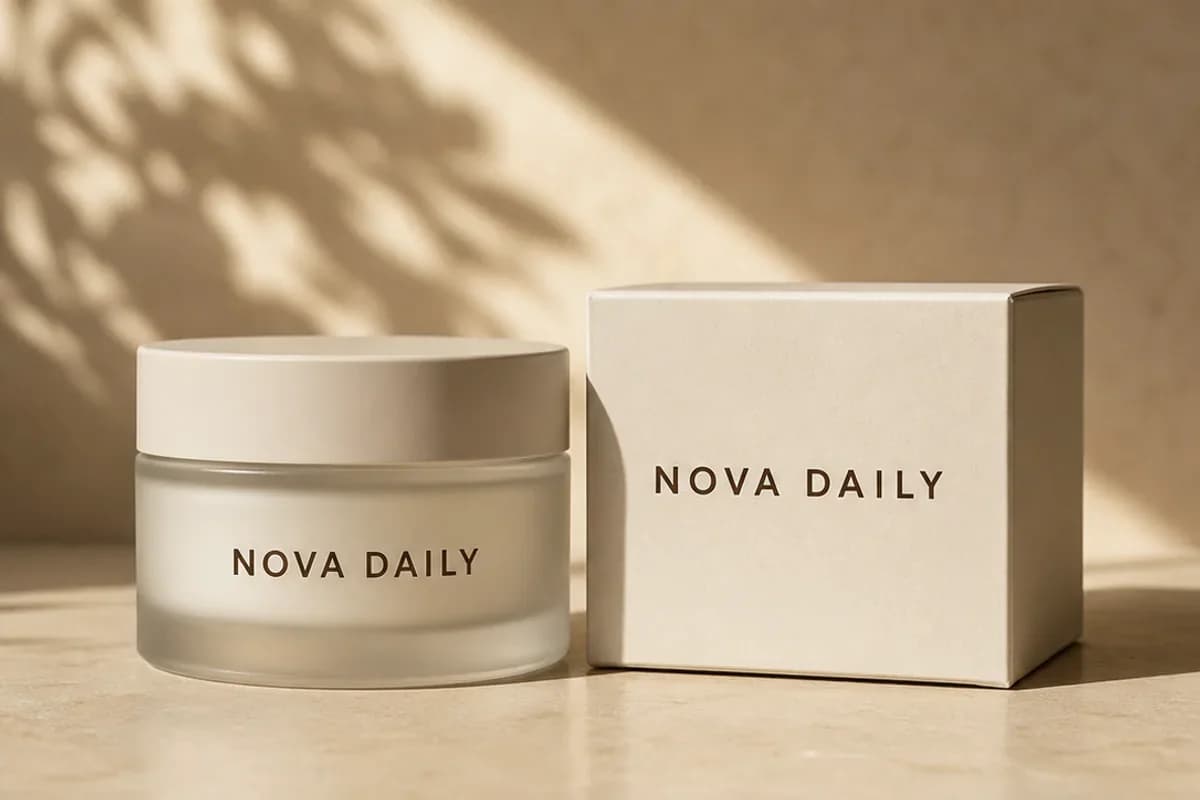
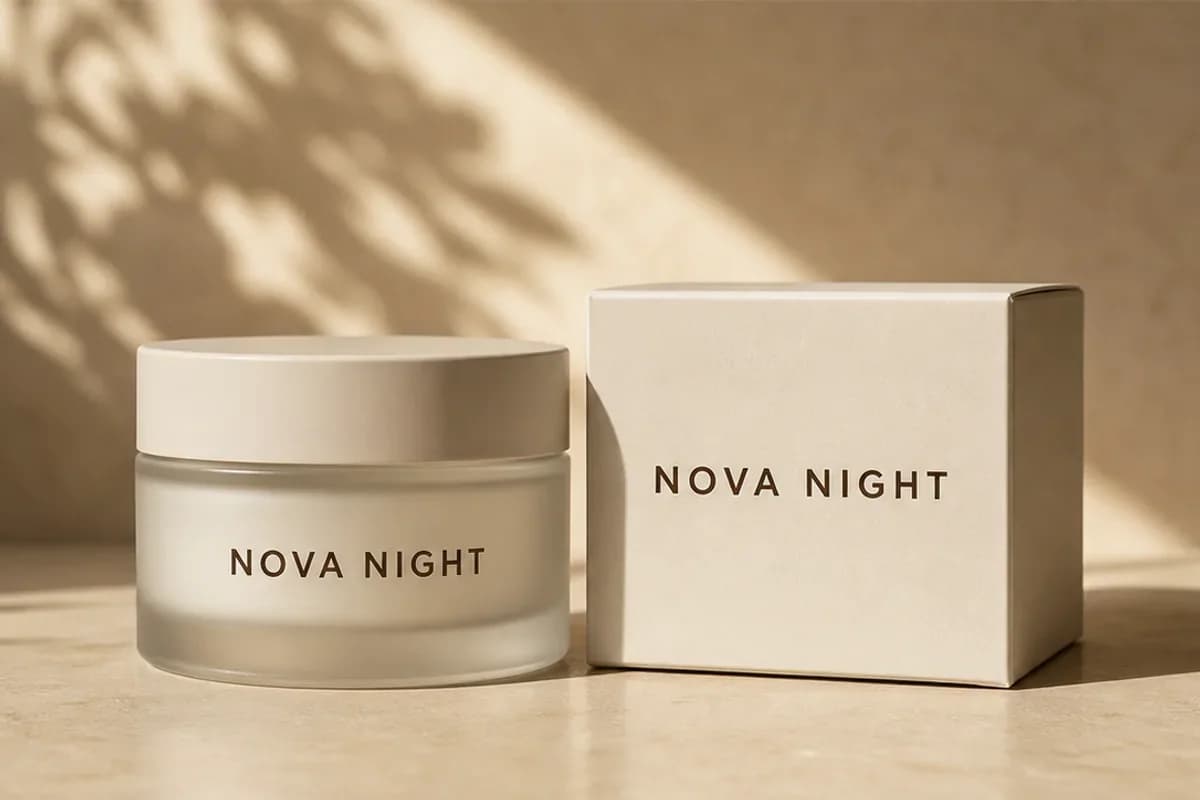
Preserve Products, Packaging, and Brand Details beforePreserve Products, Packaging, and Brand Details after
‹›
AfterBefore

Edit Text and Localize a Poster

Replace headlines, adapt campaign copy, and explore localized poster layouts while retaining the original visual hierarchy and style.
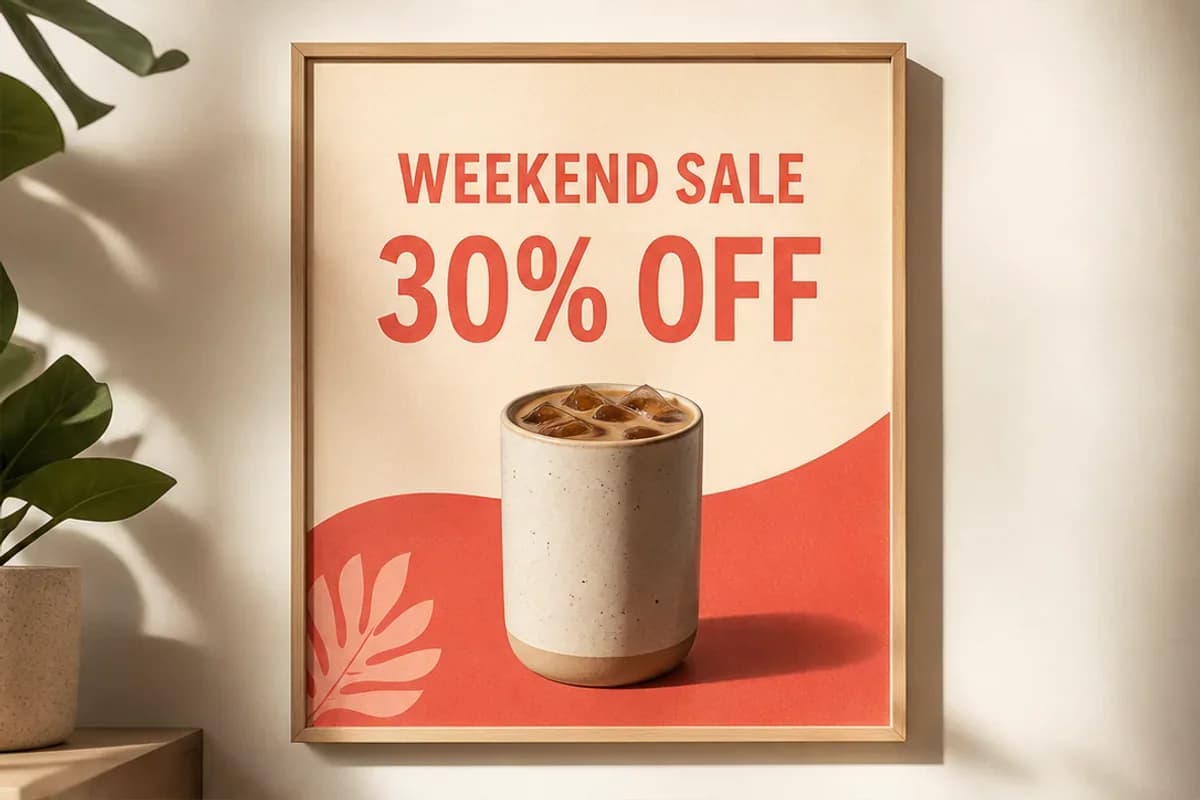
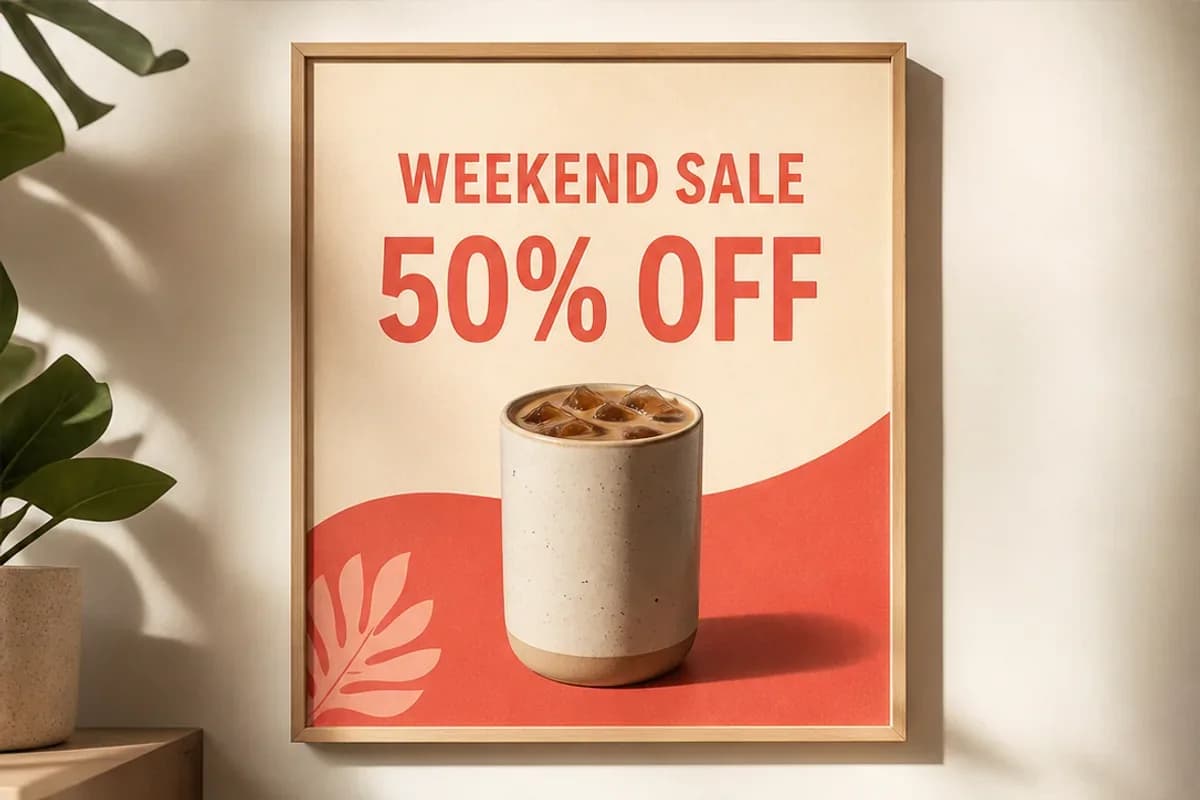
Edit Text and Localize a Poster beforeEdit Text and Localize a Poster after
‹›
AfterBefore

Restyle Clothing, Color, Light, or Material

Try new clothing, colors, materials, and lighting without arranging another photo shoot or rebuilding the entire scene.
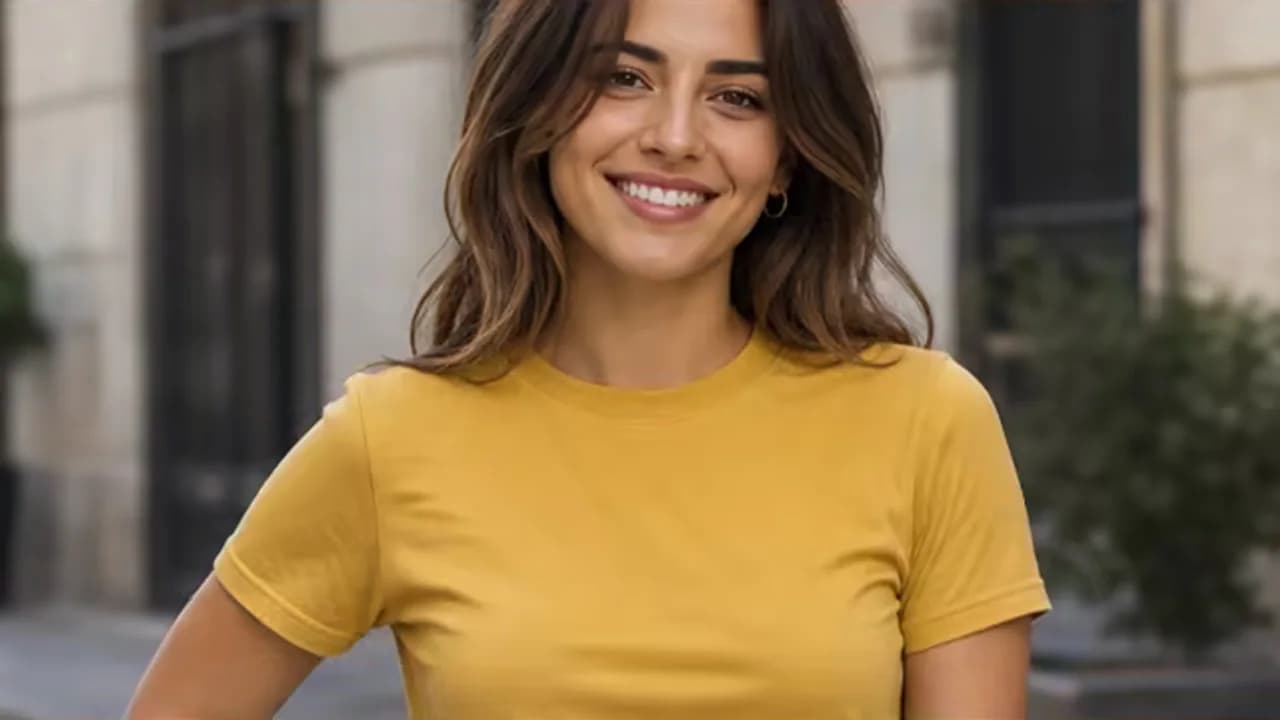
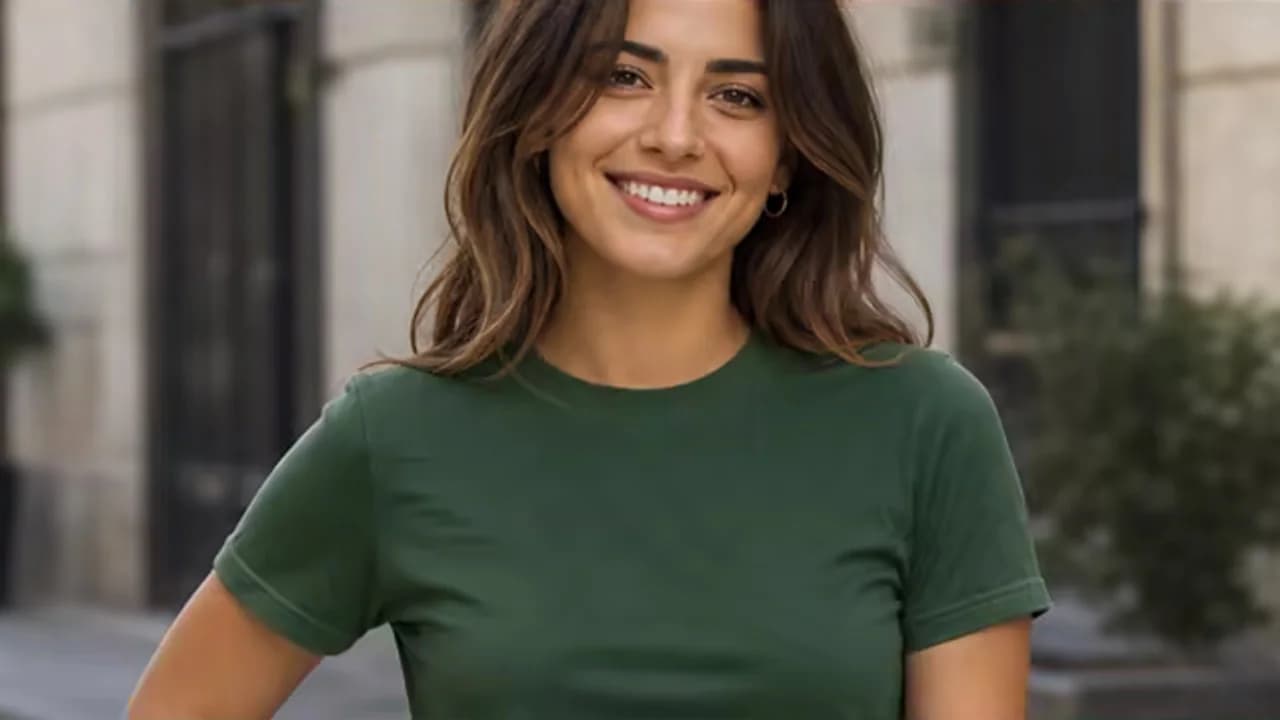
Restyle Clothing, Color, Light, or Material beforeRestyle Clothing, Color, Light, or Material after
‹›
AfterBefore

Restore and Reframe Detailed Images

Refresh faded or damaged photos, improve clarity, and adapt the framing for modern print and social formats.
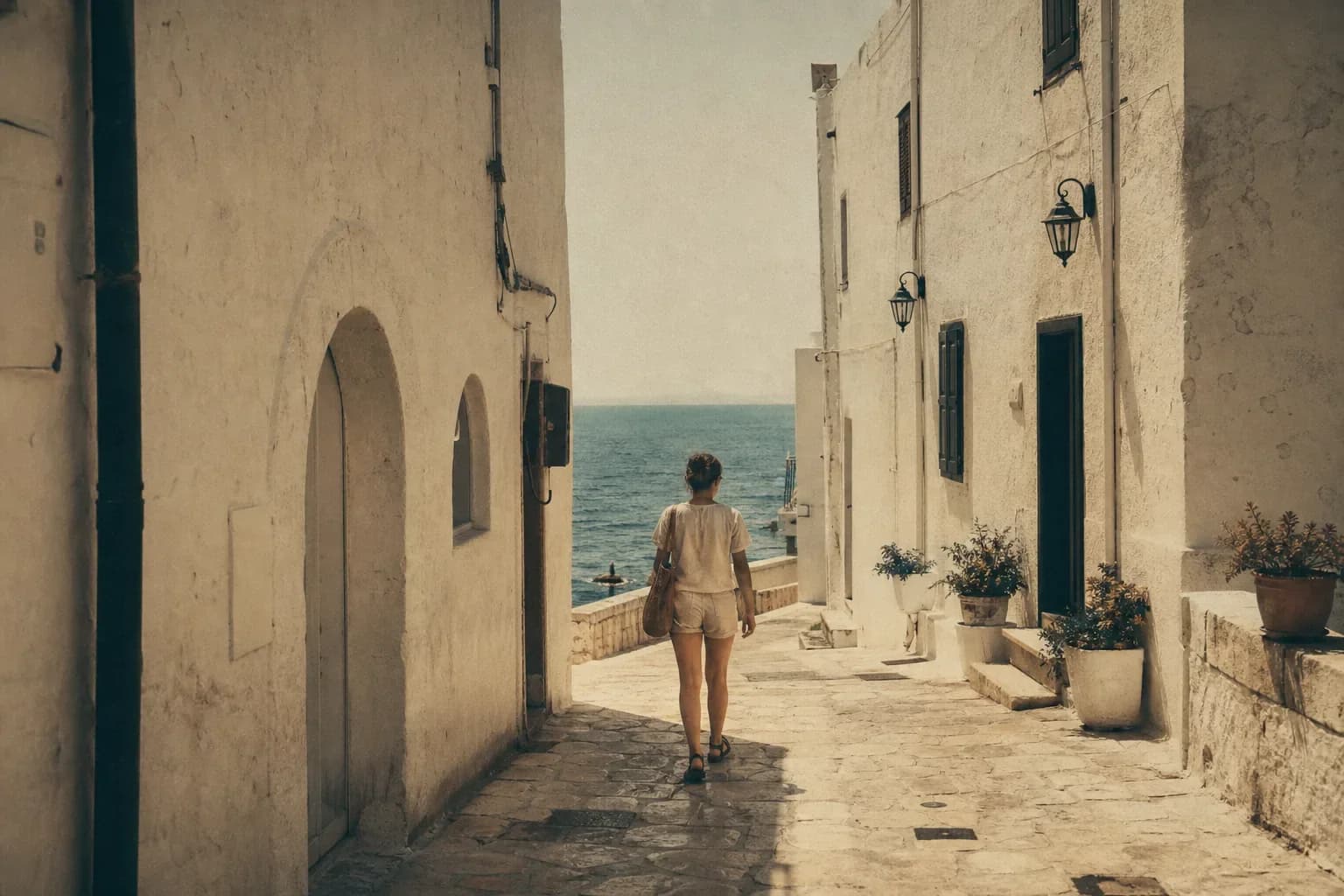
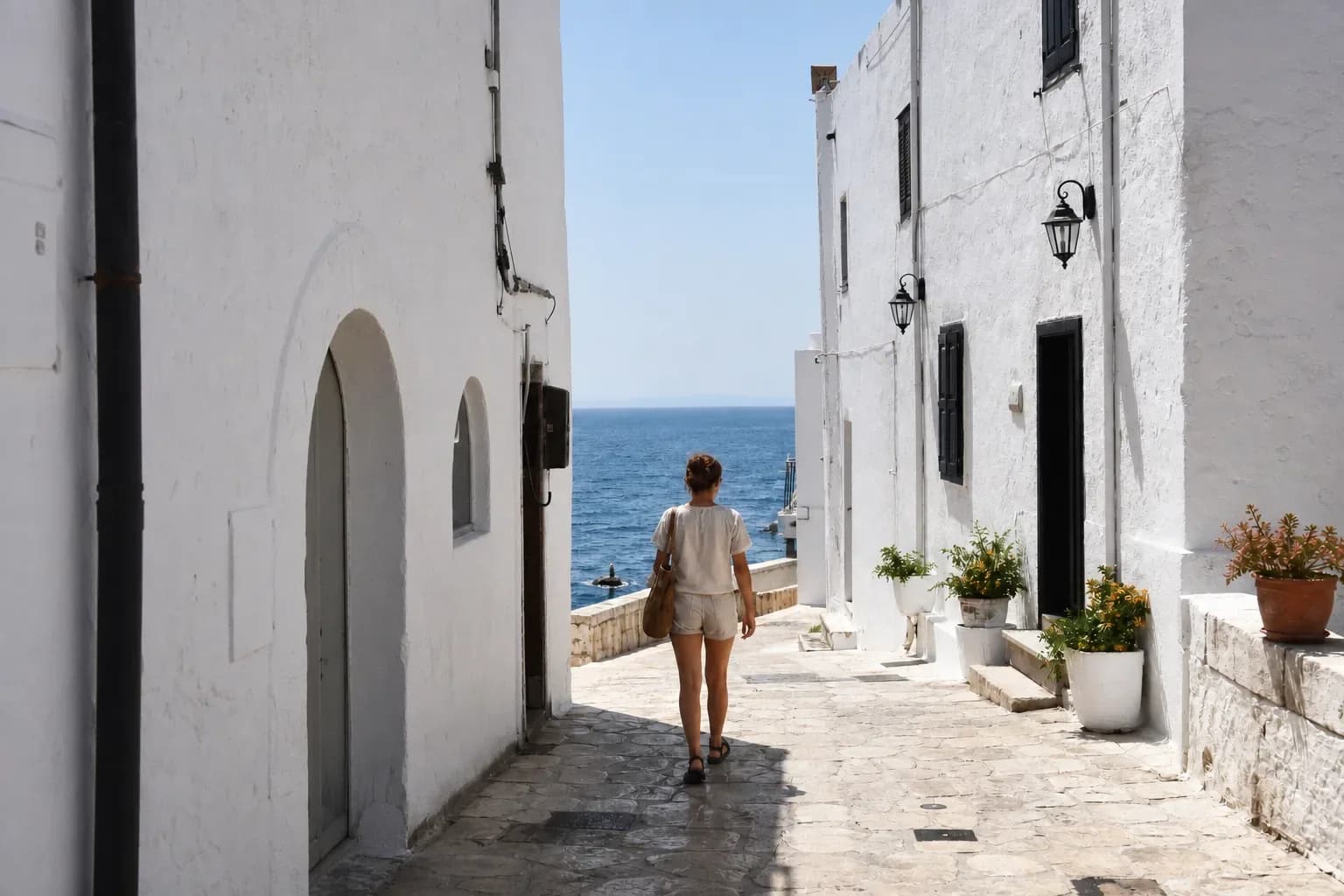
Restore and Reframe Detailed Images beforeRestore and Reframe Detailed Images after
‹›
AfterBefore

Why GPT Image 2 Fits a ChatGPT Image Editor Workflow

The ChatGPT Image Editor combines a targeted GPT Image 2 starting point with the model controls already available in this app. The model selector stays visible so the current limits and fields can follow whichever image-editing model you choose.

High-Fidelity Image Inputs

Detailed source files and purposeful references give GPT Image 2 more visual evidence for faces, products, packaging, textures, and layouts. Preservation still depends on the prompt and a careful result review.

Flexible Sizes and Resolutions

The selected GPT Image 2 form exposes Auto and practical square, portrait, and landscape ratios plus 1K, 2K, and 4K. If you switch models, the form updates to that model’s fields.

Multi-Reference Workflows

The ChatGPT Image Editor accepts a base image plus references for a product, person, logo, garment, style, or composition. Label each image role instead of uploading context without instructions.

Who Uses a ChatGPT Image Editor and What For?

The ChatGPT Image Editor supports very different source materials, from regulated product packs to informal family archives. Each team should define its own review checklist before using a generated result.

E-commerce and Brand Teams

Create background, color, packaging, and lifestyle variations with reference images, then verify product geometry, labels, logos, and approved brand color before publishing.

Marketing Designers and Small Businesses

Adapt posters, menus, campaign art, event graphics, and localized copy while preserving the visual hierarchy and checking every visible word.

Creators and Social Teams

Build covers, thumbnails, portrait variations, wardrobe edits, and new aspect-ratio compositions without repeating one person across every visual idea.

Portrait, Family, and Restoration Users

Clean distractions, adjust a background or garment, and create conservative old-photo repairs while protecting recognizable identity and historical context.

How to Use the ChatGPT Image Editor Online

The ChatGPT Image Editor is most controllable when the input roles and requested change stay explicit from the first generation.

1

Upload the Base Image and References

With GPT Image 2 selected, place the base image first and add only useful product, person, logo, garment, scene, or style references. The form shows the selected model’s current image limit.

2

Describe One Clear Edit

Write the desired result, target and location, exact replacement, and elements to preserve. Choose an available ratio and, for GPT Image 2, a 1K, 2K, or 4K output.

3

Generate, Inspect, and Refine

Inspect faces, hands, products, logos, text, edges, and composition. If something drifted, correct one concrete issue in the next ChatGPT Image Editor prompt.

Why Use Our ChatGPT Image Editor?

A fast, flexible workspace for high-quality edits across photos, products, and designs.

GPT Image 2 Selected by Default

Start editing immediately with GPT Image 2 ready in the shared editor.

Up to 16 Visual References

Combine a base image with visual references for products, people, styles, and layouts.

Practical Output Controls

Choose practical aspect ratios and 1K, 2K, or 4K output for each project.

ChatGPT Image Editor FAQ

What is a ChatGPT Image Editor?+
A ChatGPT Image Editor workflow uses image inputs plus a written instruction to create a new edited version. On this page, GPT Image 2 is selected by default. You upload at least one image, describe the exact change, and list details that should remain recognizable. It is a generative workflow, not a traditional pixel editor with layers, a brush, or a locked selection.
Can the ChatGPT Image Editor edit an existing photo?+
Yes. Start with the existing photo as the first input, then describe one focused change such as a new background, removed object, adjusted garment, repaired crease, or replaced headline. The ChatGPT Image Editor generates a new output, so inspect both the target area and untouched regions instead of assuming the rest stayed pixel-for-pixel identical.
Which model is selected by default?+
GPT Image 2 is selected when this page opens. The model selector stays visible, so you can choose another supported image-to-image model. When the selected model changes, upload limits, ratios, resolution controls, and credit cost come from that model’s configuration rather than remaining hard-coded to GPT Image 2.
Is the ChatGPT Image Editor free to try?+
A visitor may be able to generate with available anonymous credits, and a signed-in account can use its current credit balance. Availability can change, so this page does not promise unlimited or permanently free generations. The live form displays the applicable credit requirement before you submit the ChatGPT Image Editor request.
Do I need ChatGPT Plus or my own API key?+
No personal API key is entered in this page. This app runs its own generation workflow and uses its own account or visitor credit rules. The question of ChatGPT subscription access belongs to a different product experience; this page only describes the editor and controls available here.
Can it edit only one part and keep the rest unchanged?+
You can strongly guide a local change by naming the target, its location, the replacement, and every important preservation item. However, the ChatGPT Image Editor still synthesizes a new result and does not lock untouched pixels. Review identity, geometry, lighting, text, edges, and background details after every generation.
Why did the result change more than requested?+
Broad prompts, several major edits in one request, weak location cues, or unclear reference roles can all increase drift. Return to one change, identify the target using position and appearance, and explicitly name what must remain. In the next ChatGPT Image Editor prompt, correct one observed problem instead of rewriting the entire scene.
How do I write a good ChatGPT image editing prompt?+
Use this recipe: desired result, target and location, exact replacement, reference-image roles, elements to preserve, and output format. Quote replacement text exactly. For example, “change only the red cup at the front-left; keep the table, laptop, person, shadows, perspective, and crop unchanged.”
Can it edit or replace text inside an image?+
It can generate a design with requested replacement text. Quote the exact old and new copy, specify placement, type character, size, color, alignment, and line breaks, then preserve the rest of the layout. Always proofread the result at full size because plausible-looking letters can still contain spelling or punctuation errors.
How many reference images can I upload?+
GPT Image 2 currently accepts up to 16 image inputs in this app. That does not mean every task benefits from 16 references. Use only the images that provide necessary evidence, place the base image first, and label the role of each additional product, person, logo, garment, scene, style, or composition reference.
Which formats, aspect ratios, and resolutions are supported?+
With GPT Image 2 selected, the form accepts PNG, JPG, JPEG, and WebP, offers Auto, 1:1, 9:16, 16:9, 4:3, and 3:4 ratios, and exposes 1K, 2K, and 4K. If you switch the ChatGPT Image Editor to another model, the live form shows that model’s current controls and limits.
Can it preserve a face, logo, product, or character?+
References and preservation instructions can help maintain recognizable details, but no generative edit should be treated as a guaranteed identity, logo, or product lock. Use clear, high-quality inputs, avoid conflicting references, and compare the output with approved originals. Critical brand, biometric, or regulated product details may need a conventional editor afterward.
Can it restore an old or low-quality photo?+
The ChatGPT Image Editor can create a plausible repaired version by reducing scratches, dust, fading, blur, or weak contrast. It cannot retrieve exact information that the source no longer contains. Use conservative language, preserve faces and period details, and avoid presenting reconstructed details as verified historical evidence.
Can I use the edited output commercially?+
Commercial suitability depends on rights and context. Confirm that you can use every source image, person’s likeness, trademark, product design, and reference asset, then review the generated result for prohibited or misleading content. This ChatGPT Image Editor page provides a creative tool, not a legal clearance or licensing decision.

Related Model Editors

Compare the ChatGPT Image Editor with model-focused workflows that use different reference limits, ratios, and strengths.

Qwen Image Edit

Use Qwen Image 3 for text, layout, multilingual, object, and style editing workflows.

Open tool →

Grok AI Image Editor

Use Grok Imagine Image 2 for product, social, poster, photo, and concept variations.

Open tool →

AI Picture Editor

Open the general editor when the task matters more than a model-specific landing page.

Open tool →

Make Your First GPT Image 2 Edit

Upload a strong base image, describe one change and every preservation item, then inspect the new version before refining it.

Edit with GPT Image 2

ChatGPT Image Editor Online with GPT Image 2

The ChatGPT Image Editor is a prompt-based workflow for people who want to change an existing image rather than begin from text alone. GPT Image 2 is selected by default for background replacement, object removal, product and packaging variations, poster text, portrait or clothing edits, restoration, and new social-media compositions. You can place a base image first, add purposeful visual references, choose an available ratio, and select 1K, 2K, or 4K when GPT Image 2 remains active. A strong ChatGPT Image Editor prompt names the requested result, the target and its location, the role of each reference, and the faces, products, logos, text, lighting, camera angle, and crop that should remain recognizable. The output is still generative: it creates a new set of pixels and may alter details outside the target. Review spelling, anatomy, identity, product geometry, edges, historical details, and usage rights before publishing. For a different balance of text, layout, references, and visual style, use the visible model selector or compare the related Qwen and Grok model editor pages.

LogoAi Picture Editor

AI image editing tools for cleaner, publish-ready visuals.

Email
Tools
  • AI Object Remover
  • AI Image Extender
  • AI Product Photo Editor
  • AI Product Ad Generator
  • AI Fashion Model Generator
  • AI Ghost Mannequin Generator
  • Old Photo Restoration
  • AI Image Text Editor
  • Remove Glasses AI
  • Family Picture Editor
  • AI Action Figure Generator
  • AI Furniture Remover
  • Photo Remove Filter
  • AI Flat Lay Clothing Generator
  • AI Photo Relighting
  • All Tools
Models
  • Qwen Image Edit
  • Grok AI Image Editor
  • Nano Banana Photo Editor
  • Nano Banana 2 Lite
Company
  • About
  • Contact
  • Changelog
Legal
  • Cookie Policy
  • Privacy Policy
  • Acceptable Use Policy
  • Terms of Service
© 2026 Ai Picture Editor All Rights Reserved.[email protected]We are not affiliated with the model providers. All trademarks belong to their respective owners.