
Photo Remove Filter Online with AI
Use Photo Remove Filter to reduce an unwanted color filter, beauty effect, or vintage preset while keeping the person, product, scene, and framing recognizable.
AI can create a more natural-looking version of a filtered image, but it cannot recover exact original pixels, colors, or skin detail that the filter permanently replaced or hid.
Use the highest-quality saved JPG, PNG, or WebP available. Original-size files give the AI more texture and color information than screenshots.
Photo Remove Filter Results for Common Filter Types
See how Photo Remove Filter handles color casts, beauty smoothing, vintage presets, and product-photo tint while preserving the underlying subject and composition.
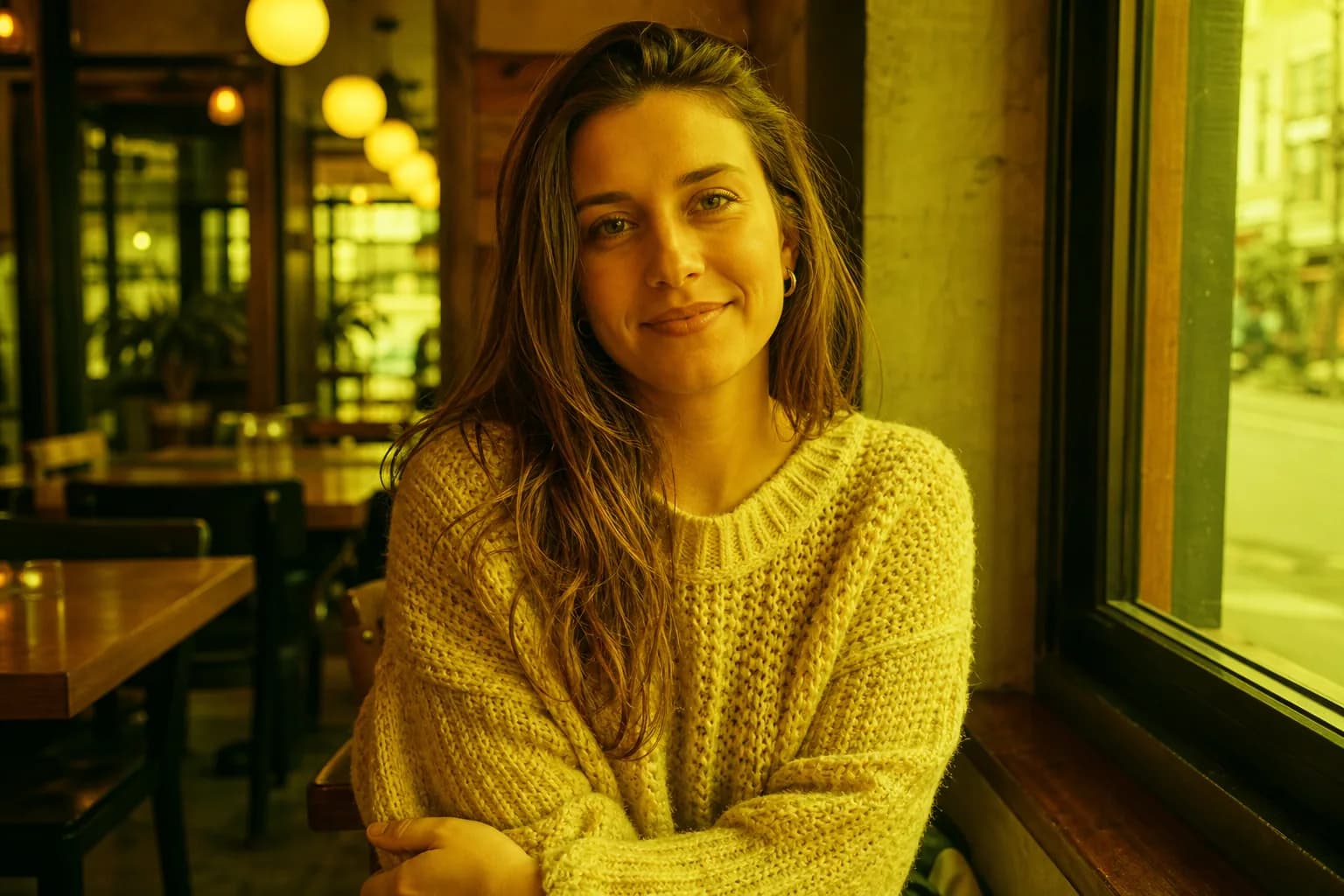
Remove a Warm Yellow or Green Color Filter
Neutralize a heavy social-media color cast while keeping the person, cafe, daylight, clothing, expression, and crop consistent.
- Restore believable skin, whites, wood, and window light.
- Avoid turning filter removal into a new cinematic grade.

Reduce a Beauty Filter and Restore Natural Skin Texture
Reduce waxy smoothing and artificial glow without changing the face, age, expression, beard, hair, or portrait lighting.
- Restore subtle pores, fine lines, and believable facial depth.
- Keep eye color, teeth shape, and facial proportions unchanged.


Reverse a Dated Vintage Photo Preset
Reduce faded blacks, teal-orange grading, muted whites, and artificial grain in a travel photo without redesigning the destination.
- Restore neutral daylight, clean white walls, blue water, and balanced contrast.
- Preserve the traveler, architecture, shadows, perspective, and crop.


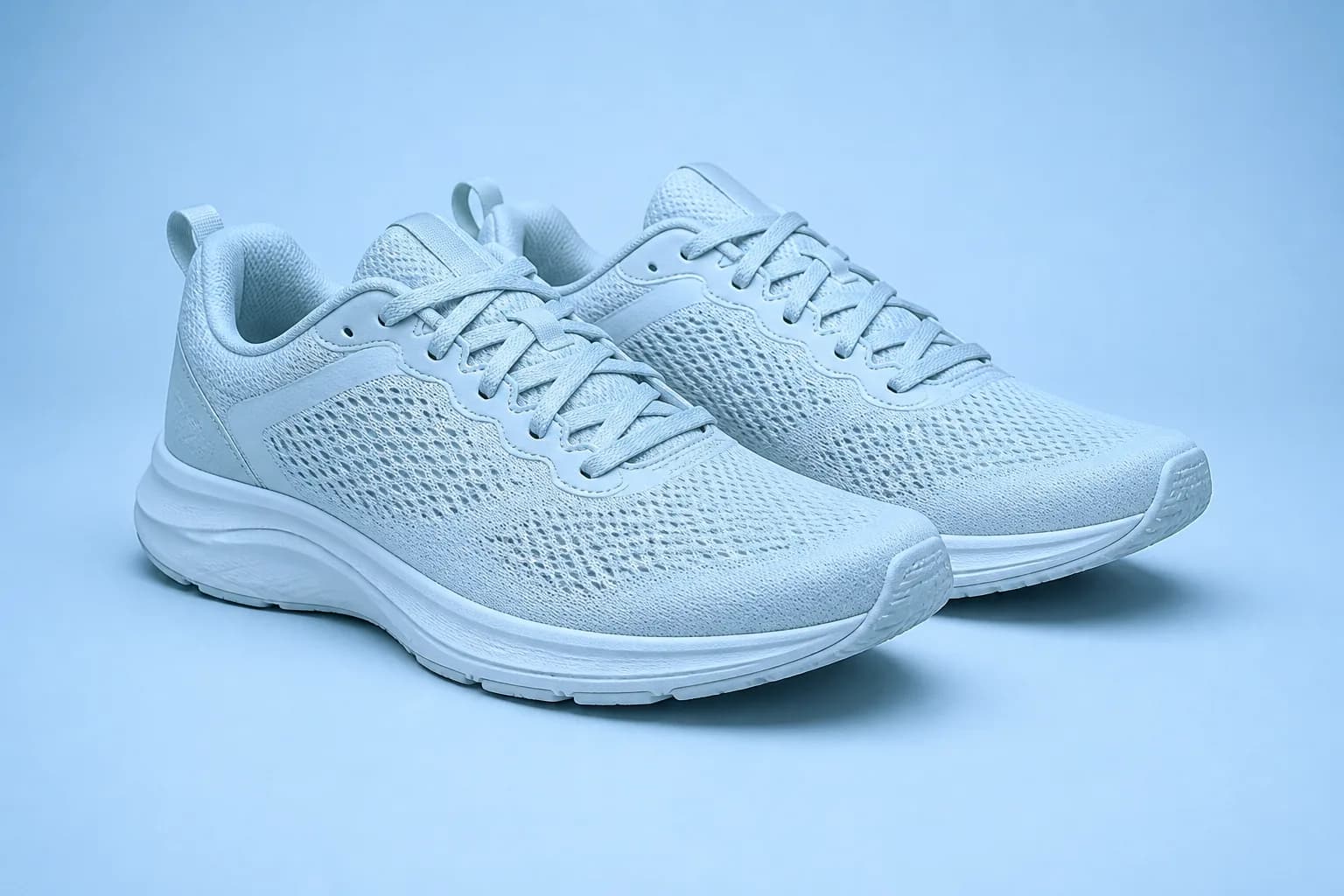
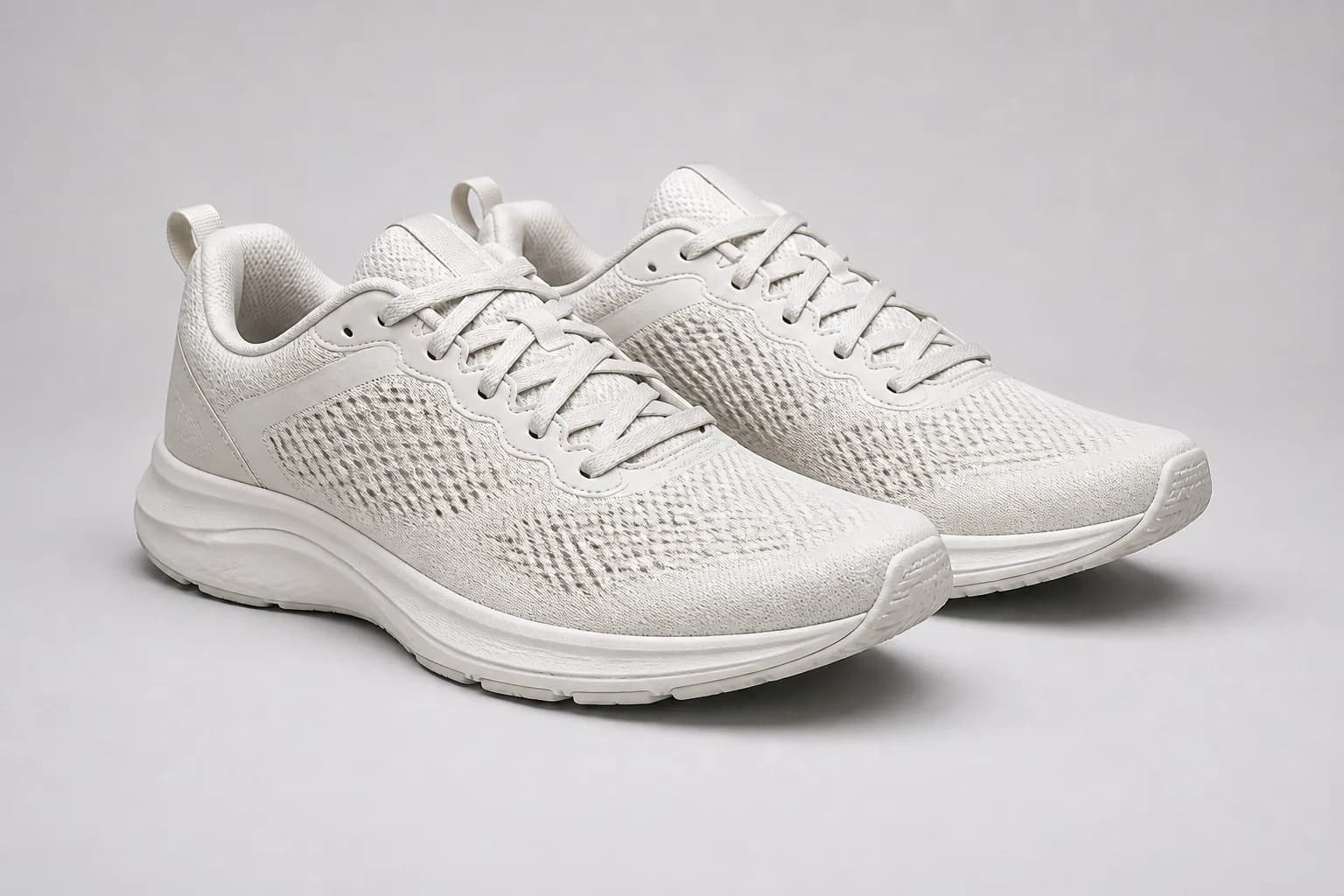
Correct a Cold Product-Photo Color Cast
Correct a cyan or blue filter that makes a product and its background look inaccurate while keeping product construction untouched.
- Restore believable off-white materials and a neutral studio background.
- Protect mesh, stitching, laces, edges, shadows, and product shape.
What Photo Remove Filter Can—and Cannot—Do
Photo Remove Filter treats a baked-in filter as a reconstruction task. AI estimates a neutral-looking result from what remains visible in the saved image.
Correct Whole-Photo Color Filters
Reduce yellow, green, blue, teal-orange, faded, high-contrast, or oversaturated grading and restore a more believable white balance.
Reduce Beauty and Skin Effects
Bring back plausible pores, fine texture, natural eye brightness, and facial depth without deliberately reshaping the person.
Respect the Recovery Boundary
The result is an informed AI reconstruction. Hidden detail, clipped highlights, erased texture, and the exact pre-filter colors cannot be proven or recovered exactly.
How to Use Photo Remove Filter Online
Start with the best saved copy. The focused cleanup begins after upload, then you can compare the result with the filtered source.
Upload the Best Available Photo
Choose the original-size JPG, PNG, or WebP when possible. Avoid a compressed screenshot if you still have the saved image.
Let the First Cleanup Run
The built-in task checks for obvious color casts, vintage effects, excessive contrast or saturation, artificial glow, and beauty smoothing without requiring an initial prompt.
Generate and Inspect the Result
Compare identity, skin, product color, text, background, crop, and small details before downloading. Add a short refinement only if one effect remains or the correction is too strong.
When to Use Photo Remove Filter
Use Photo Remove Filter when you only have the filtered copy and want a restrained, more natural-looking version for reuse.
Social Media Reposts
Tone down a dated or overpowering preset before sharing the photo again.
Profiles and Headshots
Reduce obvious beauty smoothing while keeping identity and expression familiar.
Old Edited Memories
Create a cleaner, plausible version when the unfiltered camera file is no longer available.
Product and Listing Photos
Correct a global color cast, then verify the result against the real product before publishing.
An Automatic First Pass with a Full Editor
Upload one image to start the focused task automatically, review the result, and carry it into the full editor only when you want more control.
Task Instructions Included
The page supplies its focused editing instruction and preservation rules on the server, so the first result does not depend on prompt writing.
Source Canvas Protected
The request keeps the uploaded image as the base and requires the same aspect ratio, framing, crop, identity, lighting, and unrelated details.
Review or Keep Editing
Generative edits can vary. Compare the result with the original, then open it directly in the full editor when a custom change is needed.
Built around honest editing boundaries
No fake recovery claims
AI generates plausible replacement pixels; it cannot recover hidden source detail that was never captured.
A simple one-click workflow
The first pass uses an image upload and built-in instructions, with no brush, mask, color picker, or required prompt.
One clear task
The page stays within its stated use case instead of behaving like an unrelated general-purpose generator.
Photo Remove Filter FAQ
Can Photo Remove Filter recover the original photo?
How do I remove an Instagram, Snapchat, or TikTok filter?
Can this remove a beauty filter from a face?
Can it remove a yellow, blue, or green color filter?
Can AI remove a vintage or black-and-white filter?
Can it remove stickers, emojis, or AR effects?
Can I use Photo Remove Filter online for free without signing up?
Which image formats and output size are supported?
Does this remove filters from videos?
Try Photo Remove Filter on Your Saved Image
Upload the best saved copy to start a restrained, natural-looking cleanup automatically, then refine only if needed.