AI Image Extender Expand Photos Without Cropping
Expand photos beyond the original frame, reposition the source, and create space for banners, ads, listings, and social formats without cropping.
AI Image Extender Features for Commercial Images
Six practical capabilities help businesses reuse approved photography across banners, vertical ads, listings, social posts, and common output ratios.
Turn a Square Product Photo into a Wide Ad Banner
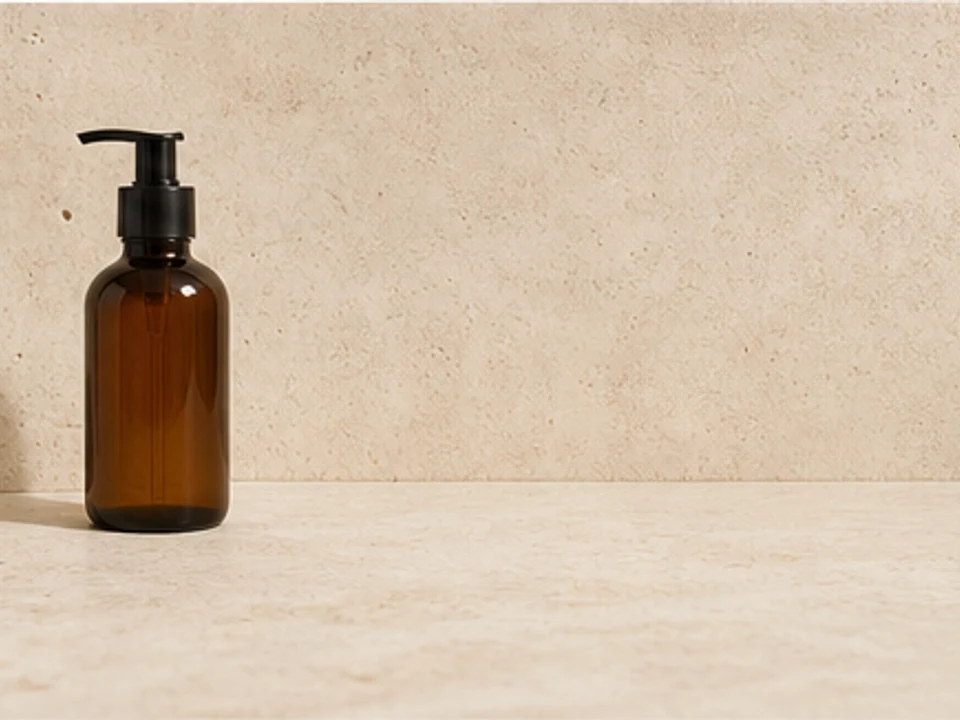
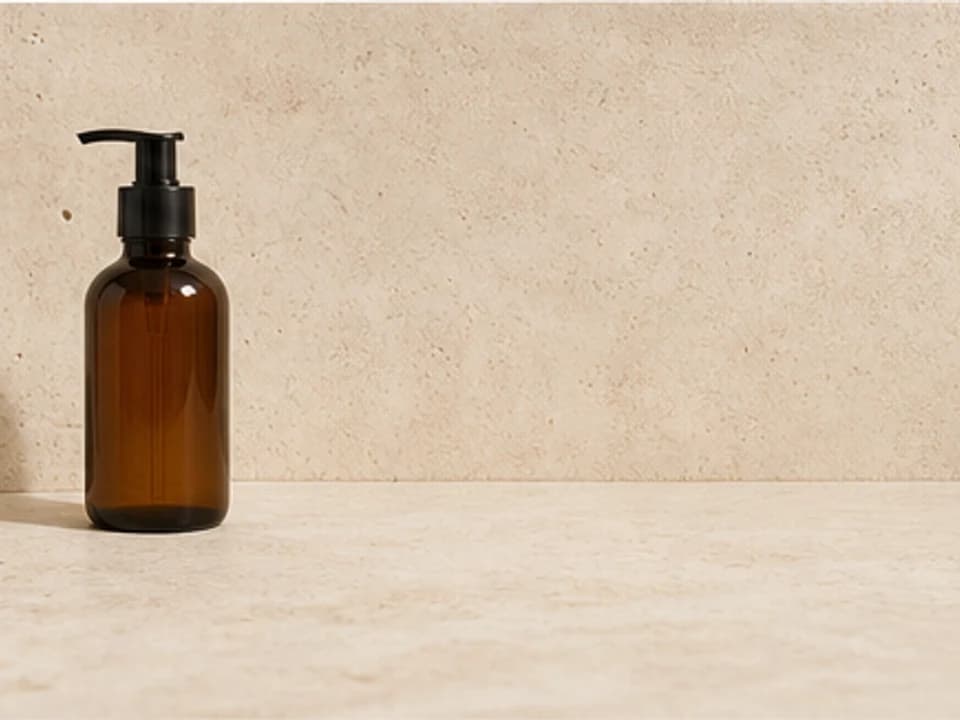
Convert a tightly framed 1:1 product photo into a 16:9 banner. Choose left or right expansion and generate matching space for campaign copy.
- Protect the product as the main visual reference
- Create clean negative space for a headline or CTA
- Use a native 16:9 output ratio
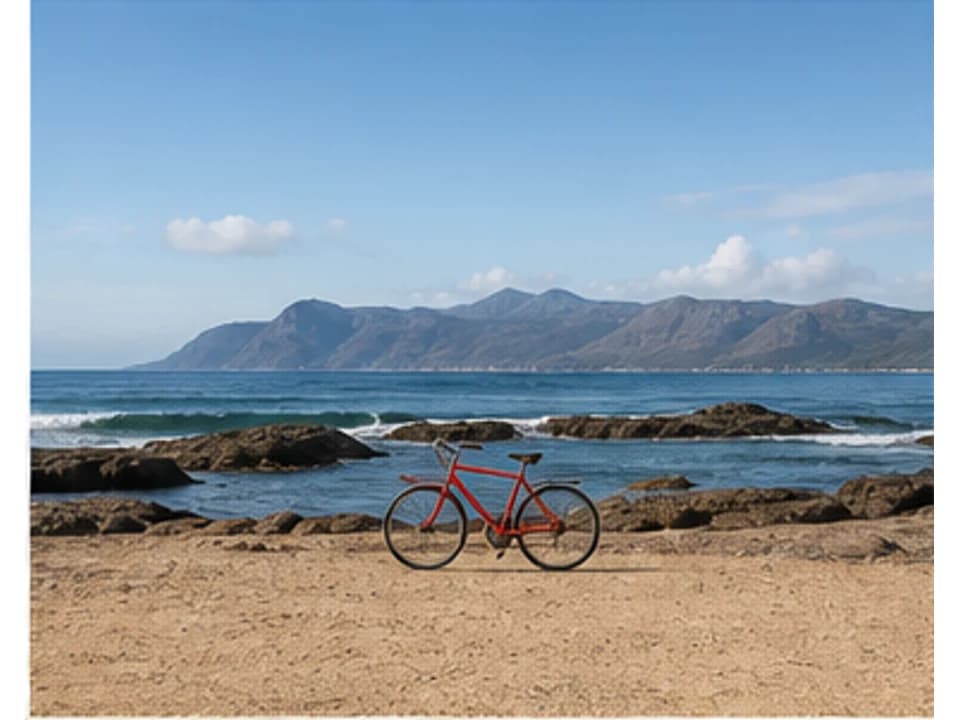
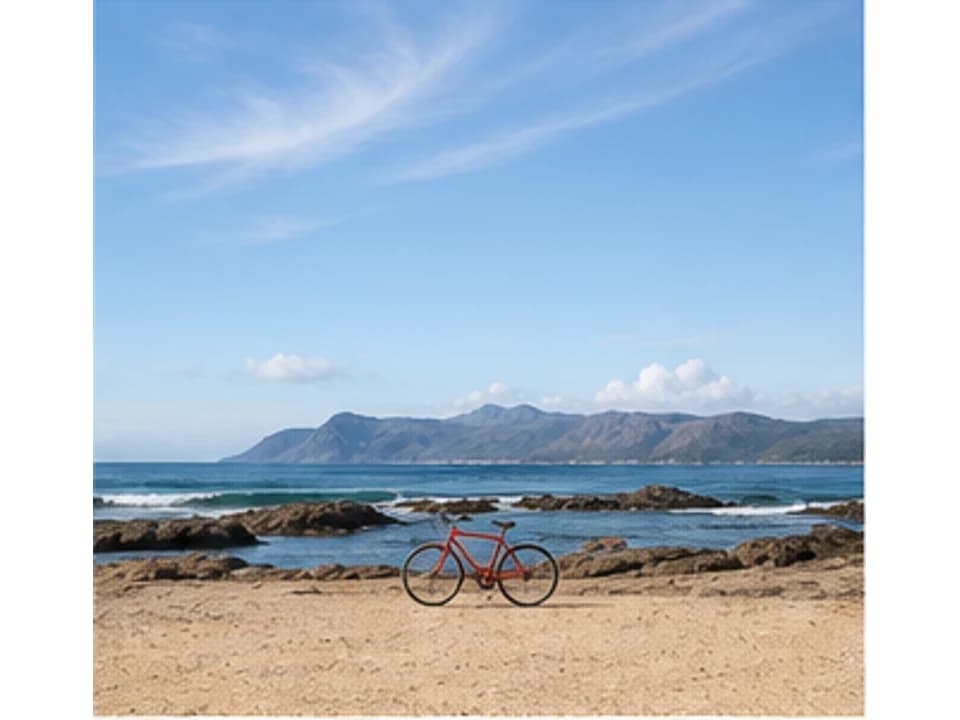
Convert a Landscape Image into a 9:16 Story or Reel
Add sky, wall, floor, foliage, street, or studio space above and below a landscape photo while keeping the original scene as the central reference.
- Landscape-to-portrait reframing without a center crop
- 9:16 preset for full-screen vertical placements
- Review generated people, signs, and architecture closely
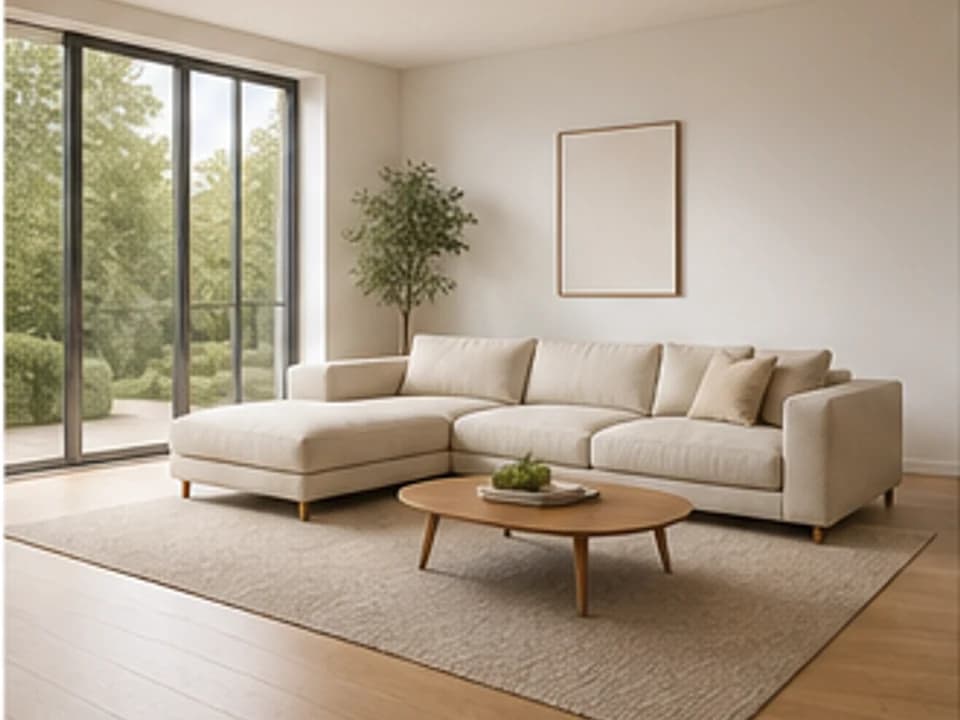
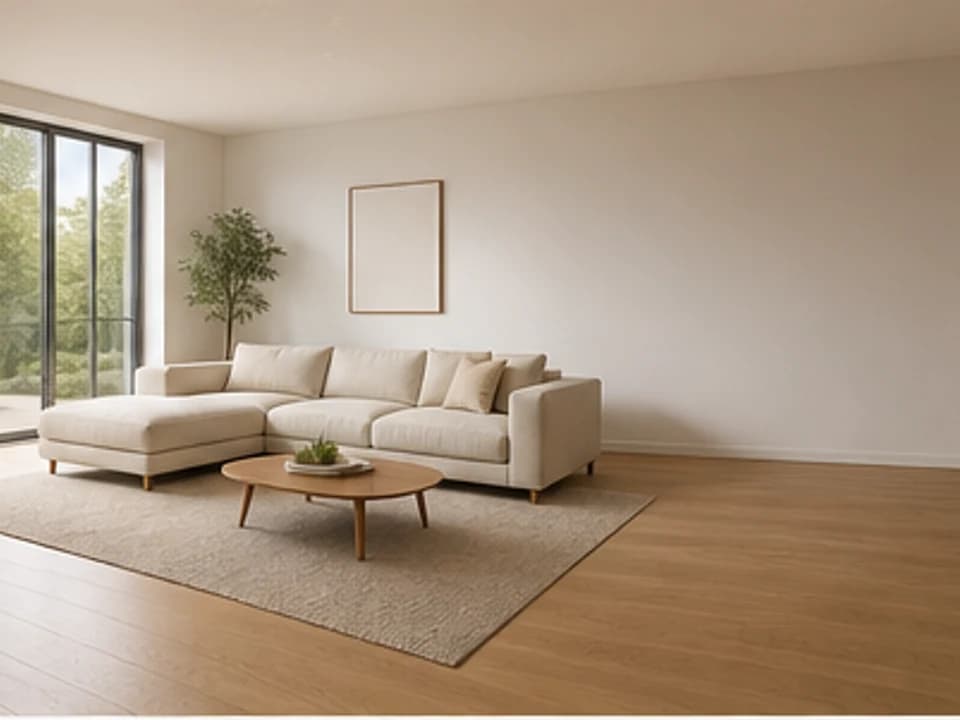
Add Space Beside a Real Estate or Interior Photo
Continue a wall, floor, ceiling, lawn, sky, or room only where a listing, presentation, social post, or property ad needs more canvas.
- Extend only left, right, up, or down
- Continue perspective lines and room geometry
- Treat invented property details as visual content, not evidence
Choose a Supported Ratio and Expansion Direction
Select an AI-supported output ratio, then guide the scene to continue left, right, up, down, or on every side.
- Native presets for 1:1, 3:4, 4:3, 16:9, and 9:16
- Directional expansion controls for common layouts
- Original preview remains unstretched
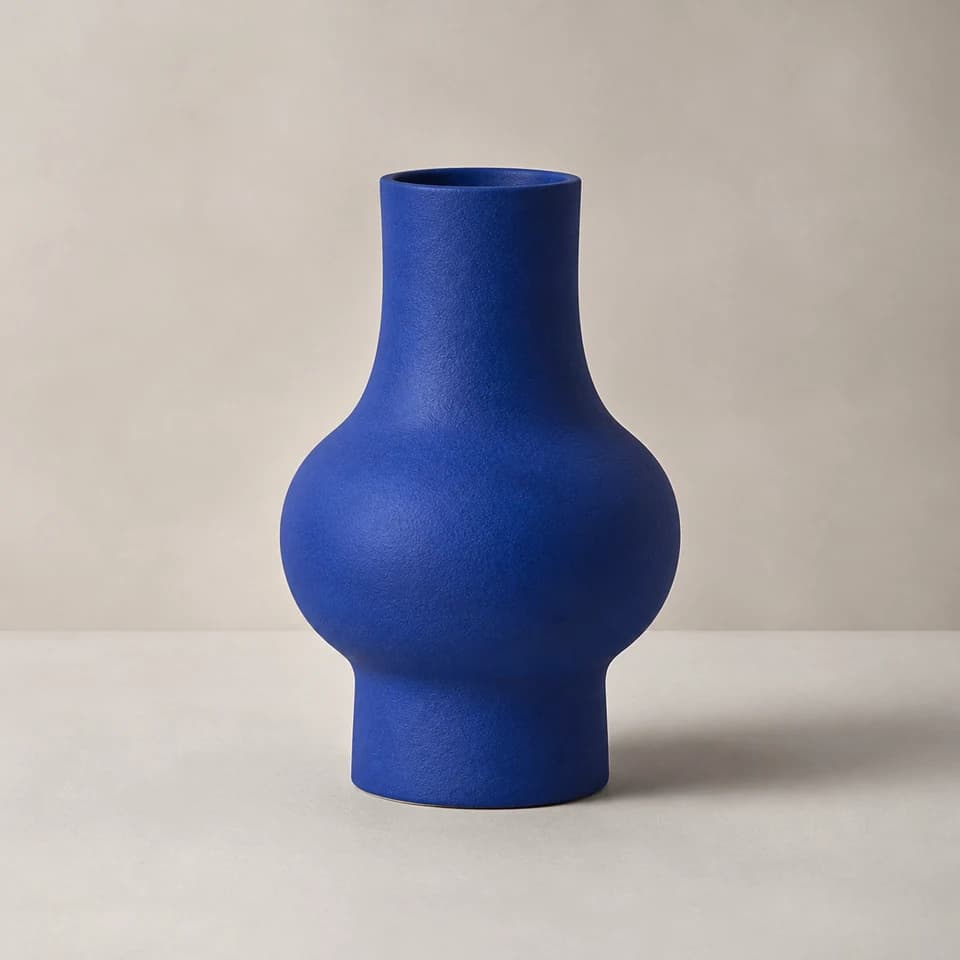
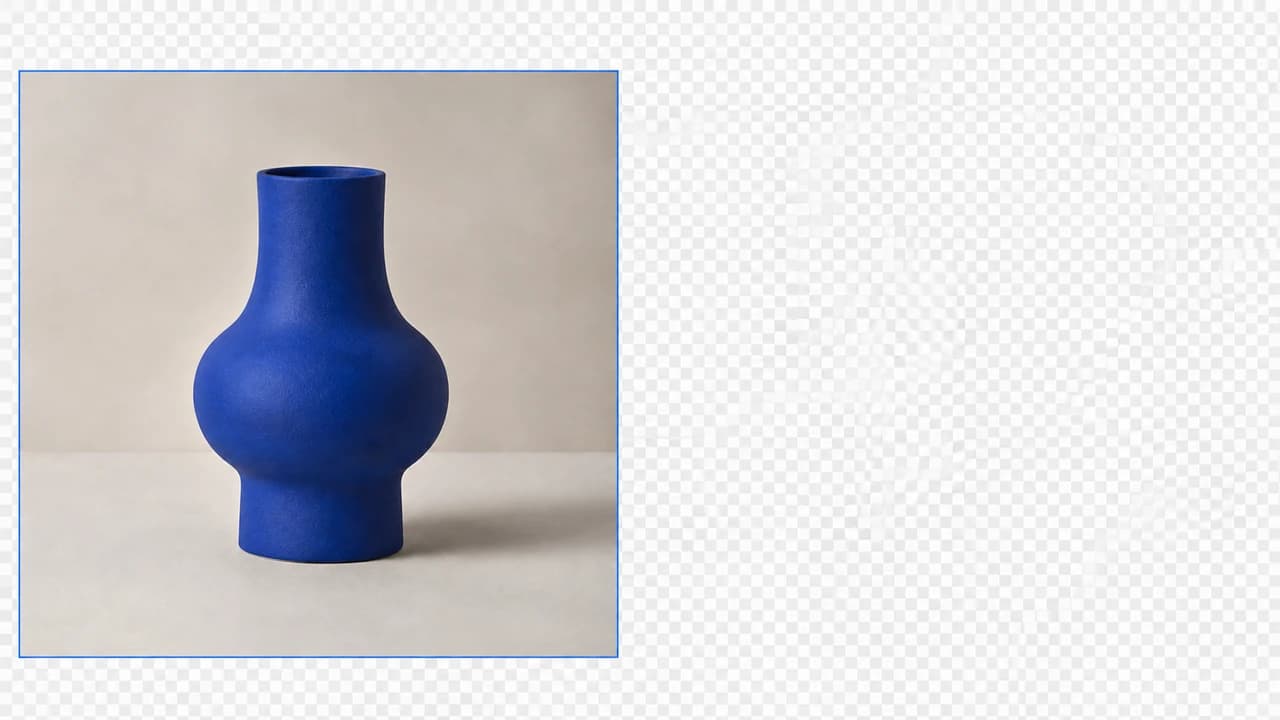
Protect the Original Subject During AI Expansion
The positioned source guides subject placement, scale, color, lighting, and scene continuity while AI completes the larger composition.
- Source placement guides the generated composition
- No destructive center crop or simple edge stretching
- Review logos, text, faces, and product details after generation
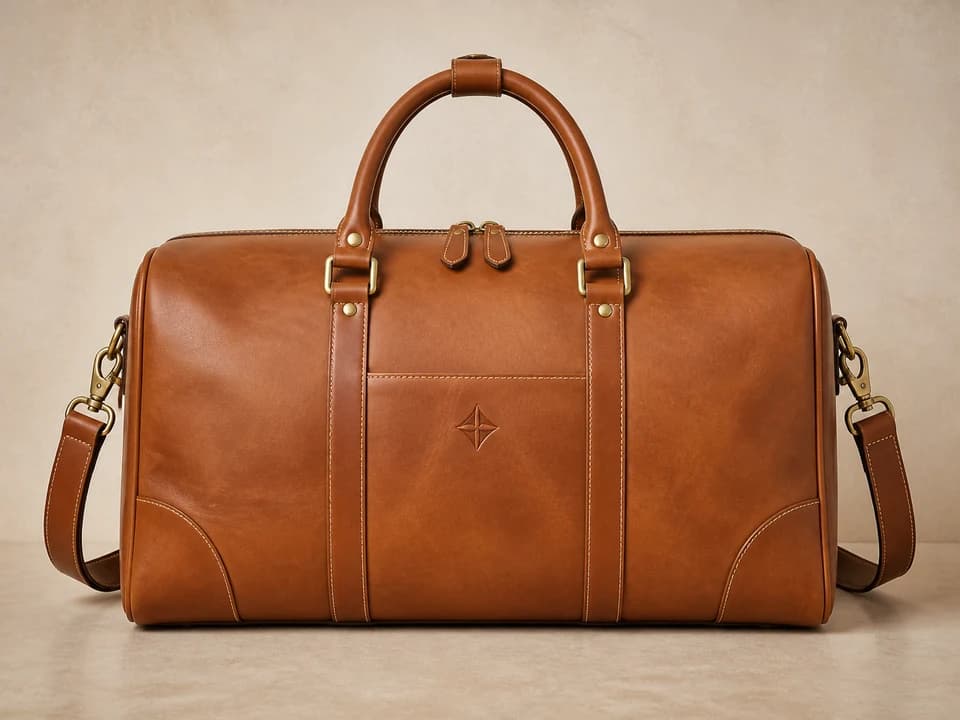
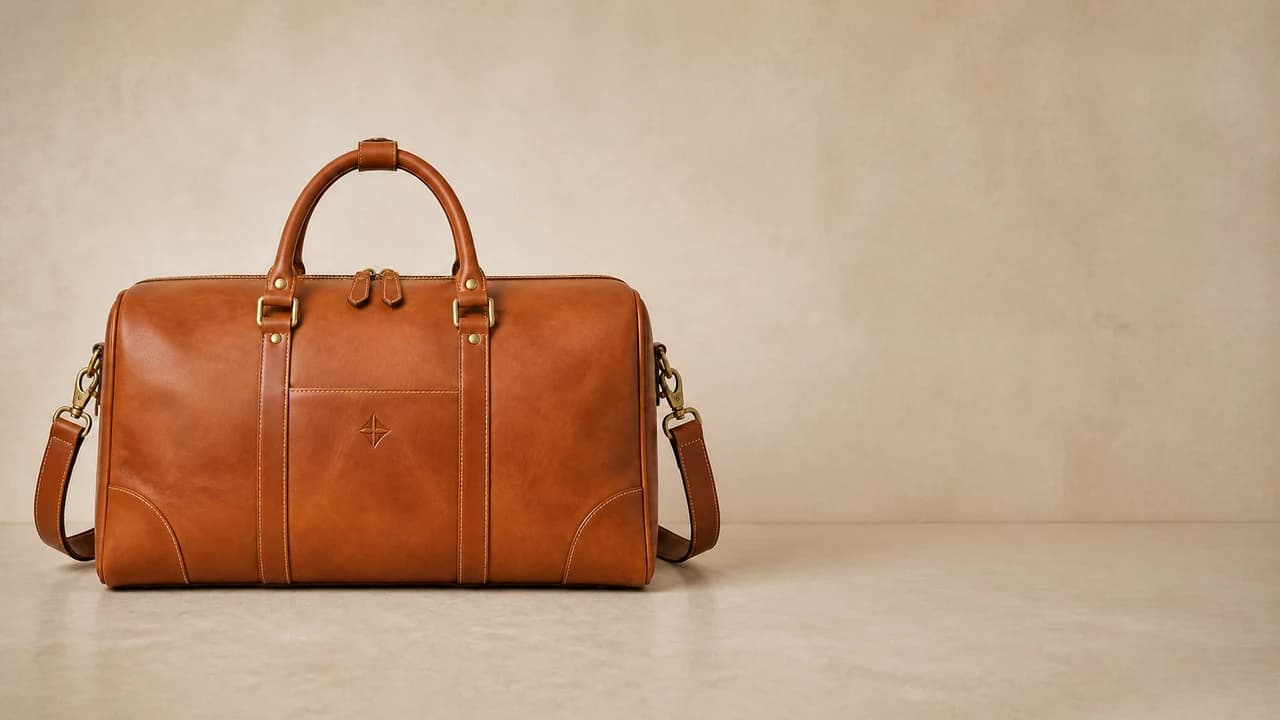
Guide and Review the Newly Generated Area
Let the model continue the scene automatically or describe the material, lighting, horizon, background, atmosphere, or negative space. Review the complete generated result before publishing.
- Match visible light, surface, and perspective
- Request negative space without final ad text
- Inspect seams, repeats, warped lines, and invented details
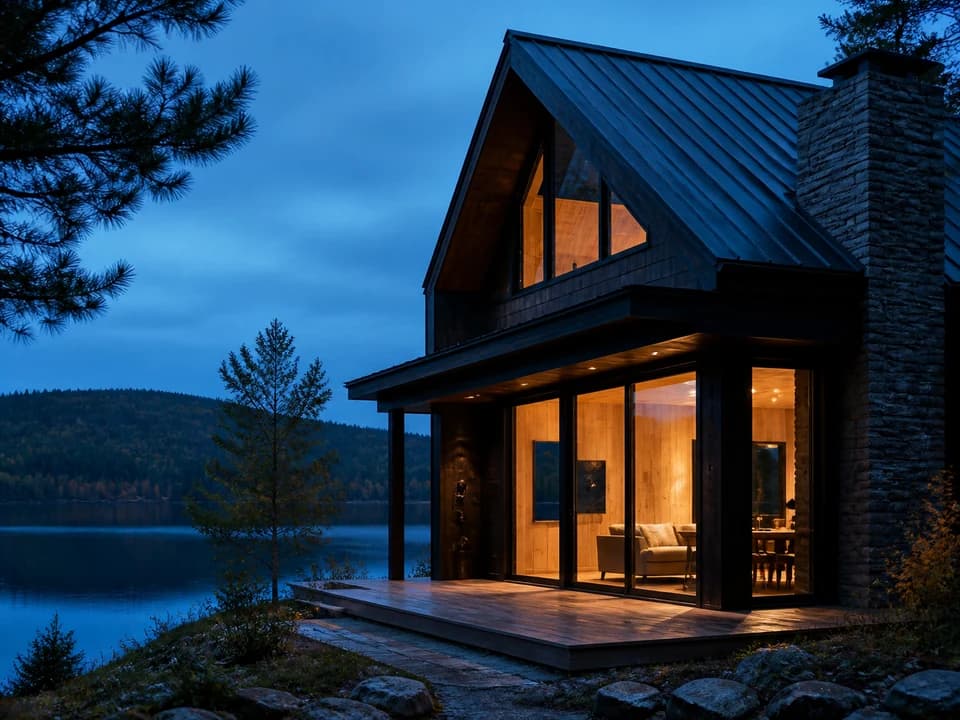
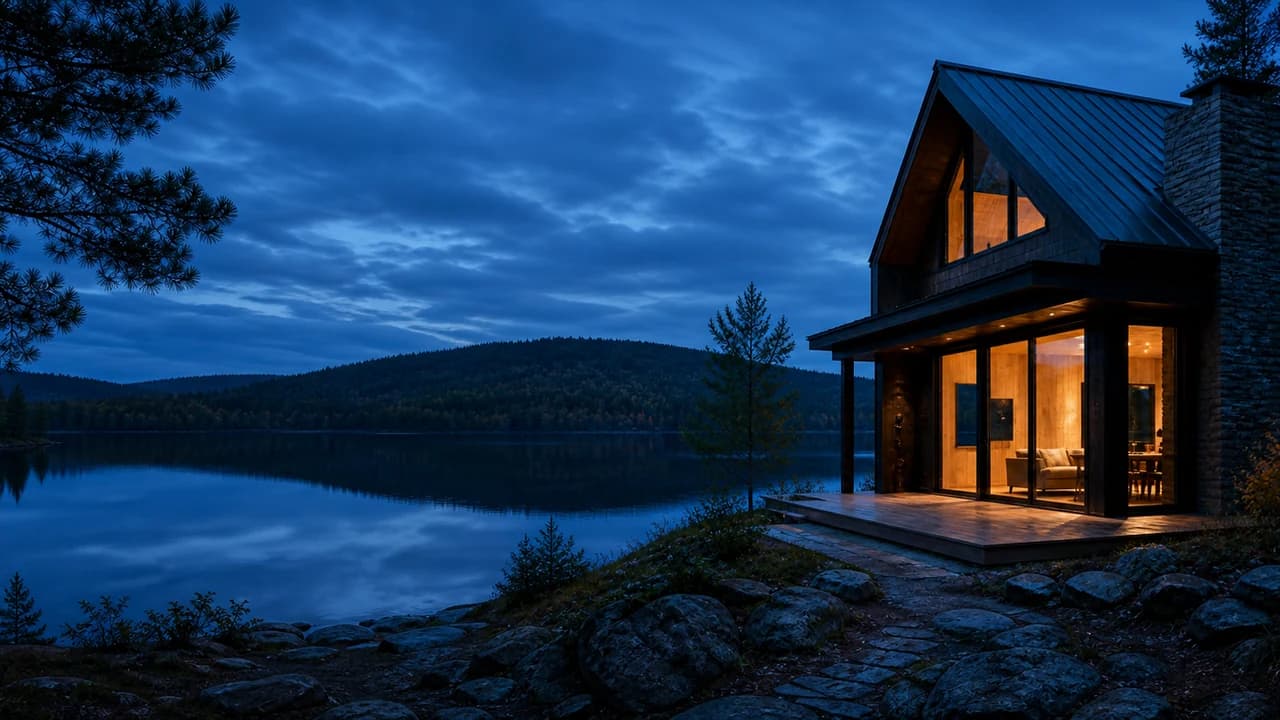
Who Uses an AI Image Extender?
This outpainting canvas helps any team that must reuse approved photography across placements with different shapes and content-safe areas.
Ecommerce Teams
Turn product packshots into store heroes, sale banners, category headers, marketplace modules, and email graphics.
Performance Marketers
Create horizontal and vertical ad variants while leaving negative space for approved copy, logos, and calls to action.
Design and Social Teams
Adapt one source image to feed, story, reel, thumbnail, presentation, and website formats without destructive cropping.
Real Estate Professionals
Fit interior and exterior photos into listing, presentation, print, portal, and social layouts while preserving the original view.
Agencies and Creators
Build multiple composition-ready crops from an approved client image without arranging a new shoot for every placement.
How to Use the AI Image Extender
Choose the intended output ratio and expansion direction before generation.
Upload the Original Image
Choose a PNG, JPG, or WebP photo and review the original without stretching or cropping.
Choose Ratio and Direction
Choose 1:1, 3:4, 4:3, 16:9, or 9:16, then select left, right, up, down, or all sides.
Describe, Generate, and Review
Optionally describe the new area, generate the expanded composition, and inspect seams, subjects, text, and invented details before downloading.
What Is an AI Image Extender and Why Use It?
An AI image extender uses generative expansion to create new content beyond a photo boundary. This canvas-first workflow changes the composition without stretching or center-cropping the source.
Expand Instead of Stretch
Continue the environment, light, perspective, texture, and style instead of distorting the pixels already in the photo.
Control Every Direction
Choose left, right, up, down, or all sides to guide where the scene should continue.
Protect the Source Composition
Use the positioned source as the visual reference for subject placement, scale, lighting, and scene continuity.
Keep the Original Preview Clear
Review the uploaded image without stretching, cropping, or a simulated precision canvas before generation.
Create Useful Negative Space
Position a product or subject away from the headline area, then generate a clean continuation for campaign copy.
Choose Native Output Ratios
Use 1:1, 3:4, 4:3, 16:9, or 9:16 for square, portrait, landscape, wide, and vertical placements.
AI Image Extender FAQ
What is an AI image extender?
Is an AI image extender different from an image resizer?
Is AI image extension the same as outpainting or uncropping?
Can the AI image extender add space only on the right or left?
Can I extend only the top or bottom of a photo?
Can I convert a 1:1 image to 16:9 without cropping?
Can I convert a landscape photo to 9:16?
Does the AI image extender preserve the original pixels?
Which output ratios are available?
What should I write in the image extension prompt?
Can the AI image extender complete a cut-off person or product?
Can I use the AI image extender for product and real estate photos?
Give Your Image the Space the Layout Needs
Choose an output ratio and expansion direction, generate the larger composition, and download an uncropped result.