
AI Object Remover: Remove Unwanted Objects from Photos
Remove unwanted objects from photos while keeping the surrounding scene, lighting, and composition intact.
Name the object, its color, and exact location—for example, “the red bin on the right.”
The selected resolution controls the configured credit cost.

AI Object Remover Results for Real-World Photos
Three common cleanup jobs: a travel scene, a property image, and a product shot.
Clean a Distraction from a Travel Photo
Remove a bin or other isolated distraction while preserving the destination, light, and composition.
- Best for bins, cones, signs, bags, or bottles with clear edges.
- Match paving, perspective, texture, and grain; keep the rest untouched.


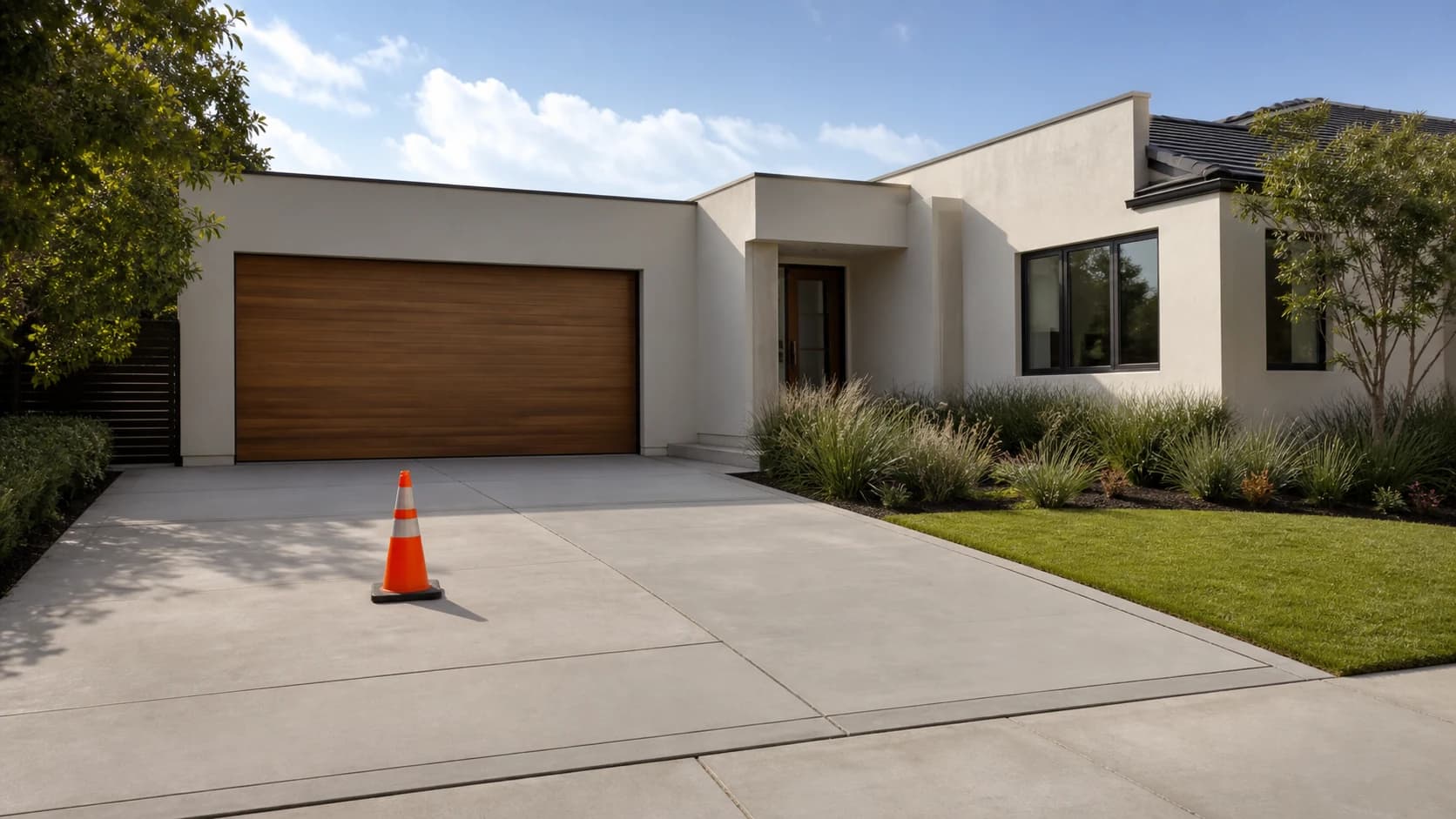
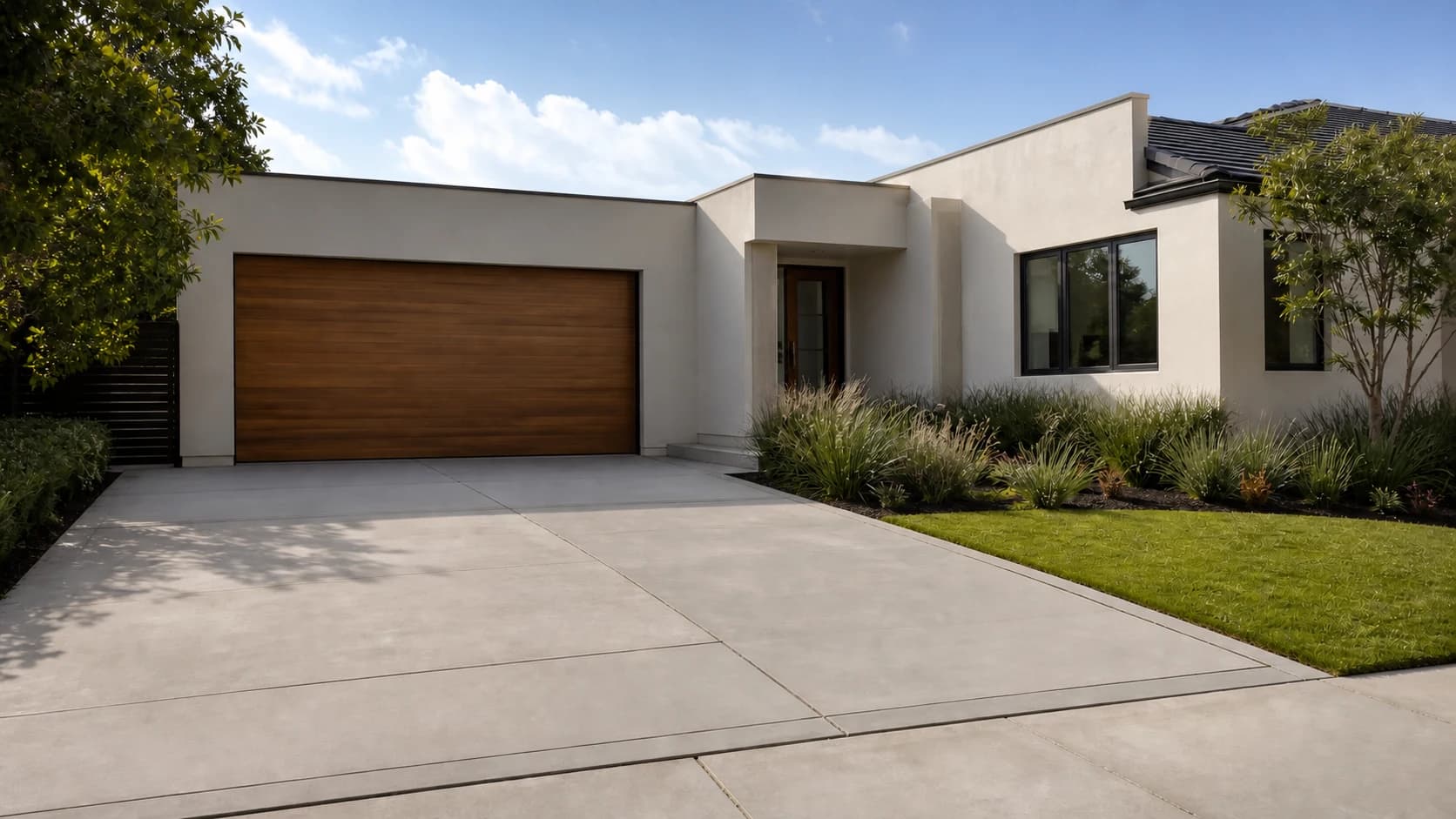
Remove a Temporary Object from a Property Photo
Remove one temporary object without redesigning the building or landscaping.
- Works well for cones, buckets, tools, hoses, or small barriers.
- Continue driveway lines and shadows; preserve the facade, garden, sky, and crop.
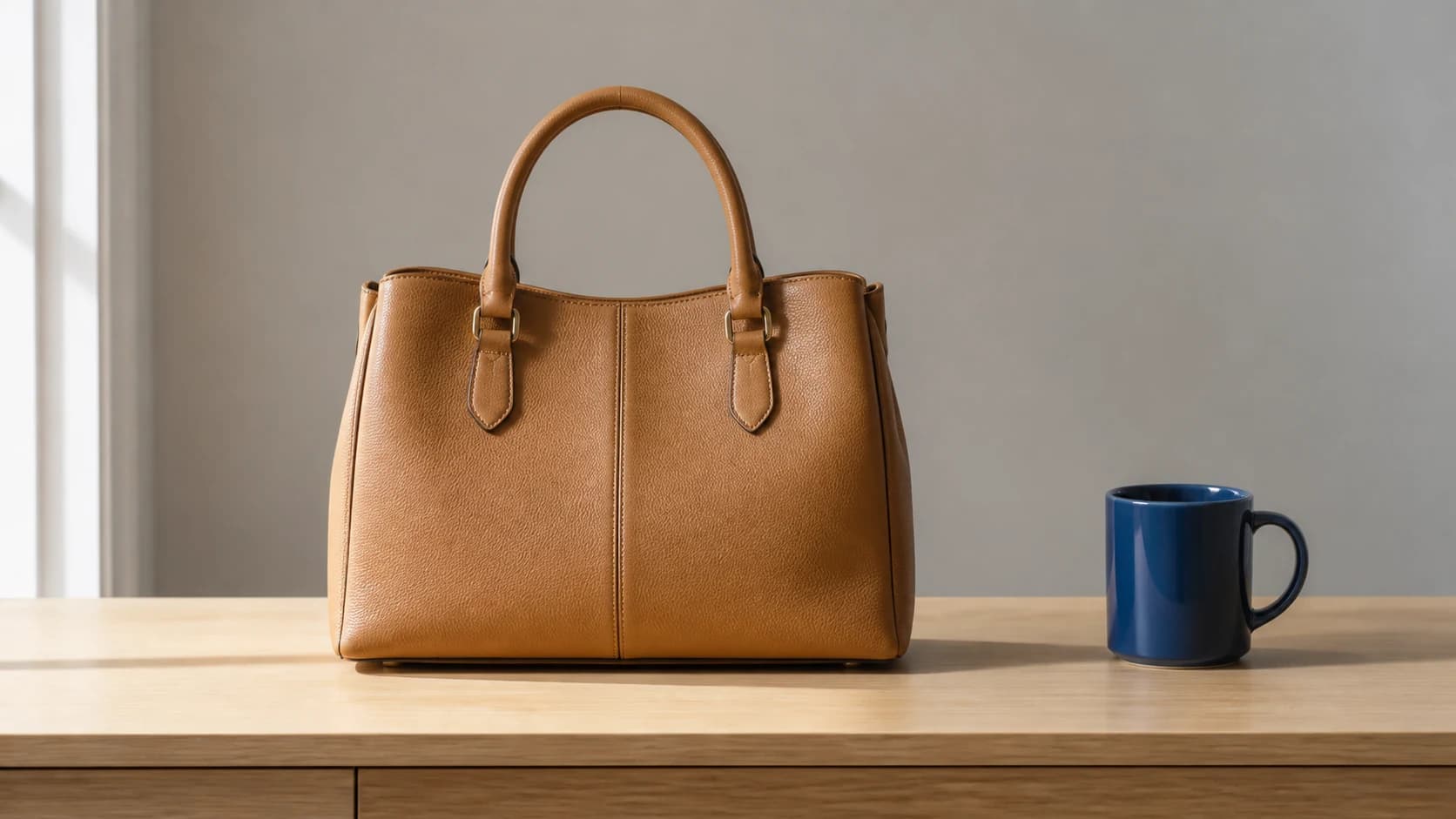
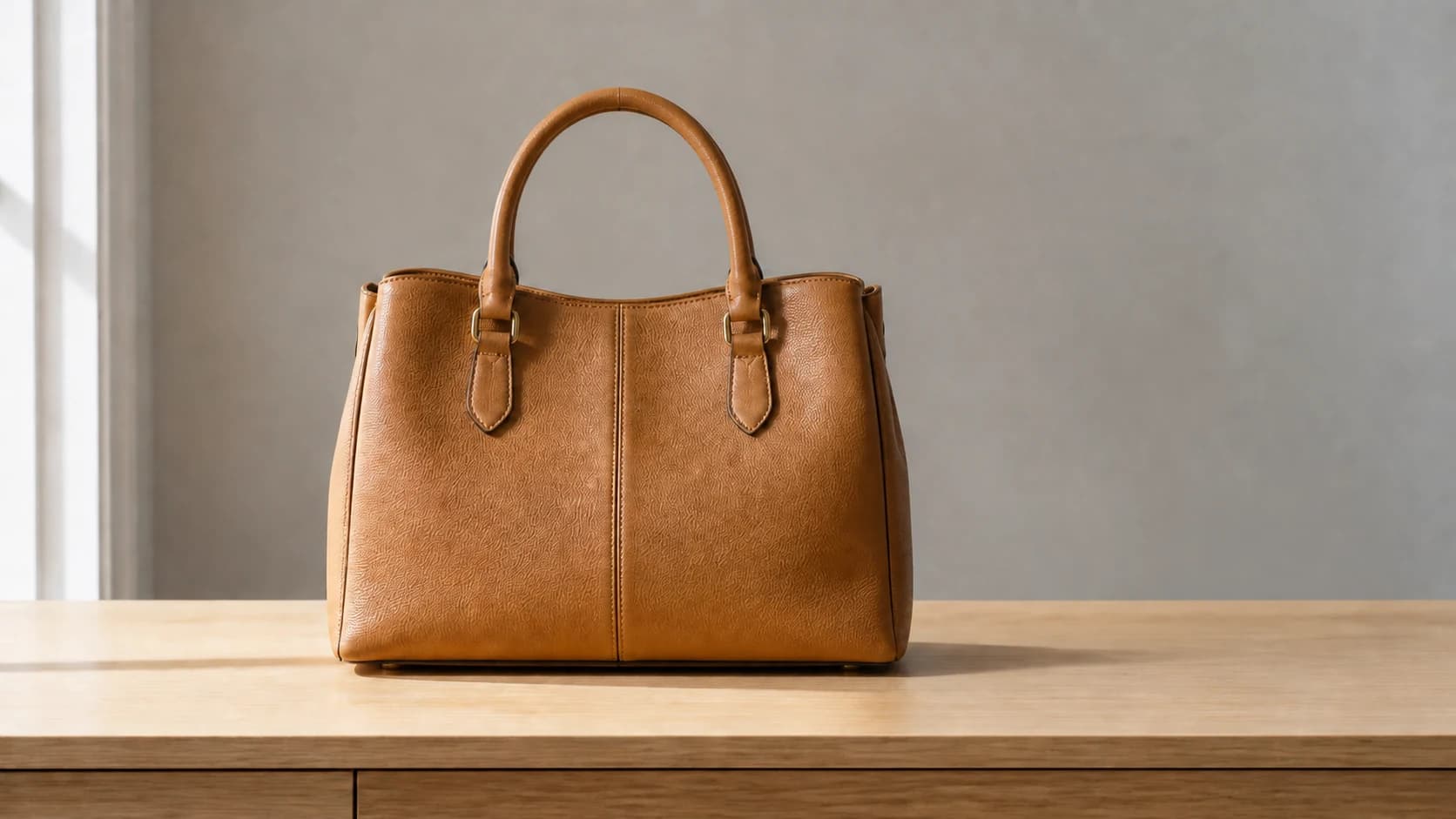
Erase a Loose Prop Beside a Product
Remove a loose prop beside a product without altering the product itself.
- Use it for a cup, cloth, cable, stand, or loose packaging.
- Preserve product edges, labels, material, lighting, and contact shadow.
What Can You Remove with This AI Object Remover?
The AI object remover works best when the target is distinct, the hidden area is predictable, and the subject to preserve is clearly named.
Good Object-Removal Targets
Bins, cones, bags, bottles, signs, cables, small tools, and loose props with clear edges.
Backgrounds AI Can Rebuild
Paving, walls, floors, desks, sky, grass, and other visible patterns surrounding a small object.
Details That Should Stay
People, products, text, logos, lighting, perspective, crop, and every object you did not name.
How to Remove an Object from a Photo with AI
Upload a clear source, name one target, then compare the repaired area with the original.
Upload the Best Source
Choose a clear image with visible background around the object.
Identify One Object
Name its type, color, position, and nearest landmark.
Generate and Compare
Check the repaired area and protected subject before downloading.
When to Use a Photo Object Remover
Use a photo object remover when one small distraction—not the whole background—needs to disappear.
Travel Photos
Clean a bin, cone, sign, bag, or bottle from the scene.
Property Photos
Remove one temporary item without changing the property.
Product Images
Erase a loose prop while keeping the product intact.
Personal Photos
Remove small clutter without restyling the photo.
Get Cleaner AI Object Remover Results
If the result looks wrong, clarify the target or reduce the area being rebuilt.
Three Things to Specify
- Name one object by type, color, position, and nearby landmark.
- State which subject, text, or product must stay unchanged.
- Include its shadow or reflection only when the connection is clear.
Three Common Problems
AI Object Remover FAQ
How does the AI object remover work?
What objects can I remove from a photo?
How do I make the reconstructed background look natural?
Can it remove an object’s shadow or reflection?
What photos are hardest for object removal?
Is an object remover the same as a background remover?
Can I remove unwanted objects from photos online for free?
Which image formats can I upload?
Will the result keep my original resolution and crop?
Remove Unwanted Objects from Photos, Keep the Scene
Name one unwanted item and let the AI object remover rebuild only the area it covered.