
Free AI Image Upscaler for 2x and 4x
Drop a small image to upscale it
What This AI Image Upscaler Can Do
These sections address the image enlargement questions users search most often. Drag each comparison to inspect edges, texture, and fine detail.
Upscale an Image by 2× or 4×
The AI Image Upscaler doubles both width and height in 2× mode, producing four times as many total pixels. In 4× mode, a dedicated 4× model creates four times the original width and height. The interface shows the expected output dimensions before processing, making it easy to choose the scale the final layout needs.
- 2× for fast everyday image enlargement
- 4× for genuinely small sources and larger layouts
- Expected output dimensions shown before processing
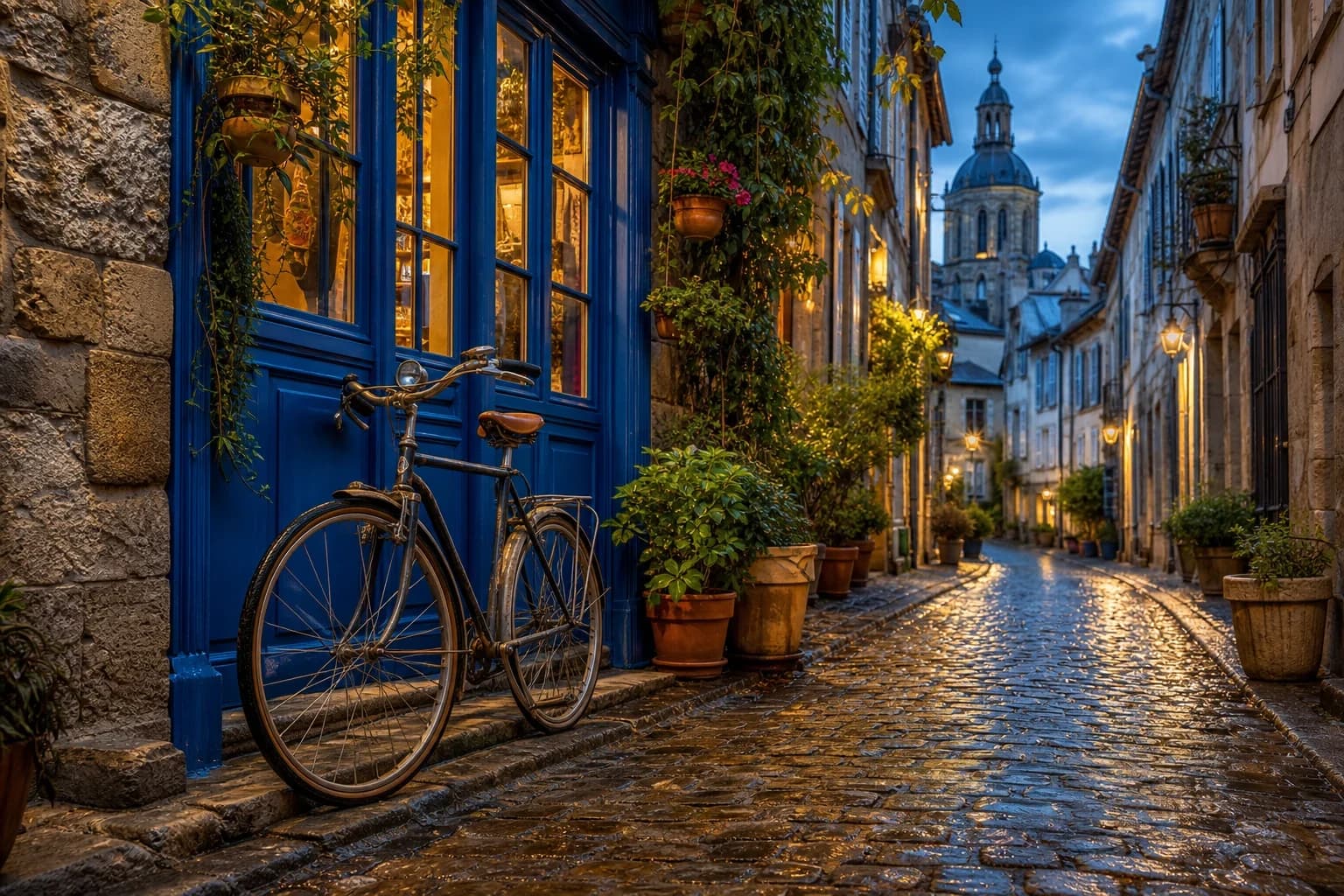
Enlarge Images Without Obvious Quality Loss
Basic resizing can expose square pixels, jagged diagonals, and soft outlines because it only interpolates existing values. The AI Image Upscaler uses a reconstruction network to produce smoother edges and more coherent local texture. This supports high-quality enlargement without the obvious blockiness of simple stretching. The model still estimates new pixels, so inspect faces, tiny text, logos, repeating patterns, and compressed areas at 100% before using the result.
- Cleaner diagonals, curves, and high-contrast edges
- More coherent texture than ordinary image stretching
- Honest 100% review for details the source did not capture
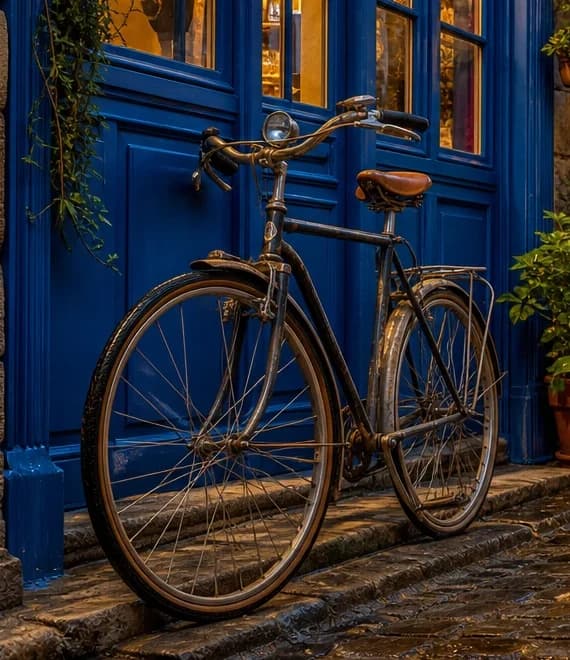
Upscale Product Photos, Logos, and Graphics
Product imagery often needs extra pixels for zoom views, marketplace crops, advertisements, and multi-channel publishing. Raster logos and graphics may also need a larger bitmap when the original vector file is unavailable. The Image Upscaler can increase those dimensions while keeping the composition unchanged. Begin with the least-compressed source available, and verify brand lettering, package text, exact geometry, fabric weave, and reflective edges after enlargement.
- Larger product images for stores, catalogs, and ads
- Raster logo and graphic enlargement when no vector exists
- Original composition and aspect ratio retained

Upscale Images for Printing
Printing a photo at a larger physical size requires enough pixels for the selected dimensions. Use the AI Image Upscaler to create a larger source for posters, albums, invitations, cards, presentations, and marketing layouts. A 2× or 4× result can support a print-ready workflow, but added pixels do not automatically set paper size, color profile, bleed, or 300 DPI metadata. Verify effective DPI at the intended print dimensions in the final design application.
- More pixels for posters, cards, albums, and documents
- 2× and 4× options for different physical sizes
- Final DPI and color settings remain in the print workflow
Private Browser-based Image Upscaling
The Image Upscaler decodes, enhances, and exports the image locally in your browser. This is useful for personal photos, confidential client work, private product launches, and unpublished artwork because the source image does not need to be uploaded for the free enlargement task.
- No image upload during the free upscaling task
- Local model work stays off the main interface thread
- Private processing for personal and client images

An Image Upscaler Focused on Useful Output
Choose the scale, see the expected dimensions, compare the result, and download. This Image Upscaler keeps the decision simple while the model runs locally.
AI-assisted enlargement
The AI Image Upscaler reconstructs edges and texture instead of only stretching the same pixel blocks. It is useful for photos, products, artwork, and raster graphics that need a larger presentation.
Clear 2× or 4× control
Select 2× for a balanced enlargement or 4× when a small source needs substantially more pixels. Expected width and height appear before processing.
Private with no usage quota
Process as many images as you want without an account, credits, or a daily limit. Personal photos and client assets stay on your device.
How to Use the Image Upscaler
The complete enlargement workflow takes three short steps.
Choose one image
Drop a JPG, PNG, or WebP into the upload box. The full workspace opens after the browser reads the source dimensions.
Select 2× or 4×
Check the predicted width and height. Use 2× for most work and 4× only when the final layout needs it.
Upscale and download
Run the local model, compare original and result, then download or continue into the AI Image Editor.
Popular Image Upscaler Uses
One Image Upscaler covers the most common enlargement tasks without fragmenting them into separate pages.
Product publishing
Create larger marketplace images, zoom crops, catalog assets, advertisements, and storefront graphics.
Logos and artwork
Enlarge raster logos, illustrations, anime images, AI artwork, icons, and design elements.
Print preparation
Add pixels before setting final physical size, effective DPI, color profile, bleed, and export settings.
Advanced photo editing
Upscale first, then restore an old photo, remove objects, fix lighting, retouch, or change the background.
Image Upscaler FAQ
Is this AI Image Upscaler free?
Does the Image Upscaler upload my photo?
Should I use 2× or 4× image upscaling?
Can I enlarge an image without losing quality?
Can I upscale product photos and logos?
Does 4× upscaling make an image print-ready?
Can I upscale images directly in my browser?
Upscale the Image, Then Finish the Edit
Start with the free Image Upscaler. Download the larger result, or continue into the AI Image Editor to remove objects, restore an old photo, fix lighting, retouch, or change the scene.