
Remove Glasses AI From Photos Online
Use Remove Glasses AI to take eyeglasses or sunglasses out of a portrait and create a natural no-glasses look while keeping the person, expression, lighting, clothing, and background consistent.
Opaque frames and lenses hide real facial detail. Without a same-person no-glasses reference, the editor creates a plausible eye area rather than recovering the original pixels.
In the same file selection, choose the portrait with glasses first and optionally a clear no-glasses photo of the same person second.
Remove Glasses AI Results for Different Portraits
Four Remove Glasses AI examples show how to remove thin frames, thicker acetate glasses, sunglasses, or eyewear from one person in a group photo.
Remove Glasses from a Professional Headshot
Create a clean no-glasses version for a profile, team page, speaker bio, or portfolio.
- Remove frames, lenses, glare, and frame shadows.
- Keep identity, expression, skin texture, lighting, and crop.


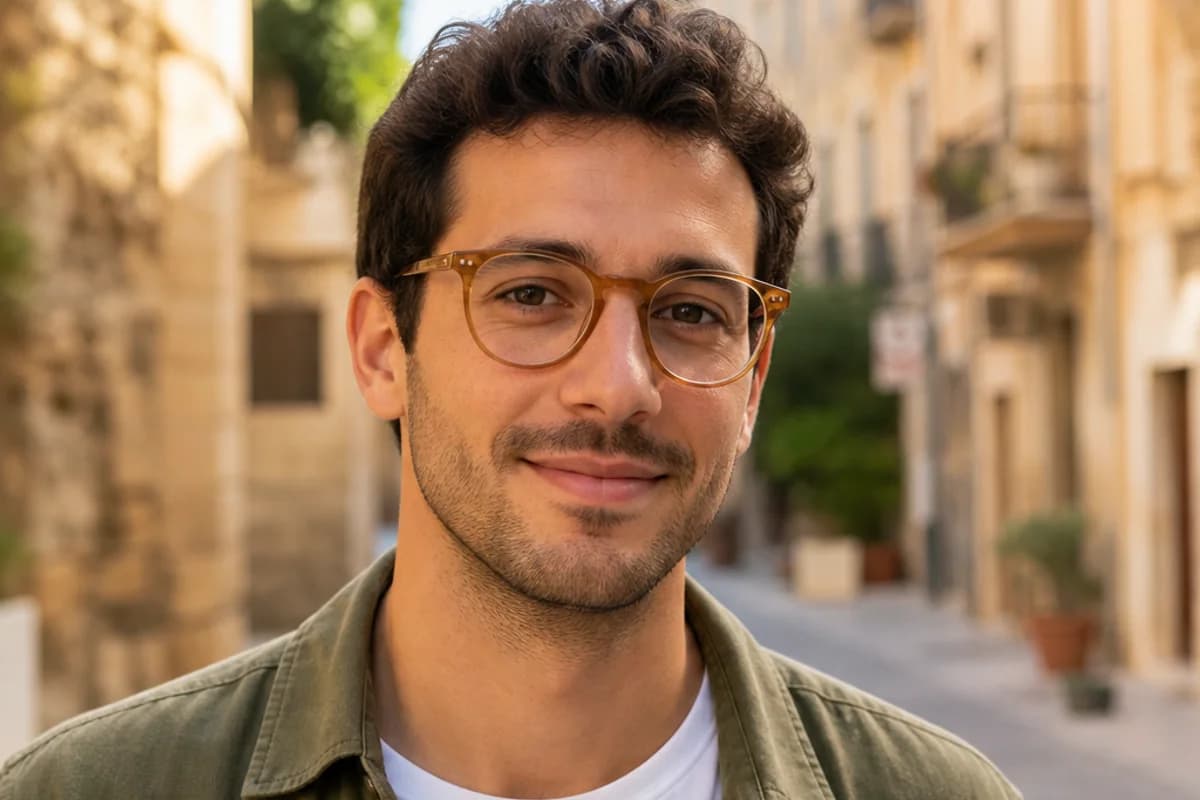
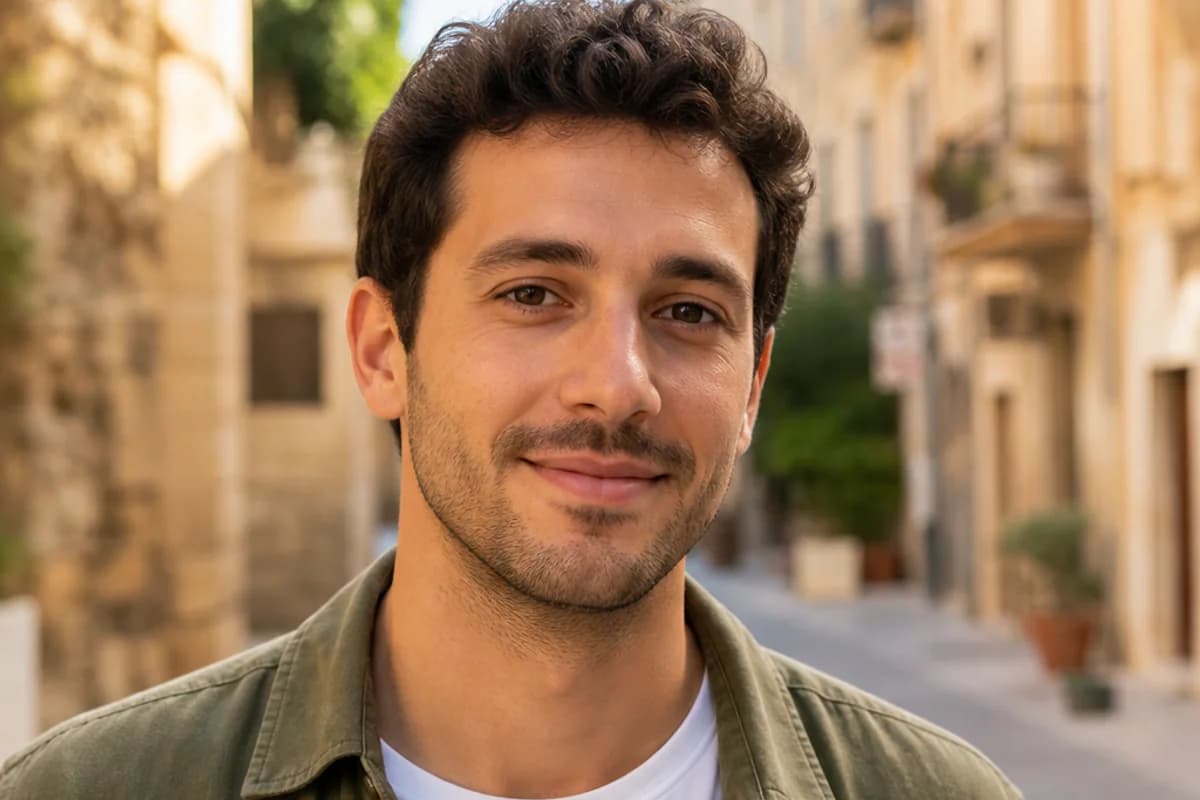
Remove Thick Frames from an Outdoor Portrait
Remove thicker frames while retaining the relaxed expression, warm daylight, outfit, and background.
- Covers acetate rims, temples, lenses, and reflections.
- Keeps the same gaze, head angle, skin tone, and color.
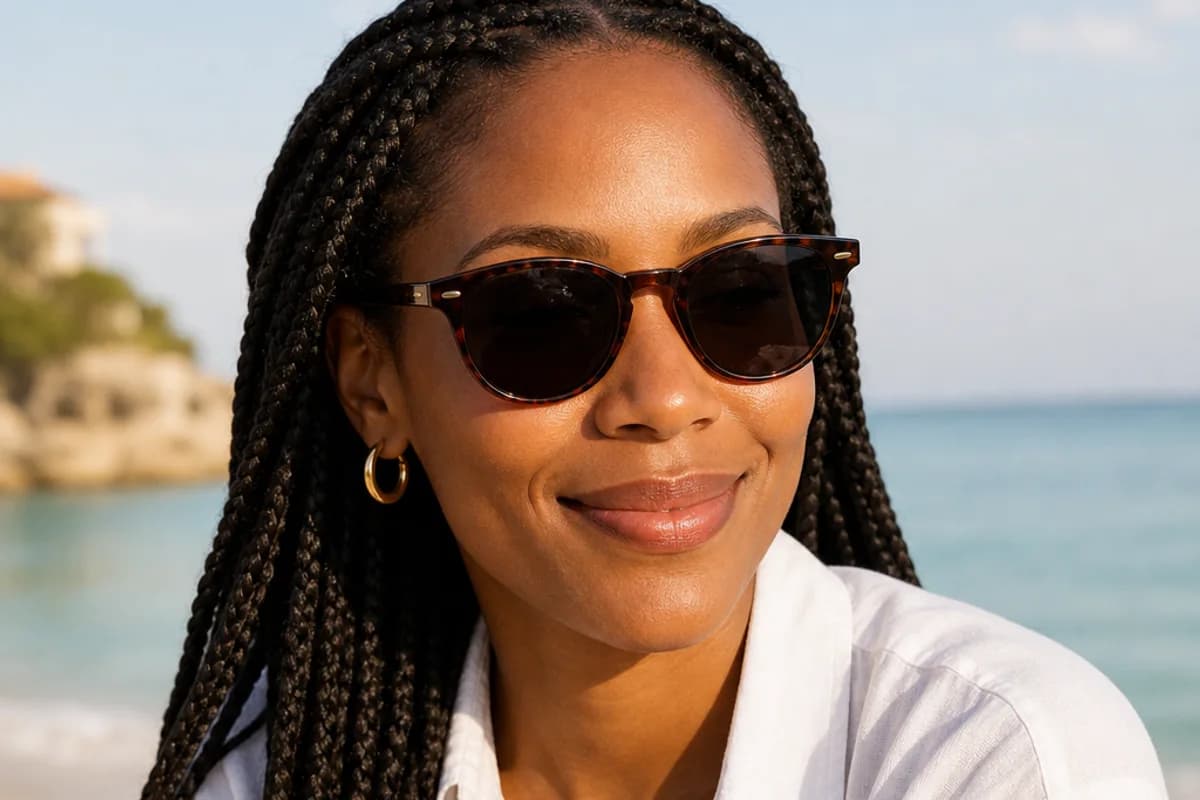
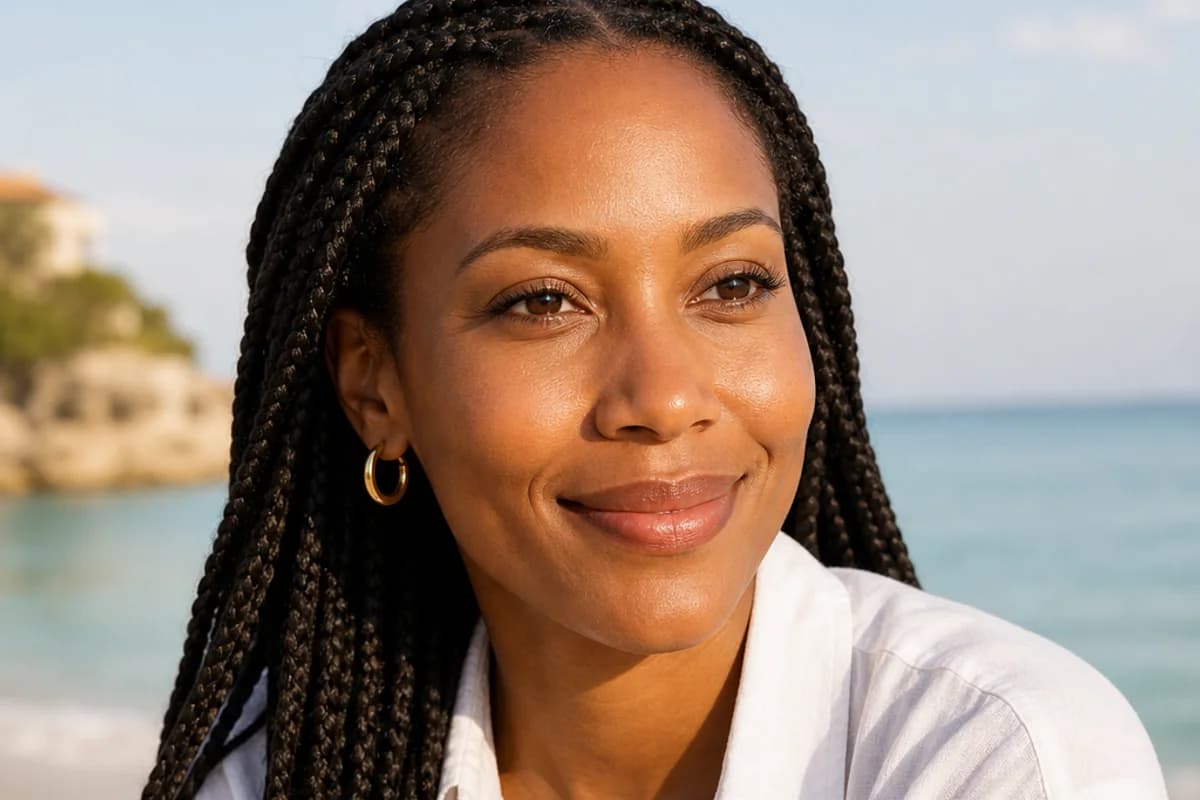
Remove Sunglasses from a Vacation Photo
Create a clear-eyed vacation portrait while preserving the smile, hairstyle, accessories, and coastal light.
- Remove dark lenses, frames, reflections, and cast shadows.
- Keep the gaze, sunlight, color grade, and crop consistent.
Remove Glasses in a Group Photo
Run the focused first pass on clearly visible eyewear, then continue in the full editor to target one person by position or clothing when needed.
- Rebuild the covered eye area to match identity and daylight.
- Preserve every other face, outfit, object, and background detail.


Popular Reasons to Remove Glasses from a Photo
Use Remove Glasses AI to create an alternate portrait for profiles, memories, personal projects, and visual comparisons.
Professional Headshots
Create a no-glasses option for team pages, speaker profiles, resumes, portfolios, and business networks.
Social and Dating Profiles
Try a clear-eyed profile variation while keeping your familiar expression, style, and background.
Travel and Vacation Photos
Remove sunglasses from a favorite outdoor portrait and keep the light, scenery, and relaxed moment intact.
Family and Group Pictures
Target one person’s eyewear in a shared photo while preserving everyone else in the scene.
How to Remove Glasses from a Photo with AI
Create a natural no-glasses portrait in three straightforward steps with Remove Glasses AI.
Upload the Portrait
Choose a clear photo where the face and eyewear are easy to see. Add an optional second photo of the same person without glasses when you have one.
Start the No-Glasses First Pass
Selecting the photo starts the built-in eyewear-removal task. It removes visible frames, lenses, temples, reflections, and frame shadows while protecting identity and the scene.
Review, Download, or Customize
Review the eyes and nearby facial details, download the result, or carry it into the full editor when you want to target one person or preserve a specific detail.
Why Choose Our Remove Glasses AI?
Remove Glasses AI includes the focused eyewear-removal and preservation instructions, so the first result starts from the upload instead of prompt writing.
Complete Built-In Task
The server instruction covers frames, lenses, temples, nose pads, reflections, and nearby shadows without requiring text in the initial upload view.
Identity-Aware Editing
The task focuses on the covered eye area while preserving the person, expression, pose, hair, clothing, lighting, and background.
Reference-Friendly Workflow
Use the portrait alone or add a second no-glasses photo of the same person to guide the natural eye area.
Remove Glasses AI FAQ
What is Remove Glasses AI?
Do I need to write a prompt before removing glasses?
How do I remove glasses from a photo online?
Can Remove Glasses AI remove sunglasses?
Can AI remove thick or colored frames?
Will my face still look like me after the glasses are removed?
Can I use a second photo as an eye reference?
Can I remove glasses from one person in a group photo?
Can Remove Glasses AI work on old photos?
Does this tool remove glasses glare too?
What kinds of eyewear can I remove?
How should I prompt AI to remove glasses naturally?
Can I try Remove Glasses AI without signing up?
See the Portrait Without Glasses
Upload a clear photo and let Remove Glasses AI create a natural no-glasses variation while keeping the person and the moment recognizable.