
Image to Video AI That Brings Your Photos to Life
Upload a picture, describe the motion, and turn a favorite photo, product shot, or illustration into a short video.
Upload an image
or drag and drop
Try a motion idea
Describe one action and the camera movement you want.
Checking access
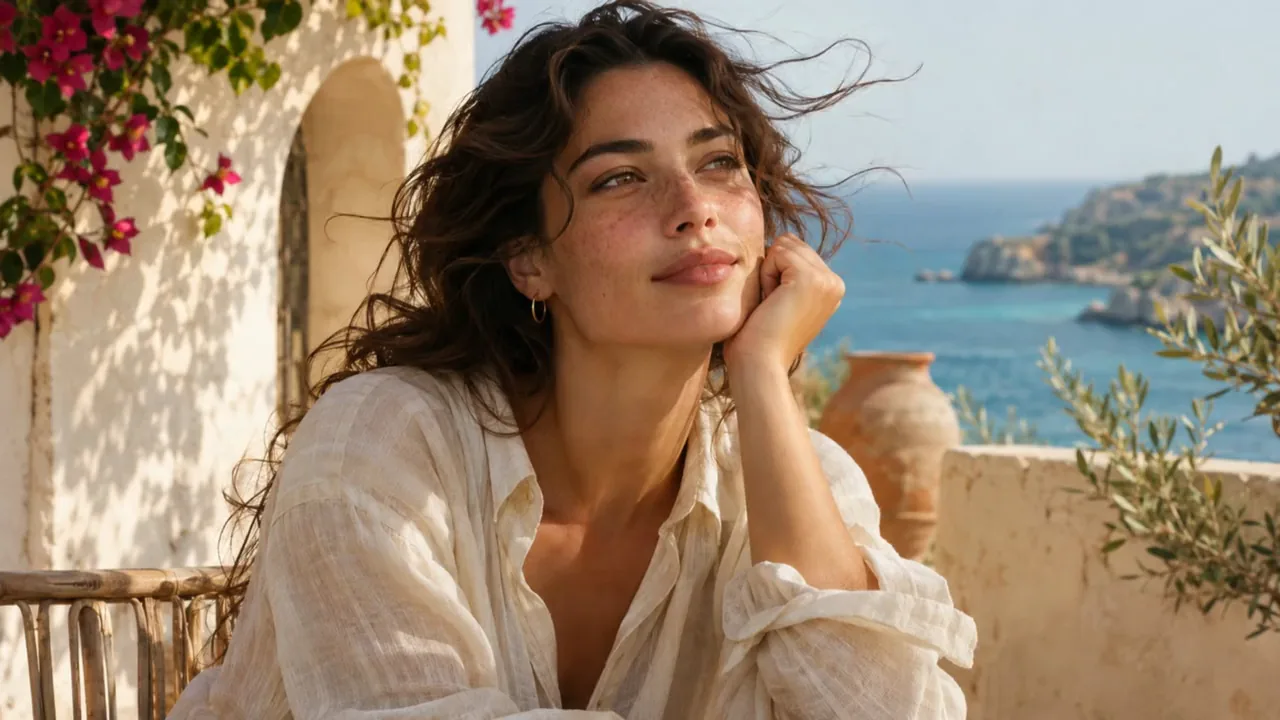
Every image has a next scene.
Explore image to video AI for everyday photos, product shots, and worlds from your imagination.
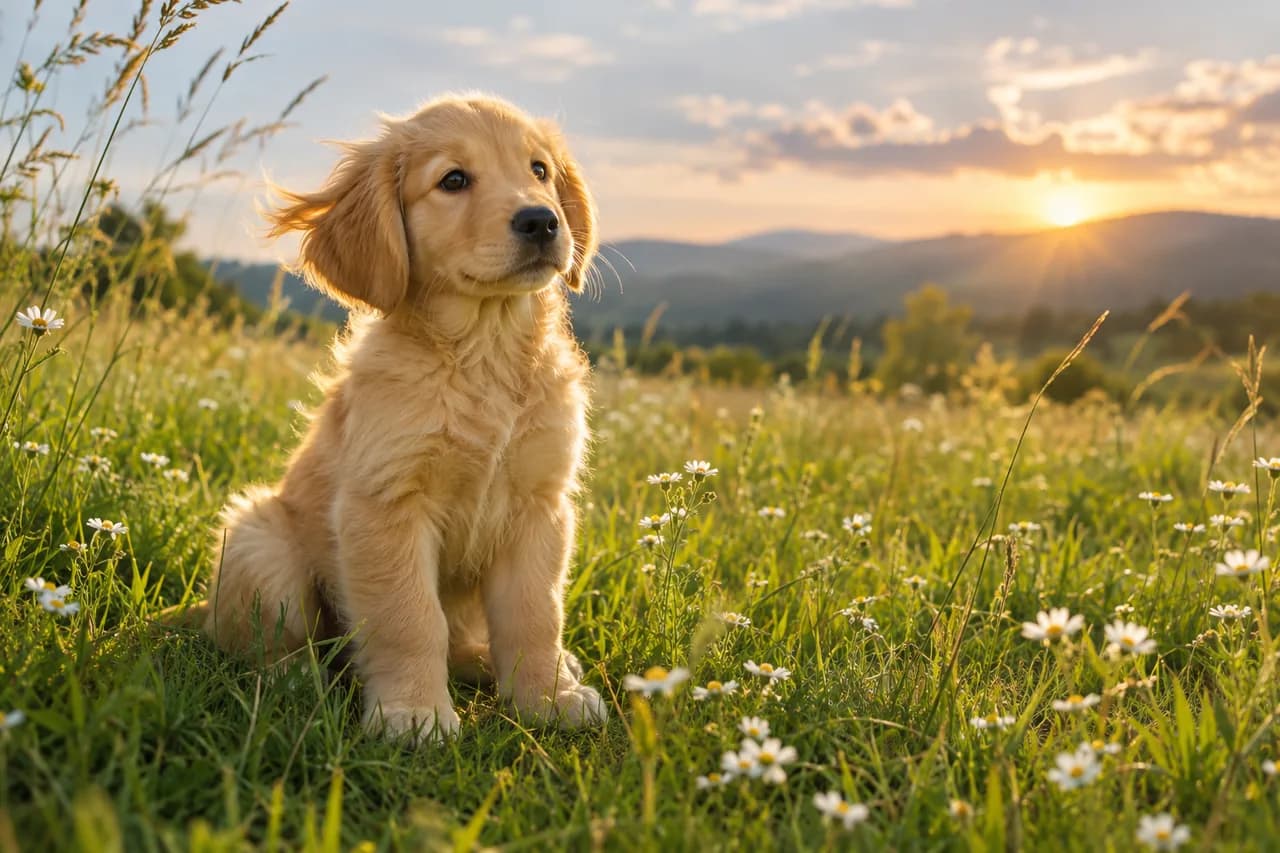
Give a still photo its next moment
A glance, a breeze, a tilt of the head. Start with a photo you already love and describe what happens next. Image to video AI uses your picture as the visual starting point, giving you an established subject, composition, and mood to work from.
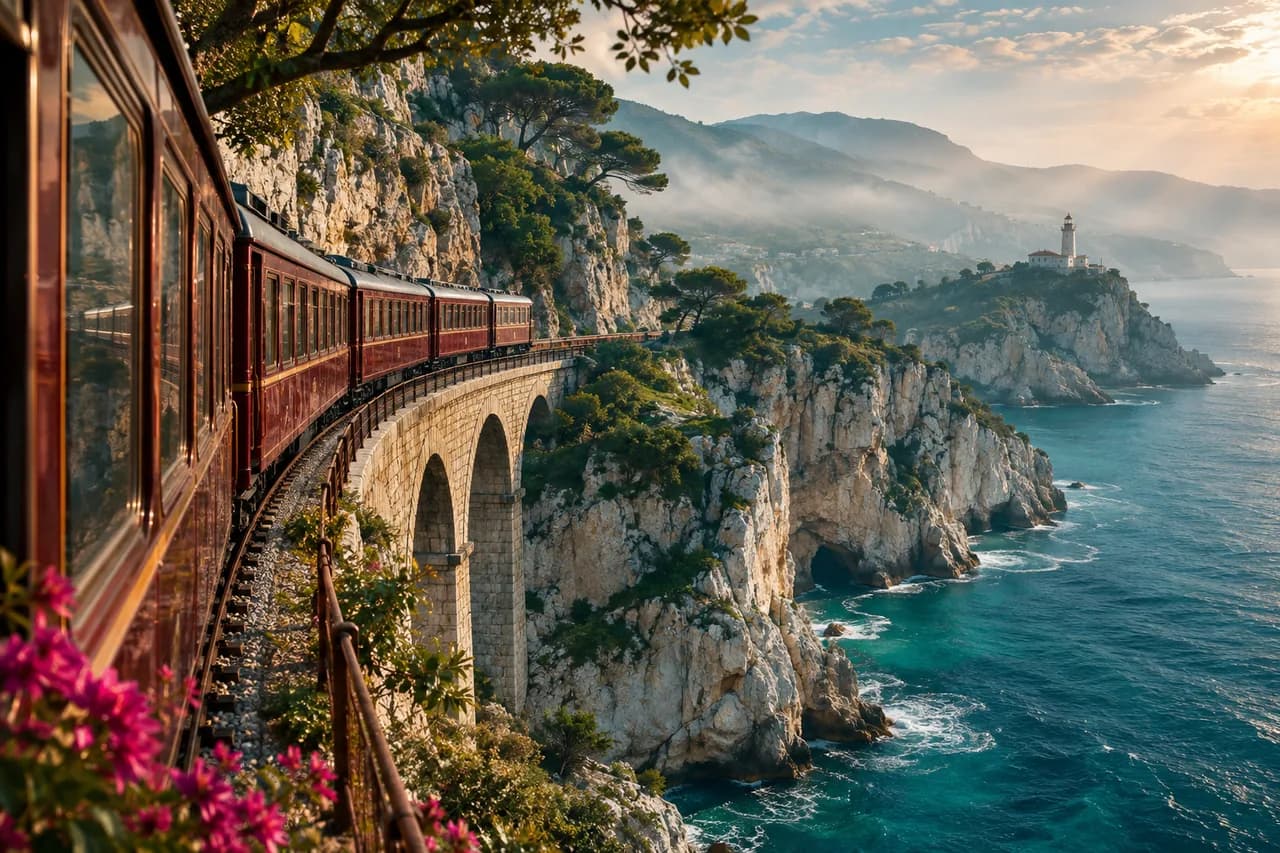
Make the camera part of the story
Give the scene a slow push-in, follow a moving subject, or let the background come alive around a steady camera. A short image to video AI prompt describes the action and feeling of the shot. Small, intentional directions help you explore different takes and find the mood you had in mind.
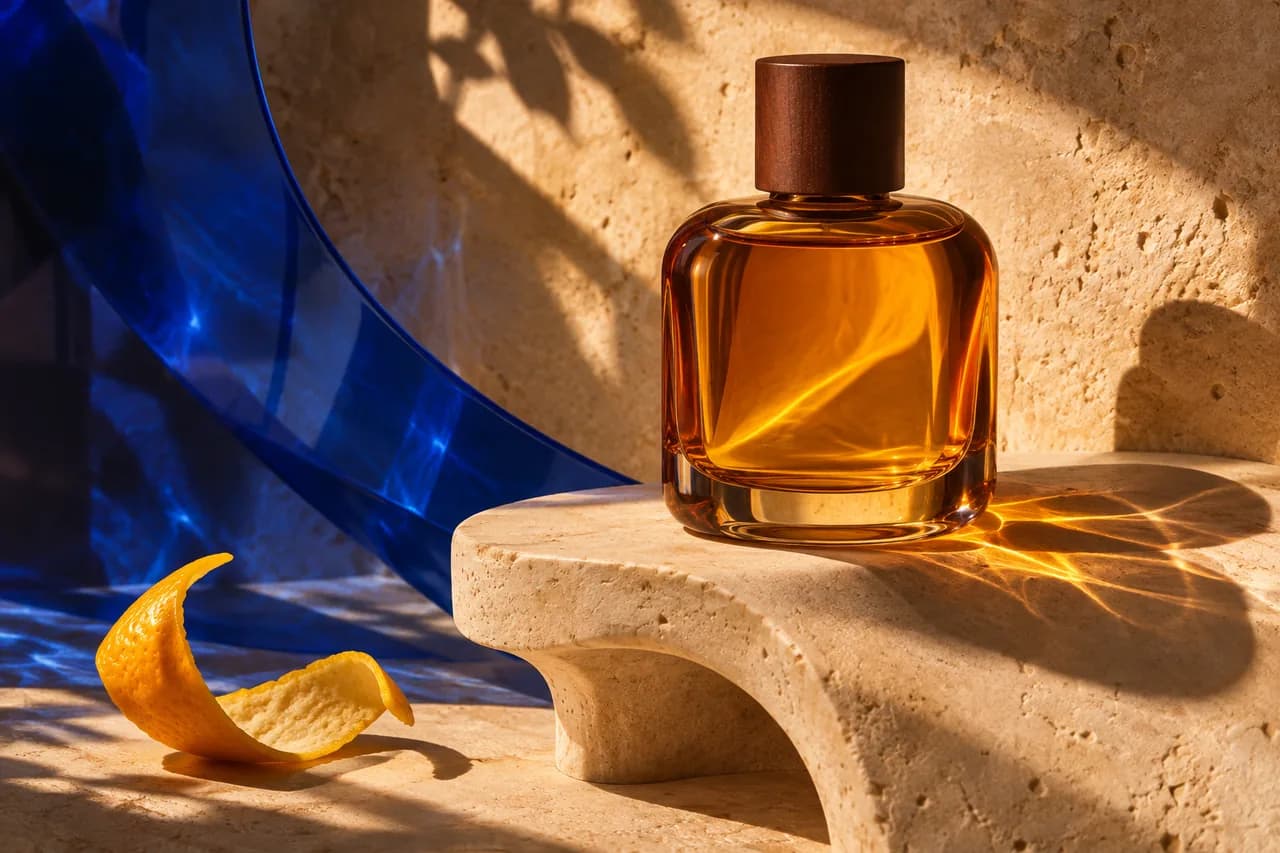
Put your product photos to work
Your next launch clip can start with the product shot already in your library. Use product image to video AI to explore a gentle reveal, a changing reflection, or a slow approach to a detail. Create visual material for a storefront, campaign teaser, or ad concept from the same starting image.
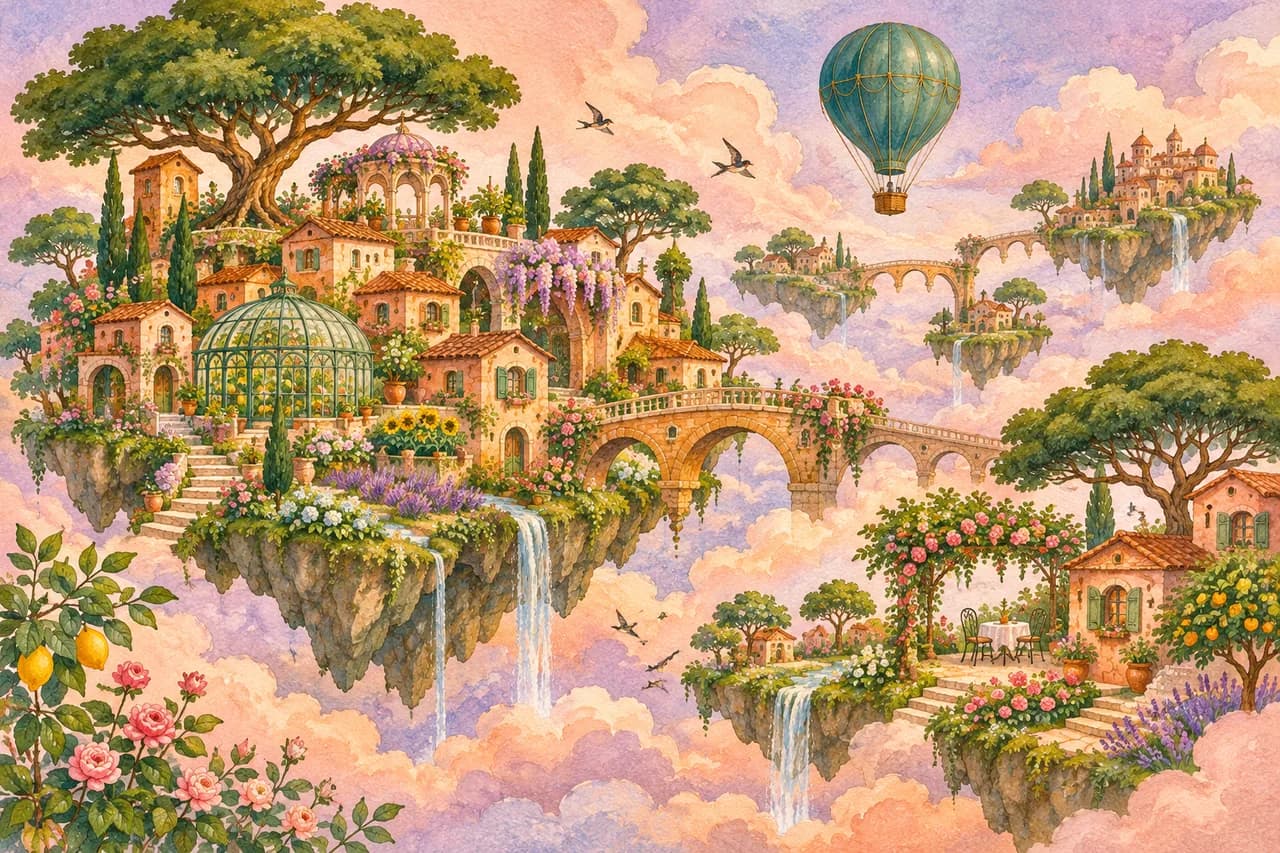
Bring illustrated worlds into motion
Give a painted sky drifting clouds, a clay character a small gesture, or a concept scene a sense of depth. Photo to video AI also works from illustrations and AI-created artwork. Explore ideas for portfolios, pitches, and story development, with movement that fits the visual style of your source.
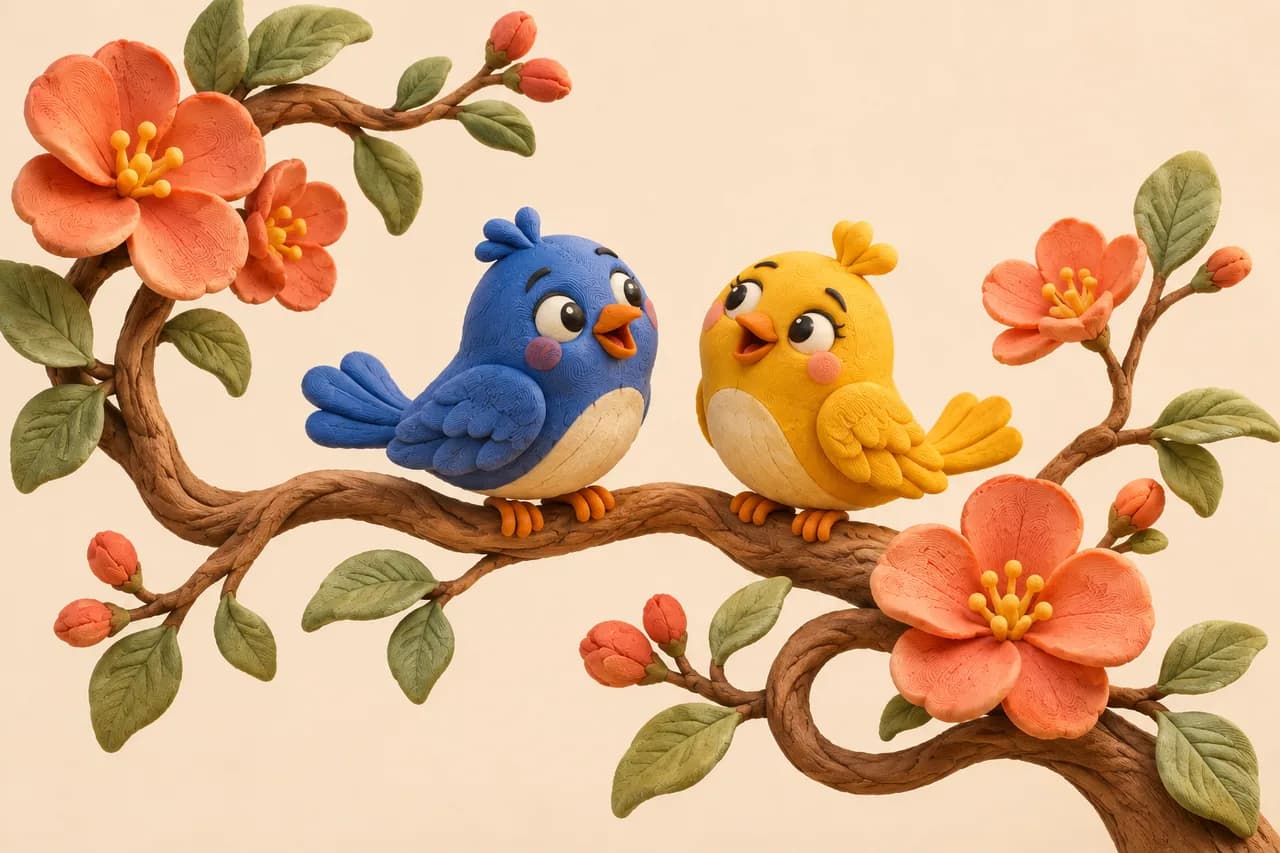
Think about the screen before you generate
Plan a vertical composition for a social story or a wide frame for a presentation. Kling follows the uploaded image proportions, while Veo offers its own framing options. Choose the model and supported settings, check the credits, and use image to video AI to create a clip for your next destination.
How to use image to video AI
Upload your image
Choose a clear photo or illustration with room for movement.
Describe the motion
Describe a movement, choose your model, and check the estimated credits.
Generate and review
Generate your clip, review the result, and download your preferred take.
A little motion. A lot of possibilities.
Product launch teasers
Turn a catalog image into a reveal for a collection, storefront, or campaign.
Social posts and stories
Animate travel photos, pets, and personal moments for Reels, TikTok, or story updates.
Artist portfolios
Give an illustration or character design an expressive moment for your portfolio.
Story and pitch development
Create a moving concept reference to discuss camera, pacing, and atmosphere with collaborators.
From image editing to video in one workflow
Prepare a better starting image
Clean up, improve, or extend your source with our image tools.
Find the model that fits your idea
Choose supported video models with controls matched to their capabilities.
See the credits before you create
Compare estimates as you change settings before spending credits.
Image to Video AI FAQ
How does image to video AI work?
Upload one picture and describe the movement. The selected model uses your image and prompt to generate a short clip. Review subject details and motion before downloading and sharing.
Is image to video AI free, and do I need to sign in?
You can prepare your image before signing in. Video generation requires a signed-in account, paid-customer access, and enough credits. The tool shows the estimated cost before you generate.
Which images can I upload?
Upload one JPG, PNG, or WebP image up to 10 MB. Choose a sharp image with a clear subject that you have permission to process.
What video length, resolution, and aspect ratio can I choose?
Kling 3.0 supports 3–15 seconds with Standard, Professional, and 4K modes. Its proportions follow the uploaded image. Veo options vary by model and input mode. Check the current controls for supported settings.
How long does it take to generate a video?
Processing time depends on the model, settings, and provider queue. Keep the page available and follow task status in the preview area.
How do I write a prompt for natural photo animation?
Try one small action and a camera direction, such as “The puppy tilts its head as the camera moves closer.” Complex transformations can cause inconsistent details, so refine one movement at a time.
Can I include sound, and what can I download?
Kling offers a Sound control. Preview successful results and download MP4 through the result panel. Audio behavior, available quality, and any provider-applied markings depend on the selected model and output.
Can I use product images commercially, and are uploads private?
Check source-image, brand, and person permissions before commercial use. Paid customers can choose private generation. The service and its providers process uploaded media under the Terms and Privacy Policy.
Read our Terms and Privacy Policy for content rights and processing details.
Bring your next image to life.
A favorite frame, a simple idea, a little movement. Start your next scene with image to video AI.
Animate your image