
AI Image Text Editor Edit Text in Images Online
Use the AI Image Text Editor to replace a price, correct a typo, translate a label, remove unwanted words, or add new copy while keeping the surrounding image visually consistent.
Generated lettering can contain spelling, number, or layout errors. Verify every word and digit before publishing, especially prices, legal copy, and product labels.
Name the current text, put the replacement in quotation marks, and tell the AI to keep the same style, position, layout, and surrounding design.
The selected resolution controls the configured credit cost.

Edit Text in an Image Online: What You Can Change
Six AI Image Text Editor examples show how to replace, correct, translate, or remove words in finished photos and graphics while keeping the surrounding design recognizable.
Replace Text in an Image with AI and Match the Style
Replace a price, percentage, date, headline, or offer while keeping the finished design recognizable.
- Match the visible font, spacing, color, and placement.
- Keep the product, background, layout, and crop consistent.


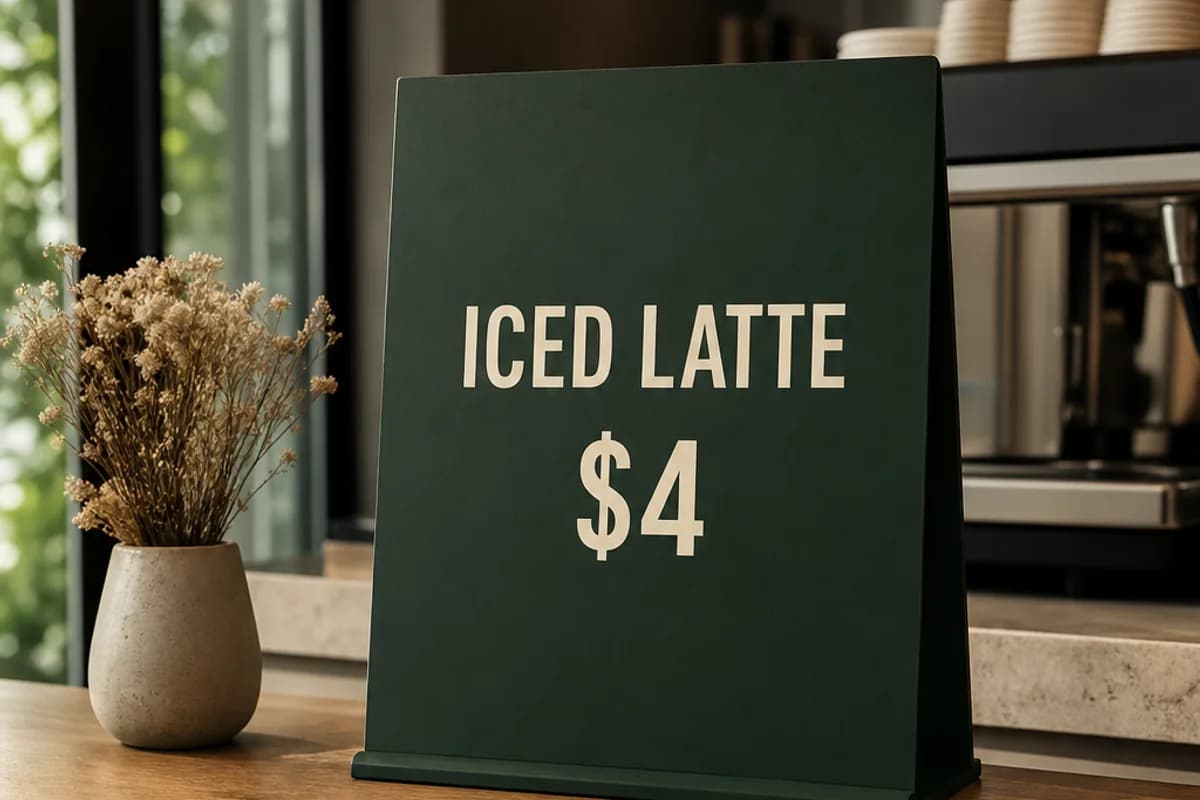
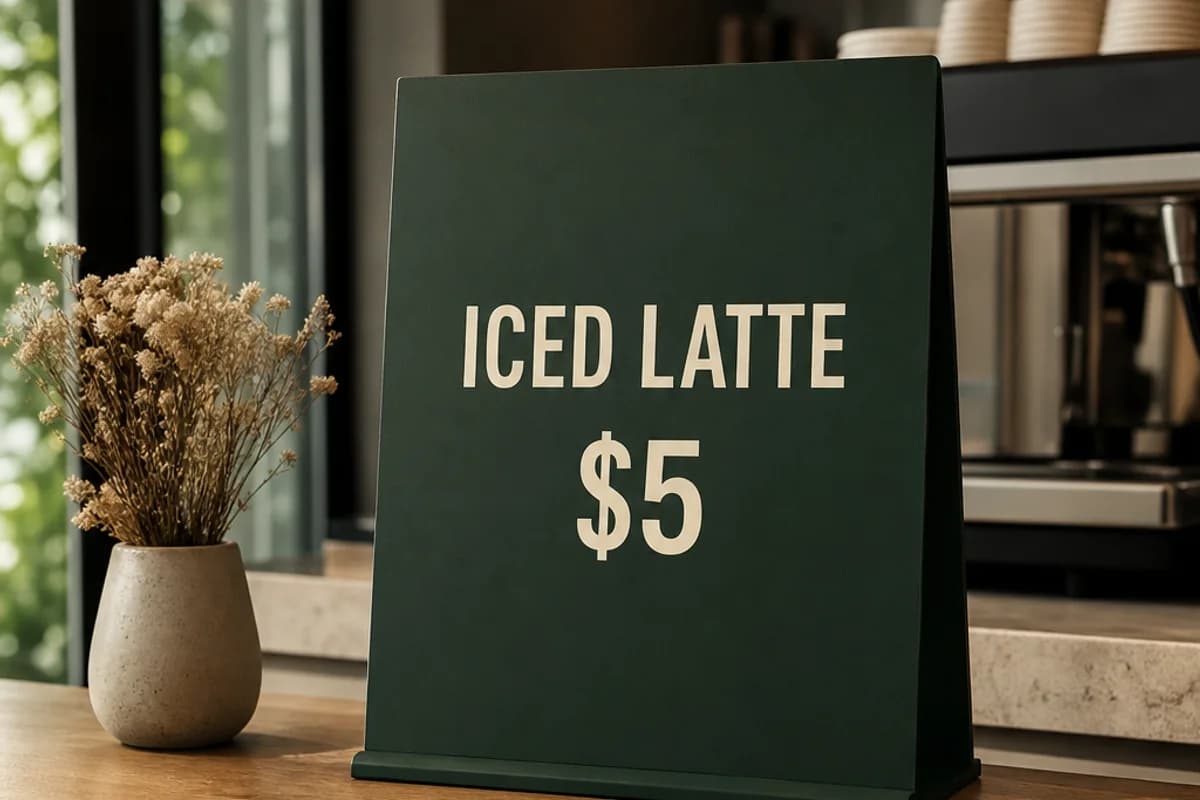
Change Text in a Photo, Sign, or Menu Online
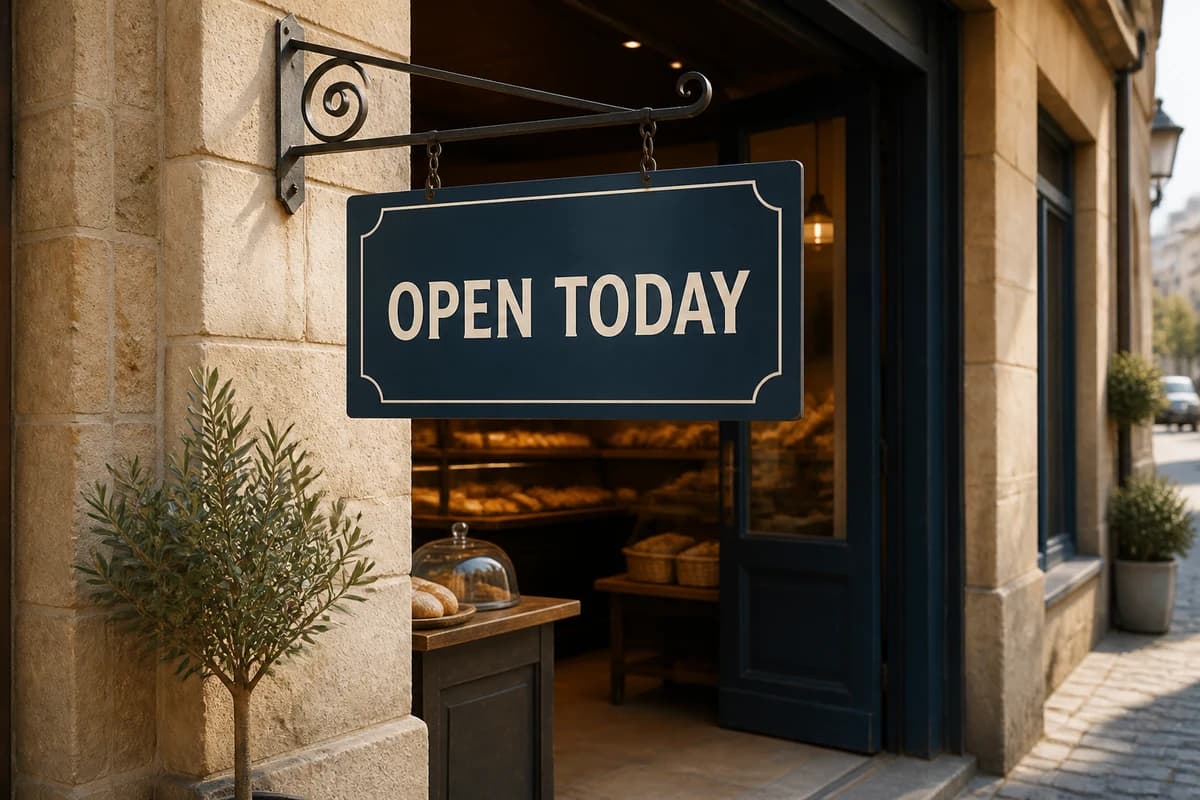
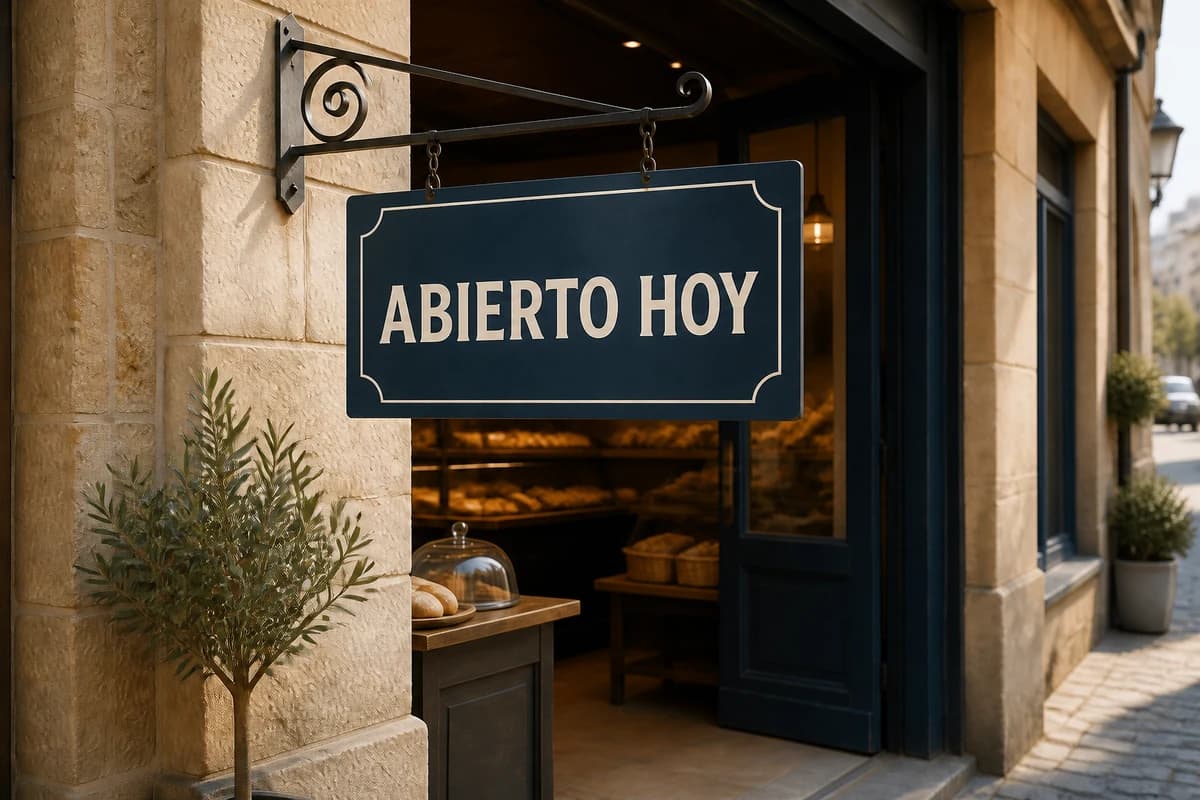
Update wording on a photographed sign, menu, board, or storefront without rebuilding the scene.
- Change prices, hours, room numbers, or directional text.
- Retain the material, perspective, lighting, and nearby copy.
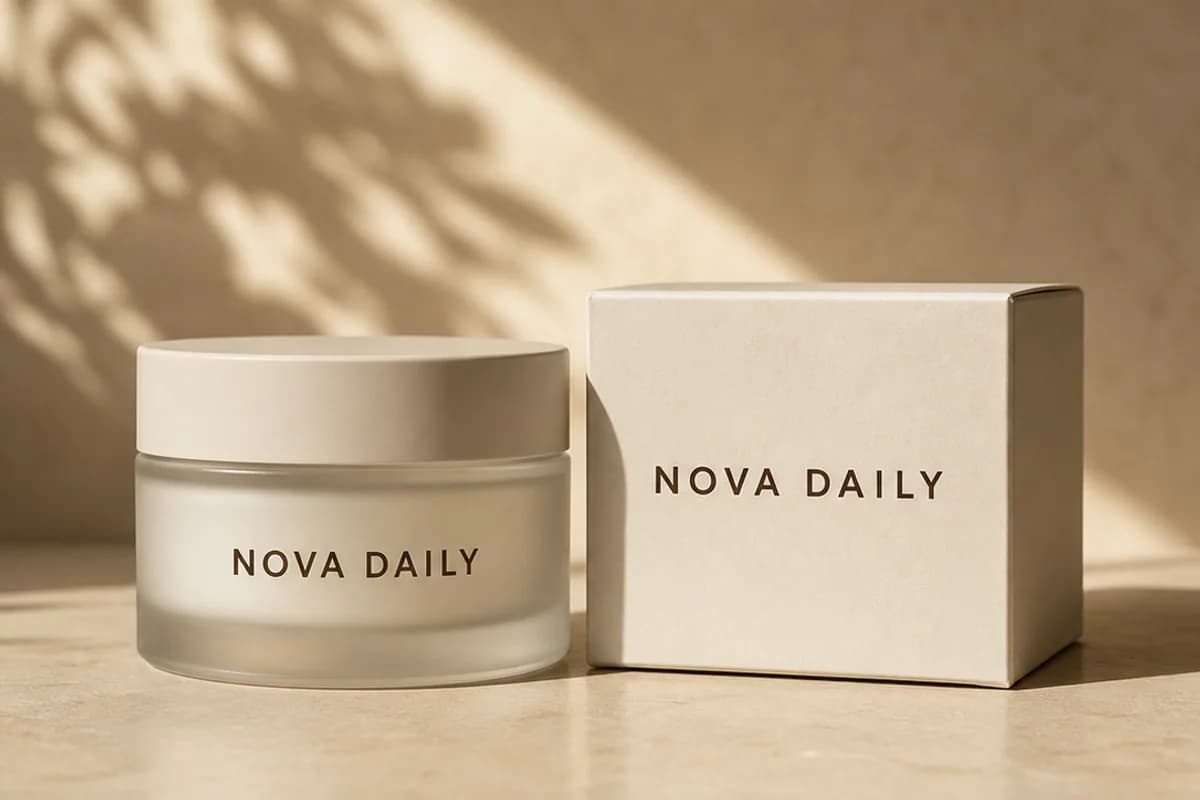
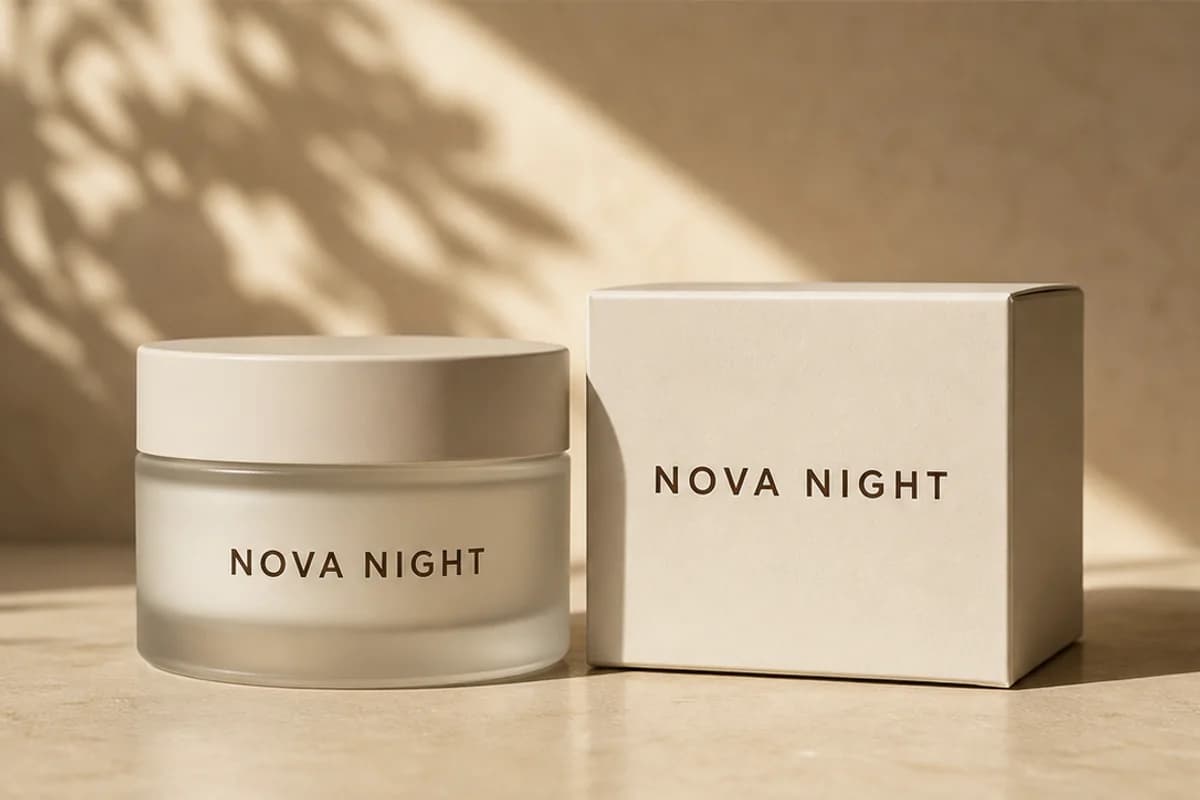
Edit Product Labels and Packaging Text
Update a product name, flavor, size, or label while retaining the package and studio styling.
- Apply the change across visible package surfaces.
- Match capitalization, color, spacing, and perspective.
Fix Misspelled Text in AI-Generated Images
Correct a typo, malformed word, or wrong number in an AI-generated graphic without redesigning it.
- Supply the exact corrected spelling.
- Preserve the composition, objects, colors, and lighting.


Translate Text in an Image for New Audiences
Replace short source copy with your finished translation for a regional sign, menu, ad, or package.
- Keep the original hierarchy, alignment, and visual style.
- Use exact final wording sized for the available space.
Remove Text from an Image and Restore the Background
Erase a caption, price, or unwanted phrase and rebuild the surface underneath.
- Remove only the specified text area.
- Continue the nearby texture, color, light, and perspective.


Who Uses an AI Image Text Editor?
The AI Image Text Editor helps people who have a finished image but no convenient editable text layer, from online sellers to local businesses and content teams.
E-commerce Sellers and Product Teams
Update product names, package variants, sizes, offers, prices, promotional badges, and localized label concepts for listings and campaigns.
Marketing and Social Content Teams
Revise poster headlines, event dates, ad offers, thumbnail wording, calls to action, captions, and social graphics after the original artwork is finished.
Designers and Creators Without Source Files
Edit text already baked into a JPG, JPEG, PNG, WebP, AI-generated image, or screenshot when the original design document and font layer are unavailable.
Local Businesses and Global Campaigns
Change menu prices, opening hours, storefront signs, event boards, room numbers, directional text, and supplied translations for regional audiences.
How to Edit Text in an Image Online with AI
Use the AI Image Text Editor online to change words already baked into a flat image—no original text layer or Photoshop document required.
Upload a JPG, PNG, or WebP Image
Choose a clear photo, screenshot, poster, sign, menu, social graphic, or product image with the complete text area visible.
Enter the Old Text and New Text
Quote the wording to replace, quote the exact replacement, identify its location, and request the same font style, color, size, position, perspective, and texture.
Generate and Check the Text in Context
Review spelling, letter shape, spacing, placement, and the surrounding image. Refine one instruction when needed, then download your preferred version.
Why Choose Our AI Image Text Editor?
It is built around the result users actually want: change the specified words, make the replacement fit the existing design, and keep the rest of the image recognizable.
Replace the Text, Not the Whole Image
Describe the old wording, exact replacement, and target location, then name the people, products, background, layout, colors, crop, and unrelated text to preserve.
Same-Font and Same-Style Guidance
The AI Image Text Editor guides the new text to follow the visible font style, weight, capitalization, color, size, spacing, alignment, perspective, texture, outline, and shadow.
Made for Flat Images and Screenshots
Edit words already baked into JPG, JPEG, PNG, WebP, AI-generated images, and screenshots when the original design file or editable text layer is unavailable.
AI Image Text Editor FAQ
What is an AI Image Text Editor?
Can GPT Image 2 edit text in images?
How do I edit text in an image online?
Can I edit text in JPG or PNG images online?
Can AI fix or correct text in an image?
Can I change text in a photo online?
Can AI translate text in an image?
Can I remove text from an image with AI?
Can I edit text in an image with the same font?
Can I edit text in a screenshot?
Can I fix misspelled text in an AI-generated image?
Can I edit text on posters, signs, menus, and product labels?
Can I use the AI Image Text Editor without Photoshop?
How do I keep the rest of the image unchanged?
Can I try the AI Image Text Editor without signing up?
Is the AI Image Text Editor free to try online?
Edit Text in an Image Online Now
Replace old words, correct a typo, change a price, or update a label with same-style guidance while keeping the surrounding photo or design recognizable.