
Remove Photobomber from Photo
Want to remove photobomber from photo backgrounds? Upload a travel, wedding, group, or street photo and describe the unwanted person. AI removes that distraction and rebuilds a plausible continuation of the surrounding scene.
Best for background people who do not heavily overlap the main subject. AI generates plausible replacement pixels; it cannot reveal the real scene that was hidden behind the person.
Identify the unwanted person by position or clothing and name the people and scene details that must stay unchanged.
The selected resolution controls the configured credit cost.
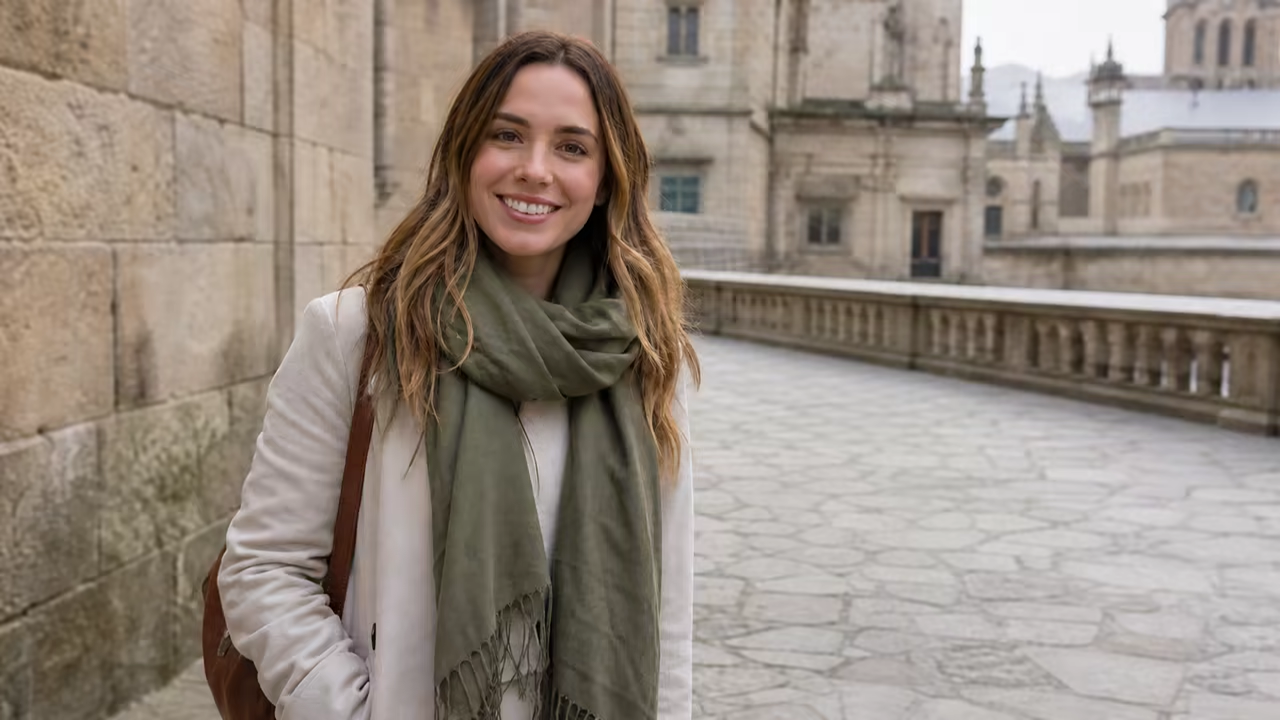
Remove the Background Person, Keep the Actual Moment
This workflow is narrower than a general object remover. It focuses on an accidental person in the background and protects the people and details you intended to photograph.
Targets the Photobomber
Identify the unwanted person by position, clothing, or distance so the model knows exactly who should disappear.
Protects the Main Subject
Faces, identity, pose, clothing, and the intended people are explicitly locked in the prompt.
Rebuilds the Scene
AI creates a plausible continuation of nearby pavement, wall, sky, foliage, furniture, or other visible background texture.
Photobomber Removal for Real Photo Problems
The strongest results come from clear background distractions with enough nearby visual context for reconstruction.
Clean Up a Travel Photo
Remove a tourist crossing the background while keeping the traveler, landmark, framing, weather, and camera look unchanged.
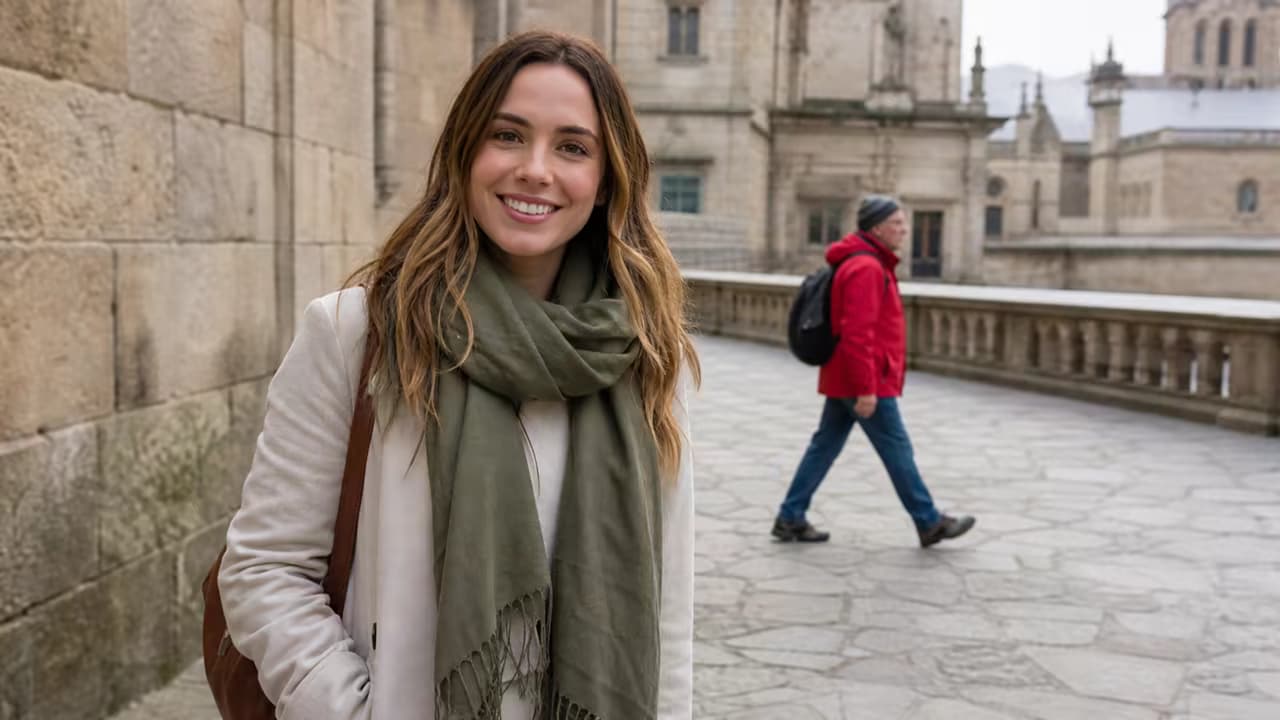 Before
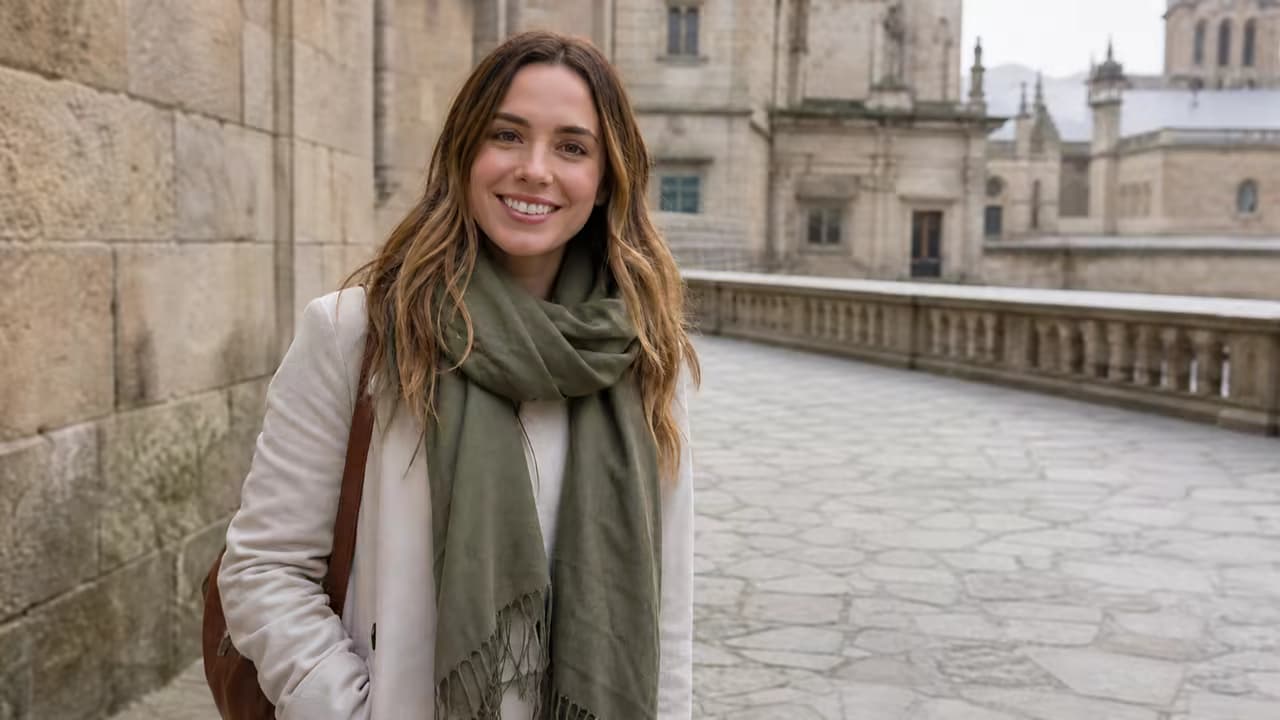 After
Afterprompt: Remove the person in the bright jacket behind the main subject. Continue the stone plaza and distant railing naturally.
Rescue a Wedding or Event Portrait
Take an unintended guest out of the edge of the frame without changing the couple, flowers, lighting, or venue.
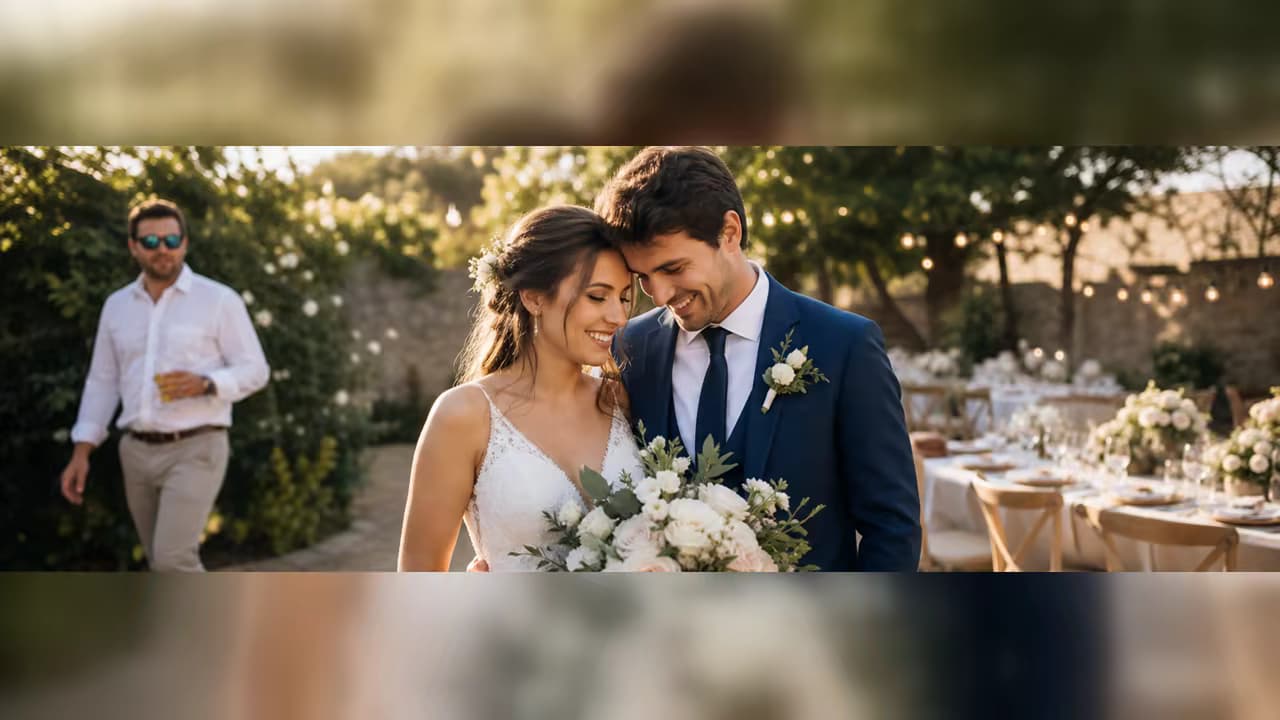 Before
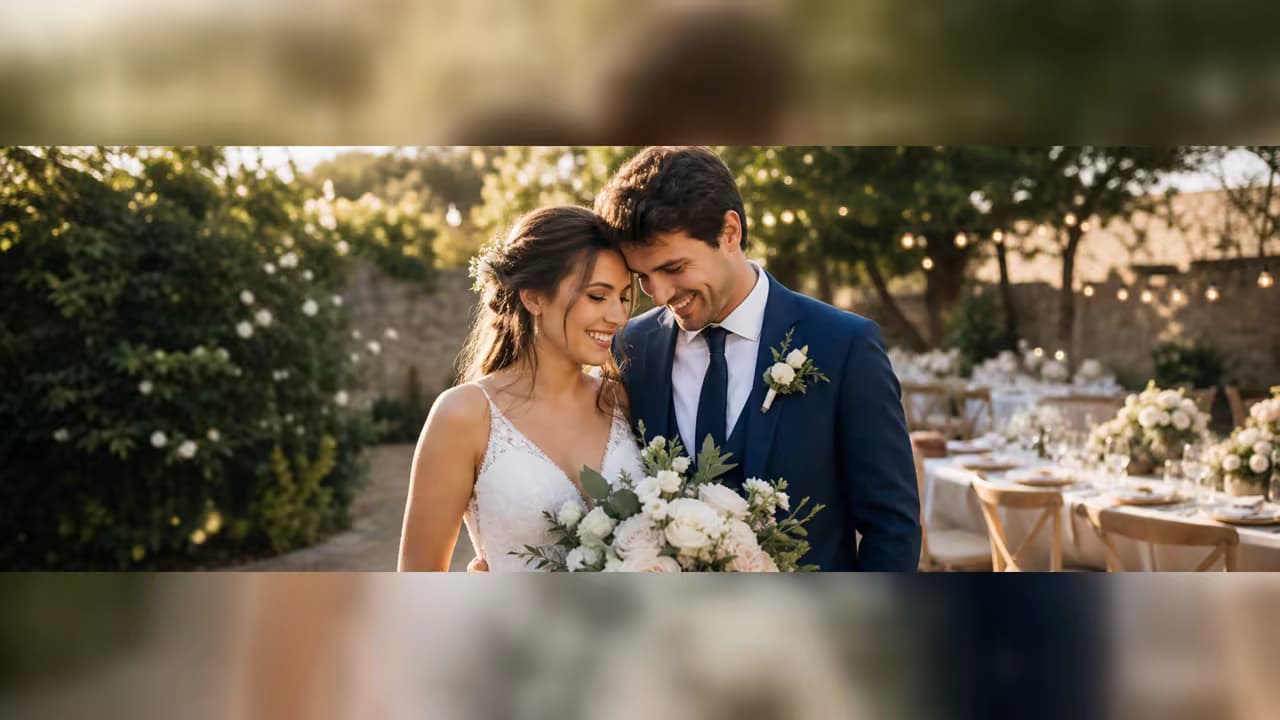 After
Afterprompt: Remove only the partially visible guest at the far right edge. Preserve the couple and extend the garden background.
How to Remove Photobomber from Photo
Describe the unwanted person precisely, generate the cleanup, and inspect the reconstructed background.
Upload the Original Photo
Choose the highest-quality version with the intended subject and the unwanted background person both visible.
Identify the Photobomber
Add a location or clothing description so the model does not remove the wrong person in a group or busy scene.
Review the Rebuilt Area
Check edges, repeating textures, shadows, reflections, limbs, and every intended person before downloading.
When a Photobomber Remover Helps Most
Use it when one unintended background person distracts from an otherwise useful photo.
Travel and Landmark Photos
Clean up a person walking behind you at a viewpoint, plaza, museum, beach, or city street.
Weddings and Events
Remove an unintended guest at the edge or in the distant background of a portrait.
Family and Group Photos
Keep every intended family member while removing a passerby who entered the scene.
Street and Property Photos
Reduce a distracting background person when enough pavement, wall, foliage, or room detail remains visible.
Get Cleaner Person-Removal Results
Most failures come from an ambiguous target, heavy overlap, or background details that are not visible anywhere else in the image.
Before You Generate
- Name the person by position and clothing instead of saying only “remove the person.”
- State which people must remain unchanged in a group photo.
- Use the original-resolution image rather than a compressed screenshot.
- For reflections or shadows, mention them only when they clearly belong to the photobomber.
Common Problems and Better Instructions
A Focused Prompt-Based Editing Workflow
The page narrows the edit to one task, offers concise prompt guidance, and asks you to review the result before using it.
Task-Specific Prompt
A short guide helps you describe the target change and the details to preserve without putting text in the input for you.
Preservation First
In your prompt, treat the uploaded image as the base canvas and name the identity, composition, lighting, and background details to preserve.
Review Before Use
Generative edits can vary. Zoom into the changed area and the surrounding details, then refine the prompt and regenerate when needed.
Built around honest editing boundaries
No fake recovery claims
AI generates plausible replacement pixels; it cannot recover hidden source detail that was never captured.
No imaginary controls
This workflow uses image upload and text prompts, not a brush, mask, color picker, or batch editor.
One clear task
The page stays within its stated use case instead of behaving like an unrelated general-purpose generator.
Photobomber Removal FAQ
Can AI remove photobomber from photo backgrounds?
Will it recover what was really behind the person?
How do I tell AI which person to remove?
Can it remove someone who overlaps the main subject?
Is this the same as a general object remover?
What photos are hardest to clean up?
Remove Photobomber from Photo, Keep the Moment
Upload the original photo, identify the background person precisely, and review the reconstructed scene.