
Fix Closed Eyes in a Photo
Repair a blink or half-closed eyes while keeping the original face, expression, lighting, and background as close to the source photo as possible.
For accidental camera blinks only — not face swapping, beauty filters, eye-color changes, gaze correction, or full-face retouching.
In the same file selection, choose the photo to fix first and optionally one clear same-person open-eye reference second.
A Focused Fix for Accidental Camera Blinks
This tool has one job: open eyes that were caught closed or mid-blink without turning the photo into a general portrait makeover.
Changes the Blink
The built-in task limits the edit to the eyelids, irises, lashes, and the smallest surrounding area needed for a natural result.
Keeps the Original Photo
Identity, expression, skin texture, hair, clothes, lighting, crop, and background are explicitly preserved.
Matches Real Eyes When Possible
An optional open-eye photo of the same person gives the model a better reference for eye shape, color, and normal gaze.
Closed Eyes Fixed Without a Full Portrait Retouch
These examples were produced through the same editing workflow shown above. Results vary by source quality, angle, obstruction, and reference photo.
Fix One Blink in a Group Photo
The first pass repairs clearly accidental blinks. A follow-up can identify one person when the group contains an ambiguous or intentional eye closure.
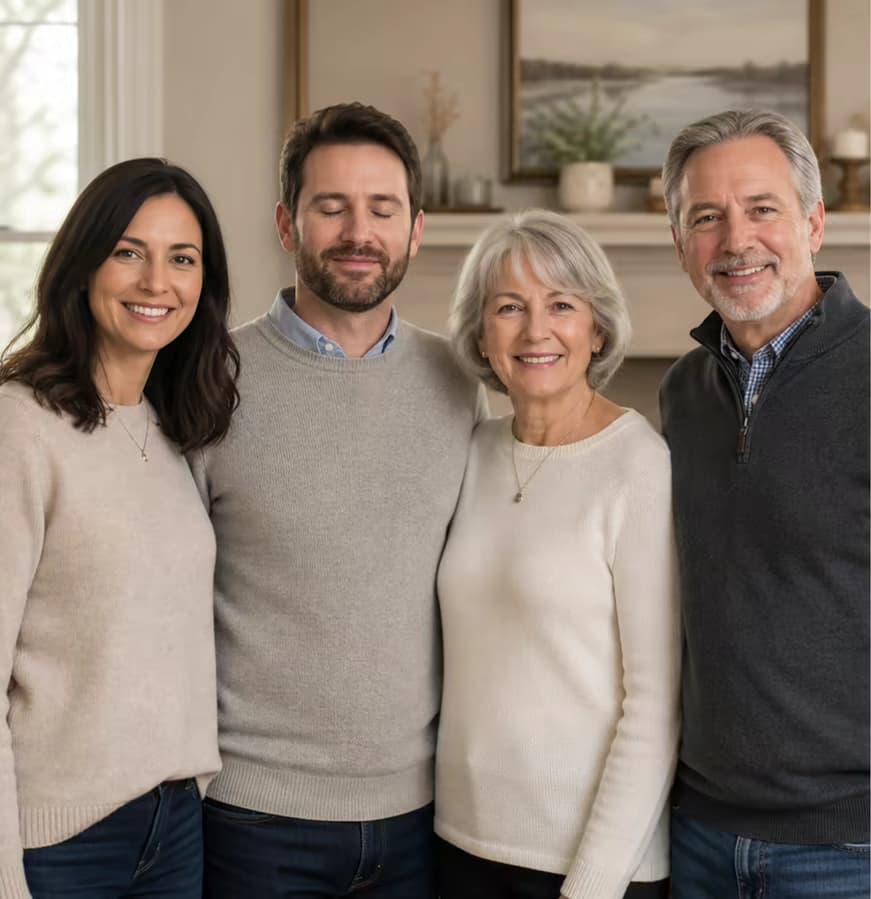 Before
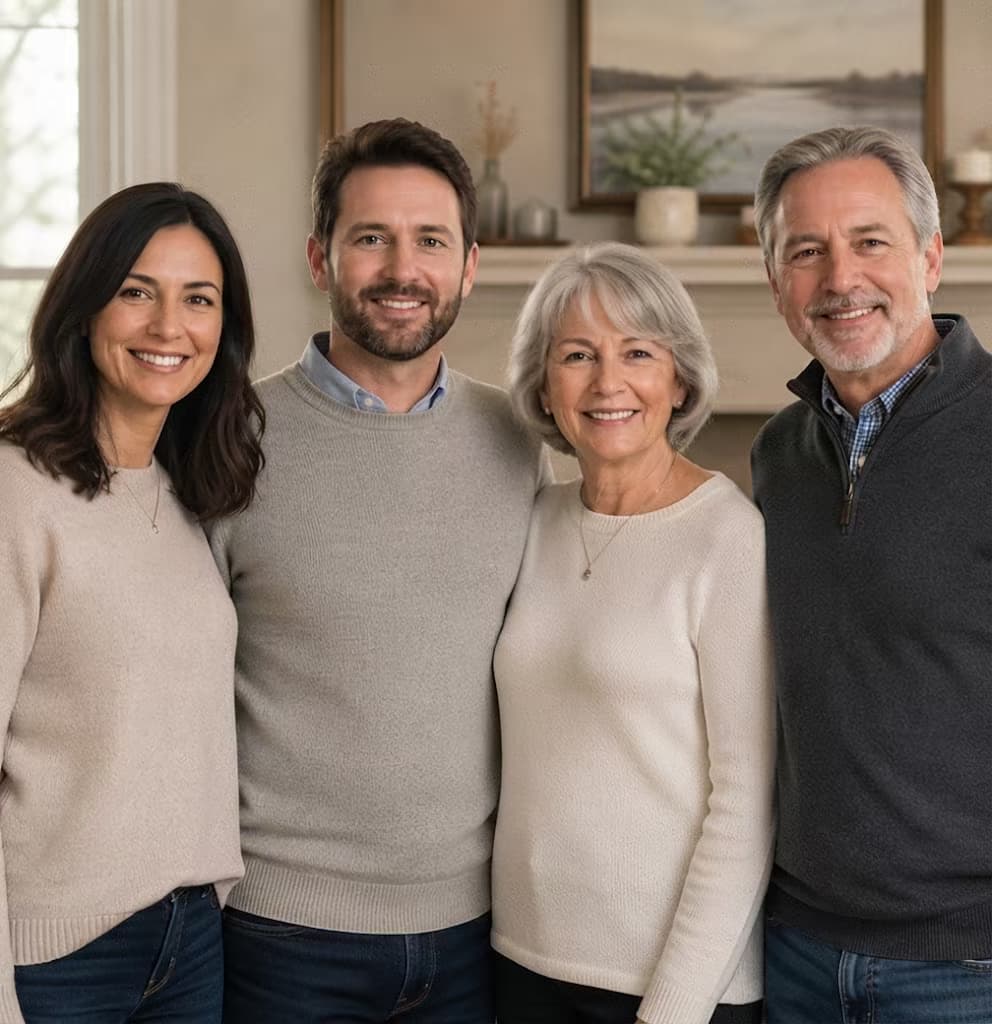 After
Afterprompt: Open only the closed eyes of the second person from the left. Keep every other person and detail unchanged.
Rescue a Graduation Portrait
A same-person reference helps recover natural eye shape and color while retaining the original smile, gown, lighting, and background.
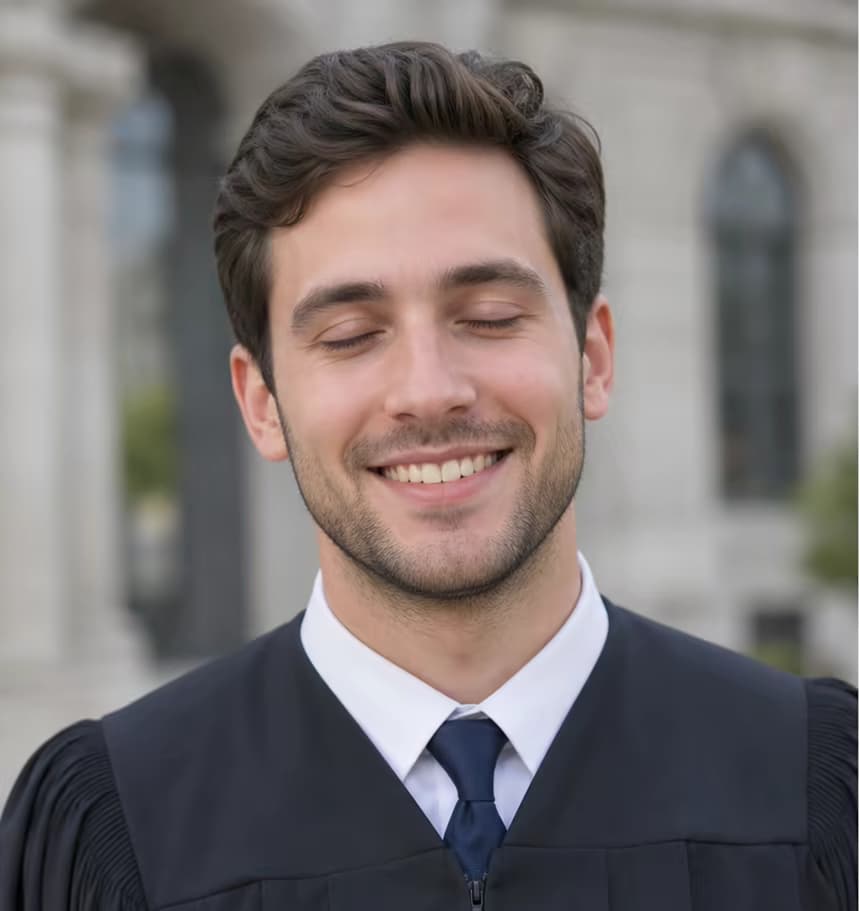 Before
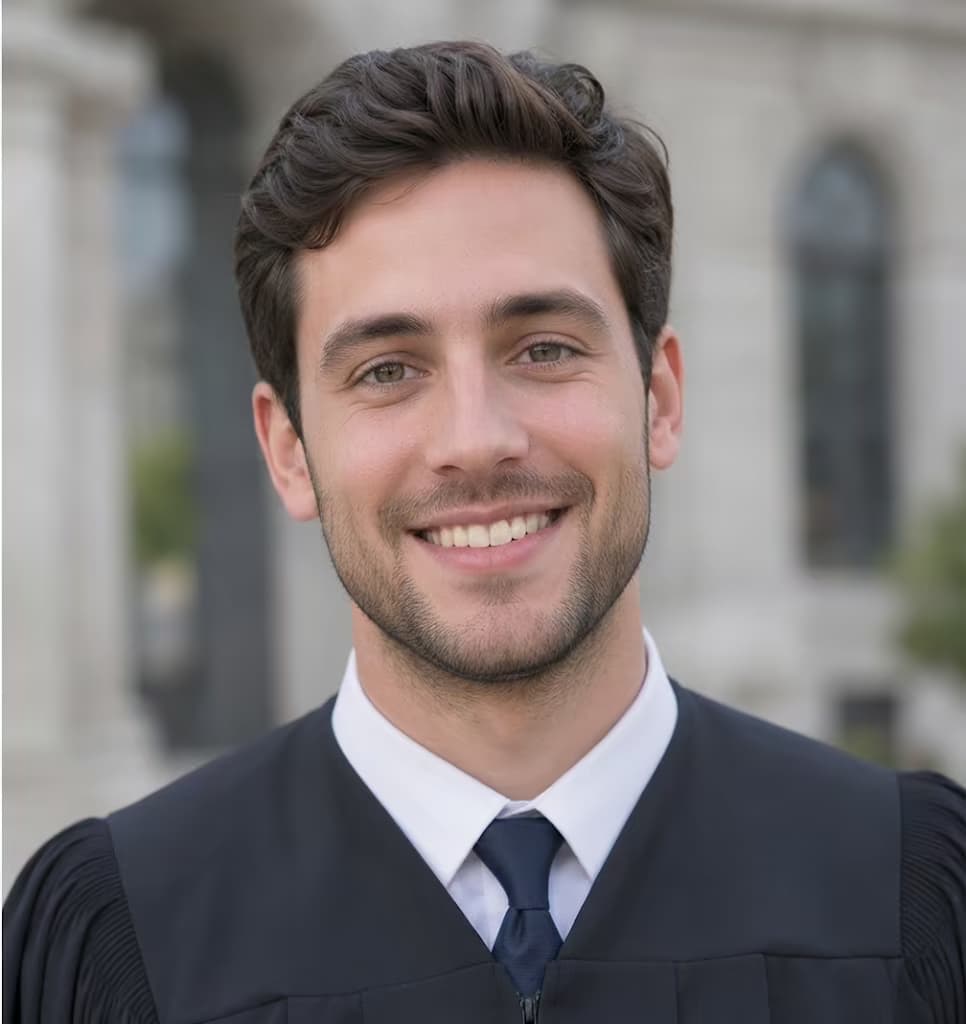 After
Afterprompt: Use the second photo only as an eye reference. Keep the first graduation portrait as the fixed base.
Repair Eyes Behind Glasses
The focused built-in task preserves the glasses, head angle, outdoor light, and face while rebuilding only the closed-eye area.
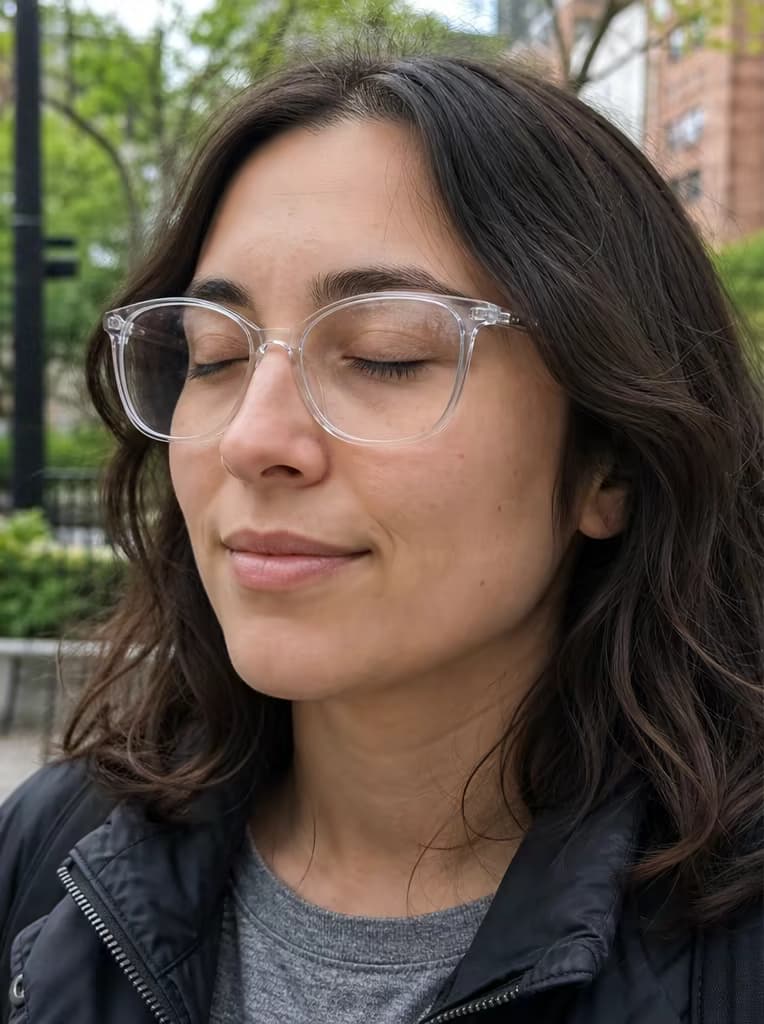 Before
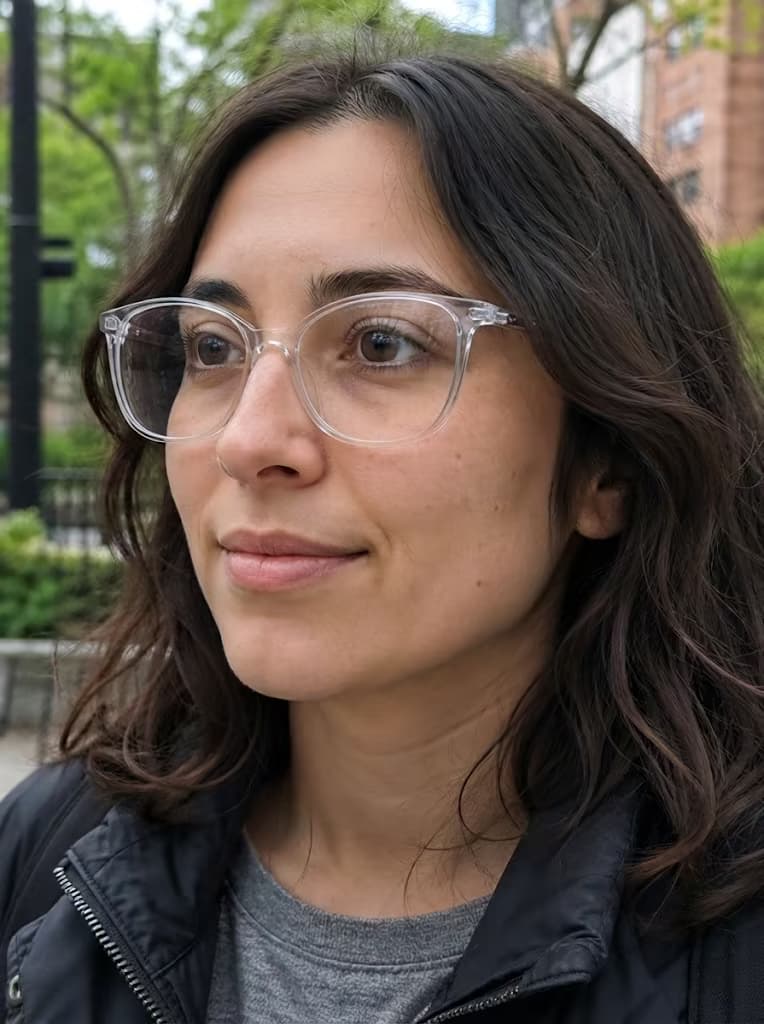 After
Afterprompt: Repair only the closed eyes behind the glasses. Preserve the frames, reflections, pose, and background.
How to Fix Closed Eyes in a Photo
Start with the original photo and an optional same-person open-eye reference. Selecting them starts the repair automatically.
Upload the Photo to Fix
Choose the original photo with the accidental blink. Clear, uncropped faces give the model more context.
Add an Optional Eye Reference
Add one clear photo of the same person with naturally open eyes. Put it second so the first image remains the base.
Let the Repair Run, Then Review
The repair begins after selection. Check eye shape, color, gaze, glasses, and nearby skin, then add an optional refinement or choose a clearer reference if the match is not convincing.
Photos Worth Saving from a Blink
Use the tool when the moment is right but one person’s eyes were caught closed — not when you want a broader face or beauty edit.
Wedding Photos
Repair a blink in a ceremony, reception, or posed family photo without restyling the portrait.
Graduation Portraits
Keep the original gown, smile, campus setting, and lighting while correcting closed eyes.
Family and Group Photos
Repair clearly accidental blinks automatically, then identify one person in a follow-up only if the group needs more precise targeting.
Travel Photos
Save a one-time travel moment when the composition is good but the camera caught a blink.
Children and Candid Shots
Use a clear same-person reference when available and review closely for a natural, age-appropriate result.
How to Get a More Natural Eye Repair
The best input is more important than adding instructions. The built-in task stays narrow, and a reliable same-person reference can improve the match.
Before You Process Again
- Use the highest-quality version of the original photo you have.
- Add one reference of the same person with open eyes, similar angle, and similar lighting.
- After the first result, identify one affected person by position or clothing only when you want a targeted version.
- Keep any follow-up focused on the blink instead of asking to improve the whole face.
Common Problems and Fixes
Designed Around Identity Preservation
The workflow uses a narrow built-in task and optional same-person reference instead of requiring broad portrait enhancement instructions.
Smallest Practical Edit Area
The default instruction limits changes to the closed-eye region and asks the model to treat the first photo as a fixed base.
Same-Person Reference Support
A second image can guide real eye shape and color without being used as a face swap or new portrait source.
Explicit Preservation Guardrails
The built-in instruction tells the model not to smooth skin, change makeup, whiten teeth, reshape the face, or alter unrelated details.
Browser-Based Review
Generate and inspect the result in the browser, then download only when the eyes and surrounding details look convincing.
What the workflow prioritizes
Blink-Only Scope
No general beauty or full-face retouch promise
Reference-Aware
Optional same-person open-eye photo for a closer match
Quality-Gated
Validated across group, event, glasses, and low-light tests
Fix Closed Eyes in Photo FAQ
Can AI fix closed eyes in a photo?
Do I need a second photo with open eyes?
Will it change the whole face?
Can I fix one person’s eyes in a group photo?
Does it work when the person wears glasses?
Can this change eye color or where someone is looking?
Is this a beauty or face-retouching tool?
What photos are hardest to repair?
Can I use a photo of someone else as the eye reference?
Fix the Blink, Keep the Moment
Upload the original photo first, add an optional same-person open-eye reference, and repair only the accidental blink.