
Remove Furniture from Photo with AI
Upload a room photo, remove all furniture or selected pieces, and create a clean empty-room visualization—no manual masking.
Use a clear JPG, PNG, or WebP with visible wall and floor context. Guest uploads support files up to 10MB.
Remove Furniture from Photo in Real Room Scenarios
See how the AI furniture remover clears living rooms, bedrooms, rentals, and renovation spaces while keeping the visible architecture and source framing consistent.
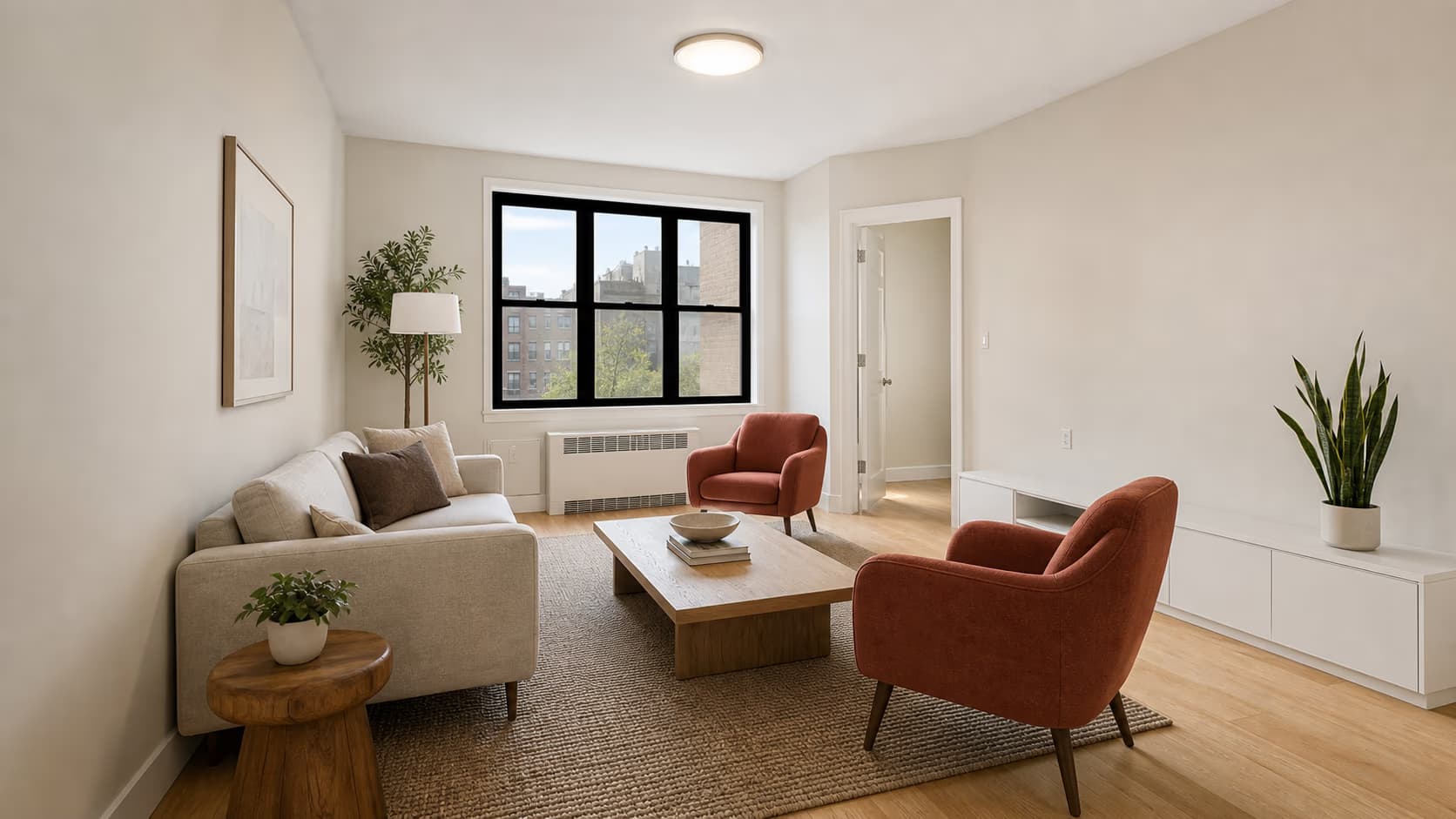
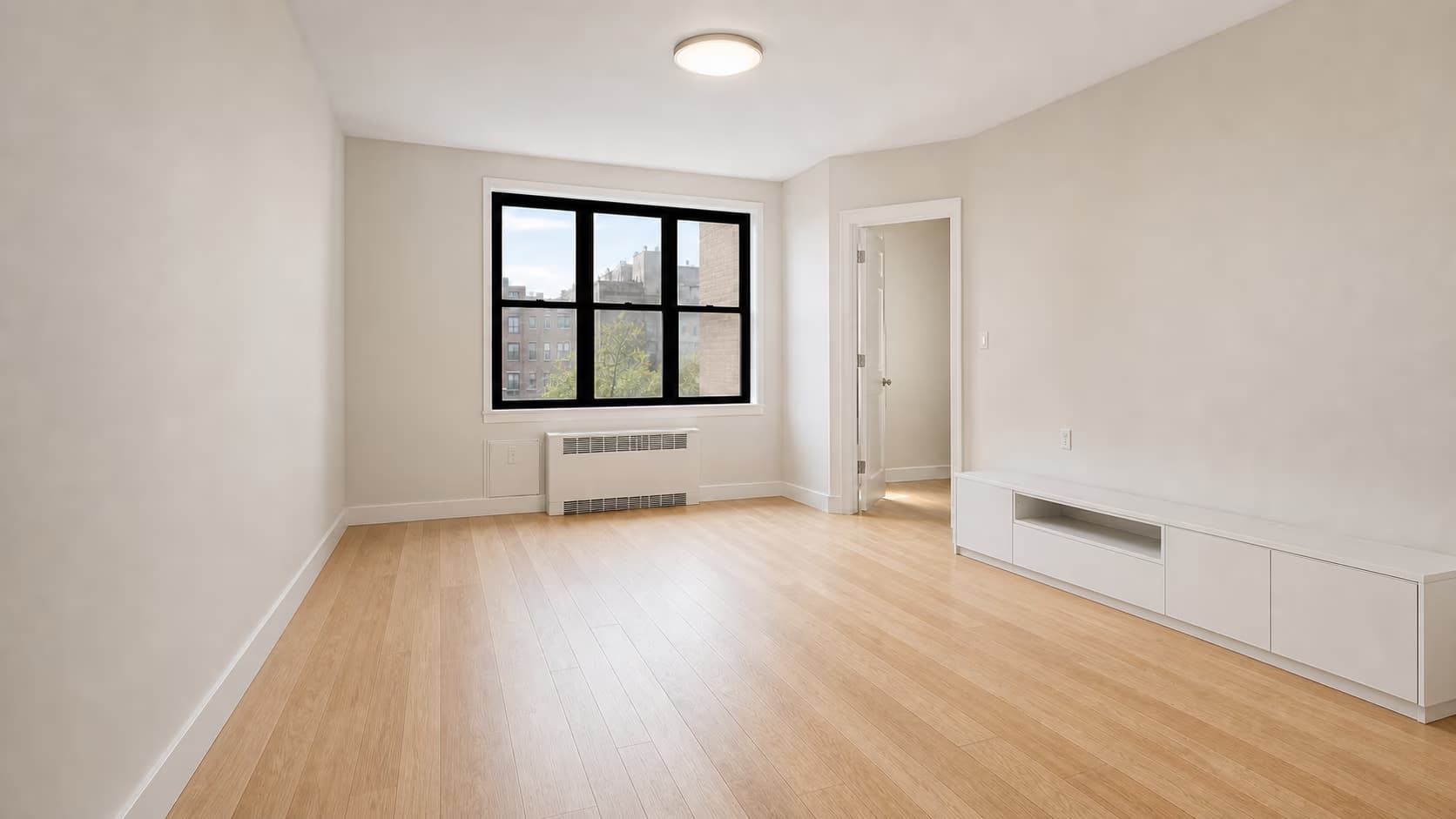
Clear a Furnished Living Room
Remove a sofa, lounge chairs, tables, rug, lamp, plants, and loose decor while preserving the window, radiator, doorway, built-in media cabinet, oak floor, lighting, and camera position.
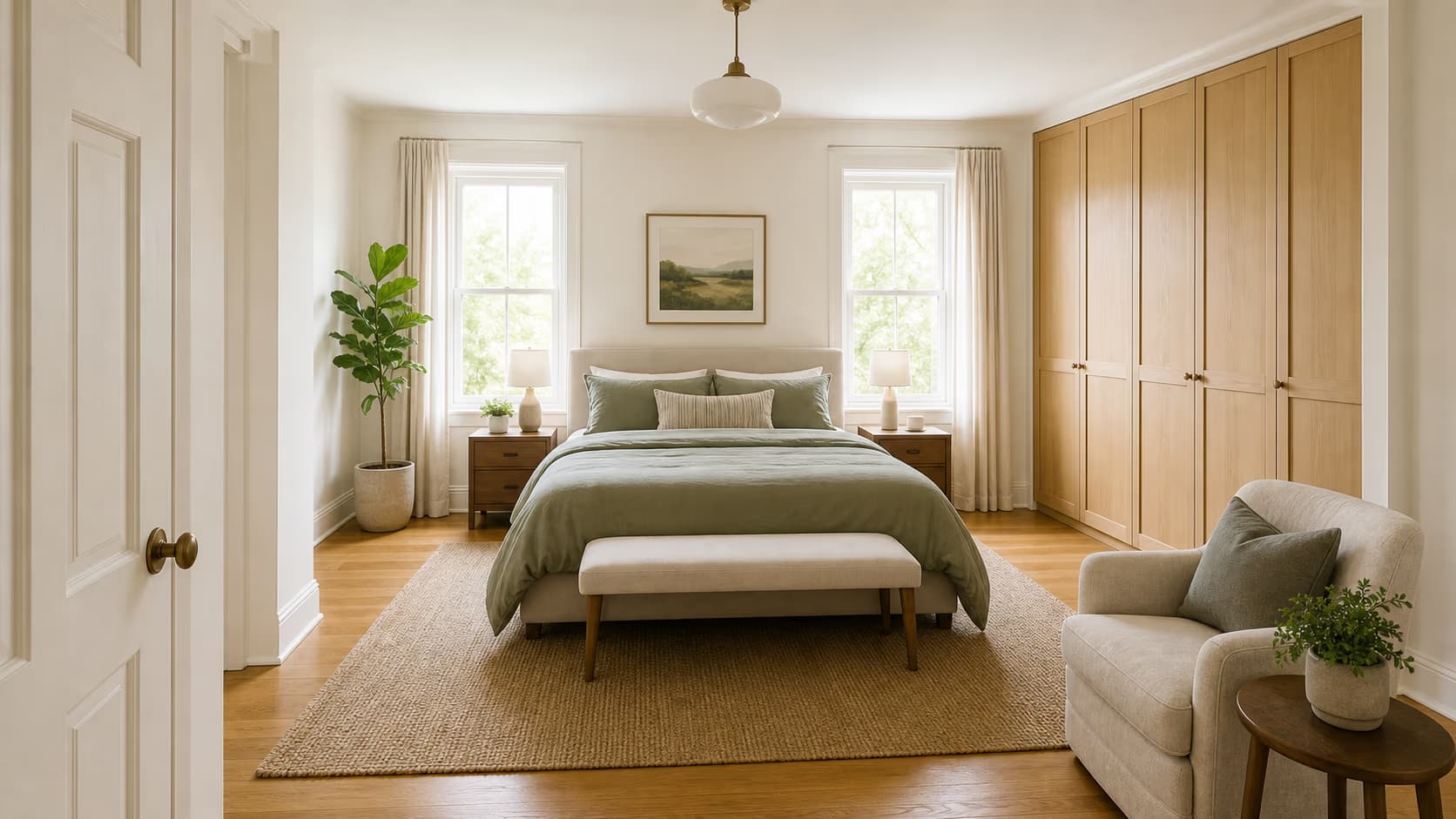
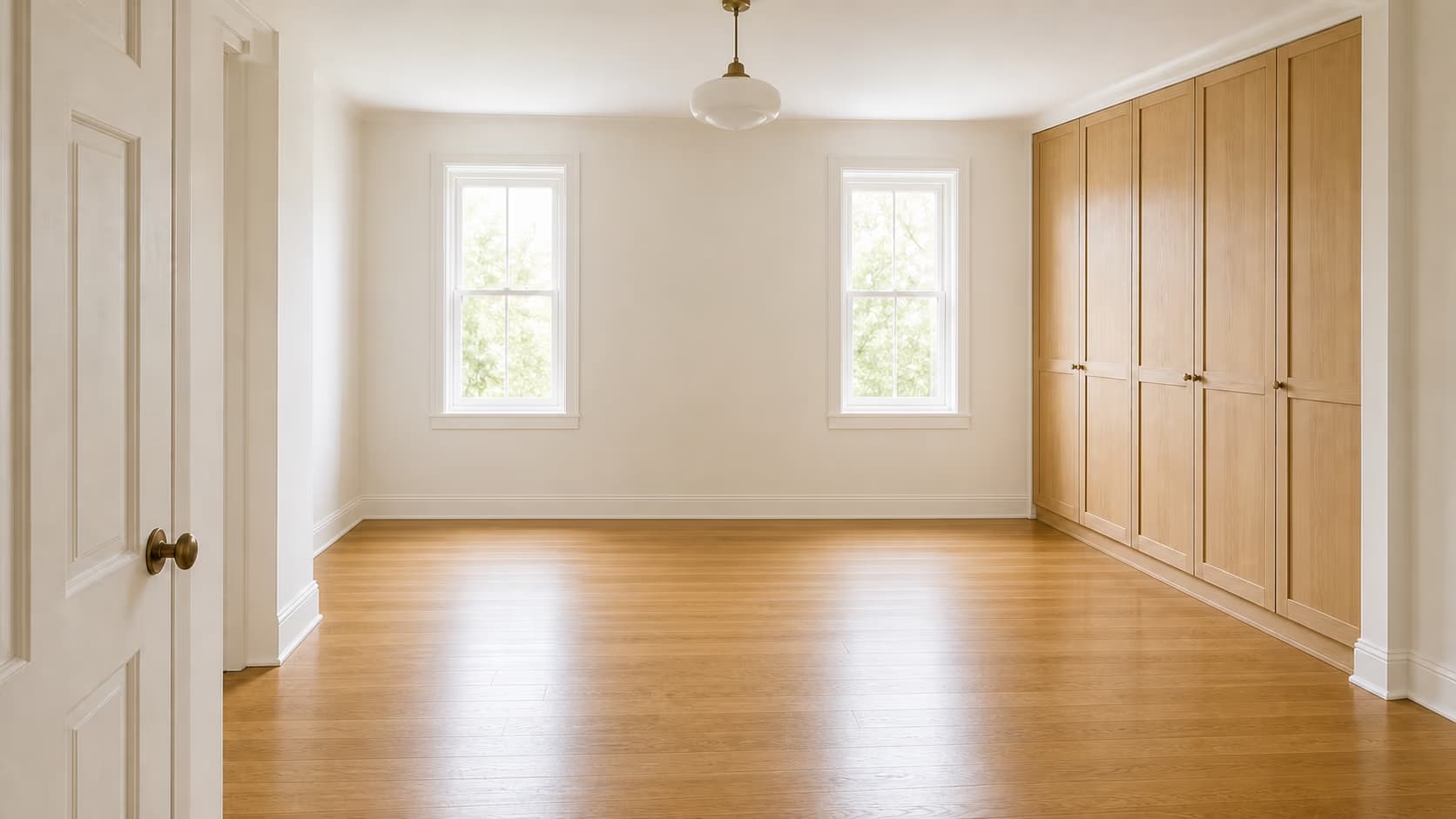
Remove Bedroom Furniture, Keep the Wardrobe
Create an empty bedroom concept while protecting a full-height built-in wardrobe, both windows, the doorway, trim, floor, and permanent ceiling light.
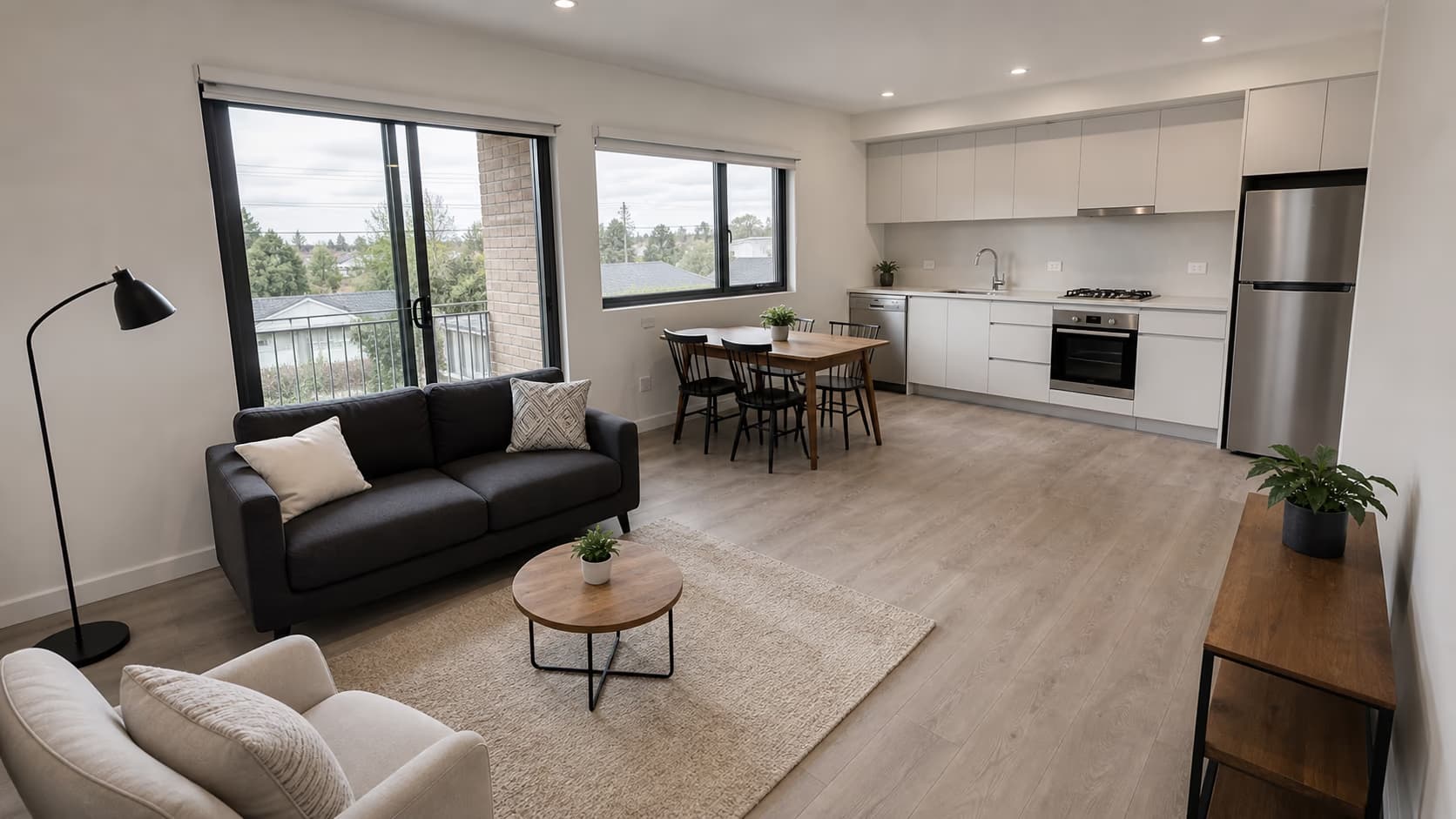
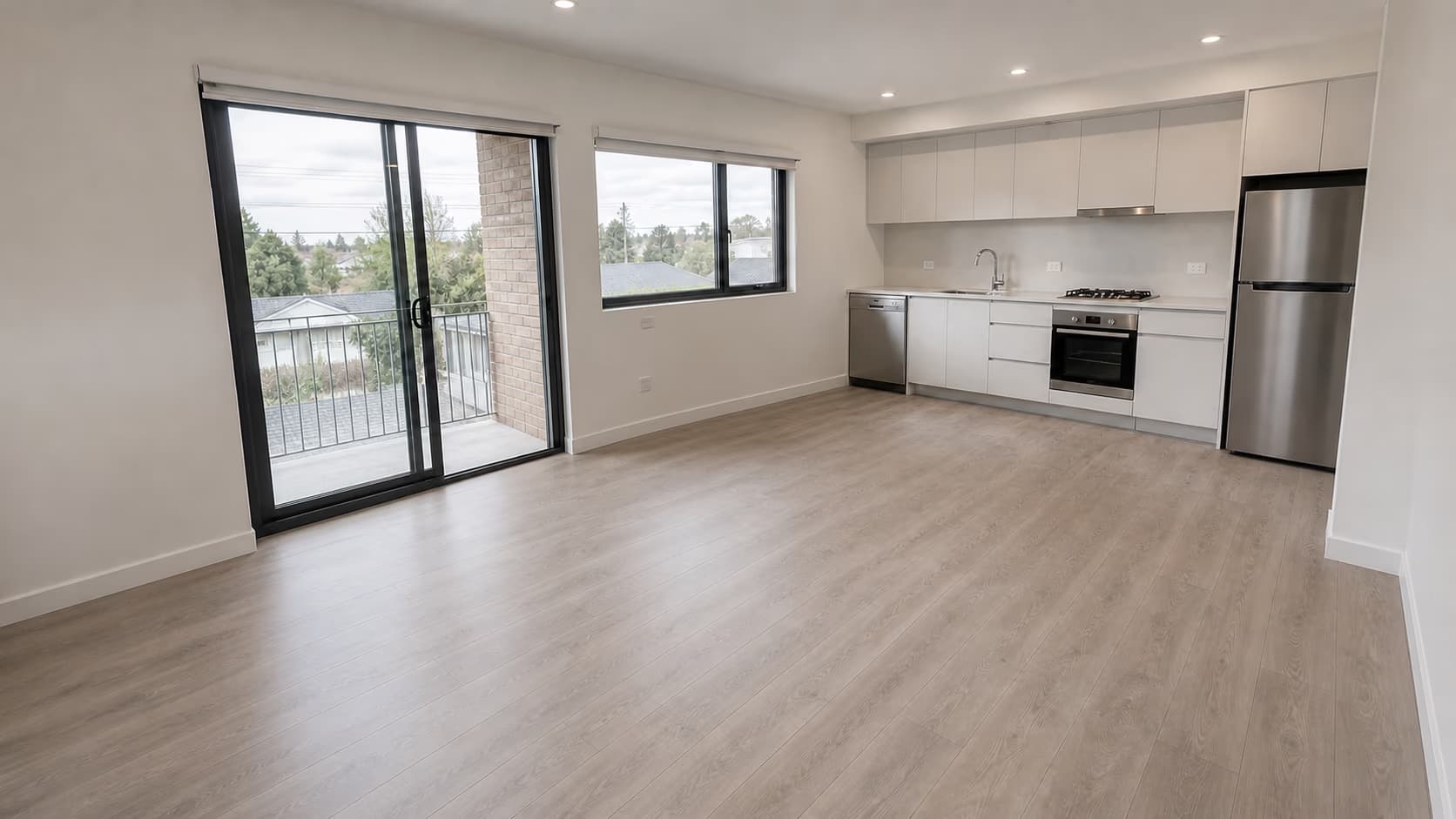
Prepare an Empty-Rental Visualization
Clear movable living and dining furniture from an open-plan apartment while keeping cabinets, counters, sink, oven, cooktop, refrigerator, balcony door, windows, and permanent lighting.
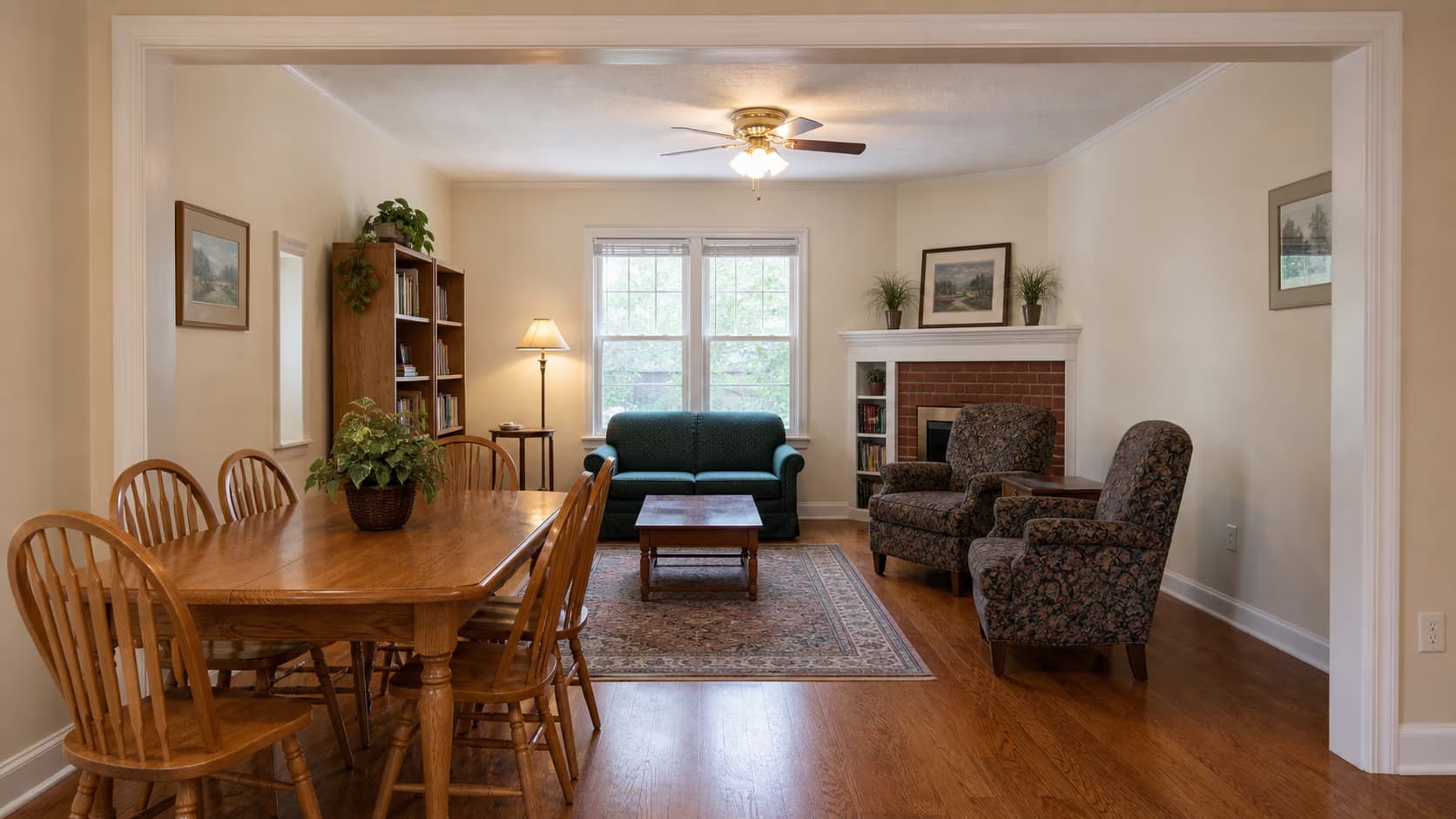
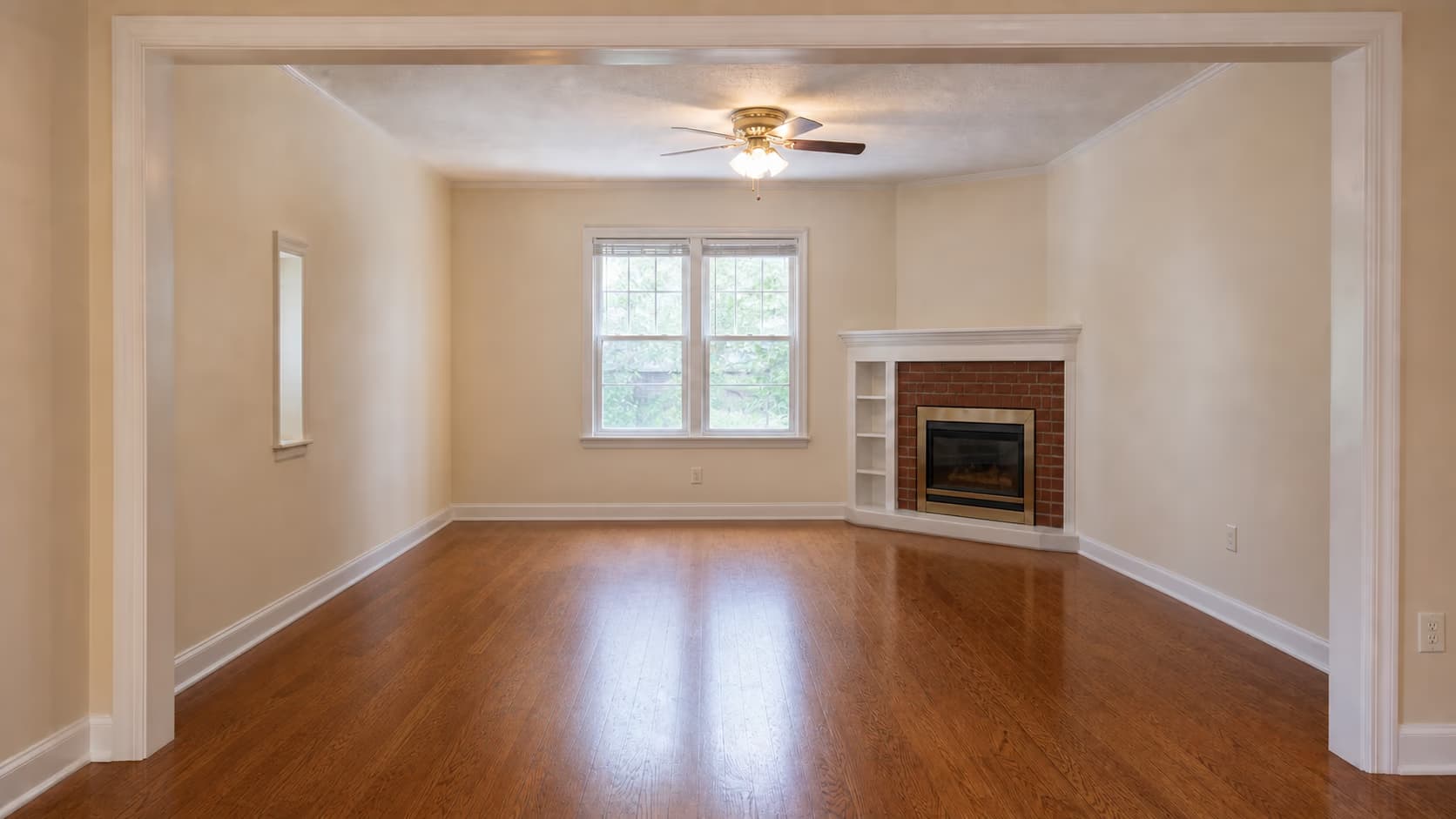
See the Room Before Renovation Planning
Remove dated furniture and loose decor to study the available space while preserving the brick fireplace, mantel, built-in shelf, windows, opening, ceiling fan, hardwood floor, and trim.
How to Remove Furniture from Photo Online
Upload one room image to start an empty-room first pass, then inspect the result and refine a specific target only when needed.
Upload One Clear Room Photo
Choose the best original JPG, PNG, or WebP. A wide, sharp image with visible wall, floor, doorway, and furniture edges gives AI more context for the room.
Start the Empty-Room First Pass
Selecting the photo starts a built-in request to remove clearly movable furniture and loose decor while protecting architecture, built-ins, appliances, and permanent fixtures.
Review, Refine, and Download
Compare the result with the source and check walls, floors, windows, fixtures, shadows, and room proportions. If you wanted only selected pieces removed, name them in the optional refinement and process again.
Remove Furniture from Photo for Real Estate, Rentals, and Renovation
Use the AI furniture remover when an empty-room visualization helps present a property, prepare a turnover, or plan a renovation.
Real Estate Listing Preparation
Create an empty-room visualization for an authorized listing workflow, agent review, owner discussion, or marketing draft. Check local brokerage, portal, advertising, and MLS disclosure rules before publishing.
Rental and Turnover Marketing
Preview a furnished rental after tenant furniture is removed while keeping the permanent kitchen, built-in storage, fixtures, flooring, windows, and actual room layout visible.
Renovation Space Planning
Remove furniture and visual clutter before discussing paint, flooring, circulation, storage, construction, or a separate virtual-staging concept.
How AI Removes Furniture While Preserving the Room
The AI furniture remover focuses on the requested furniture, protects visible room features, and generates plausible detail only where objects covered the scene.
Finds Furniture to Remove
The automatic first pass reads the room photo and identifies visible sofas, beds, tables, chairs, rugs, lamps, and loose decor.
Keeps Permanent Room Features
Built-in preservation rules protect walls, floors, doors, windows, trim, built-ins, fixed appliances, fireplaces, radiators, and lighting.
Fills the Exposed Wall and Floor
Where furniture covered the scene, AI creates a plausible continuation from nearby texture, perspective, color, light, and room geometry.
Get a Cleaner AI Furniture Removal Result
Large occlusions, mirrors, glass, repeating floor patterns, dark corners, and ambiguous built-ins require the most careful instructions and review.
Before You Process Again
- Use the clearest original file rather than a compressed screenshot or social-media copy.
- Say whether you want all movable furniture removed or only named pieces.
- Explicitly protect built-in cabinets, appliances, fireplaces, radiators, lighting fixtures, windows, doors, stairs, railings, outlets, and switches.
- Identify furniture by type, color, and location when two similar objects appear in the room.
- Keep the source photo for comparison, property disclosure, client approval, and future edits.
Common Problems and Better Instructions
Remove Furniture from Photo FAQ
How does AI remove furniture from a photo?
Can I remove all furniture from a room photo?
Can I remove only a sofa, bed, table, or chair?
Will built-in cabinets, appliances, windows, and fireplaces stay?
Can I remove furniture from photo online for free?
Will the empty-room image keep the original aspect ratio and resolution?
Are uploaded room and property photos private?
Can I use the result for a real-estate listing?
Is furniture removal the same as virtual staging?
Does AI recover the real wall or floor hidden behind furniture?
Remove Furniture from Photo with AI
Remove furniture without manual masking. Upload one clear room image to start the empty-room first pass, then review and refine only if needed.