
AI Batch Photo Editor
One prompt. A whole new set. Use the Batch Photo Editor to change backgrounds, improve lighting, and give your photos a shared style.
Select images
or drag and drop
Upload images
or drag and drop
Up to 10 JPG, PNG, or WebP images. Maximum 10 MB per image.
Start with an idea
Checking access
A Batch Photo Editor for less repeat work
Explore what the Batch Photo Editor can do for your next collection. The examples below illustrate backgrounds, lighting, and creative styles.
One brief. Individual edits.
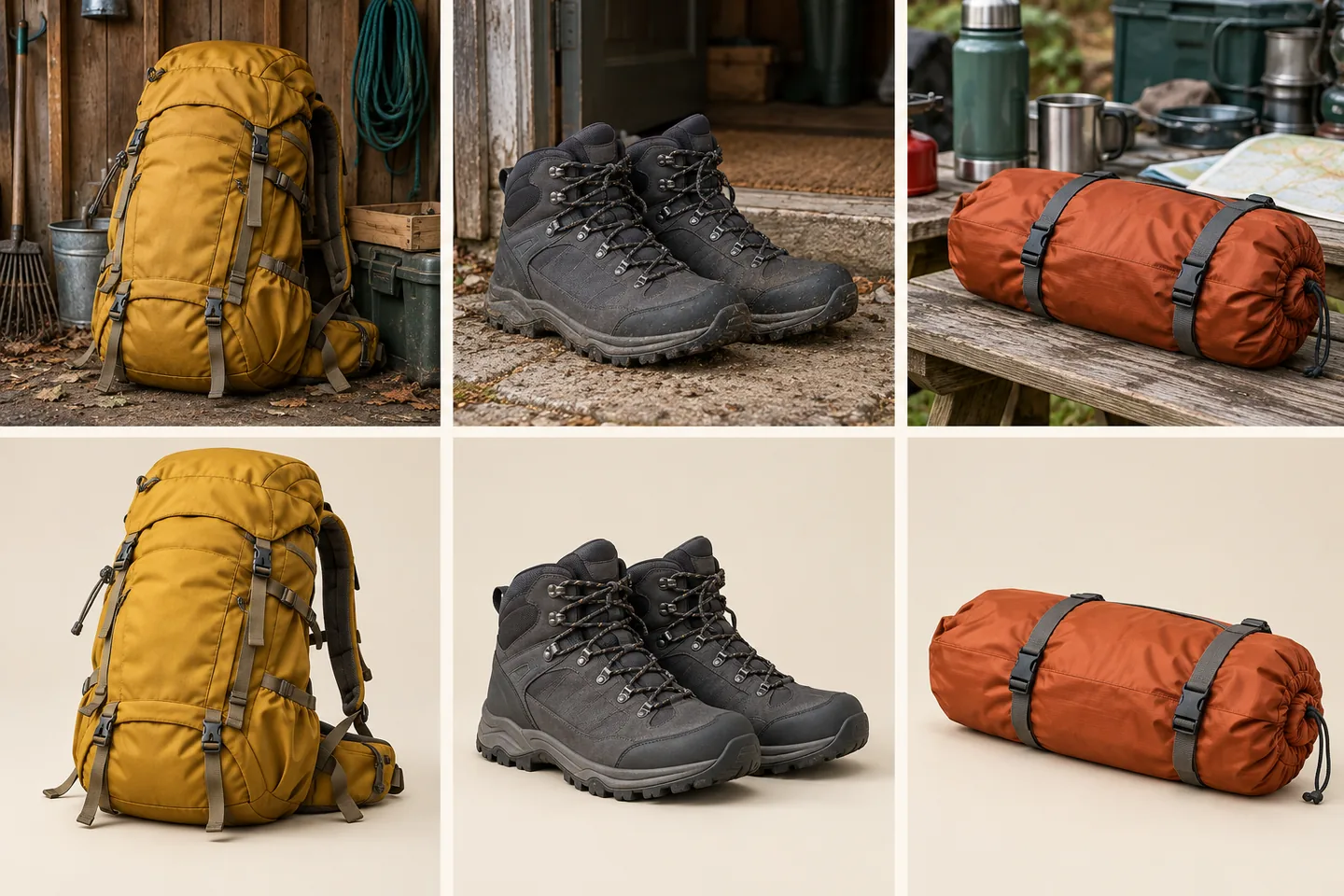
Give the Batch Photo Editor one clear direction. AI examines each source and adapts your request to its subject and setting. Your Batch Photo Editor keeps the shared goal while producing a separate result for every photo.

Batch Photo Editor for product collections
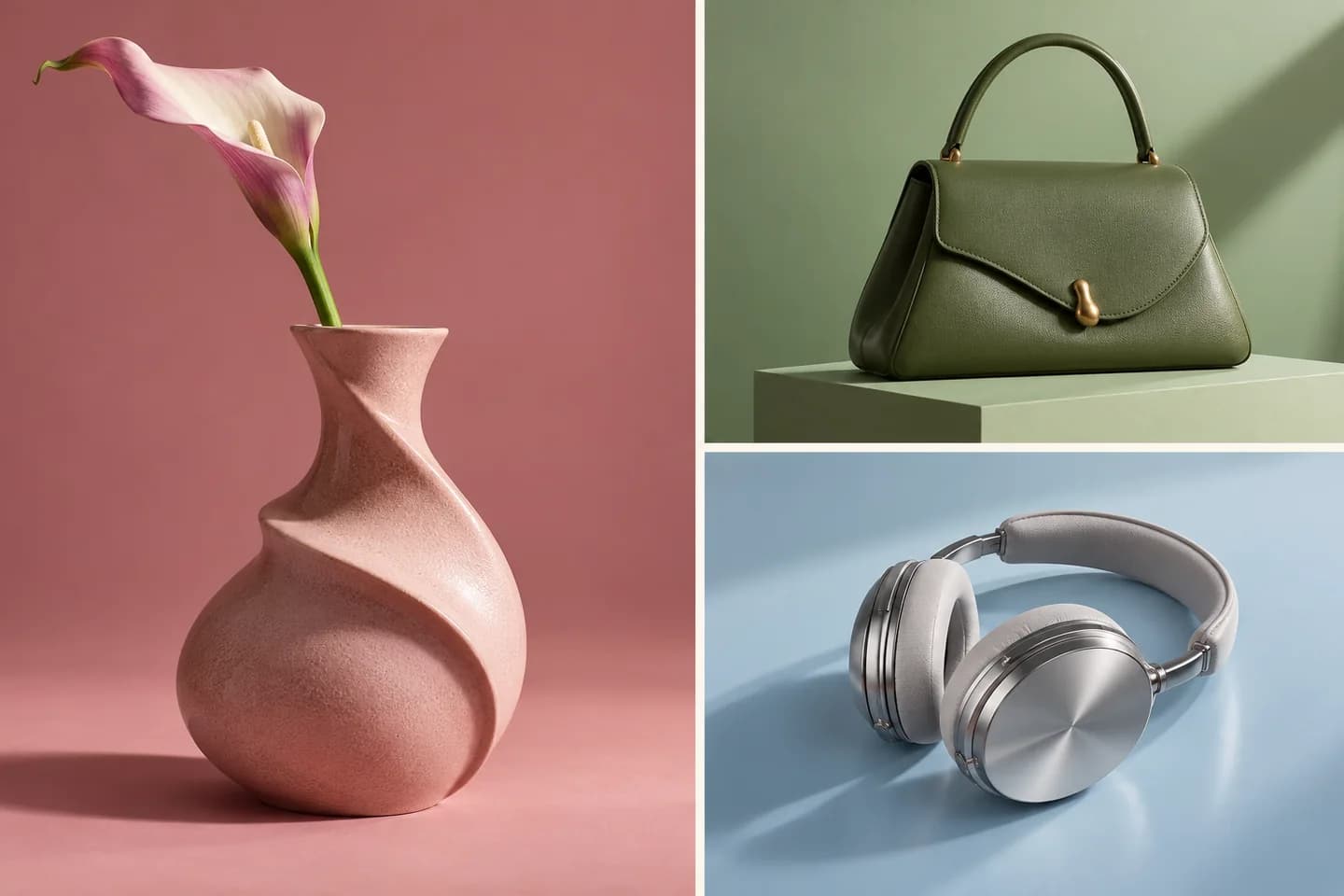
Request clean backdrops, soft shadows, or a coordinated palette with the Batch Photo Editor. Specify product details to preserve, then review the set before publishing. Need just one listing image? Explore our AI Product Photo Editor.
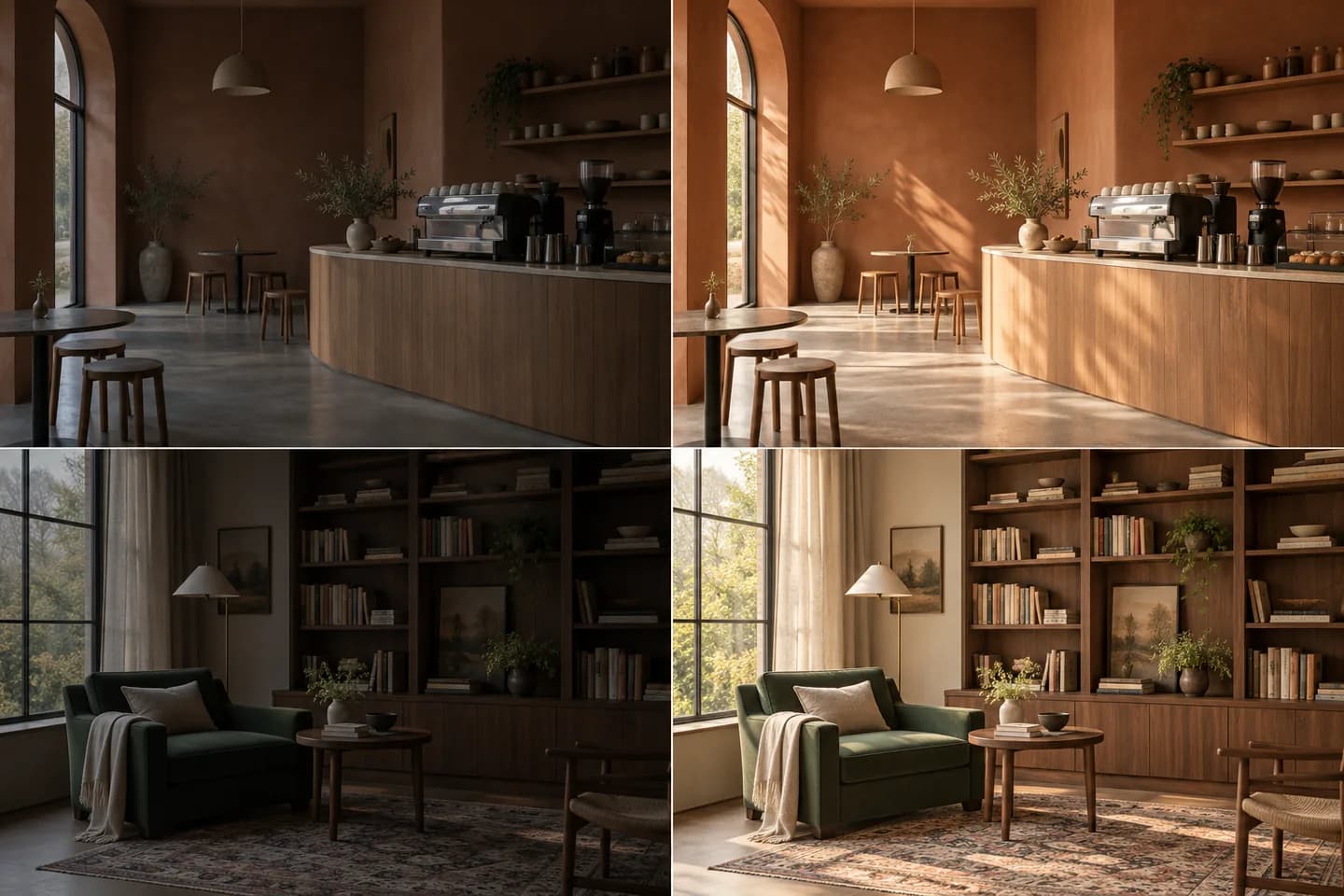
Bring better light to every scene
Ask the Batch Photo Editor for balanced exposure and natural color across dim or uneven photos. From cafés to reading corners, the AI Batch Photo Editor considers each scene separately while following the same lighting brief.
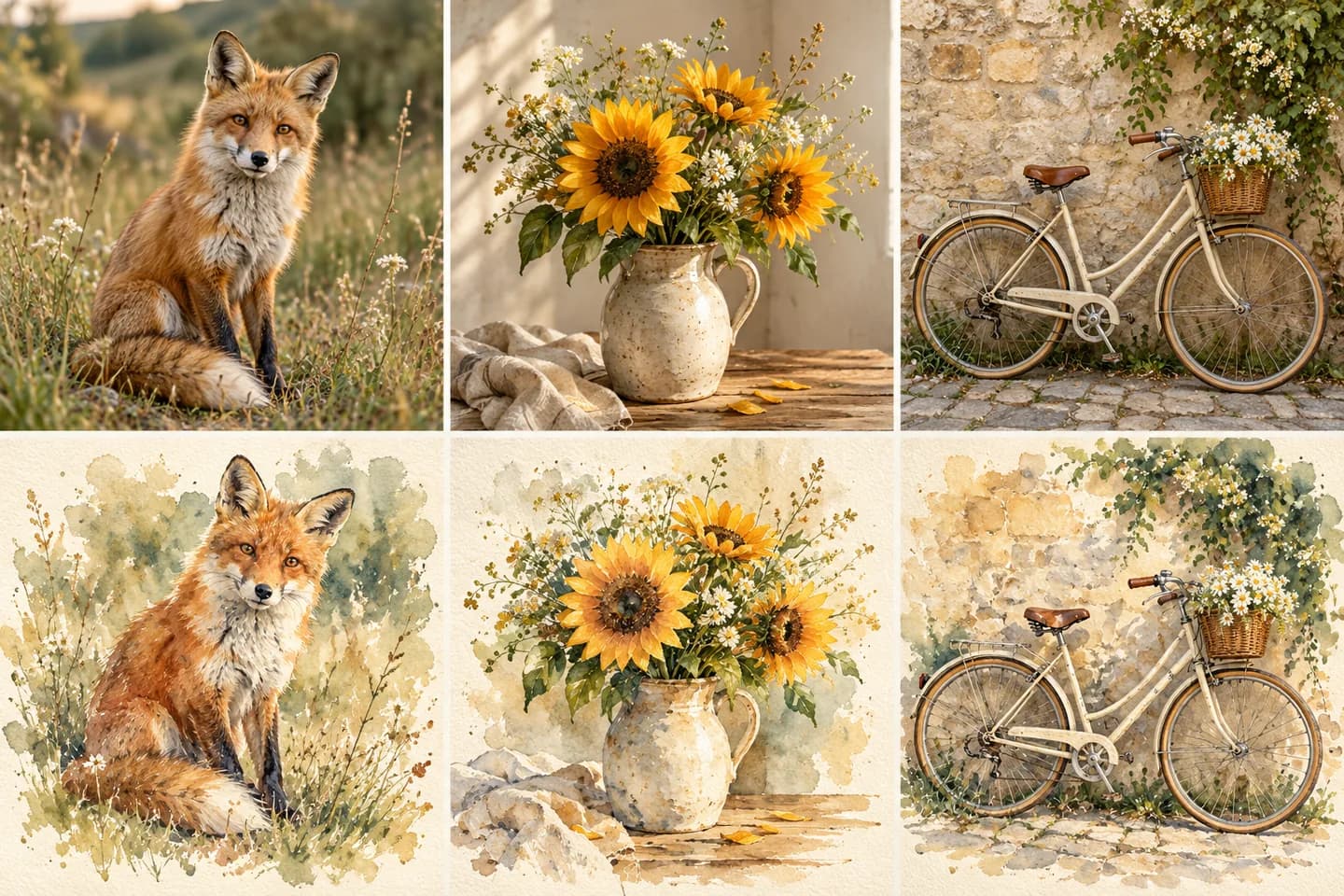
A Batch Photo Editor for creative series
Turn different subjects into a coordinated watercolor, illustration, or editorial collection. Start with a style suggestion, then personalize your Batch Photo Editor prompt. Create a carousel or campaign with a common mood and distinct images.
Review your set. Download together.
Follow each image in the Batch Photo Editor as results arrive. Inspect details, select favorites, and download a ZIP or individual files. The Batch Photo Editor also lets you retry failed images while keeping completed work.
How to use the Batch Photo Editor
Your Batch Photo Editor workflow in three simple steps.
Add your photos
Add photos to the Batch Photo Editor. Check the thumbnails and remove anything you do not need.
Describe the shared goal
Describe what to change and keep. Choose your Batch Photo Editor model and check the credit cost.
Review and download
Review each result in the Batch Photo Editor. Download favorites individually or together as a ZIP.
Where a Batch Photo Editor saves you time
Put your bulk photo editor to work on your next project.
Product launches
Use the Batch Photo Editor for product drops, seasonal promotions, and coordinated storefront updates. Batch edit product photos for a new catalog without rewriting every brief.
Social stories
Build a carousel or campaign with the Batch Photo Editor, using different subjects and a shared style. Connect separate posts with a consistent visual direction for your next campaign.
Personal collections
Refresh travel memories and personal projects with one Batch Photo Editor brief for the whole collection. Prepare a shared album with consistent lighting while keeping each moment distinct.
Why choose our Batch Photo Editor?
Keep your Batch Photo Editor workflow simple, flexible, and easy to review.
Open your browser and begin
Use our Batch Photo Editor online, upload your photos, and begin. No desktop installation needed. Keep uploads and results in one workspace.
Choose the AI that fits
Choose a Batch Photo Editor model and its available aspect ratio and quality settings. Match the settings to your intended output.
See the cost before you start
The Batch Photo Editor displays the estimated cost before you start. Add credits when you need them. Plan your batch before committing credits.
Batch Photo Editor FAQ
How does the AI Batch Photo Editor work?
What can I change with the Batch Photo Editor?
Is the Batch Photo Editor free to use?
Which files does the Batch Photo Editor support?
Will the Batch Photo Editor preserve my subjects?
Can I pause the Batch Photo Editor?
How do I download Batch Photo Editor results?
Does the Batch Photo Editor offer private editing?
Start your next set in the Batch Photo Editor
Add your photos and describe one shared goal. Your Batch Photo Editor handles each image individually.