
Add Person to Photo Naturally with AI
Upload the original photo first and a clear person reference second. Add someone to a group, wedding, travel, team, or everyday photo while AI matches scale, perspective, lighting, shadows, and scene texture.
Built for authorized photo composites. It is not a face swap, person remover, identity-verification tool, or proof that people were photographed together.
Describe one clear position and relationship, such as “at far right beside the woman in green” or “between the two people in the back row.”
The selected resolution controls the configured credit cost.
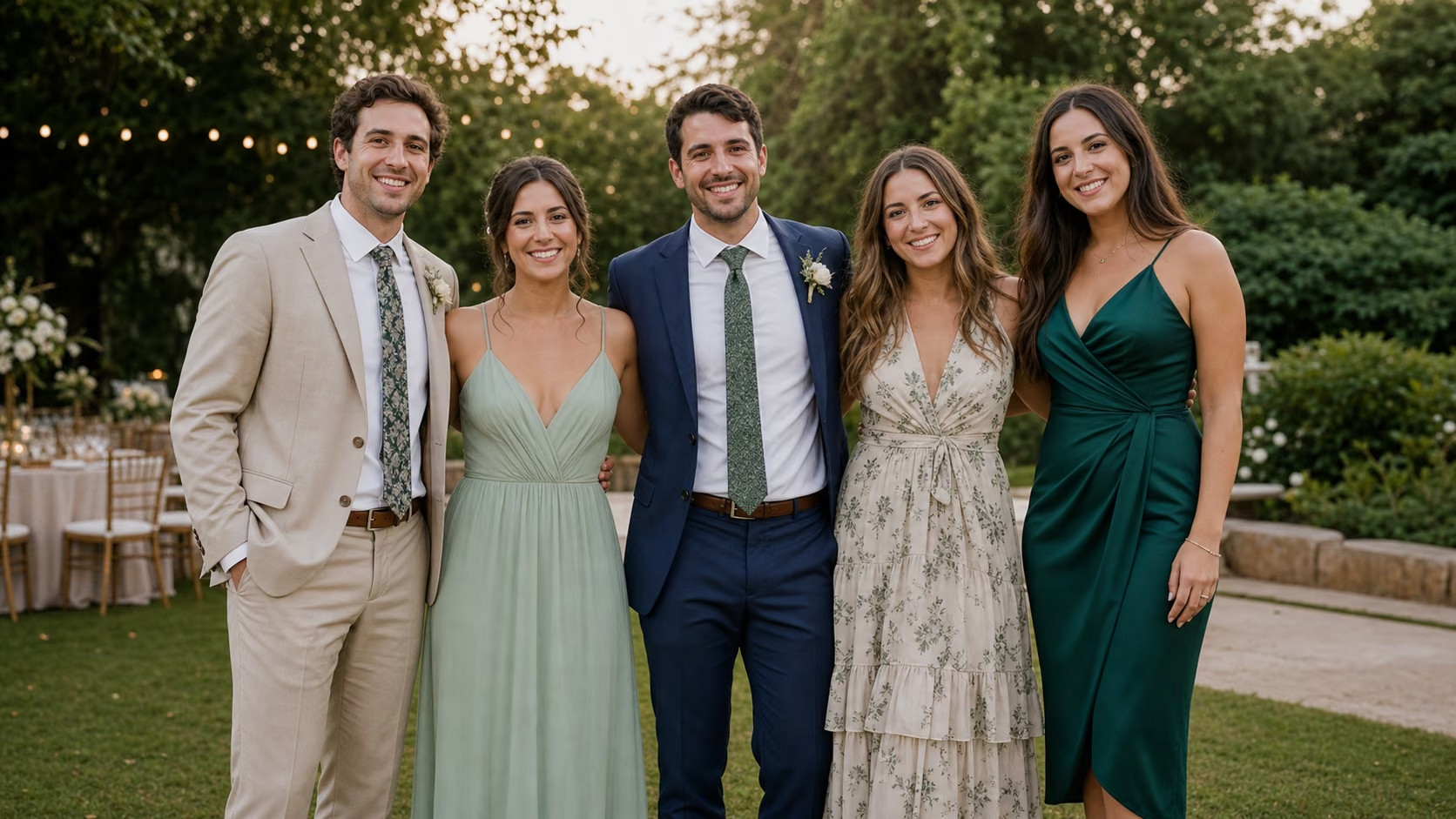
Add Person to Photo While Keeping the Original Moment
This focused workflow treats the first image as the base and the second as a person reference. It changes the composition only where needed to place that person naturally.
Two Photos, Two Clear Roles
The first upload is the photo you want to keep. The second supplies the face, hair, clothing, and visible appearance of the person you want to add.
Scene-Aware Integration
AI adapts scale, camera angle, perspective, depth of field, lighting direction, color, grain, and shadows to the base photo.
Preservation Guidance
Tell the model to protect existing people, faces, poses, clothing, objects, background, text, framing, and unrelated details.
Add Person to Photo Without Rebuilding the Original Scene
The best edit looks like the added person shared the same camera, location, and light while everything that was already in the picture stays recognizable.
Add Person to Photo: Weddings and Group Portraits
Add someone to a reunion, wedding, graduation, birthday, or event picture by placing the missing person at a clear edge or open position in the group.
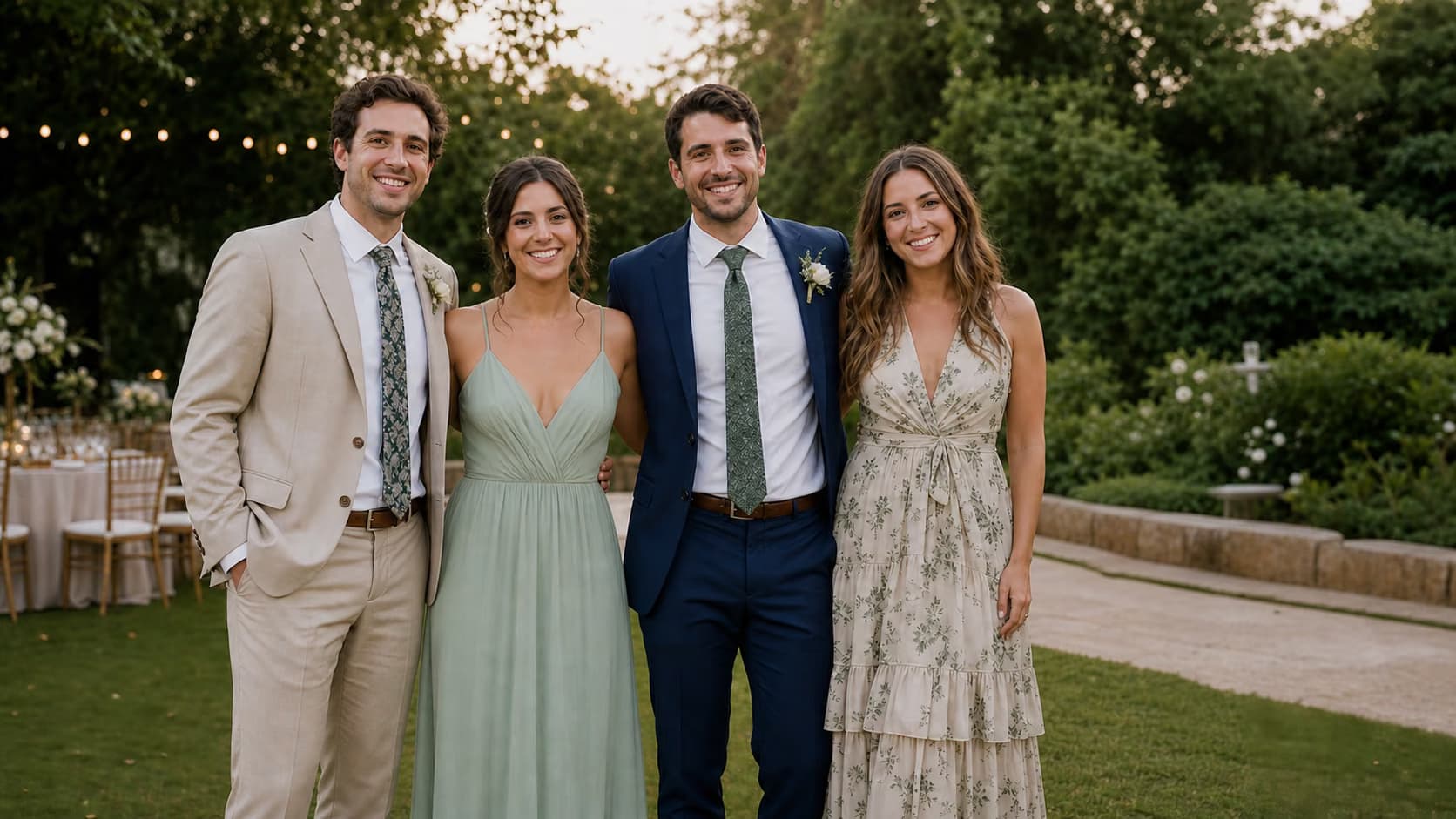
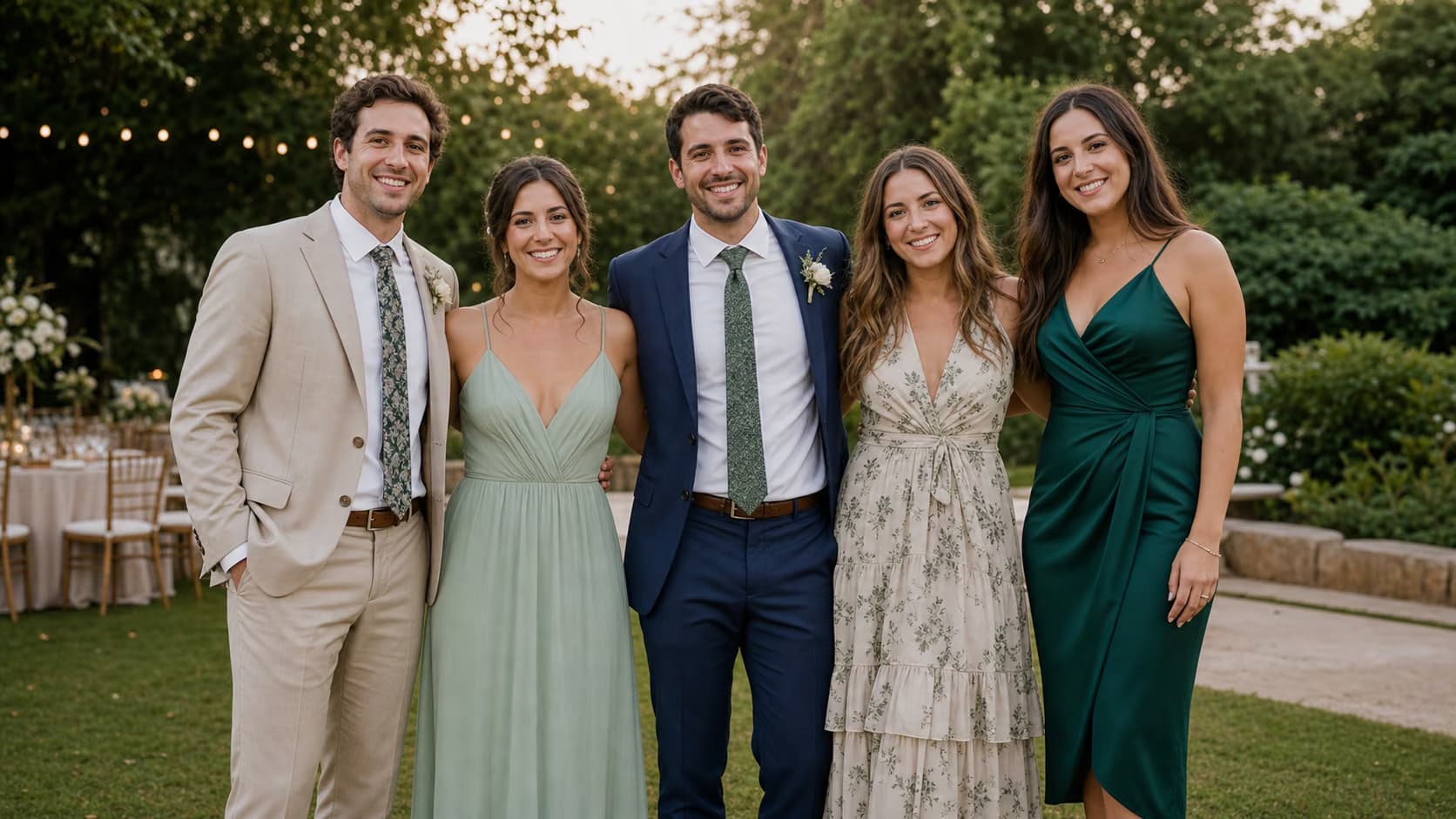
Add a Person from One Photo to Another
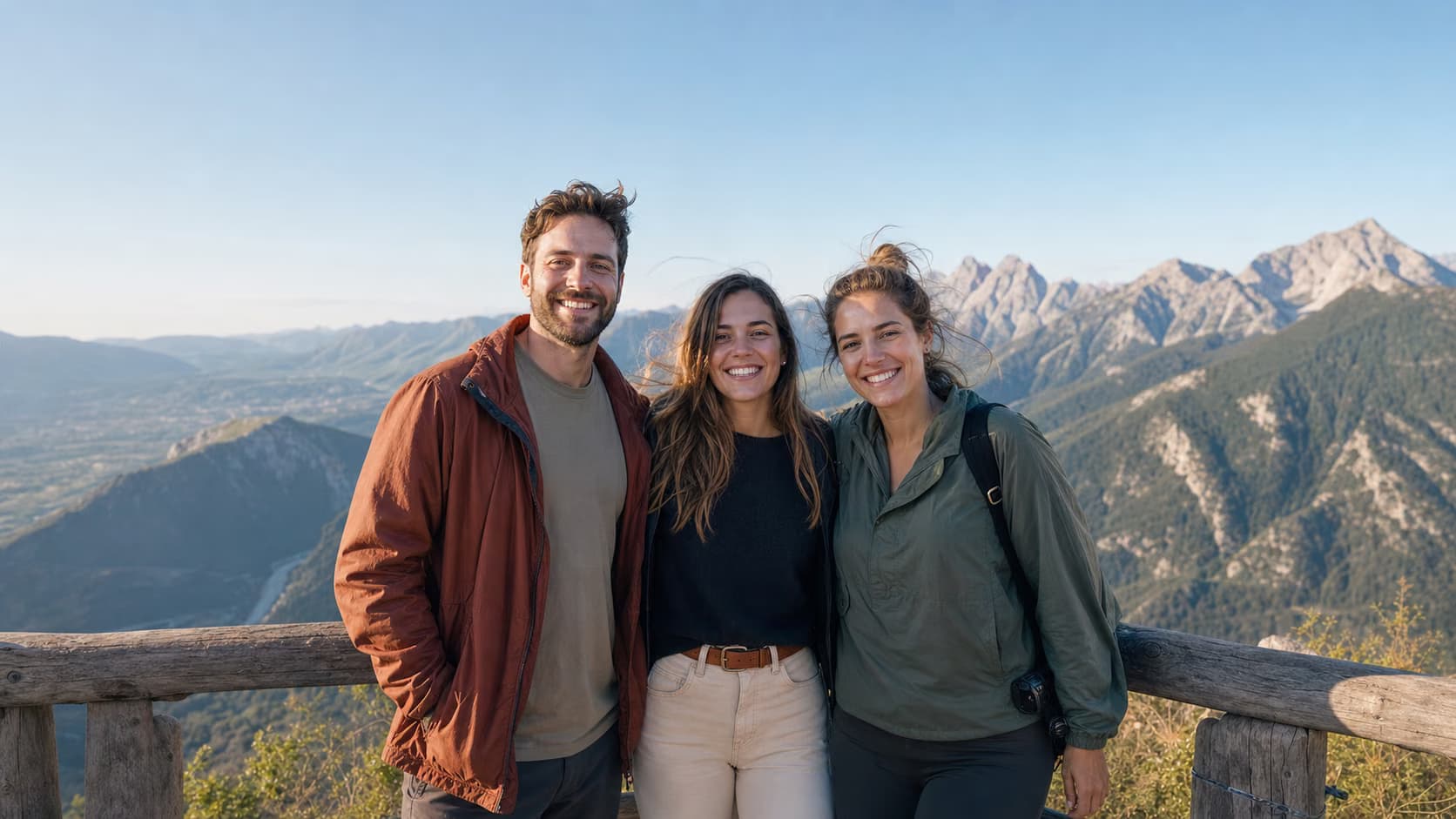
Move a friend into a travel scene without manual cutouts. Give the model a reference that shows enough face, hair, clothing, and body detail for the target framing.
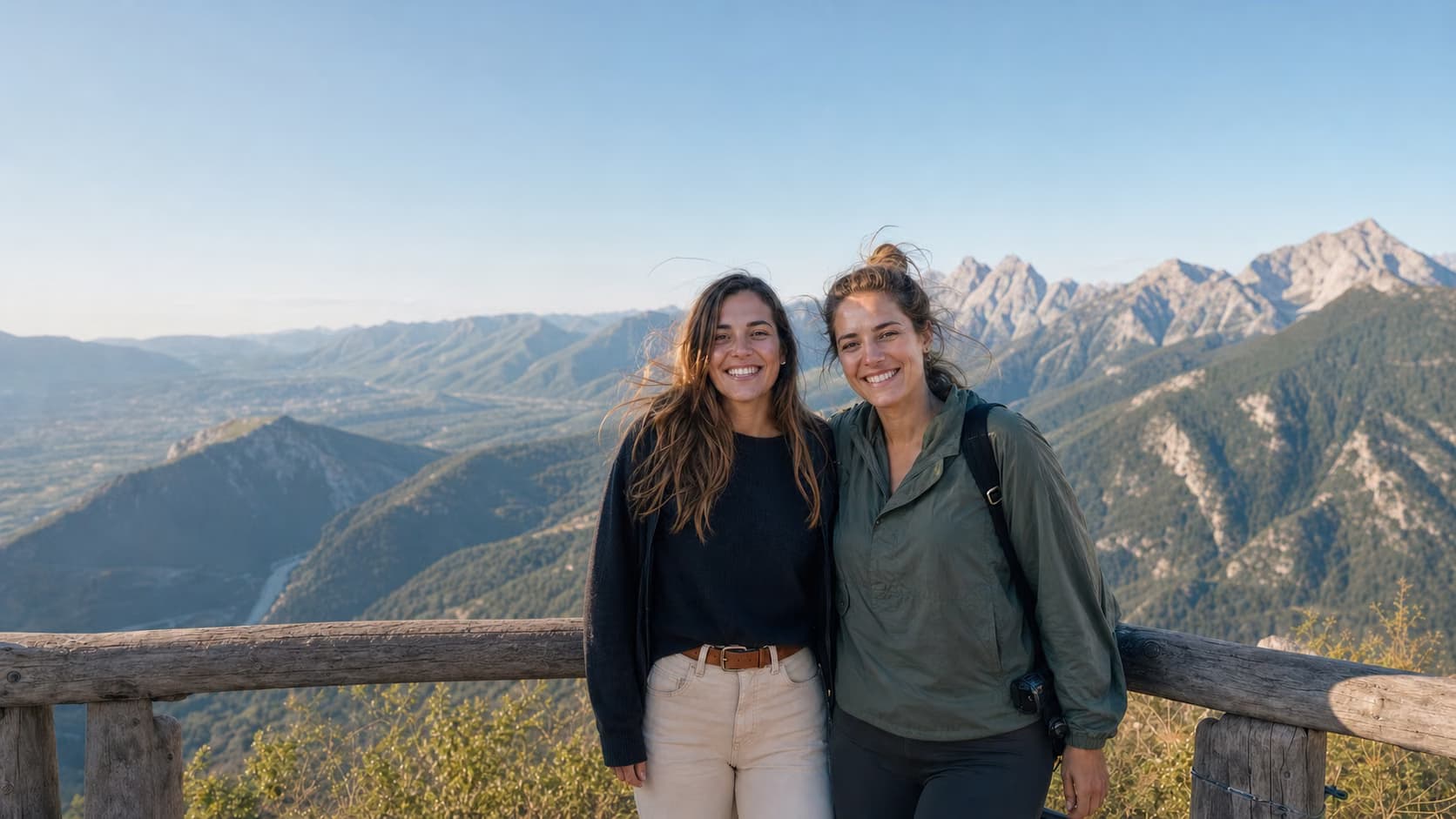
Update a Team or Class Portrait
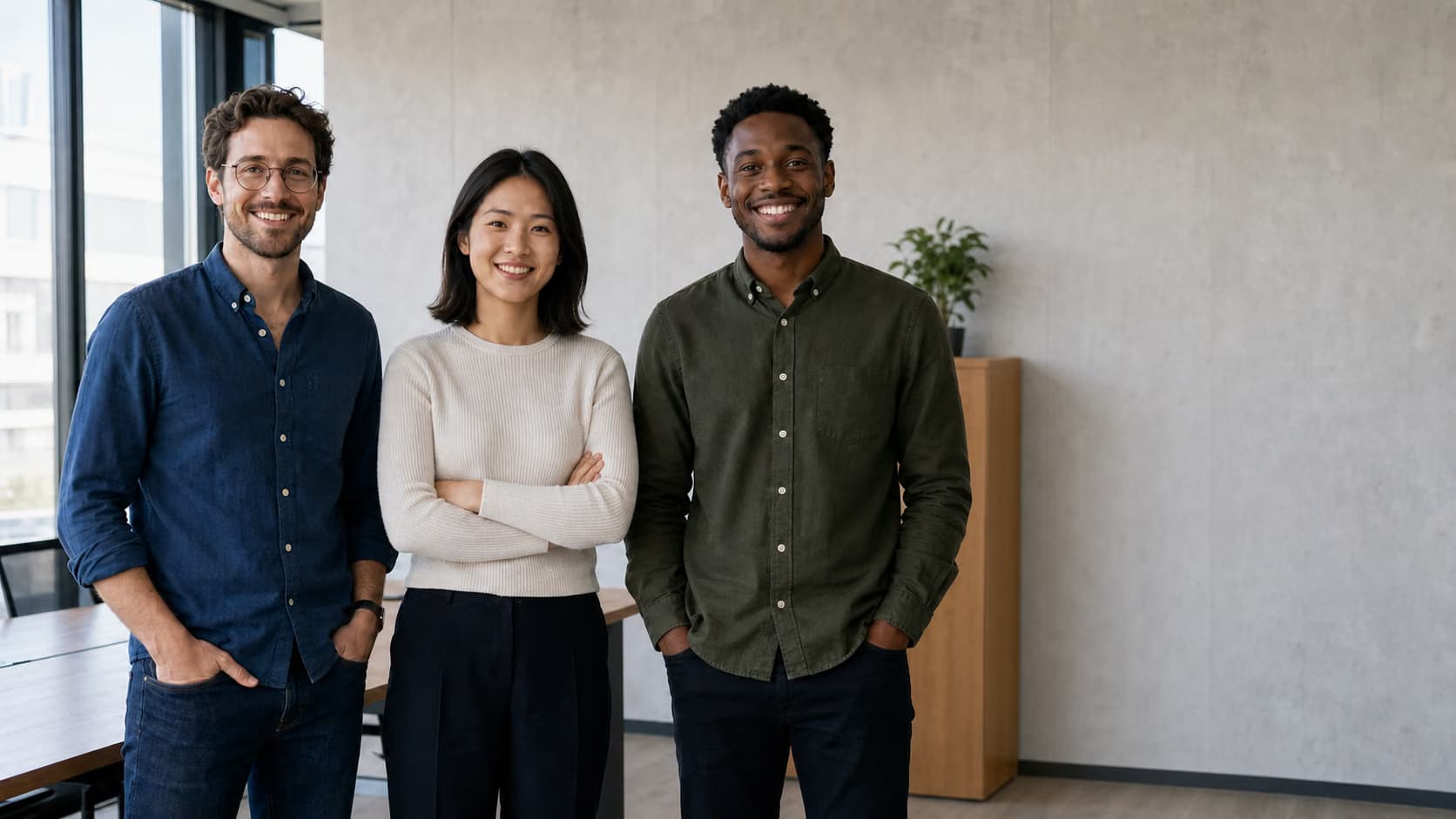
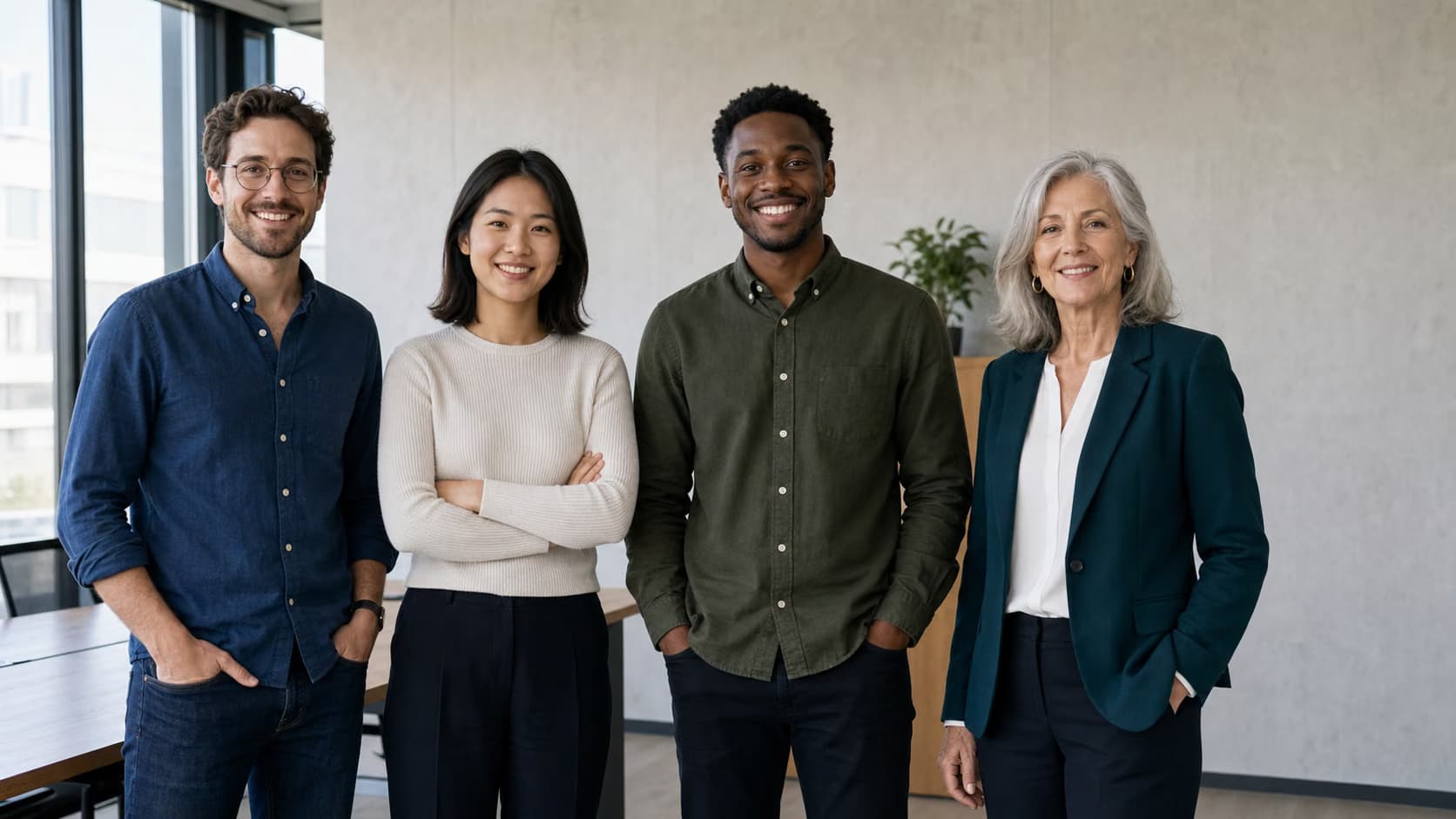
Add a colleague, teacher, student, volunteer, or club member to a clean group photo while protecting the original people and setting.
How to Use Add Person to Photo with AI
Learn how to add a person to a photo with good source images and a precise placement instruction instead of a long style request.
Upload the Base Photo First
Choose the existing photo you want to preserve. An open edge, visible floor, or natural gap in a group gives the model more room to place someone cleanly.
Upload the Person Reference Second
Use a sharp, well-lit photo where the face is unobstructed. Match the target framing: a full-body reference is better when the final result must show the whole person.
Describe the Exact Position
Identify a stable location such as “far left,” “between the bride and the person in blue,” or “behind the chair on the right.” Add pose or height guidance only when needed.
Generate and Inspect at Full Size
Check the added face, hands, body, scale, floor contact, shadows, overlaps, and every original person. Refine one instruction and regenerate when something looks wrong.
When to Use Add Person to Photo
Use this focused two-photo workflow when the scene already exists and one specific person needs to be included.
Missed Group Photos
Include someone who arrived late, took the original picture, or was unavailable during a reunion, party, graduation, or celebration.
Weddings and Family Events
Add a missing guest to one event photo. For merging several relatives, restoring an old picture, or creating a styled family portrait, use the broader Family Picture Editor.
Travel and Destination Photos
Place a friend or partner into a landmark, beach, city, hiking, or vacation image while matching the scene’s camera angle and light.
Teams, Classes, and Clubs
Update a posed workplace, school, sports, volunteer, or community group photo when the base composition has a plausible open position.
Creative and Social Composites
Create an authorized concept photo for a post, invitation, personal project, or campaign mockup without presenting it as documentary evidence.
Respectful Memorial Composites
Create a clearly understood remembrance image from family-owned photos. Treat it as a new composite, use the images with permission, and avoid implying it is an original historical photograph.
A Focused Prompt-Based Editing Workflow
The page narrows the edit to one task, offers concise prompt guidance, and asks you to review the result before using it.
Task-Specific Prompt
A short guide helps you describe the target change and the details to preserve without putting text in the input for you.
Preservation First
In your prompt, treat the uploaded image as the base canvas and name the identity, composition, lighting, and background details to preserve.
Review Before Use
Generative edits can vary. Zoom into the changed area and the surrounding details, then refine the prompt and regenerate when needed.
Built around honest editing boundaries
No fake recovery claims
AI generates plausible replacement pixels; it cannot recover hidden source detail that was never captured.
No imaginary controls
This workflow uses image upload and text prompts, not a brush, mask, color picker, or batch editor.
One clear task
The page stays within its stated use case instead of behaving like an unrelated general-purpose generator.
Add Person to Photo FAQ
How do I add a person to an existing photo?
Can AI add a person from one photo to another?
How can I add someone without changing the original photo?
Can Add Person to Photo handle a group photo?
Can I add multiple people to one photo?
What type of person reference works best?
Why does the added person sometimes look unrealistic?
Can I try it online without Photoshop?
Can I add a deceased loved one to a photo?
Are uploaded person photos private?
Add Person to Photo and Keep the Original Moment
Upload the base photo first, the person reference second, and describe one clear position for a more controlled composite.