
AI Product Shadow Generator
Use this AI product shadow generator with a flat pack shot or product cutout, then describe the shadow you need. AI adds depth and grounding while keeping the product itself unchanged.
Shadow style is controlled with text prompts, not sliders. This page does not provide batch presets, a transparent-background exporter, or measured physical-light simulation.
Describe a soft contact, crisp directional, floating, or reflection-style shadow and mention the light direction.
The selected resolution controls the configured credit cost.
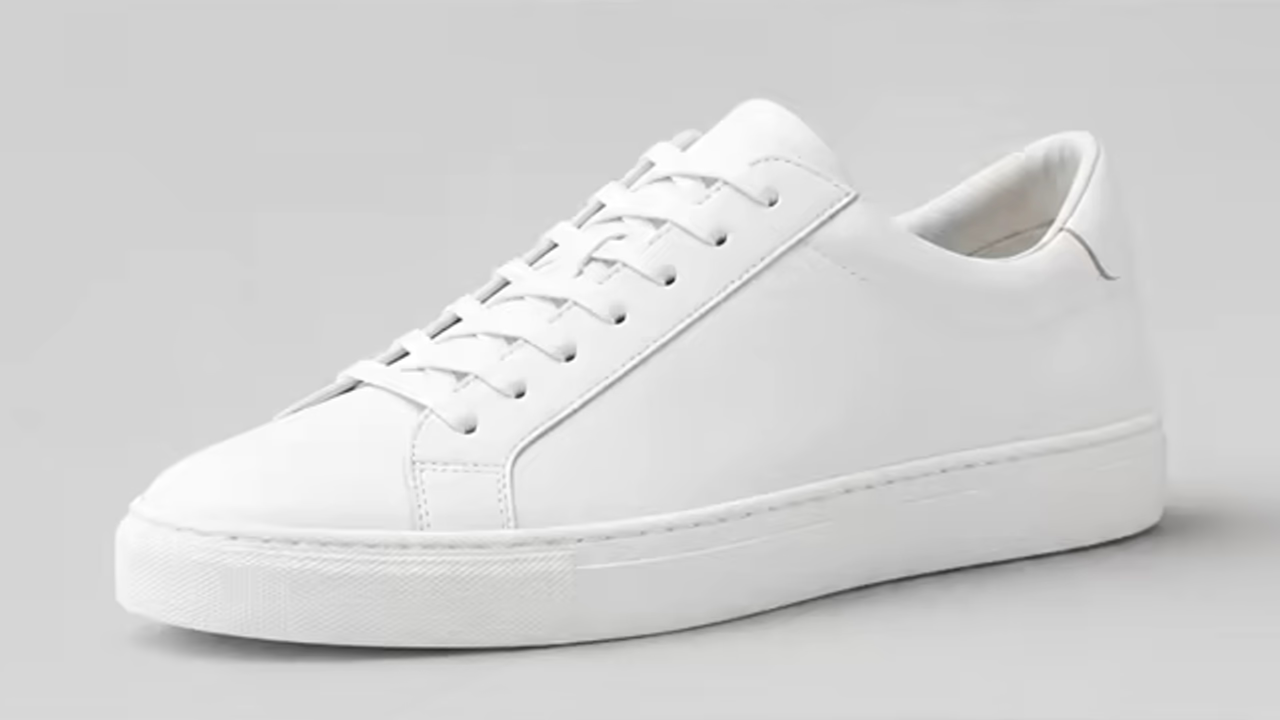
Ground the Product Without Redesigning It
A product shadow should explain contact, shape, and light. A focused prompt can add that missing depth while preserving the item and background.
Matches Shape and Footprint
The shadow follows the product silhouette, contact points, camera angle, perspective, and visible surface.
Supports Multiple Shadow Looks
Describe a soft contact shadow, hard directional drop shadow, elevated floating shadow, or subtle reflection effect.
Protects Product Accuracy
Color, material, texture, edges, Logo, label, packaging text, position, scale, and background remain locked.
Product Shadows for E-commerce and Marketing Images
Use simple product photos with a visible footprint, then specify the lighting logic you want the shadow to communicate.
Add a Natural Contact Shadow
Anchor a bottle, box, shoe, bag, or device to a white or neutral surface with a subtle soft shadow.
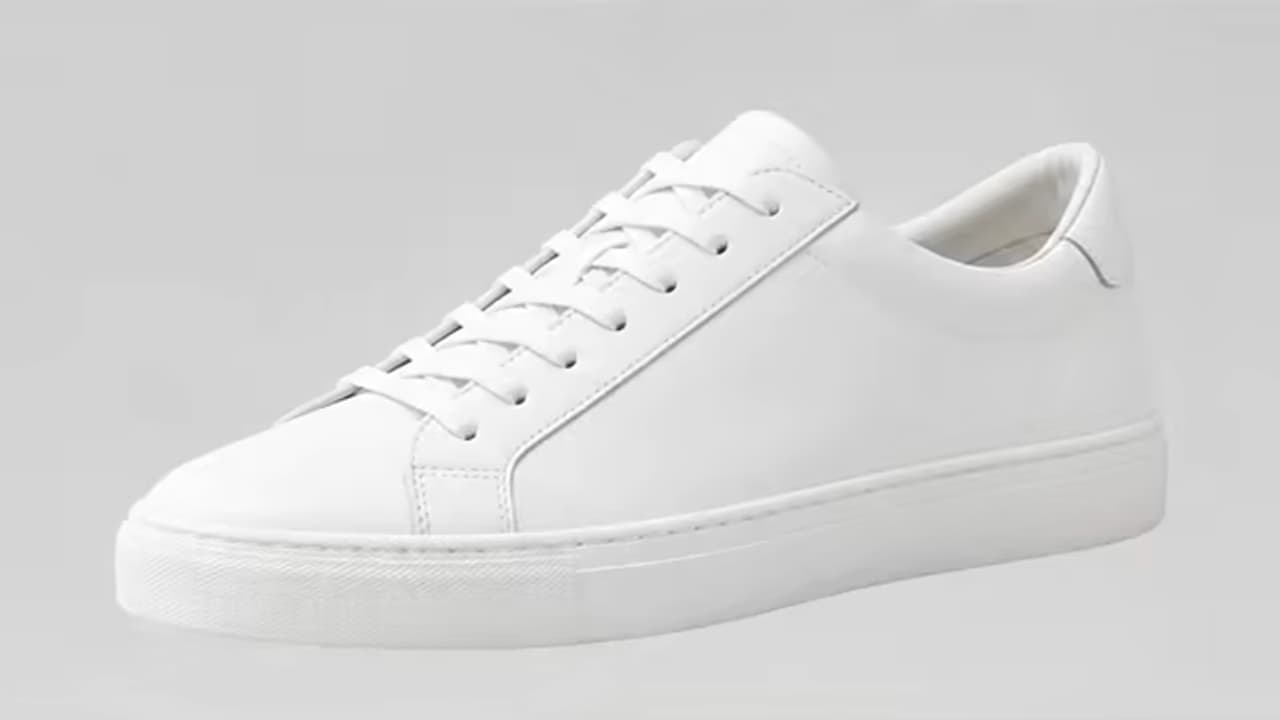
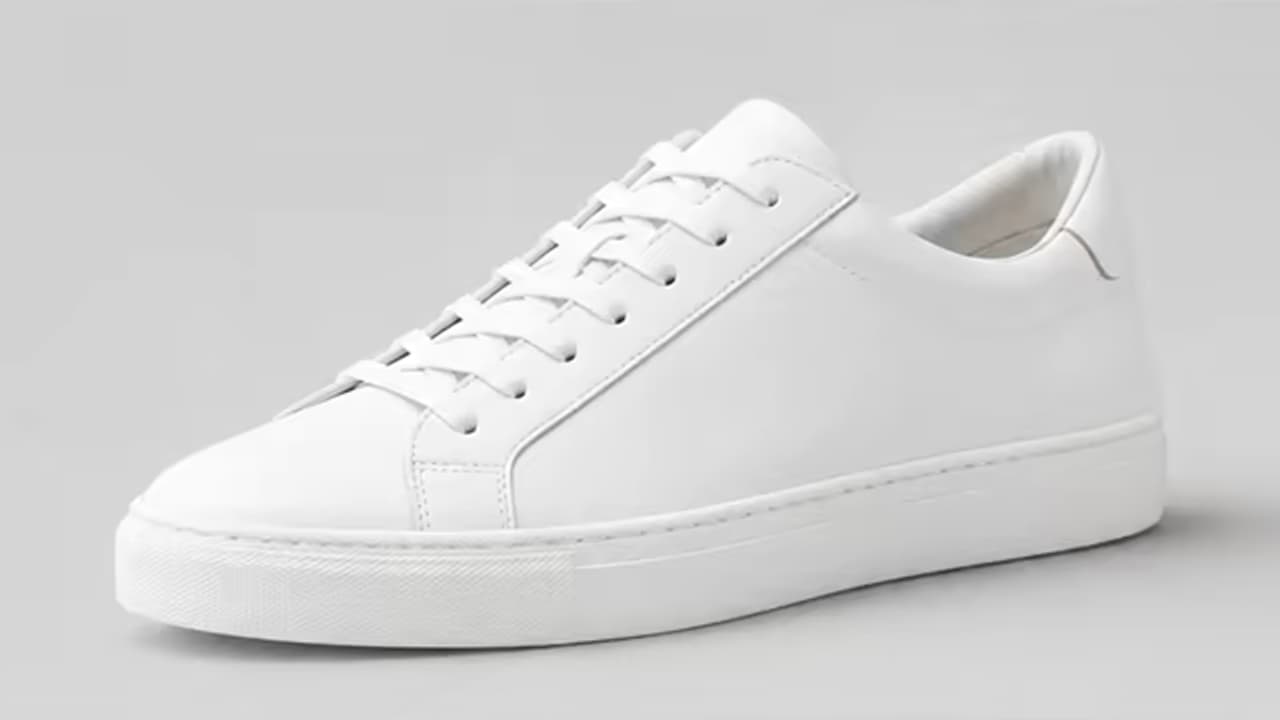
Create a Floating Product Shadow
Give a campaign image an elevated look with a separated soft shadow while preserving the pack shot and canvas.
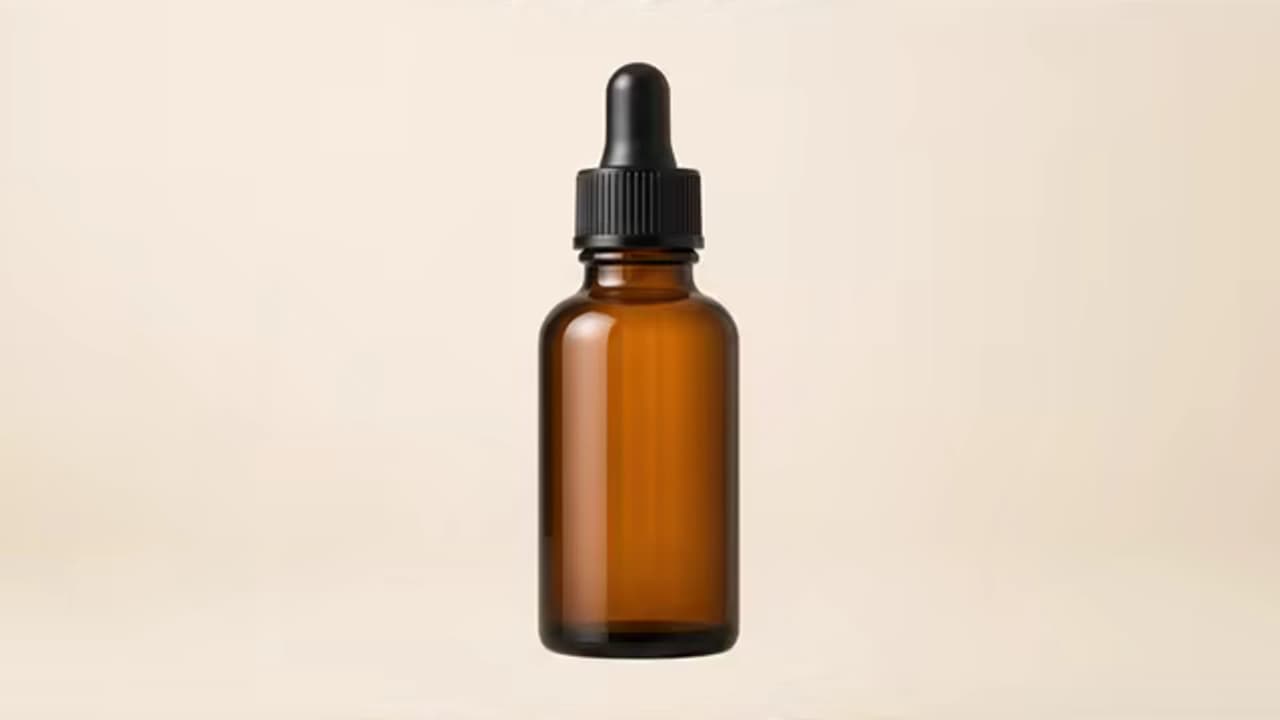
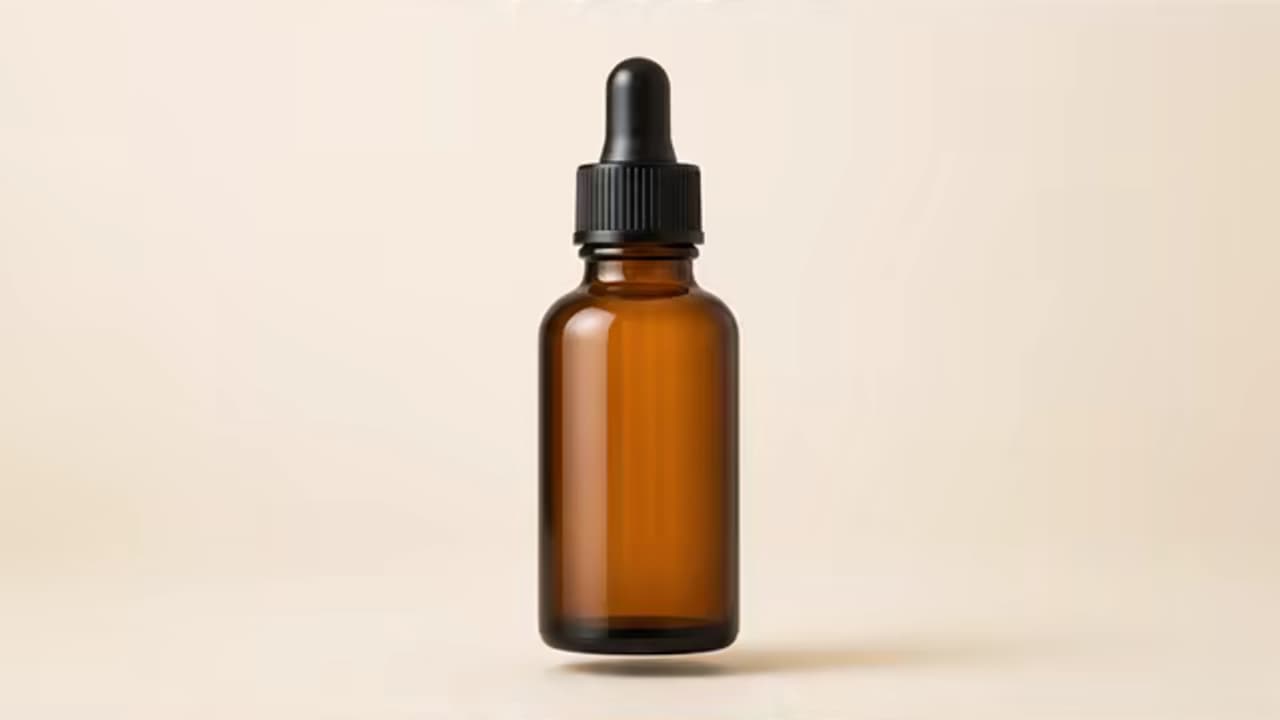
How to Add a Shadow to a Product Image
Choose a clean pack shot, describe the shadow and light direction, and verify both the shadow and product pixels.
Upload the Product Photo
Use a high-quality image with the full product, clean edges, clear contact area, and a simple background.
Describe the Shadow
Choose contact, soft, hard, directional, floating, or reflection-style and add a light direction when important.
Check Product Accuracy
Inspect labels, text, Logo, packaging, color, materials, edges, reflections, position, and shadow perspective.
Why Product Photos Need Realistic Shadows
A good shadow anchors the item, clarifies shape, and helps a set of pack shots feel like one catalog.
Marketplace and Store Listings
Ground white-background products so they look photographed on a surface rather than pasted into space.
Catalog Consistency
Describe the same shadow style and light direction across related images, then review each result individually.
Ads and Social Campaigns
Use a crisp directional or floating shadow to create more visual energy in a campaign concept.
Material and Shape Definition
Add depth that helps curves, soles, corners, handles, packaging, and surface contact read more clearly.
Make the Shadow Follow the Product and Light
An unrealistic shadow usually conflicts with the product footprint, surface, light direction, or camera perspective.
Before You Process Again
- Keep the full product and contact area visible on a simple background.
- Name the shadow type, light direction, softness, distance, and whether the item touches or floats above the surface.
- Lock product color, material, highlights, reflections, labels, Logo, packaging text, scale, and position.
- For a catalog, reuse the same descriptive wording but inspect every result for consistency.
Common Problems and Better Instructions
A Focused Prompt-Based Editing Workflow
The page narrows the edit to one task, offers concise prompt guidance, and asks you to review the result before using it.
Task-Specific Prompt
A short guide helps you describe the target change and the details to preserve without putting text in the input for you.
Preservation First
In your prompt, treat the uploaded image as the base canvas and name the identity, composition, lighting, and background details to preserve.
Review Before Use
Generative edits can vary. Zoom into the changed area and the surrounding details, then refine the prompt and regenerate when needed.
Built around honest editing boundaries
No fake recovery claims
AI generates plausible replacement pixels; it cannot recover hidden source detail that was never captured.
No imaginary controls
This workflow uses image upload and text prompts, not a brush, mask, color picker, or batch editor.
One clear task
The page stays within its stated use case instead of behaving like an unrelated general-purpose generator.
AI Product Shadow Generator FAQ
What is an AI product shadow generator?
What shadow styles can I request?
Does the page have shadow sliders?
Will the product, label, and Logo stay unchanged?
Can I use the same style across a product catalog?
Does it create a transparent PNG?
What product photos work best?
Use an AI Product Shadow Generator for Natural Depth
Upload a clean pack shot, describe the contact and light, and verify the product remains accurate before publishing.