
Add Suit to Photo
Use AI to add suit to photo portraits for a profile, resume, company page, or formal concept while keeping the person recognizable and the original pose and scene intact.
This creates an edited portrait, not certified ID or passport photography and not a size-accurate virtual fitting. Check the official rules before submitting any edited document photo.
Describe color and formality, such as “tailored navy business suit, white shirt, no tie.”
The selected resolution controls the configured credit cost.
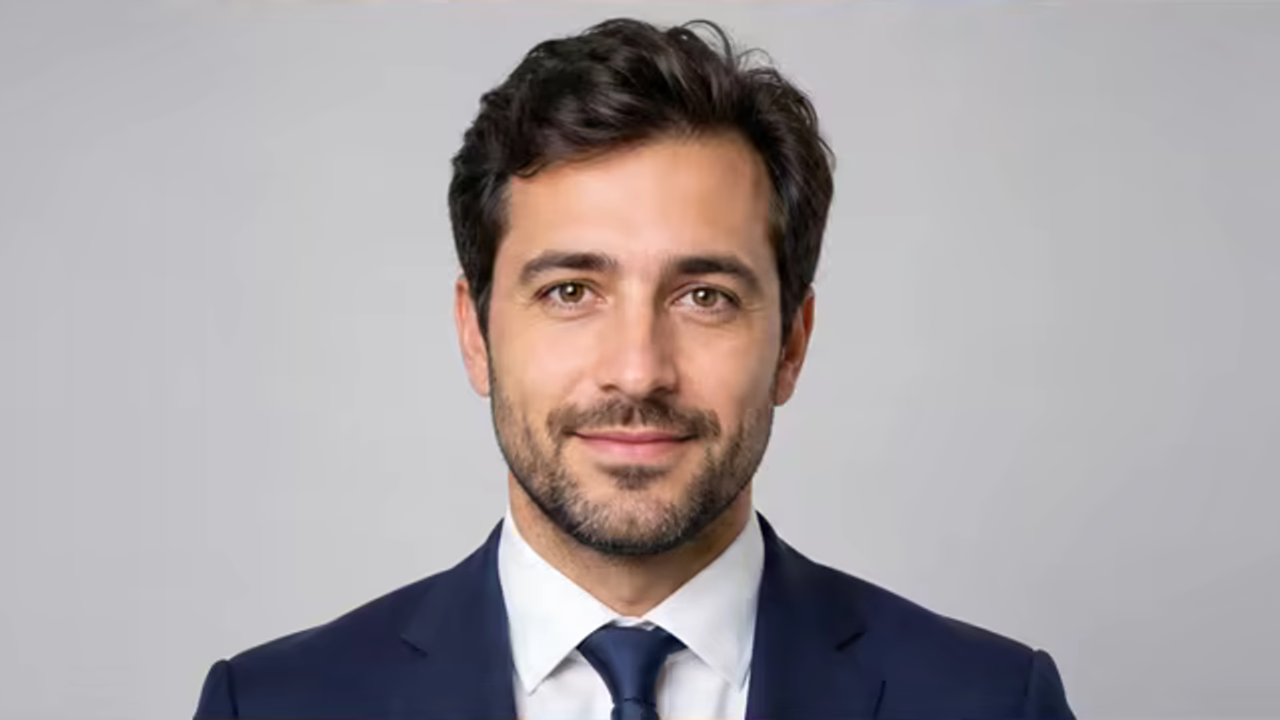
Change the Outfit, Keep the Person
The page is built for a professional clothing replacement—not a new face, body, pose, background, or generic AI headshot.
Locks Identity
Face, age, skin tone, hair, expression, head pose, and recognizable features are explicitly preserved.
Fits the Existing Pose
The suit follows the person’s shoulders, torso, arms, camera angle, body proportions, and current lighting.
Supports Clear Style Prompts
Ask for a navy business suit, charcoal blazer, women’s pantsuit, tuxedo, tie, open collar, or another specific formal look.
Suit Photo Edits for Professional and Formal Uses
A clear upper-body portrait provides enough visual information to place lapels, sleeves, collar, and shadows naturally.
Create a Professional Profile Portrait
Replace a casual top with a tailored business suit while keeping the original face, hair, expression, body, and office background.
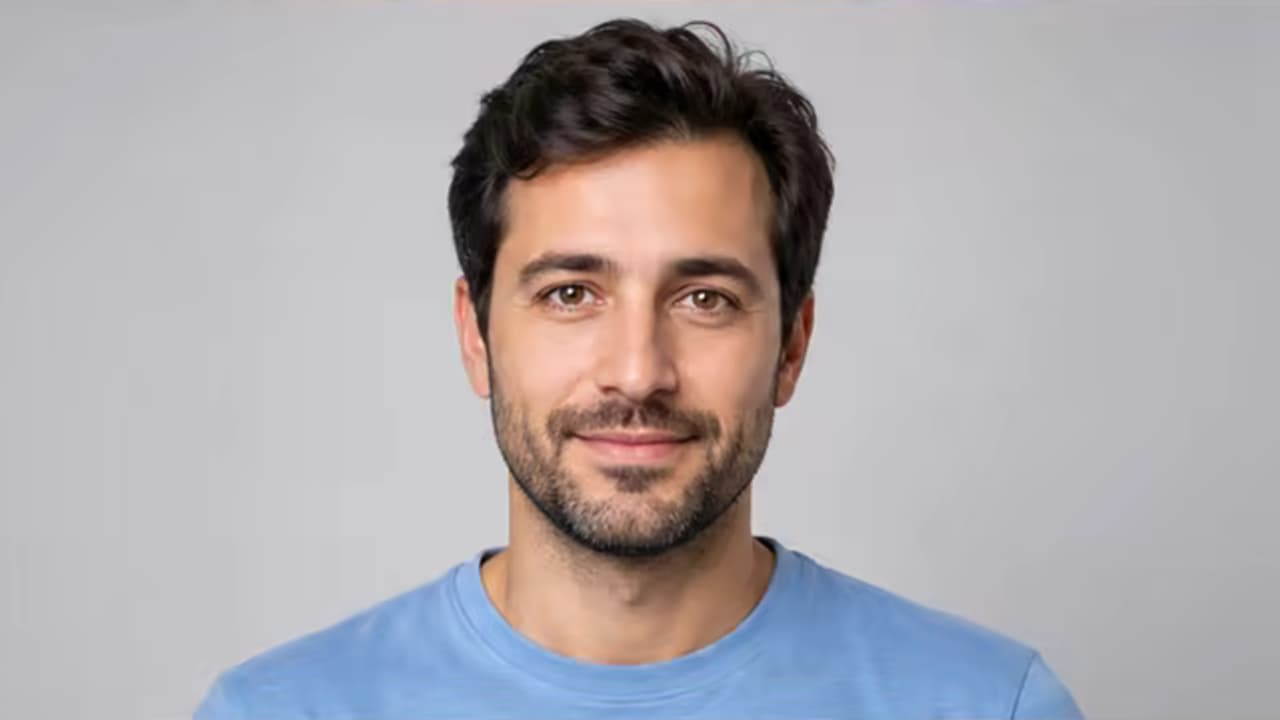
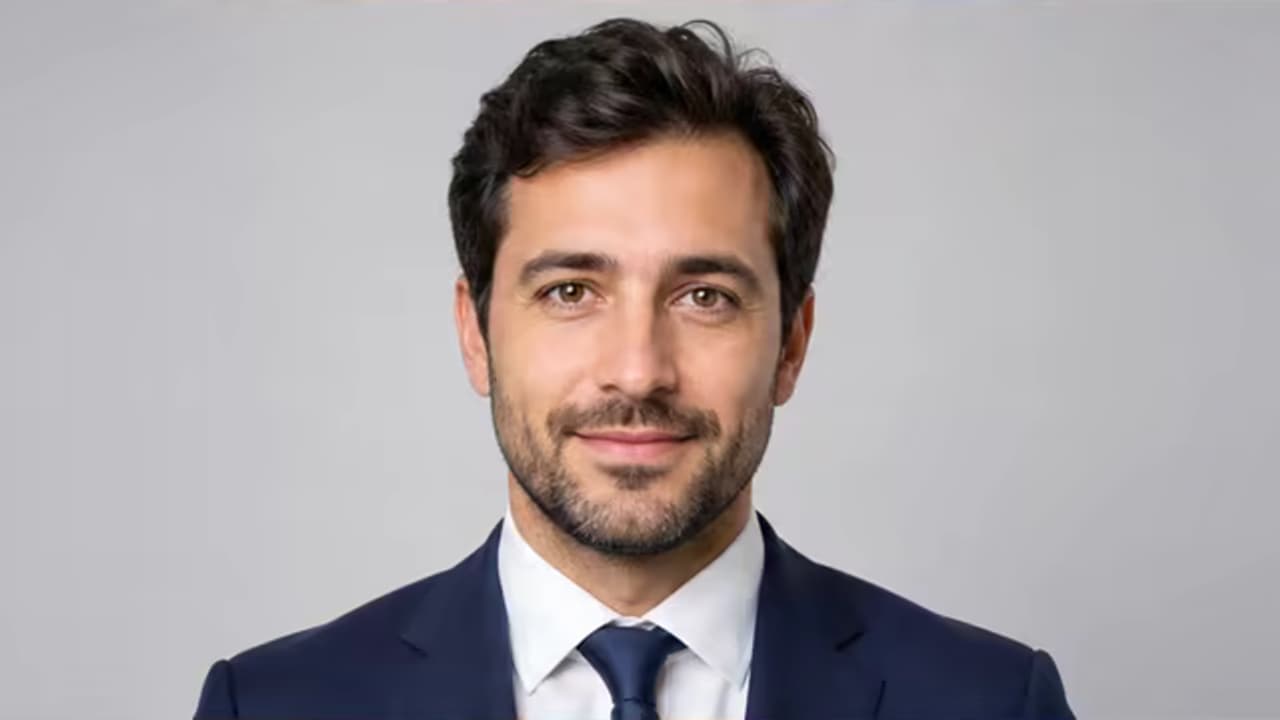
Preview a Formal Blazer or Tuxedo
Explore a more formal look for an event concept without changing identity, posture, framing, or ambient light.
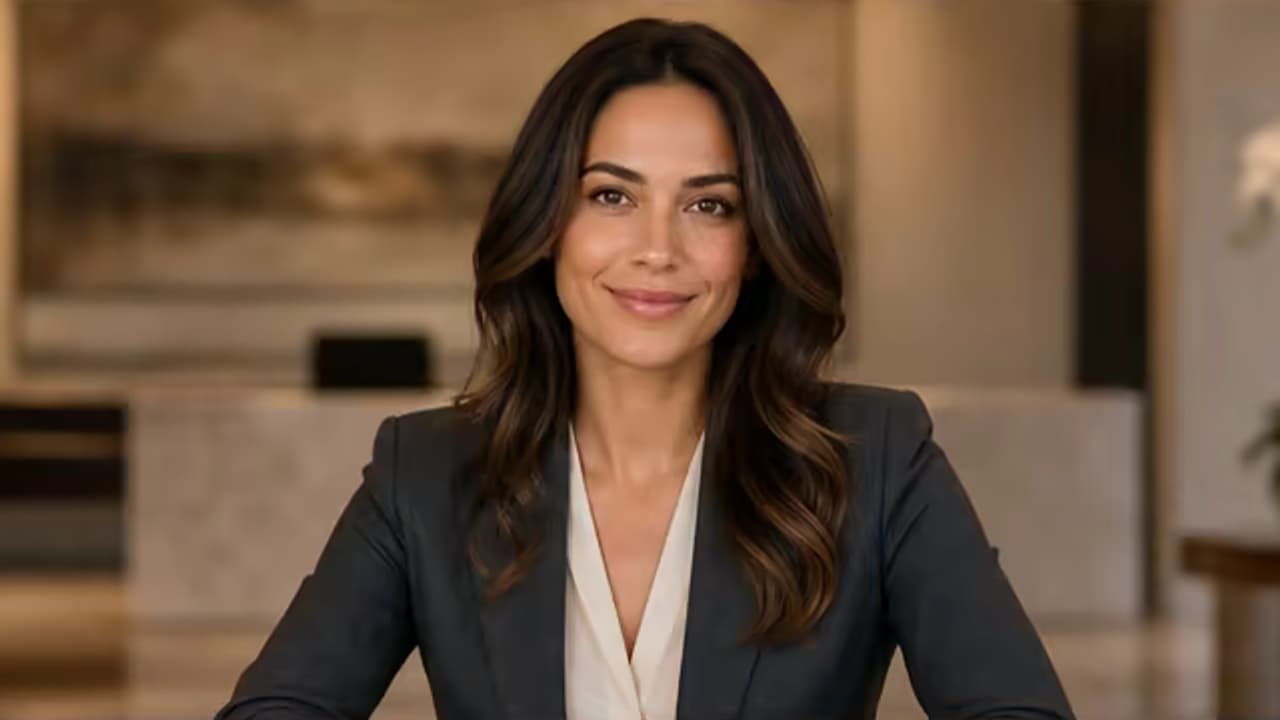
How to Add Suit to Photo
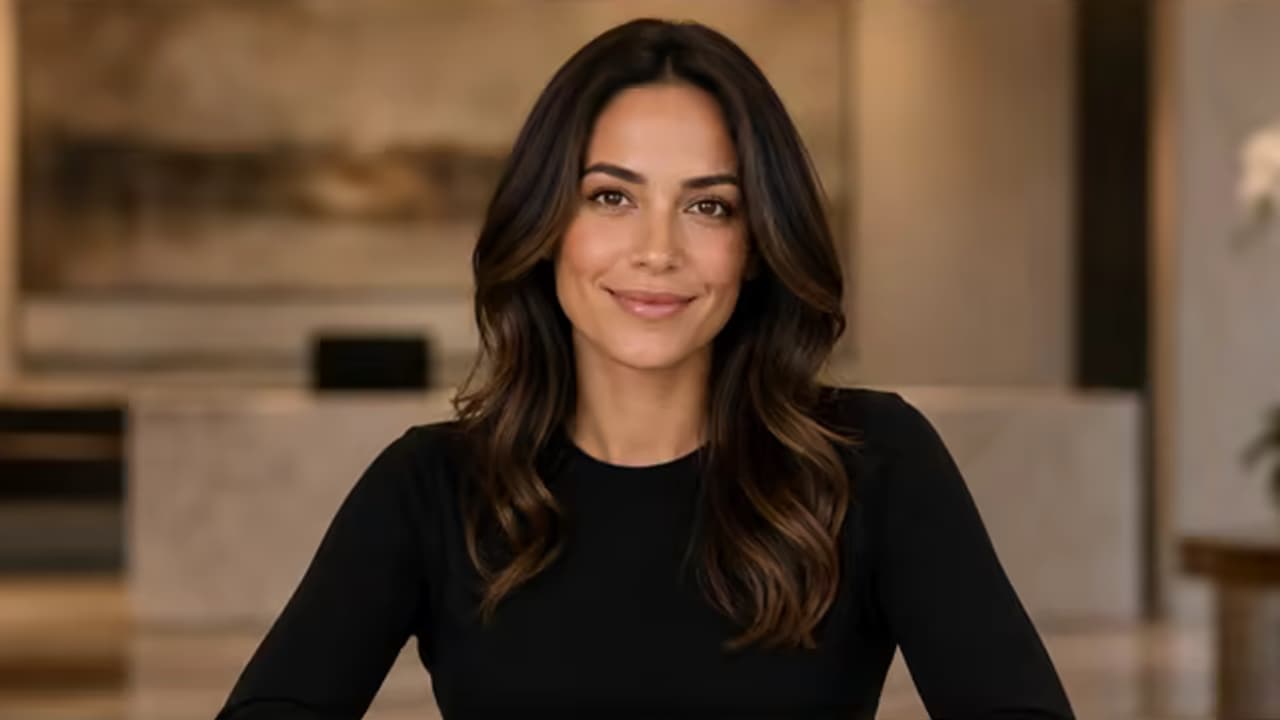
Start with a suitable portrait, describe the formal look, and check both identity and garment construction.
Upload a Clear Portrait
Use a front-facing or gently angled upper-body photo with visible shoulders, torso, arms, and natural lighting.
Describe the Suit
Specify color, cut, shirt, tie, blazer, tuxedo, or women’s suit details and state what must stay unchanged.
Review Face, Hands, and Fit
Inspect identity, shoulders, lapels, collar, sleeves, buttons, hands, body shape, shadows, and background.
Where an AI Suit Photo Can Help
Use edited portraits transparently and follow each platform or organization’s photo requirements.
LinkedIn and Professional Profiles
Create a more formal clothing concept for a profile photo while retaining the person and existing scene.
Resume and Company Pages
Coordinate a professional outfit for a CV, team directory, speaker bio, or business profile.
Weddings and Formal Events
Preview a blazer, three-piece suit, or tuxedo style before an event or creative portrait.
Creative and Marketing Concepts
Generate a formal wardrobe concept for a campaign, mockup, or presentation with the subject’s permission.
Get a More Believable Suit Fit
The source pose, crop, arm placement, and lighting determine whether a generated suit can follow the body naturally.
Before You Process Again
- Use a clear upper-body portrait with shoulders and torso visible.
- Describe suit color, formality, shirt, tie, cut, and desired gender presentation without changing identity.
- State that face, hair, age, body shape, hands, pose, lighting, and background must remain.
- Do not use the result as an official document photo unless the relevant authority explicitly permits edits.
Common Problems and Better Instructions
A Focused Prompt-Based Editing Workflow
The page narrows the edit to one task, offers concise prompt guidance, and asks you to review the result before using it.
Task-Specific Prompt
A short guide helps you describe the target change and the details to preserve without putting text in the input for you.
Preservation First
In your prompt, treat the uploaded image as the base canvas and name the identity, composition, lighting, and background details to preserve.
Review Before Use
Generative edits can vary. Zoom into the changed area and the surrounding details, then refine the prompt and regenerate when needed.
Built around honest editing boundaries
No fake recovery claims
AI generates plausible replacement pixels; it cannot recover hidden source detail that was never captured.
No imaginary controls
This workflow uses image upload and text prompts, not a brush, mask, color picker, or batch editor.
One clear task
The page stays within its stated use case instead of behaving like an unrelated general-purpose generator.
Add Suit to Photo FAQ
Can AI add suit to photo portraits?
What photo works best?
Can I choose the suit style and color?
Will my face and body stay the same?
Can I use the result for a passport or ID photo?
Is this a size-accurate virtual try-on?
Add Suit to Photo and Keep Your Identity
Upload a clear portrait, describe the suit, and inspect the face, hands, fit, and official-use requirements.