LogoAI Picture Editor
  • AI Picture Editor
  • AI Image Generator
  • AI Image Agent
    • Background Remover
      Remove backgrounds locally with no sign-up or usage quota, then download a transparent or color-filled PNG.
    • Image Upscaler
      Enlarge images by 2× or 4× privately with no sign-up or usage quota.
  • Pricing
LogoAI Picture Editor
AI Picture Editor/Image to Image AI/Photo Cleanup

AI Object Remover: Remove Unwanted Objects from Photos

Remove unwanted objects from photos while keeping the surrounding scene, lighting, and composition intact.

Remove one clear objectRebuild only the covered areaKeep the rest unchanged
Describe the image you want to create or transform
Type @ to reference an uploaded image

Name the object, its color, and exact location—for example, “the red bin on the right.”

The selected resolution controls the configured credit cost.

Public
Private
Coastal stone promenade after a red trash bin and its contact shadow are removed while the sea, railing, buildings, paving, and warm light remain
Preparing generatorControls will be ready in a moment.

AI Object Remover Results for Real-World Photos

Three common cleanup jobs: a travel scene, a property image, and a product shot.

Clean a Distraction from a Travel Photo

Remove a bin or other isolated distraction while preserving the destination, light, and composition.

  • Best for bins, cones, signs, bags, or bottles with clear edges.
  • Match paving, perspective, texture, and grain; keep the rest untouched.
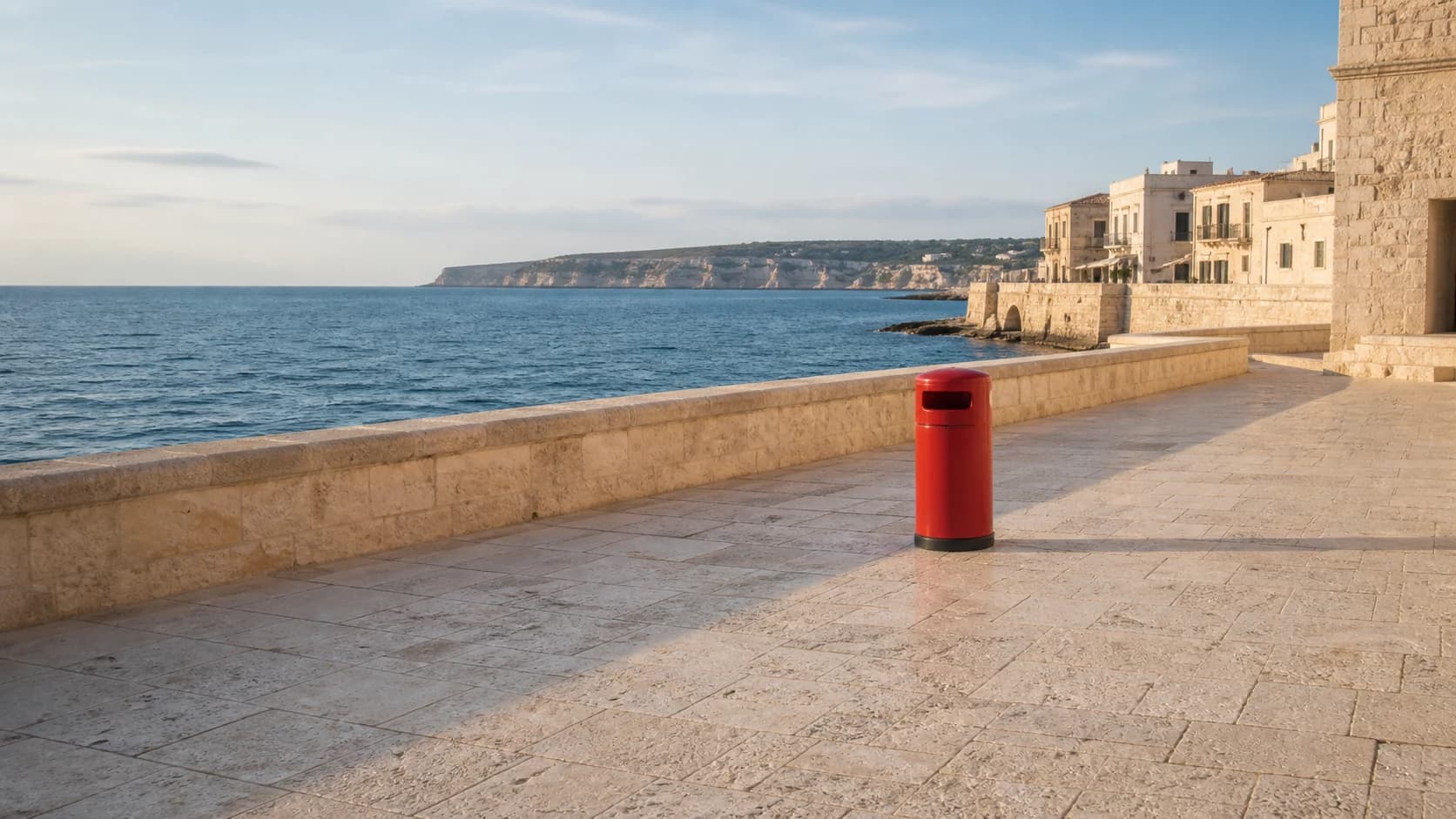
Clean a Distraction from a Travel Photo beforeClean a Distraction from a Travel Photo after
‹›
AfterBefore
Edit instruction: Remove the red bin and its shadow. Continue the stone paving; keep the coastal scene unchanged.

Remove a Temporary Object from a Property Photo

Remove one temporary object without redesigning the building or landscaping.

  • Works well for cones, buckets, tools, hoses, or small barriers.
  • Continue driveway lines and shadows; preserve the facade, garden, sky, and crop.
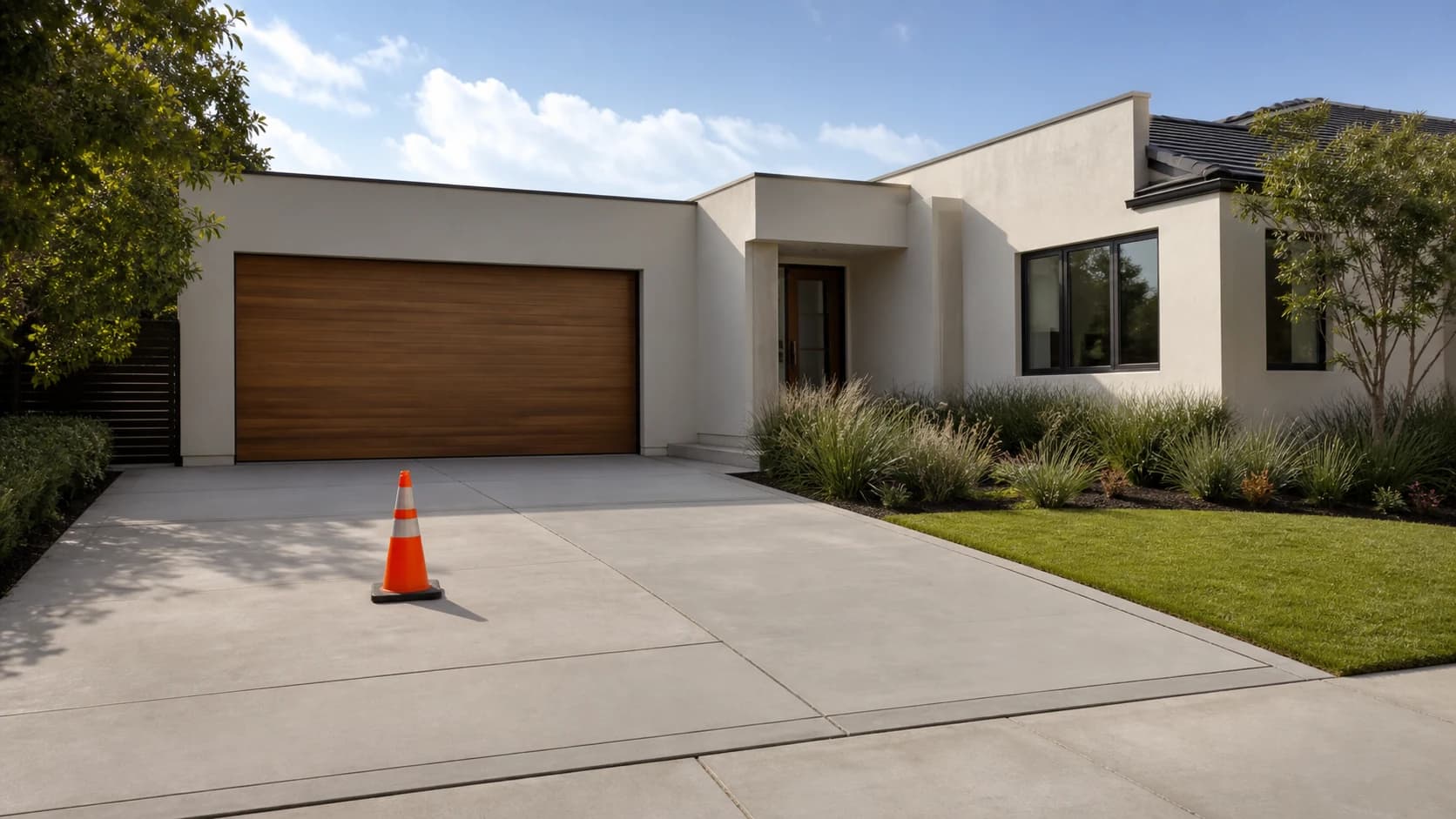
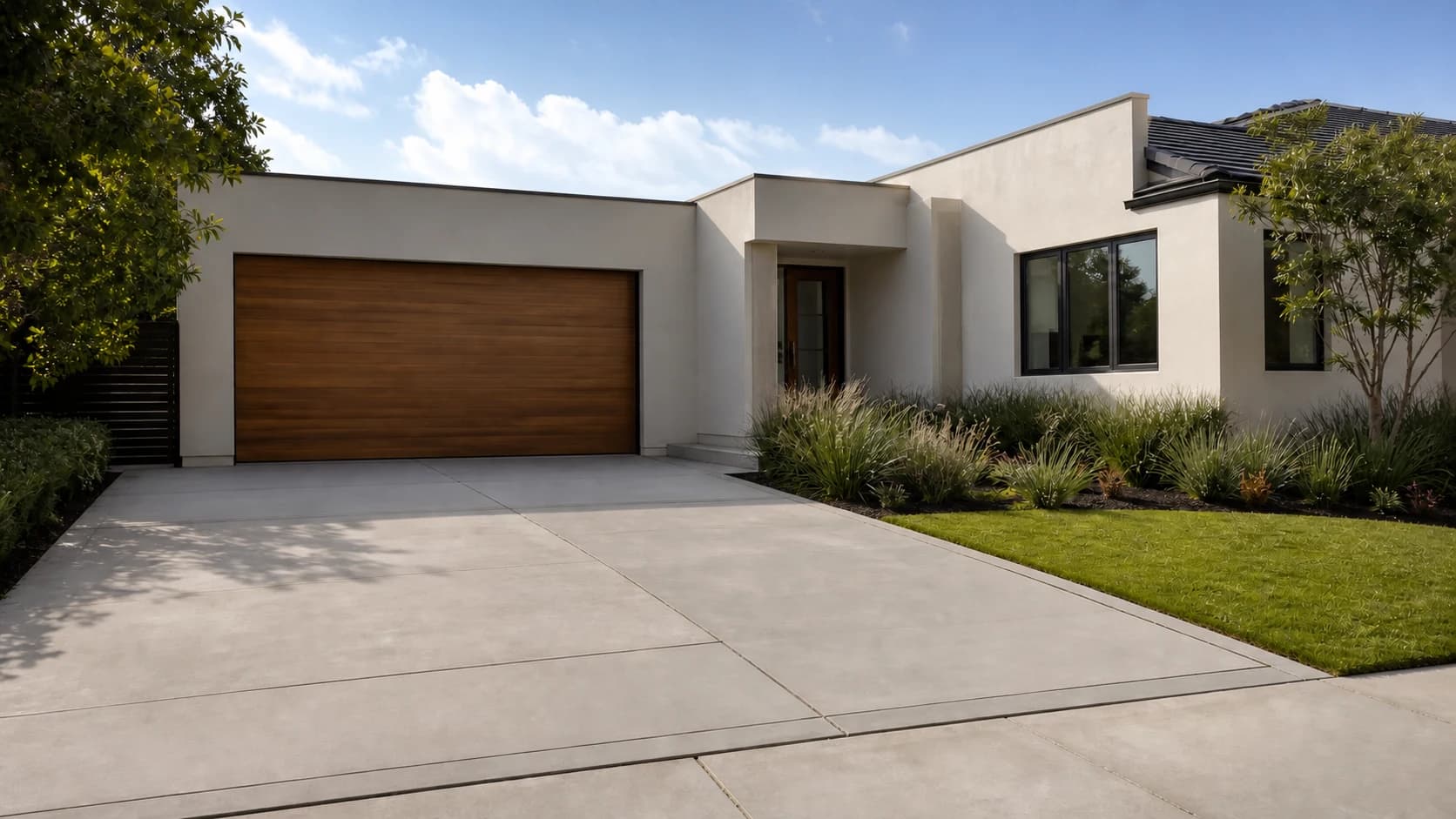
Remove a Temporary Object from a Property Photo beforeRemove a Temporary Object from a Property Photo after
‹›
AfterBefore
Edit instruction: Remove the orange cone and its shadow. Continue the driveway; keep the property unchanged.

Erase a Loose Prop Beside a Product

Remove a loose prop beside a product without altering the product itself.

  • Use it for a cup, cloth, cable, stand, or loose packaging.
  • Preserve product edges, labels, material, lighting, and contact shadow.
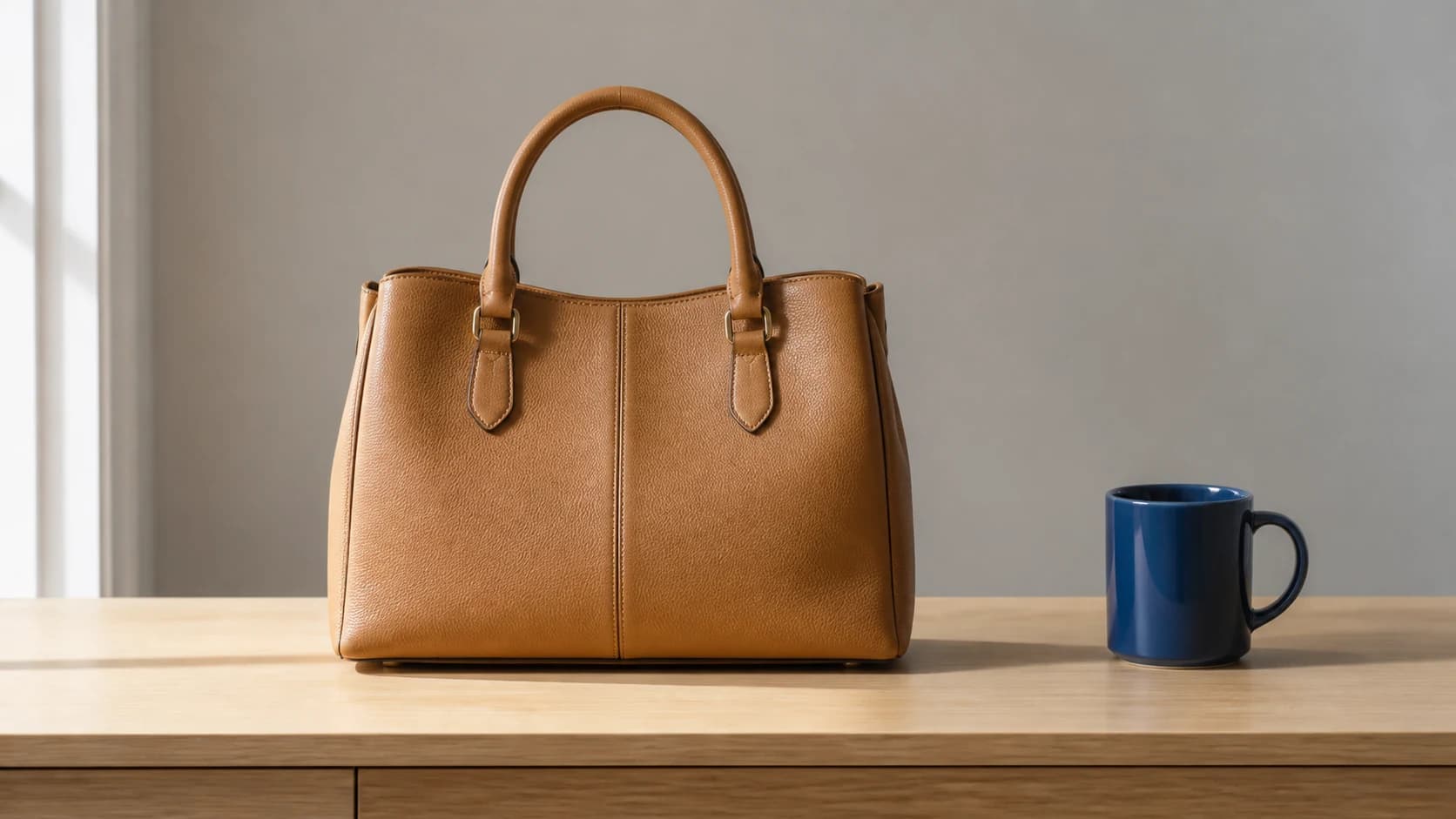
Erase a Loose Prop Beside a Product beforeErase a Loose Prop Beside a Product after
‹›
AfterBefore
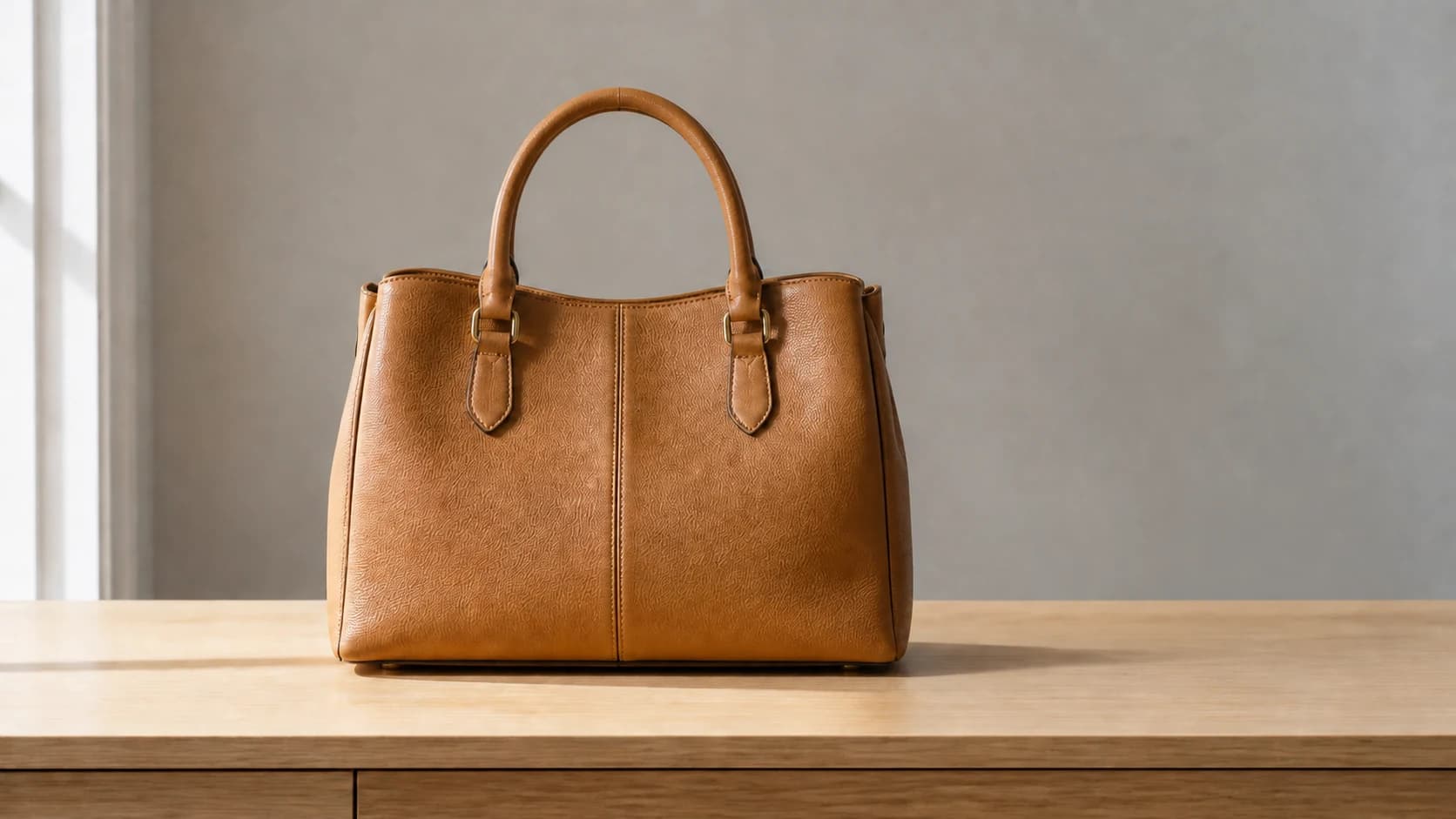
Edit instruction: Remove the blue mug and its shadow. Continue the desk and wall; keep the handbag unchanged.

What Can You Remove with This AI Object Remover?

The AI object remover works best when the target is distinct, the hidden area is predictable, and the subject to preserve is clearly named.

Good Object-Removal Targets

Bins, cones, bags, bottles, signs, cables, small tools, and loose props with clear edges.

Backgrounds AI Can Rebuild

Paving, walls, floors, desks, sky, grass, and other visible patterns surrounding a small object.

Details That Should Stay

People, products, text, logos, lighting, perspective, crop, and every object you did not name.

How to Remove an Object from a Photo with AI

Upload a clear source, name one target, then compare the repaired area with the original.

1

Upload the Best Source

Choose a clear image with visible background around the object.

2

Identify One Object

Name its type, color, position, and nearest landmark.

3

Generate and Compare

Check the repaired area and protected subject before downloading.

When to Use a Photo Object Remover

Use a photo object remover when one small distraction—not the whole background—needs to disappear.

Travel Photos

Clean a bin, cone, sign, bag, or bottle from the scene.

Property Photos

Remove one temporary item without changing the property.

Product Images

Erase a loose prop while keeping the product intact.

Personal Photos

Remove small clutter without restyling the photo.

Choose a Specialized Object Removal Workflow

Choose a narrower workflow when the target needs extra safeguards.

AI Object Replacer

Swap the current object for furniture, décor, products, vehicles, plants, or another item described in text.

Open tool →

AI Furniture Remover

Remove furniture while protecting walls, floors, fixtures, and room geometry.

Open tool →

Remove a Photobomber

Remove one background person while preserving the intended subjects and faces.

Open tool →

Remove Power Lines from Photo

Clean overhead wires while protecting sky, foliage, buildings, and rooflines.

Open tool →

Remove a Date Stamp

Remove a camera date while preserving other text, grain, subjects, and framing.

Open tool →

AI Glare Remover

Reduce glare while preserving eyes, text, color, and material detail.

Open tool →

Get Cleaner AI Object Remover Results

If the result looks wrong, clarify the target or reduce the area being rebuilt.

Three Things to Specify

  • Name one object by type, color, position, and nearby landmark.
  • State which subject, text, or product must stay unchanged.
  • Include its shadow or reflection only when the connection is clear.

Three Common Problems

Problem
Fix
The wrong object disappears
Add color, position, and a landmark; name the similar object that must stay.
Background texture looks smeared
Request a smaller repair that follows visible lines, texture, perspective, and light.
The target overlaps an important subject
Use another source when possible; large overlaps require invented detail.

AI Object Remover FAQ

How does the AI object remover work?+
Upload one photo and name the object, color, and location. The model fills the covered area from nearby visual context; it does not recover the real pixels hidden behind the object.
What objects can I remove from a photo?+
It works best on one clearly separated item, such as a bin, cone, sign, bag, bottle, cup, cable, or loose prop. Use the specialized workflows for people, furniture, power lines, date stamps, or glare.
How do I make the reconstructed background look natural?+
Choose a source with visible background around the target. Request the smallest repair and preserve important lines, repeated patterns, perspective, lighting, focus, and grain.
Can it remove an object’s shadow or reflection?+
Yes, when it clearly belongs to the target. Mention it explicitly and keep unrelated shadows, reflections, windows, and lights unchanged.
What photos are hardest for object removal?+
Large overlaps, faces, text, logos, mirrors, transparent surfaces, repeated patterns, motion blur, and ambiguous duplicate objects are harder. Another source may be more reliable.
Is an object remover the same as a background remover?+
No. An object remover fills one area inside the existing scene. A background remover isolates the foreground from the complete background, often for transparency or replacement.
Can I remove unwanted objects from photos online for free?+
You can try the AI object remover while guest credits and anonymous queue capacity are available. Free use follows the limits shown in the editor.
Which image formats can I upload?+
Upload a JPG, PNG, or WebP within the displayed size limit. Original files usually retain more useful edge and texture detail than screenshots.
Will the result keep my original resolution and crop?+
The editor currently generates a 1K image. It asks to preserve crop and aspect ratio, but it does not offer original-resolution or exact-pixel controls.

Remove Unwanted Objects from Photos, Keep the Scene

Name one unwanted item and let the AI object remover rebuild only the area it covered.

Remove an Object from My Photo

About This AI Object Remover

This prompt-guided tool cleans one distracting item without a manual pixel selection. Upload one JPG, PNG, or WebP, name the object and its location, and tell the editor what must remain unchanged. It works best on small, distinct targets with visible background around them. The model reconstructs the covered area; it cannot recover hidden real-world detail. Use the specialized workflows for people, furniture, power lines, date stamps, or glare.

LogoAI Picture Editor

AI image editing tools for cleaner, publish-ready visuals.

Email
Tools
  • Image to Image AI
  • AI Object Replacer
  • AI Image Extender
  • AI Product Photo Editor
  • AI Product Ad Generator
  • AI Fashion Model Generator
  • AI Ghost Mannequin Generator
  • AI Background Changer
  • Photo Colorizer
  • Old Photo Restoration
  • AI Image Text Editor
  • Remove Glasses AI
  • Family Picture Editor
  • AI Action Figure Generator
  • AI Furniture Remover
  • Photo Remove Filter
  • AI Flat Lay Clothing Generator
  • AI Photo Relighting
  • All Tools
Models
  • GPT Image 2.5
  • ChatGPT Image Editor
  • Qwen Image Edit
  • Grok AI Image Editor
  • Nano Banana Photo Editor
  • Nano Banana 2 Lite
Company
  • About
  • Contact
  • Changelog
Legal
  • Cookie Policy
  • Privacy Policy
  • Acceptable Use Policy
  • Terms of Service
© 2026 AI Picture Editor All Rights Reserved.[email protected]We are not affiliated with the model providers. All trademarks belong to their respective owners.