
Remove Dark Circles from Photo Online with Natural AI Retouch
Portrait studio
Under-eye retouch
Example retouch
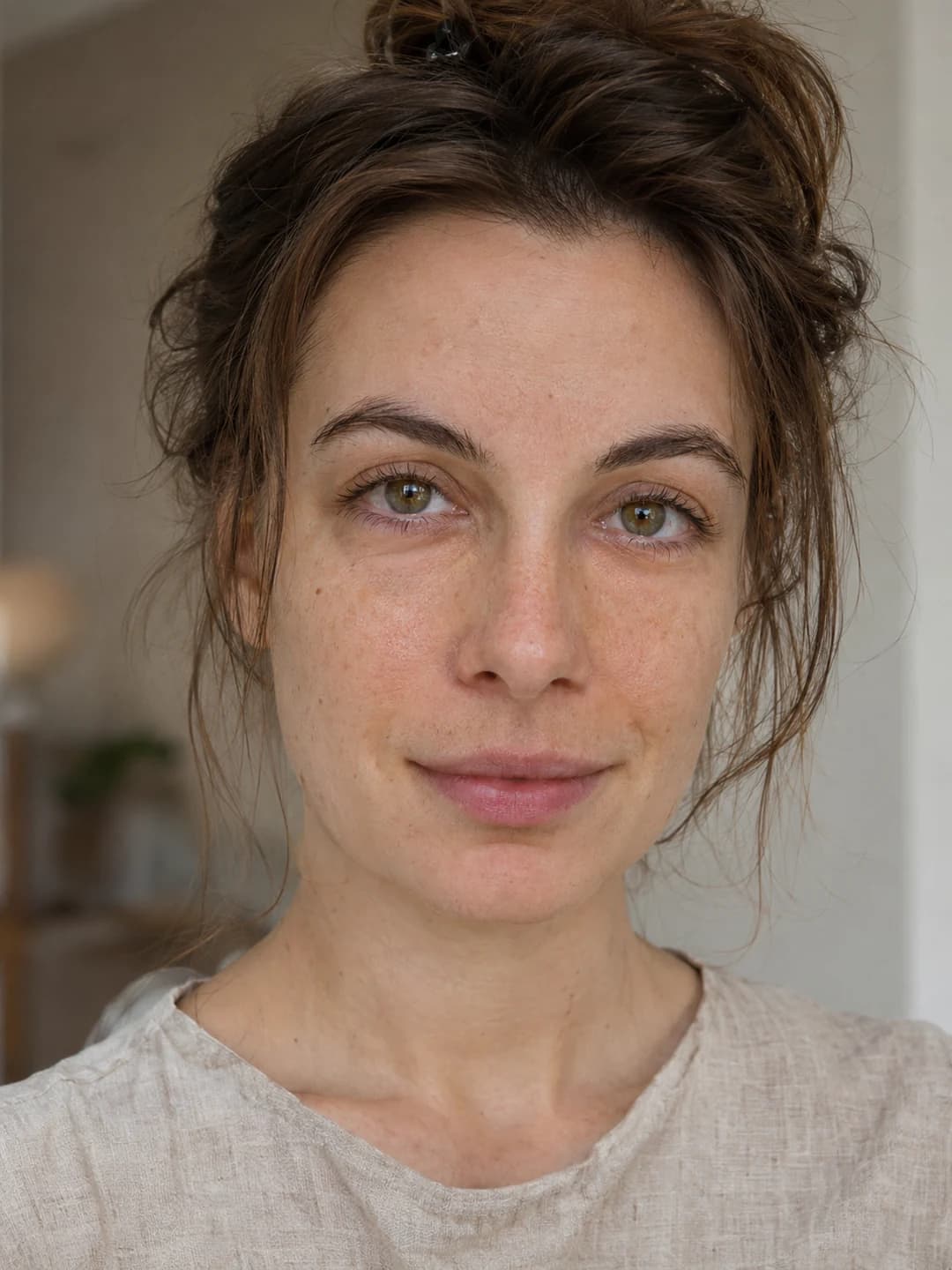
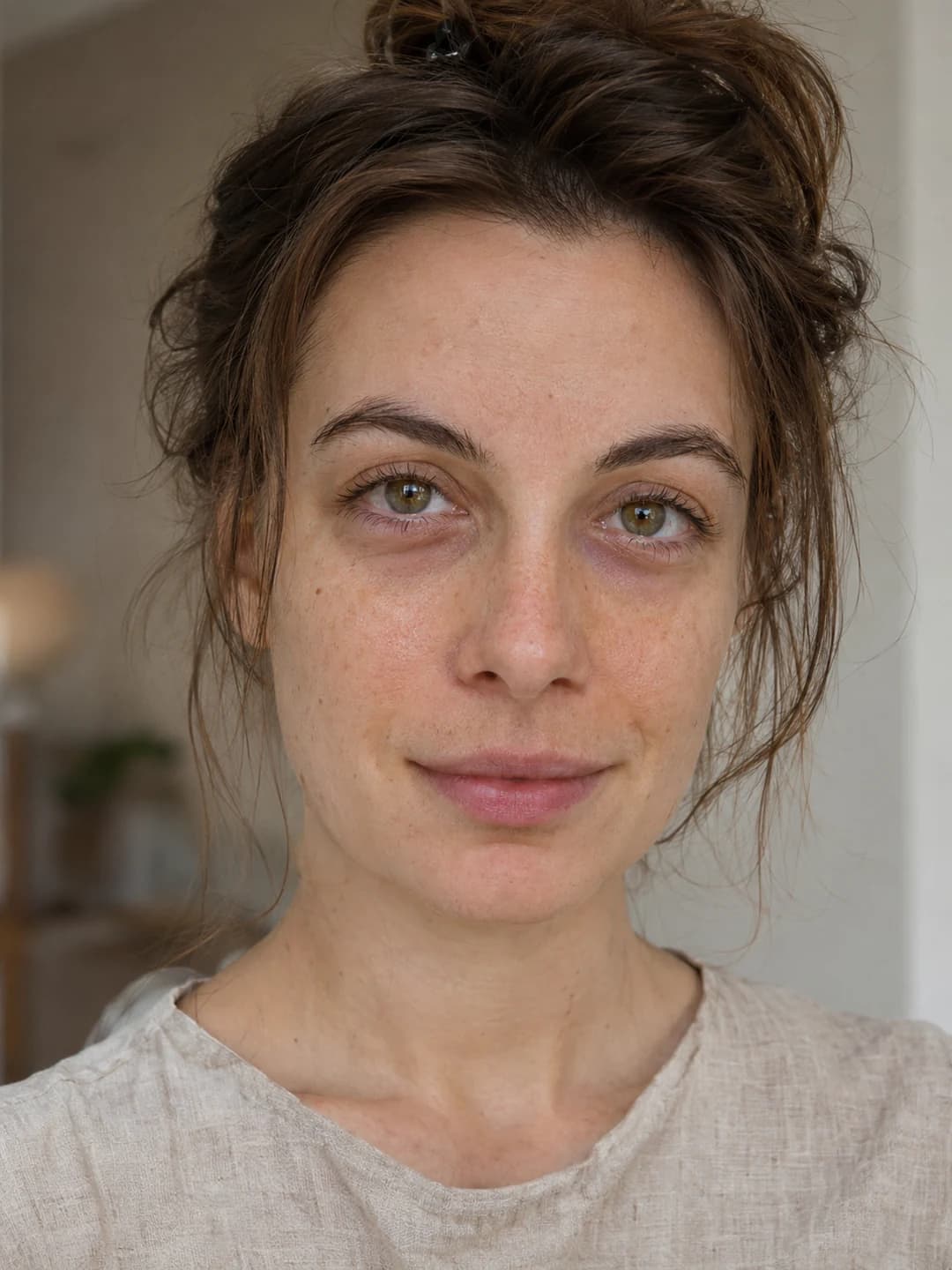
Travel portrait · drag to compare
A lighter touch for tired eyes
Use Remove Dark Circles from Photo to correct color and shadow beneath the eyes, not the whole face. A small edit can make tired eyes look more rested.


Brighten Under-Eye Discoloration Without a Heavy Concealer Look
Blue, purple, and brown tones can show up beneath the eyes even when the rest of a portrait looks right. The editor softens that contrast and blends the correction into the surrounding skin, rather than painting on a pale layer. When you remove dark circles from photo close-ups, a little depth keeps the result believable. Try the slider on this portrait: the under-eye tone changes, but the daylight across the face stays the same.
Try it on your photo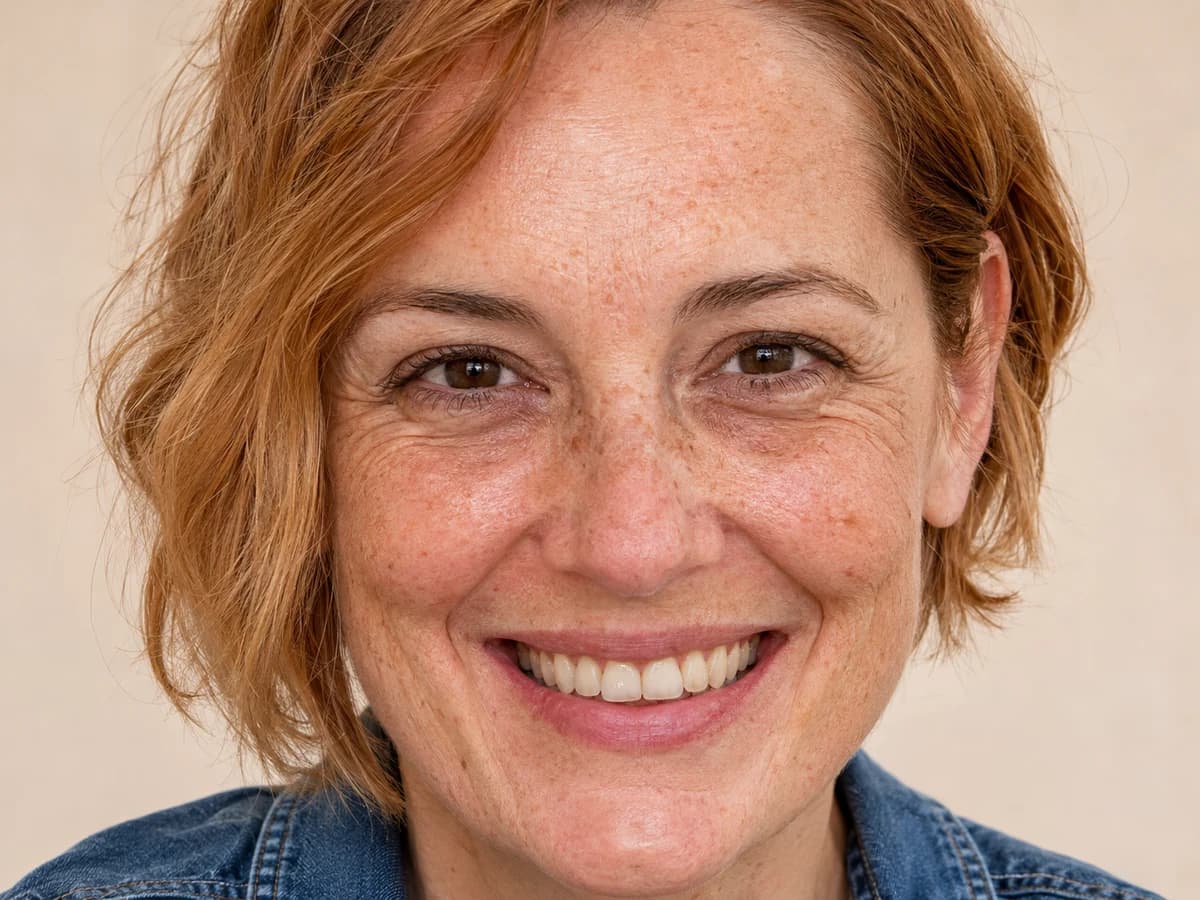
Preserves Real Pores, Lash Lines & Natural Eye Contours
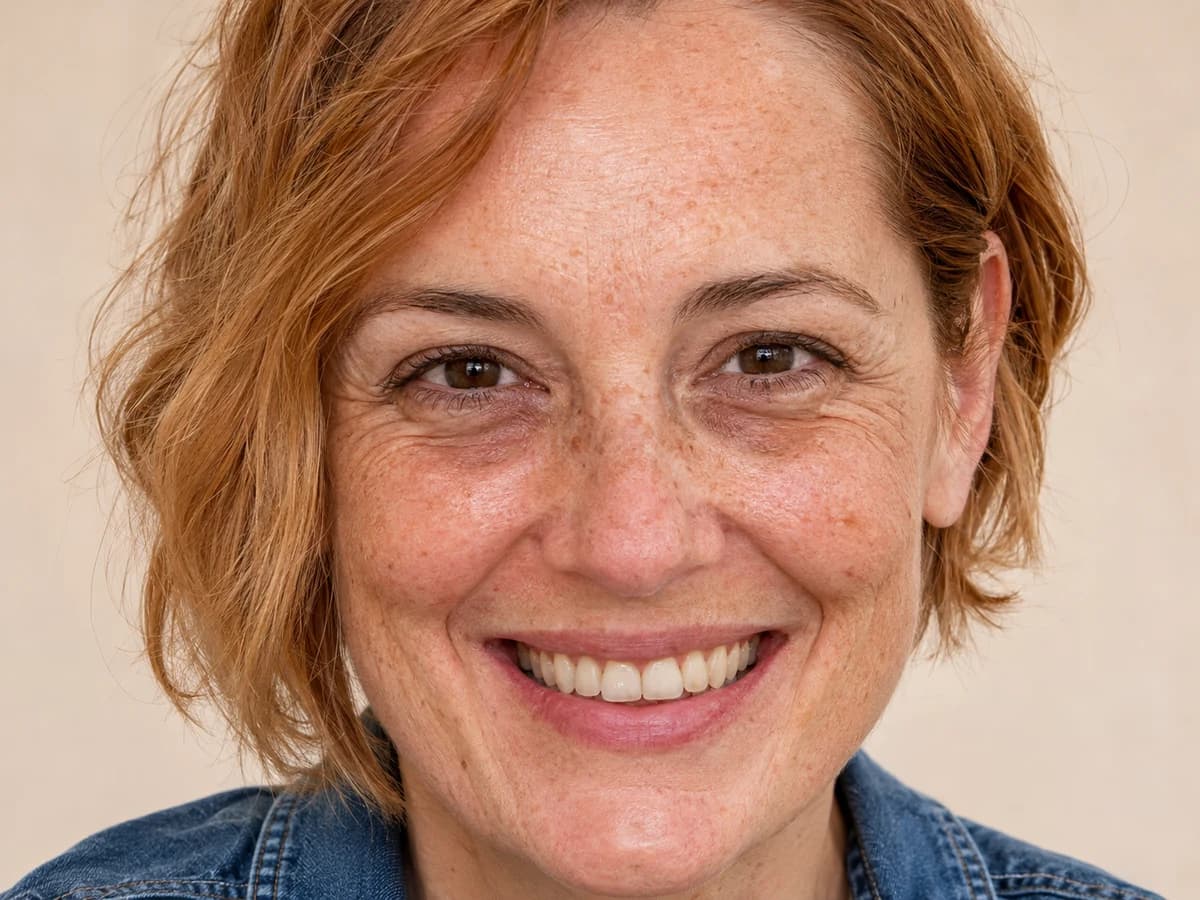
Fine creases show how a person smiles. Pores and lower lashes give the eye area definition. The AI targets discoloration while keeping those details in view, so the skin does not turn into a smooth patch against a sharp portrait. Leave line and contour preservation on for close crops. When you move the divider across the lower eyelids and outer corners, look for the same smile lines and lash shape on either side.
Try it on your photo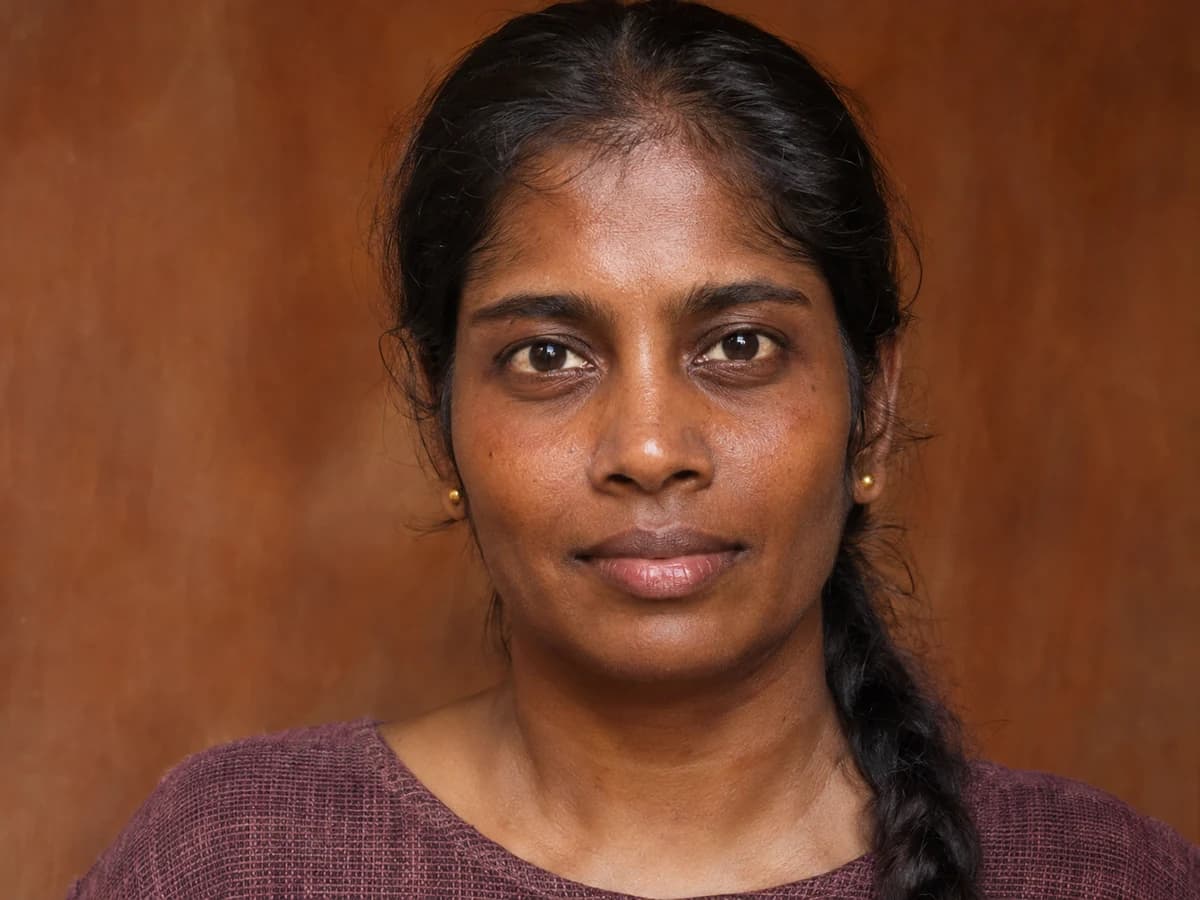
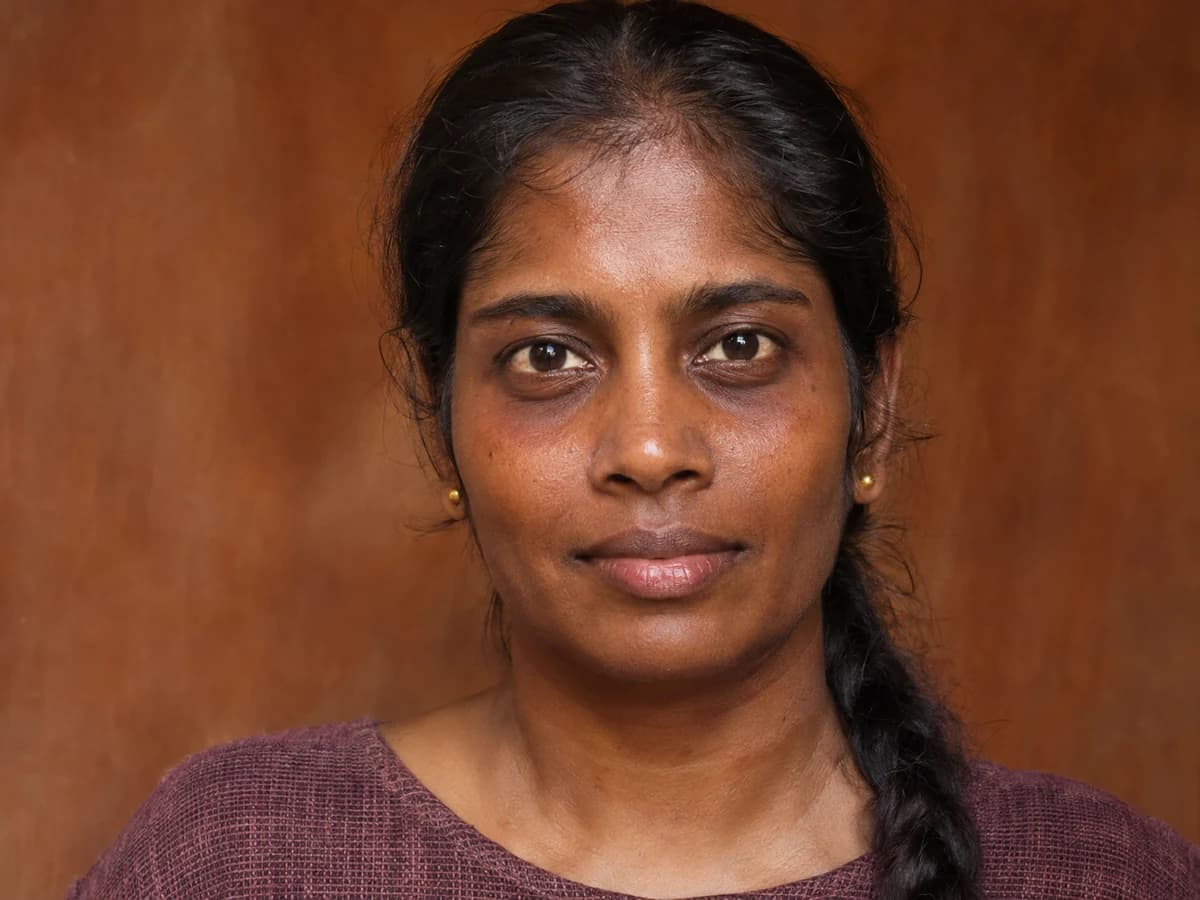
Balanced Across Every Skin Tone & Lighting Setup
A convincing edit follows the person’s own complexion. The dark circle remover uses nearby skin as a reference instead of applying one universal brightening shade. That helps keep the rich, warm undertones in this portrait without introducing a gray cast. If you remove dark circles from photo sets taken in different light, compare each edit with its own original. A bright window portrait and a warmly lit evening photo do not need the same amount of correction.
Try it on your photo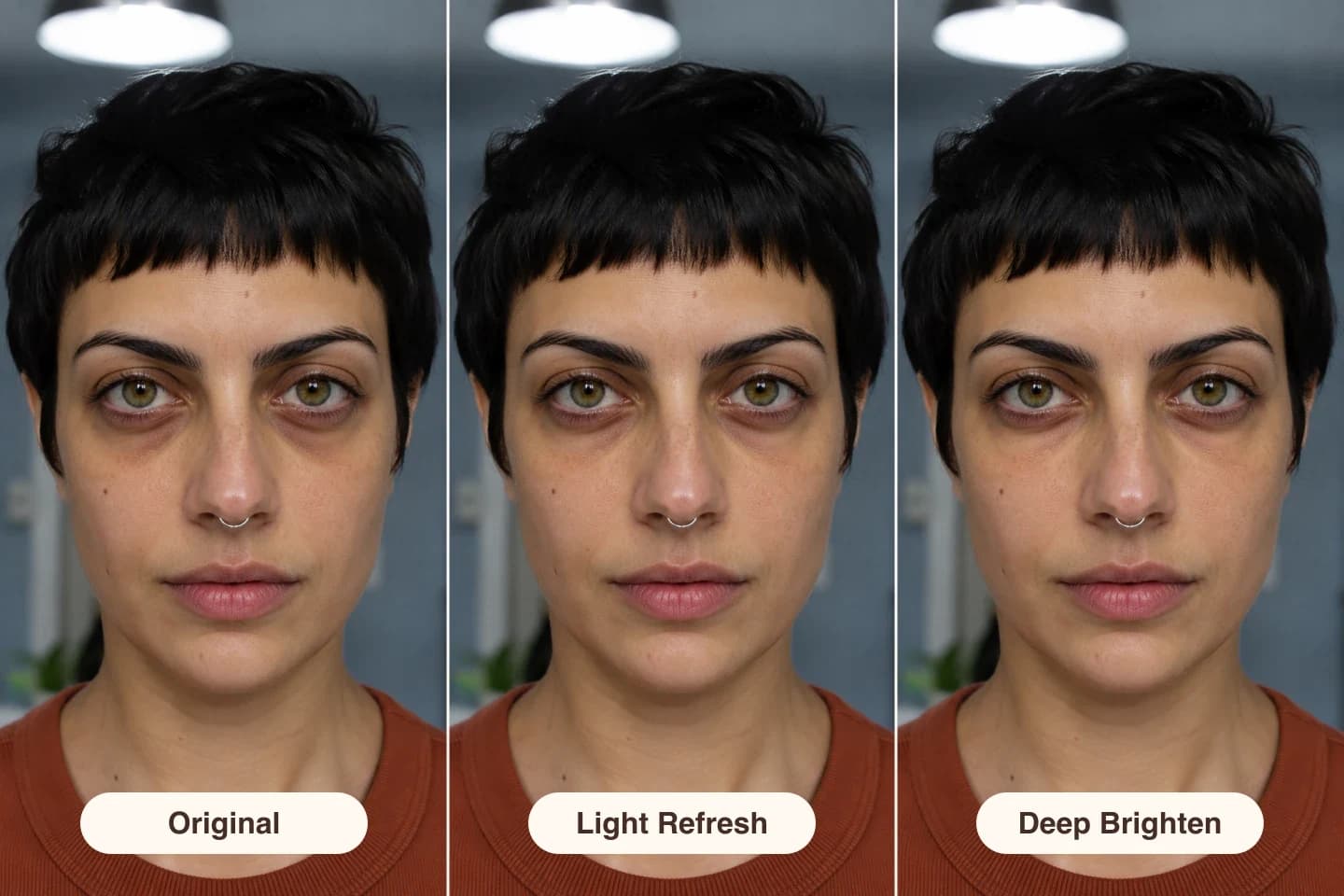
Control How Subtle or Refreshed You Want to Look
Start with Light Refresh if you want to take the edge off a candid. Balanced is a good starting point when you want a visible change that still looks natural. Choose Deep Brighten for pronounced pigmentation or harder shadows. The same portrait is used across this strip, so you can judge how each amount of retouching affects the under-eye contour. If a result feels too bright, step back a level and start again from your original.
Try it on your photo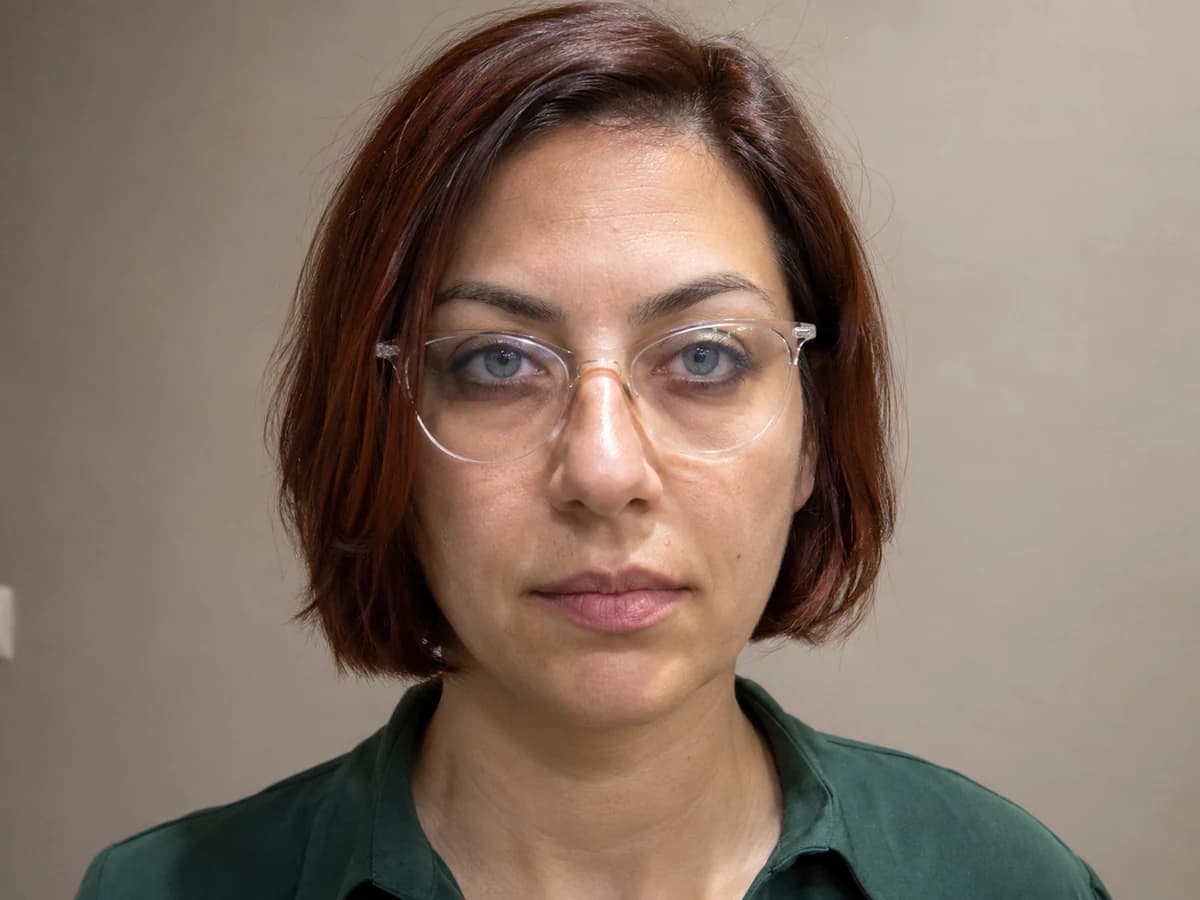
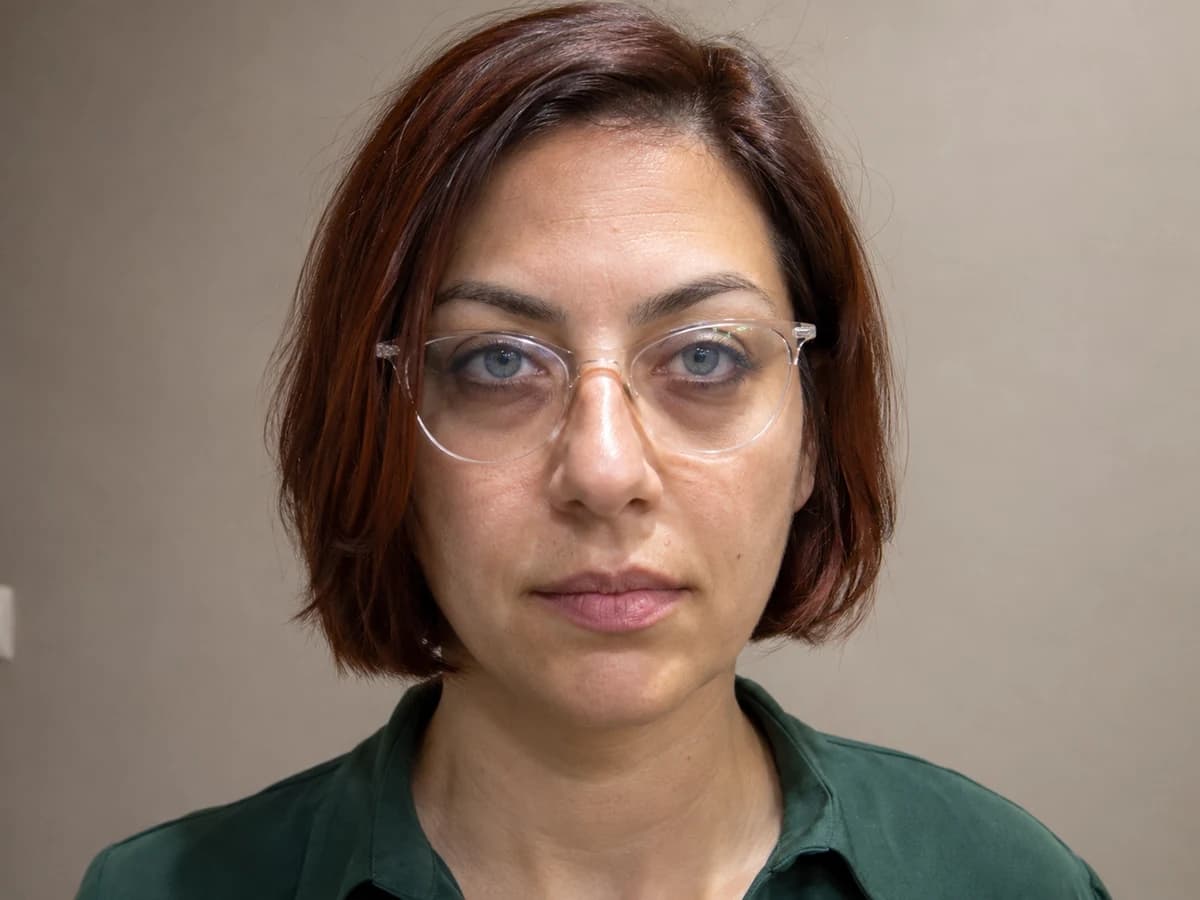
Clean Up Harsh Overhead & Glasses-Frame Shadows
Ceiling lights and glasses frames can cast a second shadow where the eye socket already looks dark. Brightening the entire image can wash out the forehead or amplify reflections in the lenses. Instead, lift the shadow on the skin and keep the light in the rest of the picture. Leave makeup and glasses protection on, then compare the result around the rims and eyeliner. Check that the frames are still crisp and the lenses look like they belong in the original light.
Try it on your photoHow it works
Upload a clear portrait
Choose a JPG, PNG, or WebP up to 10 MB. Start with a sharp photo where both lower eyelids are visible.
Pick your correction strength
Select Light Refresh, Balanced, or Deep Brighten. Keep the detail protections on, or adjust them for the photo.
Compare, then download
Zoom in to check the under-eye texture. Sign in to download; paid access unlocks the full-resolution result.
A retouch for the photos you keep
Resumes & Professional Headshots
Lift distracting shadows while keeping the expression that makes a headshot recognizable.
Late-Night Event & Travel Selfies
Remove dark circles from photo booth shots and travel selfies without taking away the light that made the moment memorable.
Video Call & Remote Profile Shots
Lift the shadows ceiling lights deepen in webcam portraits.
Beauty & Editorial Portrait Retouching
Check skin texture up close when lashes, fine lines, and makeup matter.
Why choose this dark circle remover?
Edit the shadow, not the face
Target under-eye pigmentation instead of blurring the entire face. Keep real highlights, pores, and expression.
Three strengths, no brushwork
Choose a natural level of correction without tracing the lash line or painting around your glasses.
From browser to full size
Remove dark circles from photo files in your browser. Paid access downloads the result at its original resolution.
Frequently asked questions
How can I remove dark circles from a photo for free?
Open Remove Dark Circles from Photo, upload a portrait, and start with Balanced. Use available free credits to generate a result and compare it with the original.
How do I fix dark circles in pictures without looking airbrushed?
Try Light Refresh and leave line and contour preservation on. Some natural shading should remain beneath the eyes. Zoom in to check that pores, fine creases, and lashes still look like your photo.
What is the difference between removing dark circles and removing eye bags?
Dark circles are discoloration or shadows in the hollows under the eyes. Eye bags are structural puffiness or volume. If the issue is a raised contour rather than dark color, use the eye bag remover instead.
How is this AI dark circle remover better than generic phone magic erasers?
A magic eraser is meant to remove and replace an object. This editor is tuned to rebalance the tone of skin that should stay in the photo.
Will removing under-eye shadows smudge my eye makeup, lashes, or glasses?
The protection setting directs the edit away from liner, lashes, frames, and lens reflections. Check fine edges in Detail Zoom, especially on photos with strong glare or bold liner.
Does the tool work naturally across deep, medium, and fair skin tones?
Yes. The edit is guided by the complexion and lighting in your photo. Use Balanced first, then compare for undertone and contrast rather than looking for a specific shade.
Are my uploaded portraits kept private and how do free credits work?
Try the AI dark circle remover online free with available guest credits. Sign in to use account credits and download a watermarked preview. Photos are processed online. Free results are public; paid access offers private mode and full-resolution downloads.
Look more rested. Still look like you.
Start with a portrait you like and bring the under-eye shadows into balance.