
Free AI Teeth Whitening Photo Editor for Natural Smiles
Warm Outdoor Smile · sample
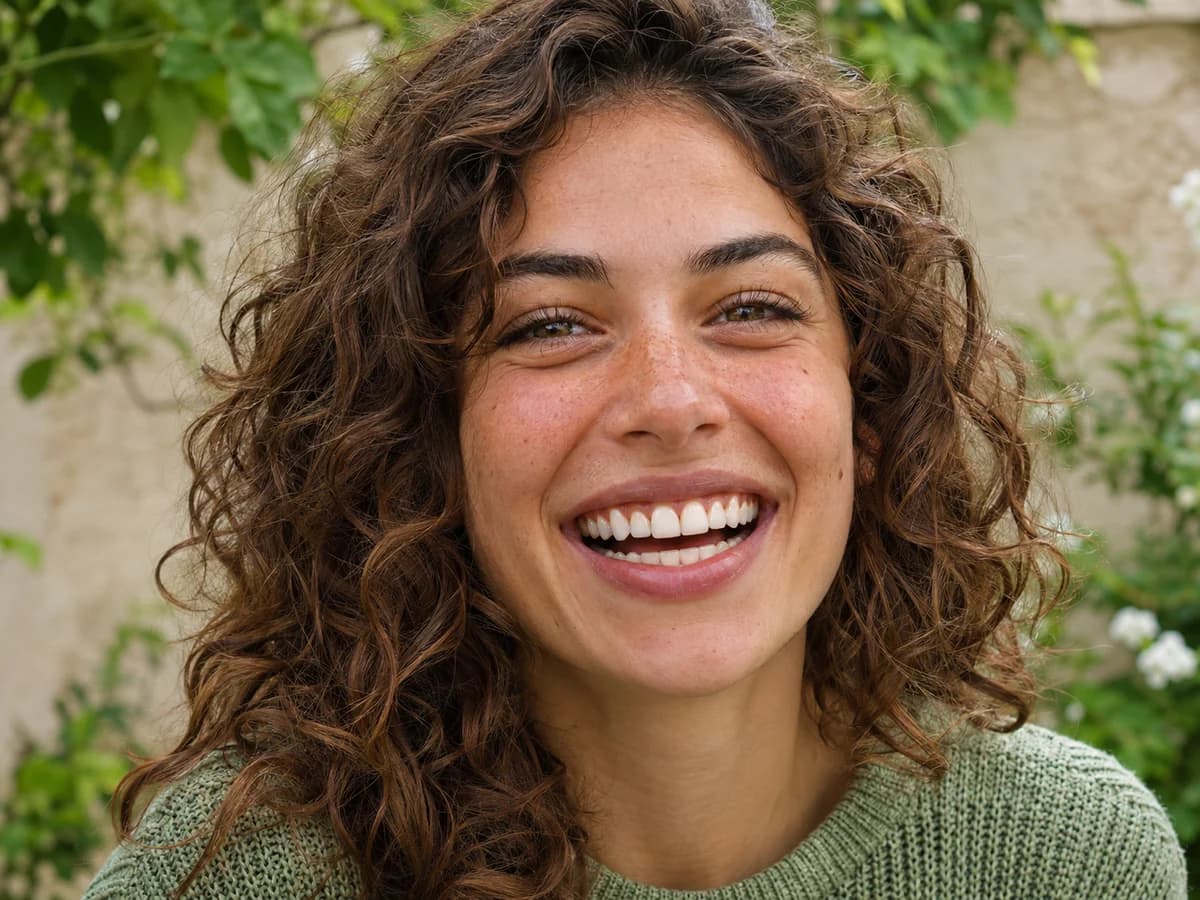
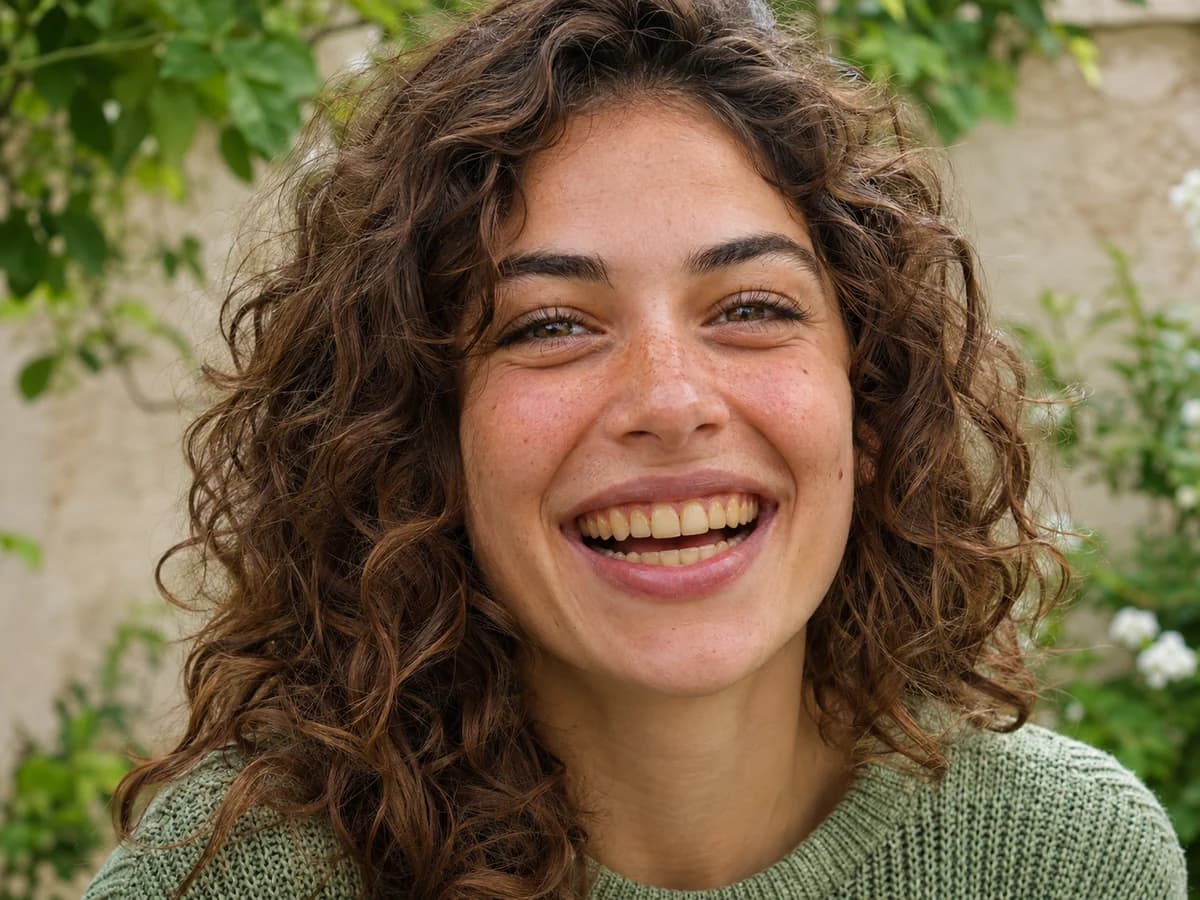
Natural Whitening Without Losing Your Smile
See how whitening looks up close, from the edges of your lips to the warmth of the original light.


Remove Yellow Stains Without Fake Over-Whitening
The teeth whitening photo editor softens coffee stains and yellow tones without turning every tooth the same shade of white. In the comparison, look for the shadows between teeth and the slight translucency at the edges.
Try it on your photo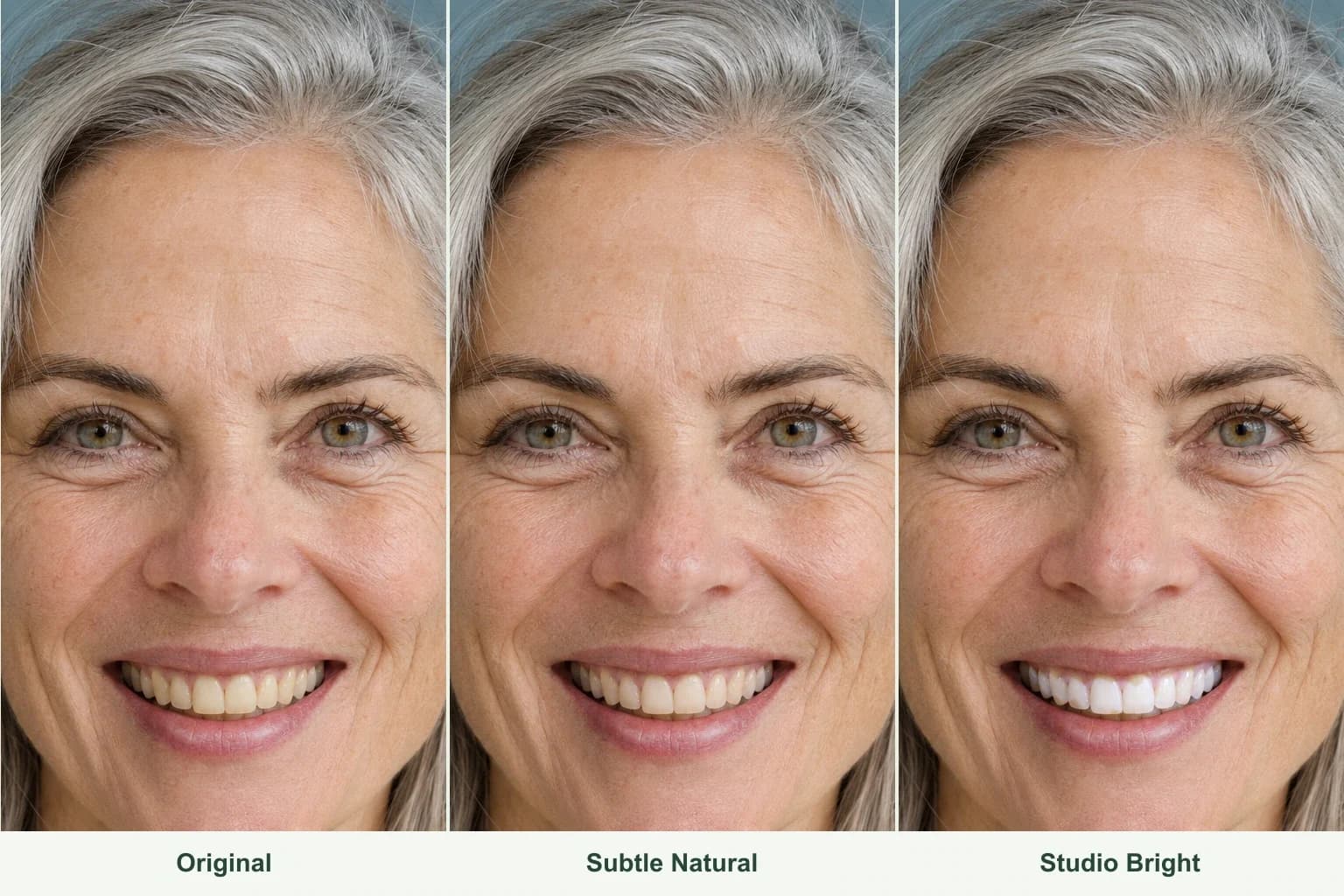
Adjustable Whitening Levels for Any Smile
Choose Subtle Natural for close-ups, Balanced Bright for everyday portraits, or Studio Bright for a crisp ivory finish. Start with the gentlest option that suits the light in your photo, then compare it with the original.
Try it on your photo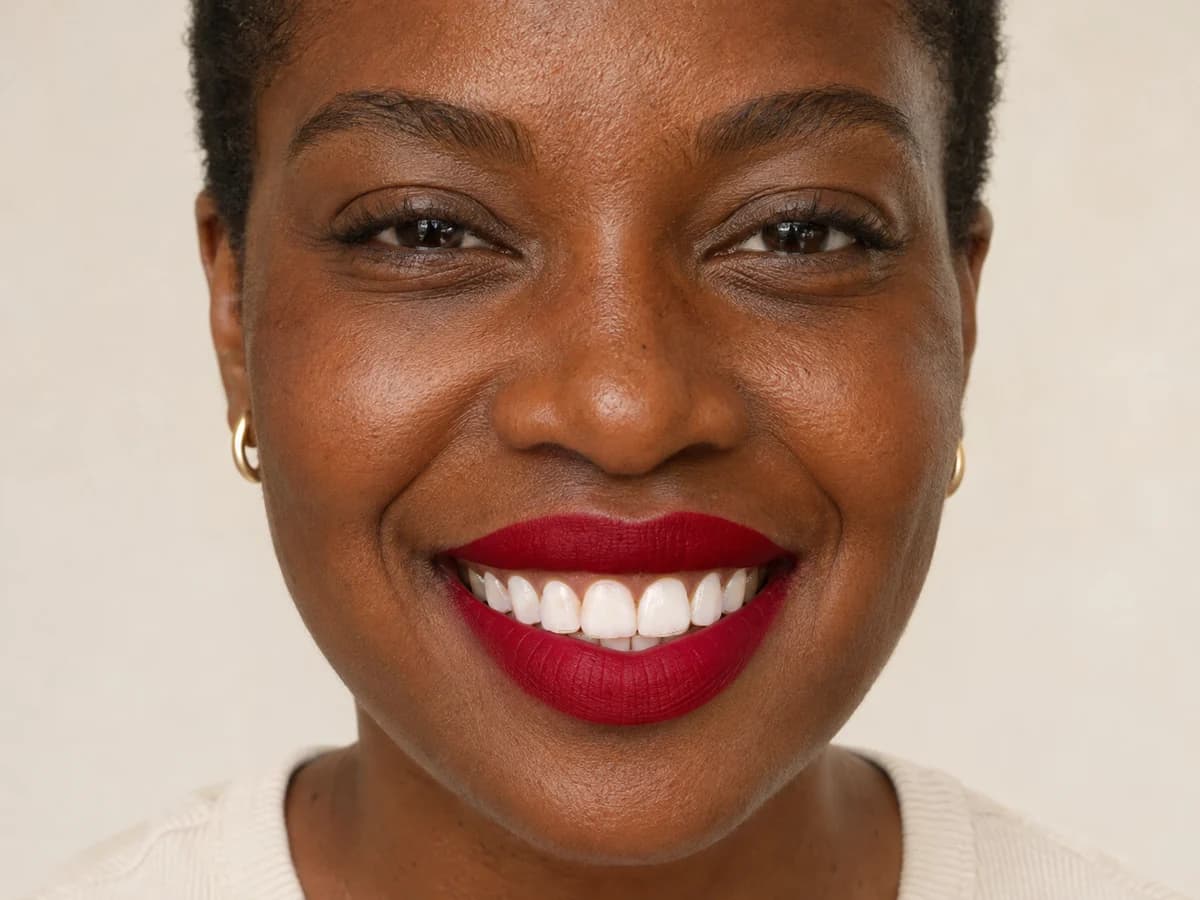
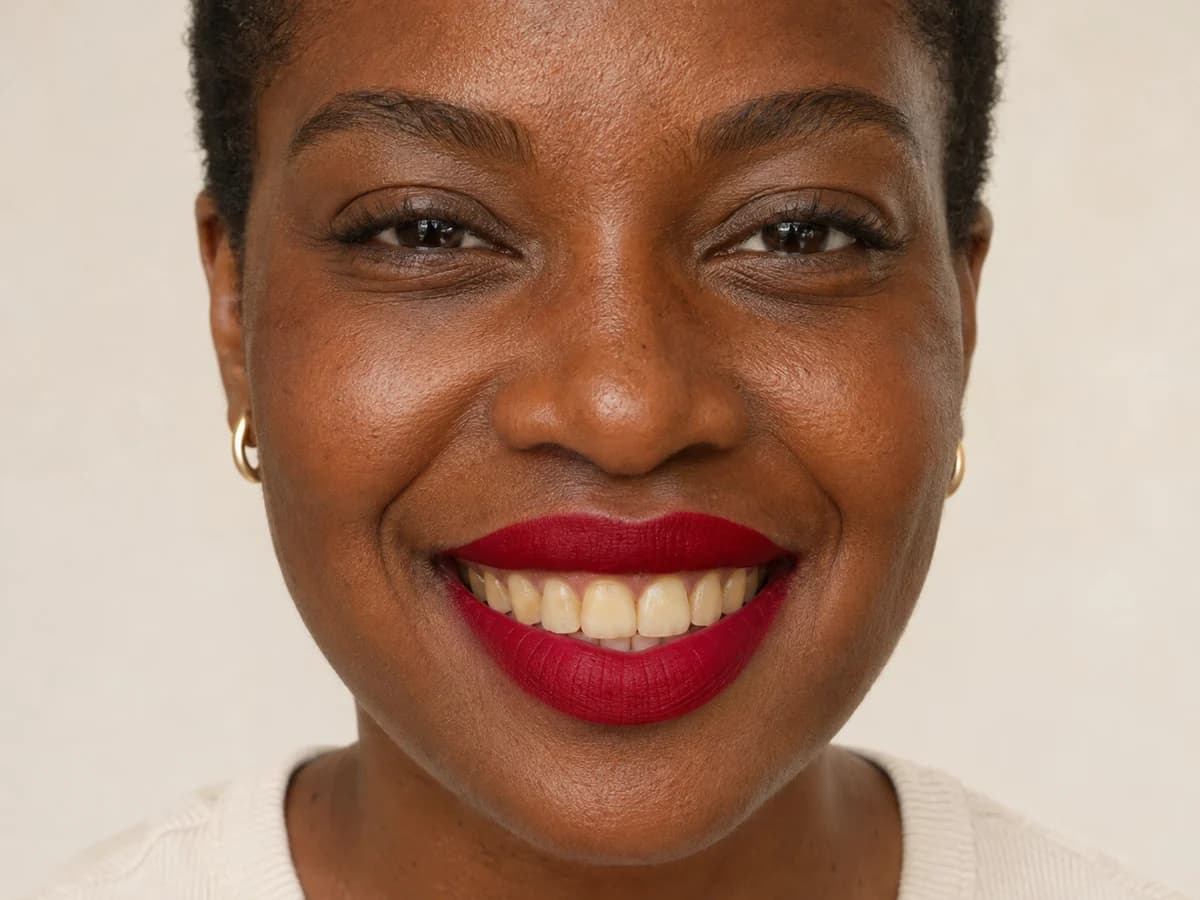
Protects Lip Color, Gums & Tooth Shape
Keep the preservation setting on to protect the original tooth shape, spacing, gum line, and lip color. Before saving, zoom in on the edges where lipstick or gums meet the enamel.
Try it on your photo

Matches Warm Outdoor, Flash & Studio Lighting
White looks different at sunset than under a softbox. The editor takes its cues from the light in your portrait, so outdoor warmth stays intact and flash photos keep their contrast.
Try it on your photo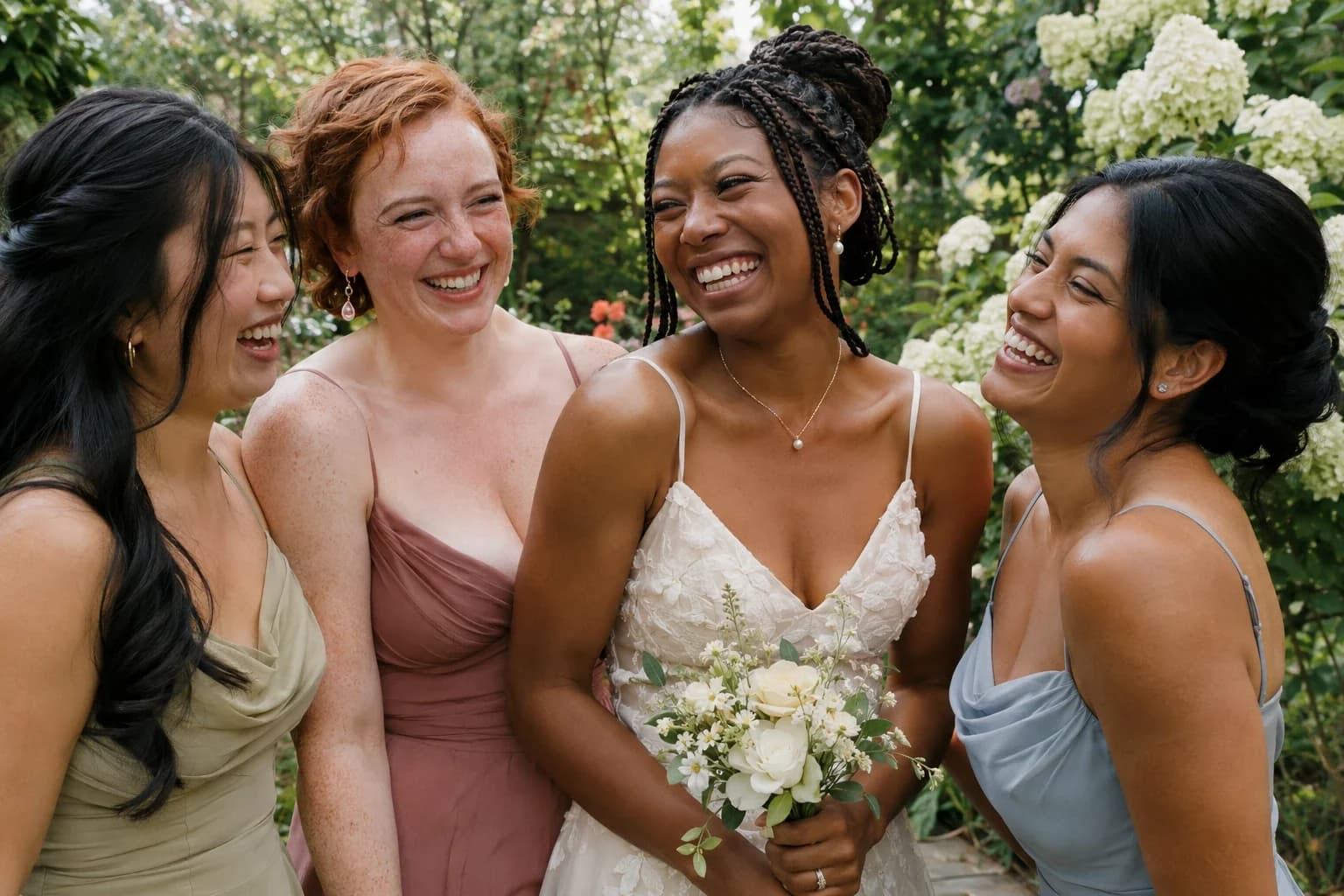
Works on Close-Up Selfies & Group Portraits
Close-up selfies show even a small shift in enamel tone. For group portraits, turn on Group photo to adjust each visible smile without giving everyone the same shade.
Try it on your photoHow to Whiten Teeth in Three Steps
- 01
Upload a clear smile
Drop in a sharp portrait with visible teeth, or pick a sample to try the controls.
- 02
Choose your strength
Pick Subtle Natural, Balanced Bright, or Studio Bright. Add an optional note if you want to fine-tune the result.
- 03
Compare and download
Drag the divider and zoom in to check the lips and enamel. Save a preview or unlock an HD download.
From Wedding Candids to Everyday Selfies
Weddings & Event Photography
Soften yellow tones in reception smiles without cooling the candlelight or losing the warmth of the room.
Professional Headshots & Dating Profiles
Brighten your smile just enough to look polished in a headshot or profile photo while keeping the expression that makes it yours.
Everyday Selfies & Travel Photos
Freshen up a sunny selfie without putting a filter over your whole face or washing out the colors around you.
Family & Group Portraits
Whiten teeth in photos with several faces by turning on Group photo. Start with a well-lit picture where everyone’s smile is clear.
Why Choose This Teeth Whitening Photo Editor?
Automatic tooth detection
The editor finds the visible enamel for you. No tracing, masking, or brushing by hand.
Three controlled strengths
Choose just enough lift for the way the picture was lit, rather than pushing every smile to the same white.
Nothing to install
Edit directly in your browser on iPhone, Android, or desktop. There’s no app to download.
Frequently Asked Questions
How to edit a photo to whiten teeth?
Upload a portrait to the AI teeth whitening photo editor and choose a strength. Select Whiten Teeth, then drag the slider across the result to see where the color changed.
Is there a free online teeth whitening photo editor?
Yes. You can try the teeth whitening photo editor online free with available credits. Sign in to download a watermarked preview; paid access unlocks downloads at the original resolution.
Can the iPhone photo editor whiten teeth?
For a targeted edit, open the web editor in Safari on your iPhone. It brightens the enamel instead of lifting the exposure across the whole photo.
How do you whiten yellow teeth in a photo without looking fake?
When you whiten yellow teeth in photo close-ups, a small change goes a long way. Start with Subtle Natural and use the slider to check that the enamel still has highlights, shadows, and a little warmth.
Will teeth whitening change my tooth shape, gums, or lipstick color?
With preservation on, the edit is meant to change enamel tone, not tooth shape, gums, or lip color. AI edits can vary, so check the gum line and lipstick edges at 100% Detail Zoom.
Can I whiten teeth in group photos or portraits with braces?
Yes. Turn on Group photo to treat every visible smile. Whitening targets enamel, not brackets or wires. To remove braces instead, use our Remove Braces from Photo tool.
What photo formats are supported, and are my portraits kept private?
Upload one JPG, PNG, or WebP up to 10 MB. Edits are public by default; paid access offers private mode. The Privacy Policy explains how uploads are processed.
A Brighter Smile, Still Yours
Try the free teeth whitening photo editor on a portrait you already love. Start subtle and keep the shade that feels right.